TABLE OF CONTENTS
- Introduction
- What's new
- How it works
- Set the maximum in the Desktop Client
- Start several transfers in the Desktop Client
- What you'll see in the Operations window
- Before you raise the maximum
- Set the maximum for the Autonomous Component
- Good to know
Introduction
The Autonomous Component (the SchedEx service that runs transfers on its own) and the Desktop Client can now run several transfers at the same time, so a batch of transfers finishes sooner. You choose the maximum, from 1 to 100: a tenant admin sets it for the Autonomous Component, and each Desktop Client user sets their own. At the default of 1, transfers still run one at a time.
One thing changes even at 1: if you start a transfer in the Desktop Client while another is running, it now waits and starts by itself, instead of showing an error.
What's new
Before, the Autonomous Component and the Desktop Client ran one transfer at a time. In the Desktop Client, starting a transfer while another was running showed an error.
Now, both run several transfers at the same time, up to the maximum you choose. If you start a transfer while the maximum number is already running, it waits and then starts by itself. This happens even at the default maximum of 1.
To see which transfers are running and which are waiting, use the Operations window in the Desktop Client (2.18.0.0 or later). It opens by itself when you start several transfers at once, or start one while others are running or waiting. To open it yourself, select the counts in the top-right corner of the Desktop Client, next to the Settings icon (the gear), for example 2 running · 1 waiting. The counts are only shown while there are transfers in the list. For the Autonomous Component, its Dashboard in the web app lists the waiting transfers in start order, with the reason each one waits.
How it works
A transfer waits to start while any of these is true:
- The maximum number of transfers is already running.
- Another transfer of the same Exchange Agreement is running.
- Another transfer uses the same schedule. For a virtual schedule (one that groups other schedules), that means any schedule it groups.
- The transfer's connector is busy with other work, such as a persist (a refresh of the connector's schedules).
- The planning system can run only one transfer, test or persist at a time. Today that is only Safran versions older than 8.2.
- An earlier download to Schedule Analytics on the same schedule is still being imported.
SchedEx checks these only among the transfers of the same Desktop Client, or the same Autonomous Component. Transfers running in another Desktop Client are not taken into account.
Waiting transfers start one at a time. Each one waits until the transfer ahead of it is confirmed to be running, but never longer than two minutes. Tests and persists do not count toward the maximum.
Set the maximum in the Desktop Client
Each Desktop Client user sets their own maximum. It is saved for your Windows user account.
- In the Desktop Client, select the Settings icon (the gear) in the top-right corner, next to the account icon.
- In Maximum parallel transfers, enter a number from 1 to 100.
- Select Save. The new maximum takes effect straight away.
To go back, set the maximum to 1 again. Lowering the maximum does not stop transfers that are already running — only new ones wait.
Start several transfers in the Desktop Client
- In the Transfer Center tab, select the check boxes of the transfers you want to run. They start in the order you ticked them.
- Select Upload or Download on any one of the selected transfers.
- Confirm when the Desktop Client asks, for example "Are you sure you want to execute 3 uploads?". Select OK.
The Operations window opens and lists the transfers.
What you'll see in the Operations window
The Operations window opens when you start several transfers at once, or start one while others are running or waiting. A single transfer started on its own still opens its own log window. To open the Operations window again, select the counts in the top-right corner of the Desktop Client, next to the Settings icon (the gear), for example 2 running · 1 waiting. The counts are only shown while there are transfers in the list.
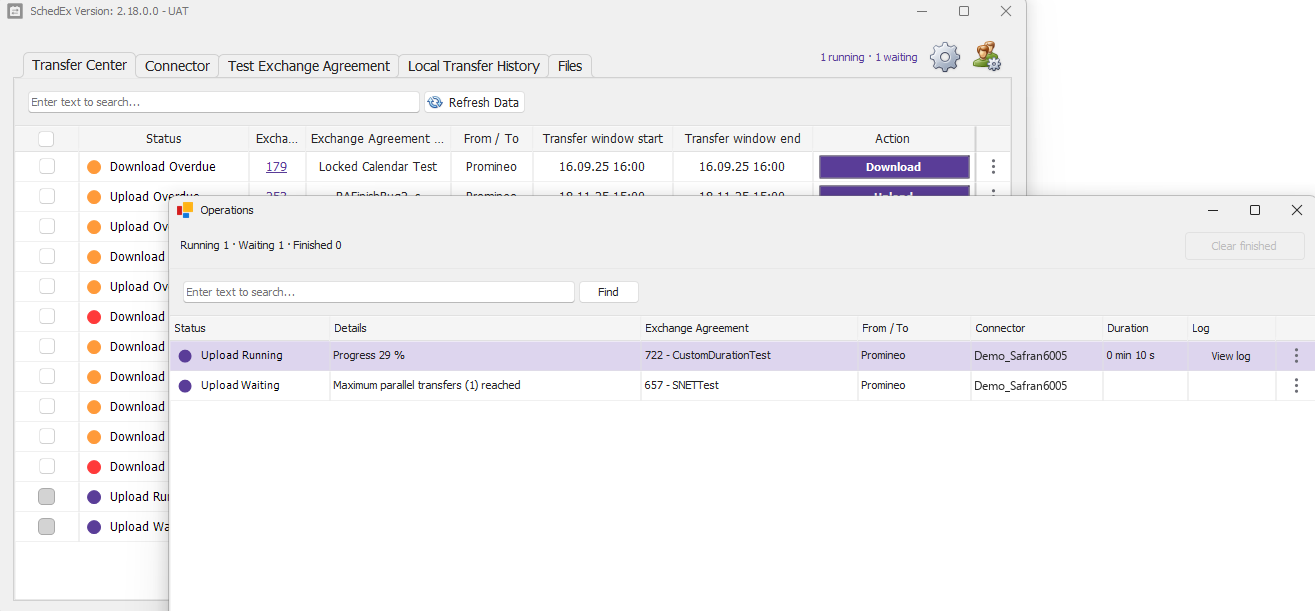
The Operations window with one transfer running and one waiting. The counts (1 running · 1 waiting) are in the top-right corner, next to the Settings icon.
- The Status column shows the state of each transfer, for example "Upload Running" or "Download Waiting".
- The Details column says why a transfer is waiting, how far it has got, or when it finished, for example "Maximum parallel transfers (3) reached". You do not need to do anything — the transfer starts by itself.
- View log opens the live log of a transfer. The More actions menu (⋮) on a row has more options. Remove from queue only takes a waiting transfer off this list; it stays pending in SchedEx, so you can start it again later.
Closing the Operations window does not stop any transfers. It only clears the finished ones from the list.
Before you raise the maximum
- Client versions: use the Desktop Client and Autonomous Component that come with SchedEx 2.18.0.0. Older versions keep running one transfer at a time.
- Memory: the more transfers run at once, and the more activities they carry, the more memory is needed. As a guide, 32 GB of memory handles transfers totaling 200,000 activities at the same time. Set the maximum so the transfers running together stay within that total — for example, a maximum of 2 for schedules of up to 100,000 activities each, or 4 for schedules of up to 50,000 each.
- Safran: if a connector's Safran version is older than 8.2, that connector's transfers run alone. The version is taken from the connector's last successful test, so test each Safran connector again after you upgrade Safran.
- Request limits: a very high maximum can make SchedEx refuse some requests because too many arrive at once, and those transfers fail. The limit counts every request from one network address, so Desktop Clients in the same office share it. If this happens often, lower the maximum or contact SchedEx support.
Set the maximum for the Autonomous Component
A tenant admin sets the maximum for the Autonomous Component in the web app. Your organization can register one Autonomous Component, and its maximum applies while it is active.
- In the web app, select Tenant Admin in the menu bar at the top.
- Go to the Clients section, then select the Autonomous Component card.
- Point at the component's row and select the Actions (⋮) button at the right end of the row.
- Select Edit.
- In Maximum parallel transfers, enter a whole number from 1 to 100.
- Select Save.
The Autonomous Component starts using the new maximum the next time it checks for transfers, by default every five minutes.
To follow its work, open the Dashboard from the same Actions menu. Waiting Transfers (Start Order) lists the waiting transfers and why each one waits, and a count such as "2 of 3 Running" shows how many run against the maximum. Waiting transfers start by themselves.
Good to know
- Schedule Analytics: after a download to Schedule Analytics, the next transfer on that schedule waits until Schedule Analytics has finished importing it. The Desktop Client shows "In progress in the host system" meanwhile. You do not need to do anything.
- Tests first: in the Desktop Client, while a test of an Exchange Agreement is waiting or running, that agreement's transfers wait for the test to end. If the test fails, they do not start. Start them again once the test passes.
- Skipping a running transfer: only tenant admins can skip an upload or download that is running. If you try to skip a download that is waiting while its upload is still running, SchedEx asks you to wait for the upload to finish first.
- Closing the Desktop Client: if transfers are running, the Desktop Client warns you before it closes, because closing stops them and marks them as failed. Waiting transfers do not start; they stay pending in SchedEx, so you can start them again next time.
Was this article helpful?
That’s Great!
Thank you for your feedback
Sorry! We couldn't be helpful
Thank you for your feedback
Feedback sent
We appreciate your effort and will try to fix the article