What this lets you do
Global search is one search box that finds your Exchange Agreements, Configs, Templates, Connectors and Terms from anywhere in SchedEx. Type a name to find a record, or type a number to jump straight to a record or a data transfer. Results are grouped by type so you can go to the right one in a single step, instead of opening each list and filtering it yourself.
TABLE OF CONTENTS
- Open search
- What to type
- What you can find, and which details are searched
- Open a result
- See all results on the search page
- Keyboard shortcuts
- Who can use it
- If you cannot find a record
Open search
Search is available on every page. You can open it in two ways:
- Select the search icon (the magnifying glass) in the menu bar at the top of the app.
- Or press Ctrl + K on Windows, or ⌘ K on Mac.
A search box opens in the middle of the screen. Start typing to see results right away — you do not need to press Enter. Press Esc, or select outside the box, to close it.
What to type
You can search in three ways:
- Type a name, or a word. Type at least two letters to find records by their name, or by a word inside them. Search matches any part of the text, so a short piece of text finds more.
- Type a number. A number finds a record or a data transfer by its ID — for example, a transfer number such as
691745. - Type a describing word. Some details are searchable too. For example, type weekly to find the Exchange Agreements that run every week.
SchedEx shows matching records as you type, grouped by type, with the part that matched highlighted. Each group shows a count, such as Connectors (23), so you can see at a glance where the matches are.
Select the All tab to see every type together, or select a single type, such as Templates, to narrow the list to that type only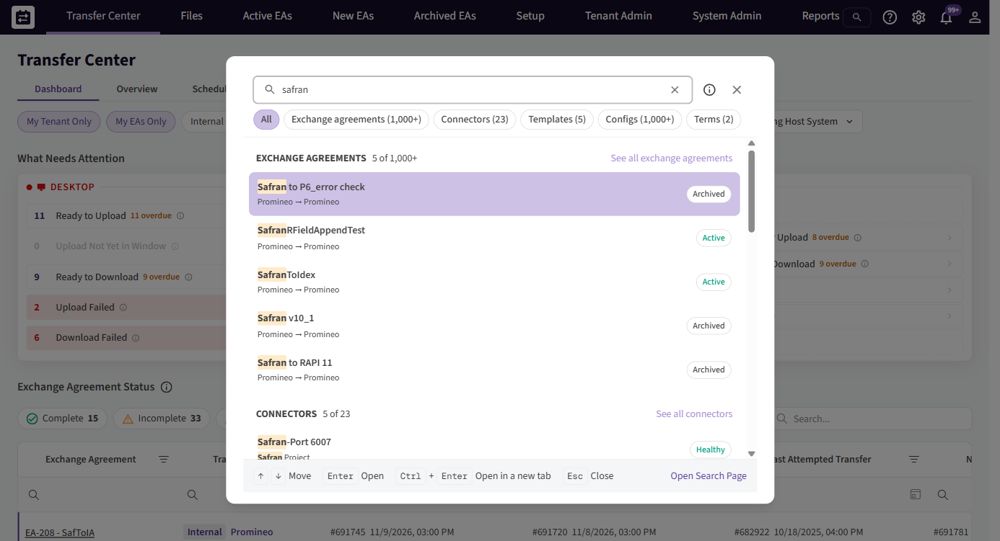
Results are grouped by type, each with a count.
.What you can find, and which details are searched
Search looks across six kinds of record at once. For each one, it matches more than just the name — it also matches the related details shown below. You can see this list at any time by selecting the information icon next to the search box.
| Record | You can find it by |
|---|---|
| Exchange Agreements | ID, title or frequency — and also by a tenant, connector, host system, schedule or Config that it uses |
| Data transfers | Transfer ID |
| Terms | ID, name, code or description |
| Connectors | ID, name, host system or execution component — and also by its base URL or folder |
| Templates | ID, title or description — and also by its owner tenant, or the name of a Term in it |
| Configs | ID, title or direction — and also by its Template, connector or host system |
The "What you can find" panel lists the searchable details for each record type.
This is what "search by related attributes" means: you can find an Exchange Agreement by the name of the Connector or host system it uses, or a Template by a Term inside it, without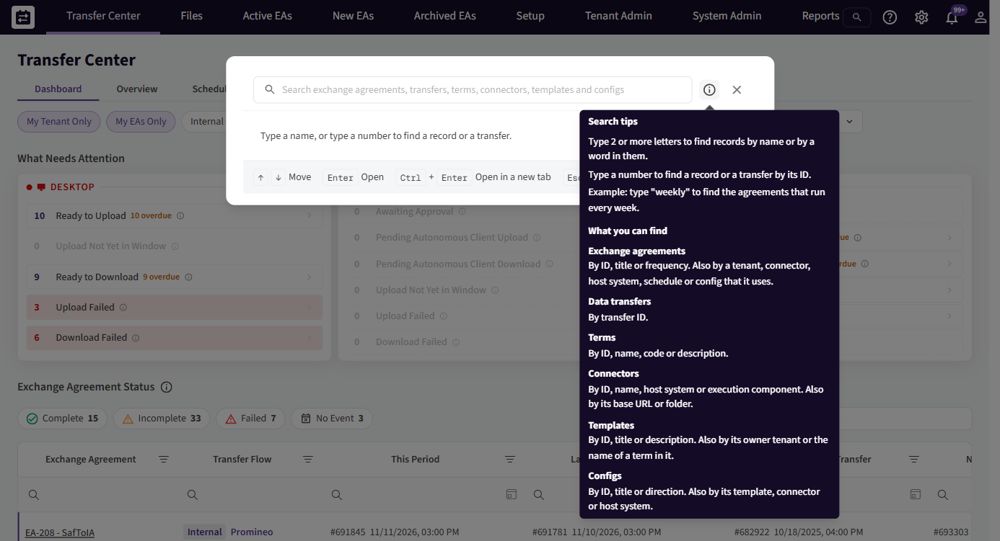 knowing the record's own name.
Open a result
Select a result to open it. You can also move through the list with the keyboard:
- ↑ and ↓ move between results.
- Enter opens the highlighted result.
- Ctrl + Enter opens it in a new browser tab, so your current page stays where it is.
See all results on the search page
Quick search shows the first few matches of each type. When there are more, select See all next to a group, or Open Search Page, to open the full search page. There you can see every match, keep the type filters, and work through a long list of results.
Keyboard shortcuts
| Key | What it does |
|---|---|
| Ctrl + K / ⌘ K | Open search from any page |
| ↑ / ↓ | Move between results |
| Enter | Open the highlighted result |
| Ctrl + Enter | Open the highlighted result in a new tab |
| Esc | Close search |
Who can use it
Everyone can use global search. It only shows records you already have access to, so two people may see different results for the same text. It does not give access to anything new — it is a faster way to reach the records you can already open.
If you cannot find a record
- Check the spelling, or type fewer letters. Search matches any part of a name, so a shorter piece of text finds more.
- Type at least two characters. One character is not enough to search.
- Give it a moment. A record you just created can take about a minute to appear in search while it is being indexed. Open it from its list in the meantime.
- Check your access. If a record belongs to another part of your organization and you do not have access to it, it will not appear.
Was this article helpful?
That’s Great!
Thank you for your feedback
Sorry! We couldn't be helpful
Thank you for your feedback
Feedback sent
We appreciate your effort and will try to fix the article