TABLE OF CONTENTS
- Introduction
- The two things that decide your access
- The four roles at a glance
- Your relationship to an Exchange Agreement
- Working with Exchange Agreements
- Building what agreements use (setup)
- Running transfers and handling files
- Dashboards and reports
- Administering a tenant
- Platform administration
- What any signed-in user can do
- A few things to know
- Related guides
Introduction
SchedEx decides what you can see and do from two things working together: your role, and your relationship to each Exchange Agreement. This guide explains both in plain terms, then walks through who can do what across the product — so you can tell at a glance what your account can do and who to ask when you need more.
The two things that decide your access
Every action in SchedEx is allowed only when both of these agree:
- Your role — one or more of Regular User, Setup Admin, Tenant Admin, System Admin. Your role gives you broad abilities (for example, "build connectors" or "manage users").
- Your relationship to the Exchange Agreement — whether you are a representative of one of its sides (or a contributor), and which side and direction you hold. This is what lets you act on a specific agreement.
That second part is why a Regular User can still sign, pause, run and view transfers — but only on the agreements they are a representative on.
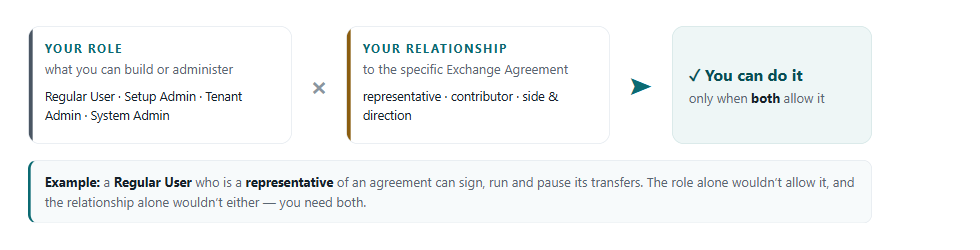
An action is allowed only when both your role and your relationship to the agreement permit it.
The four roles at a glance
| Role | What it is for |
|---|---|
| Regular User | The baseline every signed-in person has. On its own it does very little — your ability to act comes from the agreements you represent. |
| Setup Admin | Builds the content: connectors, templates, Configs — and creates Exchange Agreements. Works within their own organization (tenant). |
| Tenant Admin | Administers one organization: users, settings, clients, data retention and encryption keys — plus elevated rights over every agreement and transfer in that organization, and access to reports. |
| System Admin | Platform-wide: organizations, the global and host-system Terms, system settings, client-software releases, and the error-explanation catalog. |
Roles are not a ladder — they are not hierarchical. Each role grants only its own set of abilities. A higher-sounding role does not include the others: holding System Admin does not give you Tenant Admin or Setup Admin powers, and a Tenant Admin is not automatically a Setup Admin. Someone who needs several areas is simply given more than one role.
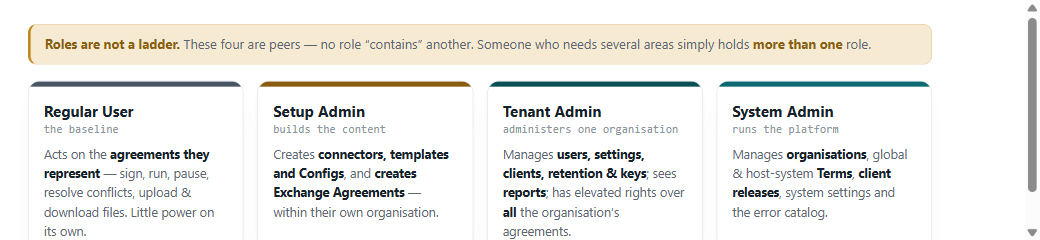
The four roles are peers, each with its own area — you combine them for broader reach, you don't climb them.
Your relationship to an Exchange Agreement
Alongside your role, your standing on a specific agreement decides what you can do with it:
- Representative — a person named responsible on one side (owner or partner) of an agreement. Representatives can sign their side, pause/resume, run transfers, resolve conflicts, and upload/download files for that agreement.
- Contributor — someone from a different organization added to a same-organization agreement with a Send, Receive, or Both direction. See Contributor tenant.
- Sender / Receiver — the side and direction that governs who may run an upload versus a download.
- Tenant Admin elevation — a Tenant Admin is automatically treated as having representative-level authority over every agreement in their organization, even without being named on it.
Working with Exchange Agreements
| Task | Who can do it |
|---|---|
| Create or duplicate an Exchange Agreement | Setup Admin (the creator's organization becomes the owner) |
| View an agreement, its event log and mappings | A representative of it; any Tenant Admin or System Admin in its organization |
| Edit an agreement | A representative of the side being edited; Tenant Admin (a joint edit needs both the owner and partner sides) |
| Sign your side | A representative of that side; Tenant Admin (the owner signing activates the agreement) |
| Pause / resume transfers | A representative of either side; Tenant Admin |
| Archive / delete | The owner-side representative, or the owner organization's Tenant Admin |
| Manage contributors (same-organization agreements) | A representative; Tenant Admin |
| Accept a template "update available" on the agreement | A Tenant Admin who is also a representative on that agreement |
Building what agreements use (setup)
Most "building" is Setup Admin work, within your own organization.
| Task | Who can do it |
|---|---|
| Connectors — create / edit / delete / status | Setup Admin |
| Schedules and Excel / XER / MPP templates on file connectors | Setup Admin |
| Virtual schedules (Safran grouped schedules) | Setup Admin |
| Templates — create / copy / edit / share / delete | Setup Admin in the owning organization (an organization a template is shared to gets read-only access — it can base Configs on it but not edit, share or delete it) |
| Configs — create / copy / edit / publish / delete, accept template updates | Setup Admin |
| Test a connector (run the connection test) | Any user in the organization |
| Terms — create / edit / delete your organization's terms, subscribe to global terms, content control | Tenant Admin |
| Terms — global and host-system terms, and syncing them | System Admin |
| View the term dictionary; create and use mapping formulas | Any user |
Running transfers and handling files
Running a transfer and moving files is governed per agreement — so a Regular User who is a representative can do most of it on their own agreements.
| Task | Who can do it |
|---|---|
| Run an upload / download | The responsible-side representative; Tenant Admin (or the Autonomous Component, for unattended runs) |
| Approve / upload immediately | The responsible-side representative; Tenant Admin |
| Skip a transfer | The responsible-side representative — but a transfer that is already running can only be skipped by a Tenant Admin |
| Reset / retry a running download | Tenant Admin |
| Resolve a conflict | Any representative on the responsible side (a Regular User can do this on their agreements) |
| Upload a source file | The sender-side representative; Tenant Admin |
| Download a source or received file | A representative of either side; Tenant Admin (who can see all their organization's files) |
| Delete a source file | Tenant Admin only (on the sender side) — a plain representative cannot |
| View the files list and download logs | Representatives; Tenant Admin |
| File-retention settings | Tenant Admin |
| View transfer history / logs / errors | Representatives; Tenant Admin; System Admin (within their organization) |
See Support logs for who can send a transfer's logs to the support team, and Managing files for the Files module.
Dashboards and reports
| What | Who sees it |
|---|---|
| Transfer Center | Everyone — but scoped: a Regular User / Setup Admin sees only the transfers of agreements they represent; a Tenant Admin sees the whole organization; a System Admin sees all organizations. (Optional toggles: My EAs Only and, for System Admins, My Tenant Only.) |
| Reports (every report) | Tenant Admin (their own organization) or System Admin (all organizations). A Regular User and a Setup-Admin-only user see no reports. |
| Role "home" dashboards | The Setup Admin, Tenant Admin and System Admin each have their own home/overview page for their area. |
| Autonomous Component Dashboard | Tenant Admin. |
See SchedEx reports and Reading the Autonomous Component Dashboard.
Administering a tenant
These are Tenant Admin jobs, for your own organization. (A System Admin can also do the people-management ones across organizations.)
| Task | Who can do it |
|---|---|
| Users — view the list, change roles, enable / disable | Tenant Admin (own organization); System Admin (all). A Tenant Admin cannot grant System Admin, edit a System Admin user, or touch another organization's users. |
| Tenant settings — name / contact, where files are stored, data-retention policy, notification/retention days | Tenant Admin |
| Encryption keys — generate keypair, check key status | Tenant Admin |
| Clients & service tokens — the Autonomous Component and Analytics client (create / edit / delete / tokens) | Tenant Admin (own organization); a System Admin gets read-only visibility across organizations |
| Download released client installers (Installation Center) | Tenant Admin (released builds) |
| See installed client versions and counts | Tenant Admin (own organization); System Admin (all) |
Platform administration
These are System Admin jobs, across the whole platform.
| Task |
|---|
| Organizations — create / delete / owner status |
| Global and host-system Terms, system-level content control, and term sync |
| Publish and distribute client software (Deployment Center) — Desktop client, Autonomous Component, Analytics client |
| System-wide notification defaults and the error-explanation catalog (editing) |
| Internal clients and client-version compatibility rules |
What any signed-in user can do
Regardless of role, every signed-in user can:
- View their own profile and in-app notifications, and set their notification preferences.
- View the term dictionary and create / use mapping formulas.
- Test a connector.
- See the simplified organization list (used when choosing a partner for an agreement).
A few things to know
- Roles are not hierarchical. They are independent sets of abilities, not levels — see The four roles at a glance. Broad reach comes from holding more than one role, not from one role "including" the others.
- The first user of a new organization becomes its Tenant Admin automatically. That person can then set up the organization and assign roles to everyone who follows.
- New users appear automatically the first time they sign in — there is no separate "invite" step. A Tenant Admin then assigns their role.
- A Tenant Admin controls roles within their own organization, but with limits: they can grant Regular User, Setup Admin or Tenant Admin, and enable or disable users — but they cannot grant System Admin, cannot change a System Admin user, and cannot touch users in another organization. Only a System Admin can grant System Admin.
- You can't change your own role. Ask a Tenant Admin (within your organization) or a System Admin.
- One account per organization. If you belong to two organizations you have a separate account in each; there is no "switch organization" button — you sign in against each one.
- Who to ask: a Tenant Admin for extra access within your organization; a System Admin for platform-level things and new organizations.
Related guides
- Contributor tenant — adding a third-party organization to an agreement as a Send/Receive contributor.
- Support logs — who can send logs to the support team.
- SchedEx reports — who can view reports and what they show.
- Glossary — shared SchedEx terms.
Was this article helpful?
That’s Great!
Thank you for your feedback
Sorry! We couldn't be helpful
Thank you for your feedback
Feedback sent
We appreciate your effort and will try to fix the article