Transfer a Primavera P6 schedule as an XER file
This guide shows you how to exchange a Primavera P6 schedule with a partner as an XER file (.xer) through SchedEx. You export the schedule from P6 as a .xer file, drop it into SchedEx, and the next Data Transfer sends it to the receiving organization. On the other side, the receiver downloads a .xer file that SchedEx produced.
XER is a file-based host system that works through Web storage (a drop point inside SchedEx). It supports both directions: your organization can send a .xer file, and it can receive one.
This guide explains each SchedEx term the first time it appears. If drag-and-drop or the Files page is new to you, read the File-based drop point hub first — this guide links to it instead of repeating the basics.
Contents
- What this lets you do
- Set up the XER connector with Web storage
- Persist first: the schedule and its fields
- Create a schedule for the XER connector
- Drop the .xer file (the sender side)
- Validation and avoiding common errors
- When the transfer runs (frequency)
- Download the produced .xer file (the receiver side)
- Replace and delete a file
- Constraints
- Permissions
- Summary: steps to set up, upload, and download
- Related guides
1. What this lets you do
An XER file is Oracle Primavera P6's native exchange format. When you ask P6 to export a project, P6 writes a single .xer file that holds the whole schedule: activities, relationships, resources, resource assignments, calendars, the work breakdown structure (WBS), activity codes and user-defined fields.
With the XER host system you can:
- Send a P6 schedule to a partner. You export the project from P6 as a
.xerfile, drop the file into SchedEx, and the next Data Transfer carries it to the receiving organization. - Receive a P6 schedule from a partner. SchedEx builds a
.xerfile from the transferred data and places it in Web storage, where you download it and import it back into P6.
A Data Transfer is one unit of work that moves data from the sending side to the receiving side. It has an Upload part on the sender and a Download part on the receiver. An Exchange Agreement (also called an Inter-Exchange Agreement, or IEA) is the contract between your organization and the partner that says which data moves, in which direction, and how often.
XER always uses Web storage on the SchedEx platform — file storage inside SchedEx itself, reached through the Upload Files tab. (Primavera P6 can also connect through its REST API or Web Services; those are separate host systems and are not covered here. This guide is only about the .xer file path.)
2. Set up the XER connector with Web storage
A connector is the configured link between SchedEx and one of your systems — in this case, a P6 XER File connector. A Setup Admin creates it once; after that, the people who send and receive files use it without touching this setup.
To create the connector, open Setup then Connectors, add a connector, and choose the host system Primavera P6 XER File. Then:
- Choose the storage mode. For a drop point on the SchedEx platform, choose Web storage. Web storage is the mode this guide covers — it is what lets you and your partner drop and download files through the Files page. (The connector can also read from a local folder or from SharePoint, but those modes are for files that already live on your own systems, not for the SchedEx drop point.)
- Set the optional "XER File Name" field (see below).
- Save the connector. SchedEx tests it as part of saving.
The "XER File Name" field
The connector has one XER-specific setting you should understand:
XER File Name — Specify a specific XER file name to use. If left empty, all XER files in the storage location will be available.
Use it like this:
| What you want | What to do | Effect |
|---|---|---|
Pin one file. The connector should always work with a single, known .xer file. | Type the file name, for example PROJ-1042.xer. | The connector treats that one file as authoritative. Every schedule on the connector resolves to this file. |
Allow many files. Several .xer files can live in the drop point, each a separate schedule. | Leave it empty. | SchedEx discovers every .xer file in the storage location and offers each one as its own schedule. This is multi-file discovery. |
Leave XER File Name empty when one connector serves several different P6 projects — each project drops its own .xer file and SchedEx keeps them apart by file name. Pin a name only when the connector is dedicated to one project and you want SchedEx to ignore anything else in the location.
3. Persist first: the schedule and its fields
Before you can build a Config or run a transfer, the XER connector must be persisted — and persist needs a representative .xer file to read. This is the key dependency: everything downstream (the schedule, the fields you map, the Config, the Exchange Agreement) rests on it.
Persist is schema-only. It reads a .xer file and stores the schedule and its user-defined
fields (UDFs / code set) — it does not store the activity data or the file itself. The persisted file defines which fields you can map; the actual data you send comes from the .xer you drop into the Exchange Agreement at transfer time.
Uploading a .xer in the connector's Persisted Data tab is how a schedule is created and how its fields become available to map. On the connector, open the Details tab, go to Persisted Data, and use its Upload button to upload a representative .xer. On success
SchedEx shows:
Your XER file has been uploaded — a new schedule with N fields is ready.
The Persist summary then shows the connector's Schedules count — the number of schedules SchedEx now holds for this connector — so you can confirm the schedule was created.
| Persist stores | Persist does not store |
|---|---|
| The schedule (its identity). | The activity data inside the file. |
| The user-defined fields (UDFs / code set) you will map. | The .xer file itself. |
So the data does not need to be in the persisted file — but the UDFs / code set must be. Upload a
.xerthat carries every field you intend to map, even if its rows are only representative. Fields that are not in the persisted file cannot be mapped later.
4. Create a schedule for the XER connector
A schedule is the named project schedule inside a connector. For XER, the schedule's identity is the file name. This is the one rule to learn first, because it is how a dropped file finds its place.
SchedEx does not read the project name from inside the .xer file to match it. It matches on the file name. So the schedule and the file name must agree.
You create the schedule manually and name it yourself:
- On the XER connector, add a schedule.
- Give the schedule a name that is the
.xerfile name without the.xerextension.- File
PROJ-1042.xer→ schedule namedPROJ-1042. - File
North Yard Rev B.xer→ schedule namedNorth Yard Rev B.
- File
- Save.
Because the match is on the name, the schedule name must match the .xer file name (without the extension) so that a dropped file lands on the right schedule. If the names do not agree, the drop is refused — see Validation and avoiding common errors.
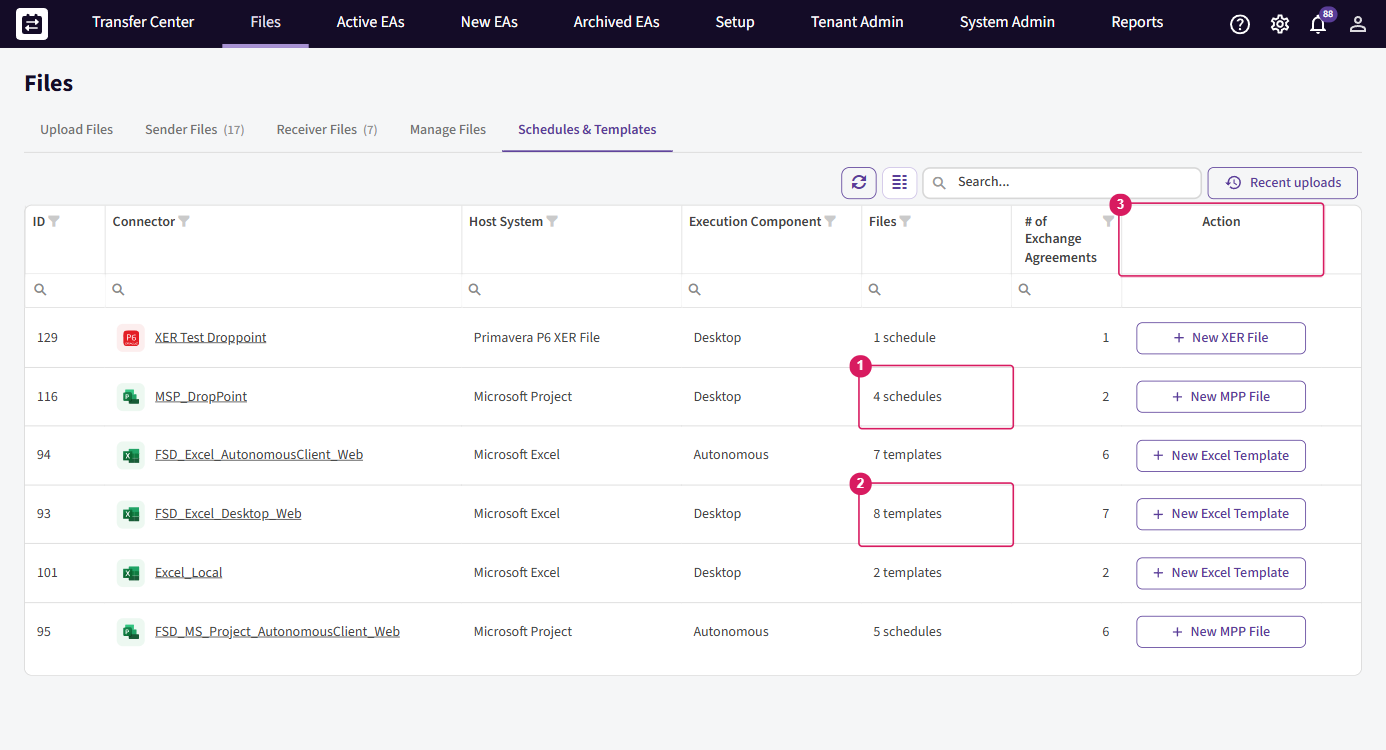
The screenshot below shows the Files page, the Schedules & Templates tab, with a sample XER connector named "XER Test Droppoint" and the schedule configured on it.
Renaming a
.xerfile in storage, or renaming the schedule, changes the identity and breaks the match. Keep the two in step.
5. Drop the .xer file (the sender side)
Once the connector and schedule exist and an Exchange Agreement uses them, the sending side stages the file on the Upload Files tab of the Files page.
- Export from P6. In Primavera P6, export the project as an XER file. A valid P6 export always produces a
.xerfile. - Name the file to match the schedule. The file name before
.xermust be the schedule name. See Create a schedule. - Drop the file. Open Files, stay on Upload Files, and drag the
.xerfile onto the tab, or use the Upload File button. The full drag-and-drop behaviour is described in the File-based drop point hub; it works the same for XER. - Review and send. SchedEx matches the file name to the schedules you can send to and lists the Exchange Agreements the file reaches. Confirm to upload.
Only .xer files are accepted for XER. Any other extension is refused before the upload starts.
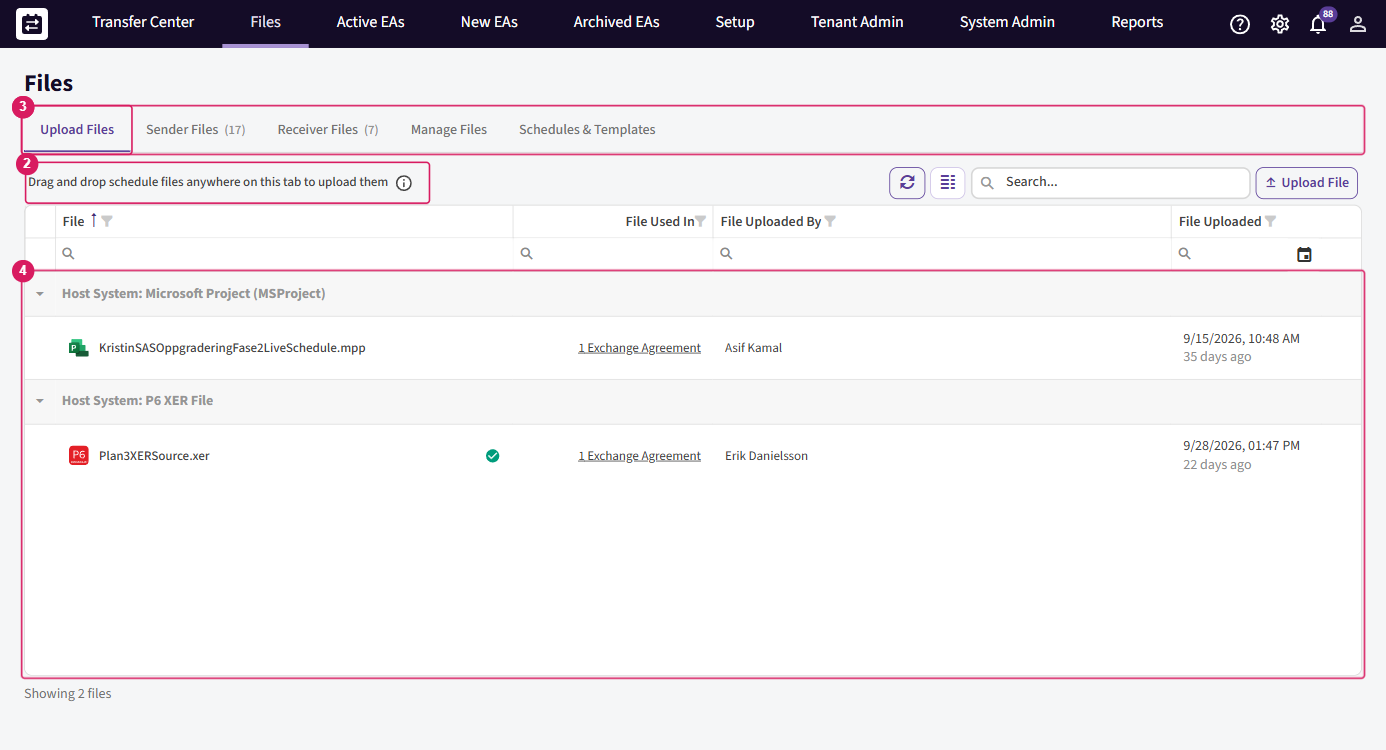
The screenshot below shows the Upload Files tab with a .xer file listed under the host system P6 XER File.
6. Validation and avoiding common errors
After you drop a file, SchedEx checks it before it stores it. XER files go through two kinds of check: is it a real XER file, and does its name match the selected schedule.
What the ERMHDR check means
Every genuine Primavera P6 export begins with a header marker called ERMHDR on its very first line. ERMHDR carries the format version and the export date. SchedEx reads this marker to confirm the file is a real P6 export and not an empty file, a renamed spreadsheet, or a truncated download. If the marker is missing, the file is not a usable XER file — re-export it from P6.
Avoiding common errors
| Error message | What it means | How to avoid it |
|---|---|---|
| Only .xer files are supported for XER source uploads. | You dropped a file whose extension is not .xer (for example a .xml or .zip export). | Export the project from P6 specifically as an XER file, so the file ends in .xer. |
| Invalid XER file. File content is empty. | The file has no content at all. | Re-export from P6. Check the export actually completed and the file is not a zero-byte placeholder before you drop it. |
| Invalid XER file. Missing ERMHDR header marker. | The file does not begin with the ERMHDR line, so it is not a genuine P6 export. | Export again from P6 as an XER file. Do not rename another file type to .xer, and do not edit or trim the top of the file. |
| The uploaded file '{fileName}' does not match the schedule selected for this IEA ('{scheduleId}.xer'). Upload the matching .xer or update the IEA's schedule. | The file name does not match the schedule the Exchange Agreement points at. | Rename your file to the name shown in the message (the schedule name plus .xer), or ask a Setup Admin to point the agreement at the schedule your file belongs to. |
The name match ignores upper and lower case, but everything else must agree, including spaces. An added word, a date or a version number in the file name makes it a different name and the drop is refused.
7. When the transfer runs (frequency)
Dropping a file does not, by itself, always send it immediately — what happens next depends on the frequency set on the Exchange Agreement:
- On File Upload. The upload you just did starts a Data Transfer right away. This is the usual choice for a drop point: you drop the file, the transfer runs.
- Scheduled or manual. The file waits in Web storage until the next planned transfer time, or until someone starts the transfer by hand. The transfer then sends whatever file the schedule holds at that moment — so if you replace the file before it runs, the newer file is sent.
Frequency is a property of the Exchange Agreement, not of the XER connector. The File-based drop point hub explains the frequency choices and how one upload can start transfers across several agreements that share the schedule.
8. Download the produced .xer file (the receiver side)
XER works in both directions, so the same format is used on the receiving side.
When your organization is the receiving side of an Exchange Agreement whose destination is an XER connector in Web storage, each Data Transfer produces a .xer file. SchedEx builds the file from the transferred schedule data and places it in the drop point for you to collect.
Because XER supports both directions, this is a two-file pattern: the file the receiver downloads is a generated .xer that SchedEx produces from the transferred data — it is not your original uploaded file. You download that generated file from Files → Receiver Files,
ready to import into Primavera P6.
To collect it:
- Open Files.
- Go to the Receiver Files tab.
- Find the file for your Exchange Agreement and download it.
- Import the downloaded
.xerfile into Primavera P6.
So the full round takes two steps on two sides: the sender drops the .xer file on Upload
Files, the transfer runs, and the receiver picks up the produced .xer file on Receiver
Files. Sending and receiving are separate roles on the agreement; your organization can be on
either side, or on both for different agreements.
9. Replace and delete a file
To replace a file, drop a new file with the same name again. SchedEx keeps one file per schedule, so the new file takes the place of the old one for every Exchange Agreement that sends from that schedule. There is no version history of the file content.
To delete a file, use the row menu on the Upload Files tab and choose Delete file. A delete removes the stored file for the whole schedule and clears it from every agreement that shared it; Data Transfer uploads then fail for those agreements until a new file is dropped. Only a Tenant Admin or System Admin of the sending organization can delete.
Replacing and deleting behave the same for XER as for every other file-based host system. The File-based drop point hub covers the shared-schedule warning, what happens when a transfer is already running or waiting, and retention.
10. Constraints
Keep these XER-specific limits in mind:
- Extension. Only
.xerfiles are accepted. Any other extension is refused before the upload starts. - A valid P6 export. The file must begin with the
ERMHDRmarker and must not be empty. See Validation. - Name must match the schedule. The file name without
.xermust equal the schedule name. - One project per file. The connector reads a single P6 project from each
.xerfile. Multi-project.xerfiles are not supported; only the first project is read. - XER format version. The connector targets the current Primavera P6 XER format. Very old P5 or early-Primavera files may be refused at validation. Re-export from a current P6 if that happens.
- File size. As with any dropped schedule file, one file can be up to 100 MB. A larger file is refused with: The uploaded file is too large. The maximum file size is 100 MB.
11. Permissions
Who can do what with an XER file follows the same rules as every drop-point file:
| Action | Who can do it |
|---|---|
Drop or replace a .xer file (sender side) | A representative of the sending side, a Tenant Admin or System Admin of the sending organization, or a contributor with the Send role. |
Download the produced .xer file (receiver side) | A representative of either side, a Tenant Admin or System Admin of either organization, or a contributor with the Receive role. |
Delete a .xer file | Only a Tenant Admin or System Admin, and only on the sending side. |
| Create the XER connector and its schedule | A Setup Admin. |
A representative is a person named as responsible for one side of one Exchange Agreement. A contributor is a person or organization added to an agreement with a Send role, a Receive role, or both — contributors apply when the owner and the partner are the same organization. See the Contributor guide for how Send and Receive roles work.
An Exchange Agreement appears on the Upload Files tab only when your organization is the sending side, the agreement is active and not paused, the sender uses Web storage, and you have permission to upload to it.
12. Summary: steps to set up, upload, and download
Once you understand the pieces, the whole round is a short checklist.
Set up and create
- Create a Primavera P6 XER connector with Web storage. Optionally set the XER File
Name to pin one file, or leave it blank to allow all
.xerfiles in the location. - Open Persisted Data → Upload and upload a representative .xer. This creates the schedule and its fields (schema-only — see Persist first).
- Build a Config that maps those fields.
- Add the Config to an Exchange Agreement.
Upload / send
- In Files → Upload Files, drop the actual .xer (the file name is the schedule ID).
- With On File Upload frequency the transfer runs immediately; otherwise it runs on schedule or when you run it by hand (see When the transfer runs).
Download / receive
- The receiving side downloads the produced .xer from Files → Receiver Files, ready to import into Primavera P6.
13. Related guides
- File-based drop point hub — drag-and-drop, the Files page, shared schedules, frequency, replace and delete, retention. Start here for the basics.
- Contributor guide — how Send and Receive roles let a contributor organization drop and download files.
- Glossary — shared definitions of Tenant, Exchange Agreement, Schedule, Config, Web storage and the other terms used above.
Was this article helpful?
That’s Great!
Thank you for your feedback
Sorry! We couldn't be helpful
Thank you for your feedback
Feedback sent
We appreciate your effort and will try to fix the article