TABLE OF CONTENTS
- Introduction
- What the Transfer Center shows
- Transfer status values
- Running a transfer
- Approving an upload
- Send now (upload immediately)
- Skipping a scheduled transfer
- Retrying a failed transfer
- Downloading a successful transfer again
- Resolving a conflict
- Who can do what
- Related guides
Introduction
The Transfer Center is where you watch and act on the transfers of the Exchange Agreements (EAs) you are responsible for. Every scheduled run, every on-demand run, and every completed run shows up here with its current status — and the actions you need (approve, send now, skip, retry, download again, resolve a conflict) are a click away on each row.
This guide explains:
- what the Transfer Center shows and how it is scoped to you,
- what each transfer status means,
- the actions you can take on a transfer — and who is allowed to take them.
This guide covers the actions a planner or representative uses day to day. For how transfers are set up (direction, schedule, filters, validations) see Creating / Editing Exchange agreements, and for how an unattended component runs them for you see Controlling transfers for the Autonomous Component.
What the Transfer Center shows
The Transfer Center lists transfers grouped by where they are in their life:
- Scheduled / upcoming — transfers that will run at their next scheduled time (or when their predecessor finishes).
- On-demand — transfers you trigger yourself rather than on a schedule.
- Performed / history — transfers that have already run, with their outcome.
What you see is scoped to you. A Regular User or Setup Admin sees only the transfers of the agreements they represent; a Tenant Admin sees every transfer in their organization; a System Admin sees all organizations. Optional toggles narrow it further — My EAs only, and (for System Admins) My Tenant only.
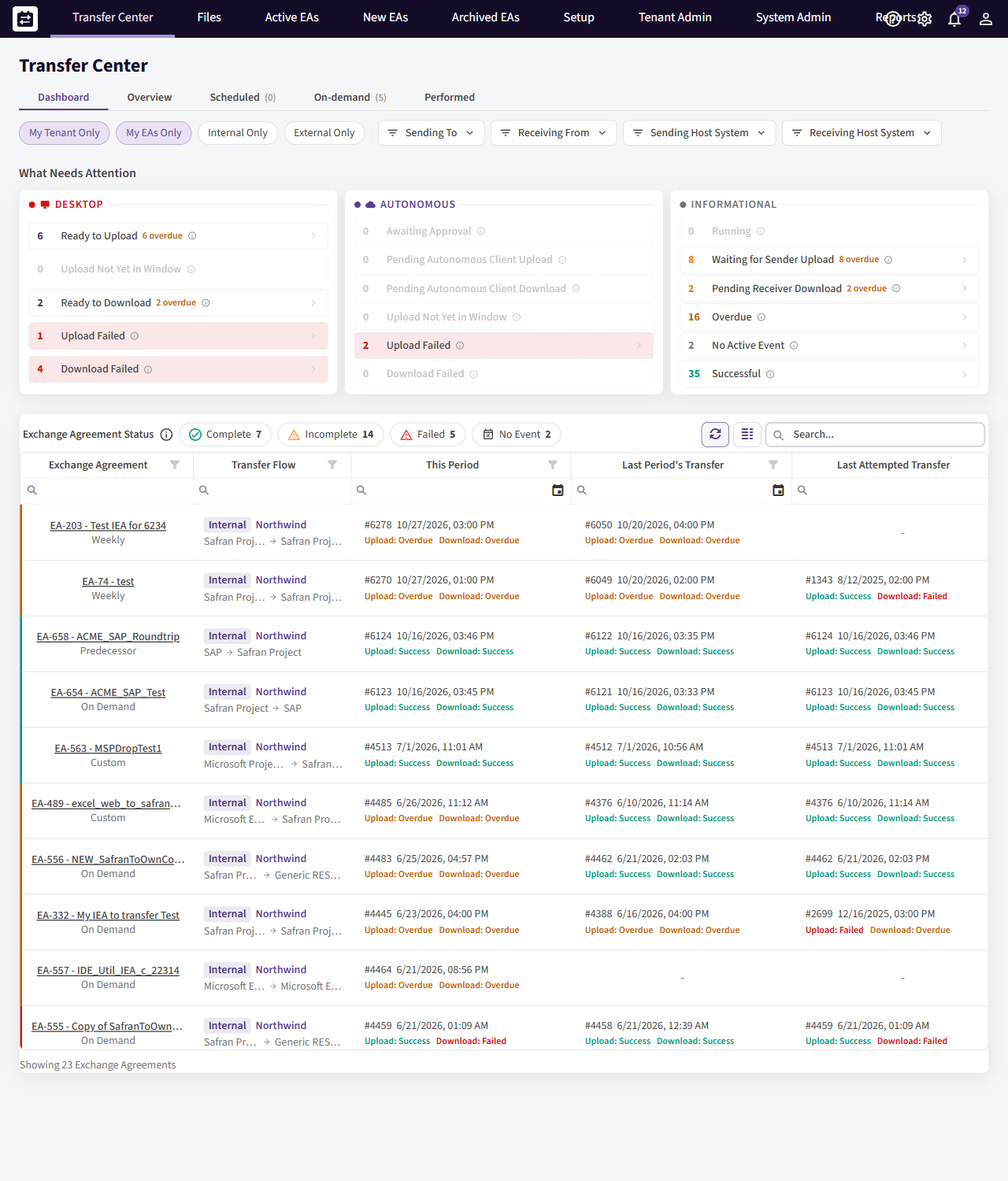
The Transfer Center: status summary across Desktop, Autonomous and Informational, with the Exchange Agreement grid below.
Transfer status values
Each transfer shows one status at a time. The ones you will see most:
| Status | Meaning |
|---|---|
| Pending | Scheduled and waiting for its run time (or for approval, if the upload needs it). |
| Running | Actively exporting, mapping and transferring right now. |
| Succeeded | Completed — the data moved and was accepted at the other end. |
| Failed | Did not complete — a validation stopped it, it was canceled, or an error occurred. |
| Failed with conflict | Failed specifically because incoming data clashed with what is already there, and the clash was not resolved. See Resolving a conflict. |
| Overdue | Its scheduled time has passed and it has not run yet. |
| Skipped | Deliberately skipped — it will not run. |
Running a transfer
A scheduled transfer runs on its own at the configured time — you don't need to do anything. An on-demand transfer runs when you trigger it from its row in the Transfer Center. In both cases the executing component (the desktop client, or the Autonomous Component for unattended runs) does the actual work; the Transfer Center is where you start it and watch it move Pending → Running → Succeeded / Failed.
Running a transfer is allowed for a representative of the responsible side (the side doing the upload or the download) and for a Tenant Admin.
Approving an upload
Some uploads wait for an explicit approval before they run — this is a safety gate so a person confirms the data is ready to leave the organization. A waiting upload shows as Pending and offers an Approve action. Once approved, it runs at its scheduled time (or immediately, depending on how the agreement is set up).
Downloads can need approval too in some setups — for example when the receiving side is handled by an Autonomous Component that isn’t set to download automatically. When a download is waiting for approval it shows the same Approve action.
Approving is done by a representative of the responsible side — the sending side for an upload, the receiving side for a download — or a Tenant Admin.
Send now (upload immediately)
When you don't want to wait for the next scheduled time, Send now runs a pending upload straight away. This is the quickest way to push the latest version of a schedule out to your exchange partner without changing the agreement's schedule.
Send now is available to a representative of the sending side and to a Tenant Admin.
Skipping a scheduled transfer
If a particular run isn't needed — for example, nothing has changed since the last one — you can Skip it. A skipped transfer moves to Skipped and will not run; the next scheduled run is unaffected.
A representative of the responsible side can skip a transfer. One exception: a transfer that is already running can only be stopped/skipped by a Tenant Admin.
Retrying a failed transfer
When a transfer ends in Failed, you can Retry it once you have addressed the cause (fixed a mapping, corrected source data, restored connectivity, and so on). Retry resets the transfer so it can run again from the start.
- A representative of the responsible side can retry a failed transfer.
- A download that is stuck in Running (for example, the client stopped unexpectedly mid-run) can be reset by a Tenant Admin — this is a recovery action for an unusual situation, not an everyday one.
Downloading a successful transfer again
Sometimes the receiving side needs the same data a second time — for example, when the schedule in the receiving system was changed or restored by mistake. For a download that succeeded, open the Performed tab, click the row's ⋮ (3-dot) menu and choose Download again. Confirm the Download this transfer again? dialog, and the download is set up to run again with the same data.
Note: the receiving system gets the same data again. This can replace changes that people made in the receiving system after the last download.
Who runs the new download depends on the receiving component:
- Autonomous Component — it runs the download at its next check.
- Desktop Client — a receiving representative runs the download from the Transfer Center in the Desktop Client.
Download again is only offered when:
- the transfer is a download that succeeded;
- it is the latest processed download of the agreement, and no older download is still unfinished;
- the agreement is active — not paused and not expired;
- it is not a test transfer, the receiving host system has finished processing it, its uploaded file is still available, and it has no unresolved download conflict.
Download again is available to a representative of the receiving side and to a Tenant Admin of the receiving organization.
Resolving a conflict
A Failed with conflict transfer means the incoming data clashed with data already present at the destination — most often the same activity exists on both sides — and the clash was not resolved automatically. Open the transfer's conflicts view to see each clash and decide what happens.
How clashes are handled is partly set up in advance on the agreement (for example: stop and resolve, skip the conflicting item, or rename the destination item), and partly resolved here when something needs a human decision. Once the conflicts are resolved the transfer can be retried.
Resolving conflicts is allowed for any representative of the responsible side (so a Regular User can resolve conflicts on their own agreements), and for a Tenant Admin.
See Conflict resolution in SchedEx for the full walkthrough of the conflicts view.
Who can do what
| Action | Who can do it |
|---|---|
| View the Transfer Center | Everyone — scoped: representatives see their agreements, Tenant Admin sees the whole organization, System Admin sees all organizations |
| Run an upload / download | Responsible-side representative; Tenant Admin (or the Autonomous Component, unattended) |
| Approve an upload (or a download that needs it) | Responsible-side representative (sending side for upload, receiving side for download); Tenant Admin |
| Send now (upload immediately) | Sending-side representative; Tenant Admin |
| Skip a transfer | Responsible-side representative — but a transfer already running can only be skipped by a Tenant Admin |
| Retry a failed transfer | Responsible-side representative |
| Reset a running download (recovery) | Tenant Admin |
| Download again (a successful download, from the Performed tab) | Receiving-side representative; Tenant Admin of the receiving organization |
| Resolve a conflict | Any representative on the responsible side; Tenant Admin |
See User roles in SchedEx for how roles and your relationship to an agreement combine to decide what you can do.
Related guides
- Controlling transfers for the Autonomous Component — running transfers without manual steps.
- Reading the Autonomous Component Dashboard — watching unattended transfers.
- Support logs — sending a transfer's logs to the support team.
- User roles in SchedEx — who can see and do what.
Was this article helpful?
That’s Great!
Thank you for your feedback
Sorry! We couldn't be helpful
Thank you for your feedback
Feedback sent
We appreciate your effort and will try to fix the article