Transfer a Microsoft Project schedule as a file
This guide shows you how to move a Microsoft Project schedule (an .mpp file) from your planning tool to a partner organization through SchedEx. Microsoft Project is one of the file host systems that SchedEx moves through Web storage (a file drop point inside SchedEx), alongside Primavera P6 and Excel.
This article is a companion to the drop-point hub, Transfer schedules as files through a drop point. The hub explains the drag-and-drop basics, the shared-schedule rule, frequencies and permissions in full. This article adds the parts that are specific to Microsoft Project: the connector you need, how .mpp schedules are named, the exact validation messages, and how the two sides send and receive. Where the hub covers something in depth, this article links to it rather than repeating it.
Each SchedEx term is explained the first time it appears. A short list is in the Glossary.
Contents
- What this lets you do
- Set up the Microsoft Project connector with Web storage
- Create a schedule for the connector
- Persist first: the schedule and its fields
- Merge several files into one code set and Config
- Drop the .mpp file
- Avoiding common errors
- Frequency: when the transfer runs
- Upload (sender) and download (receiver)
- Replace a file, delete a file, and the rules that apply
- Summary: steps to set up, upload, and download
- Permissions
- Glossary
- Related guides
1. What this lets you do
Microsoft Project stores a project schedule in an .mpp file. With SchedEx you can take that file from your own copy of Microsoft Project and deliver it to a partner organization, which then reads it into its own planning system. You do not email the file or copy it to a shared folder. You drop it into SchedEx, and the next Data Transfer carries it to the other side.
A Data Transfer is one unit of work that moves data from the sending side to the receiving side. It has an upload part on the sender and a download part on the receiver.
Two points to keep in mind for Microsoft Project:
- Microsoft Project is an upload (sender) host system. Your organization exports the
.mppand sends it. The other side receives the file and reads it into its own system. The receiving side never uploads an.mpp. - The transfer moves the file, not a field-by-field mapping. The
.mppyou drop is the file the partner receives. SchedEx checks that the file is a valid Microsoft Project file and that it belongs to the right schedule, then stores and forwards it.
A schedule is the named project schedule inside a connector. A connector is the configured link between SchedEx and one of your systems. The uploaded file belongs to the schedule, not to the Exchange Agreement (the contract between your organization and a partner). This is the one rule to learn first, and the hub explains it in full: the shared-schedule rule. It means one upload serves every Exchange Agreement that sends from the same schedule.
2. Set up the Microsoft Project connector with Web storage
Before anyone can send an .mpp, your organization needs a Microsoft Project connector that uses Web storage. A Microsoft Project connector can read files in three ways: from a folder on a computer (Local), from SharePoint, or from Web storage inside SchedEx. Only the Web storage mode accepts a file that you drop on the Upload Files tab. A connector set to Local or SharePoint never reads a dropped file.
Who sets it up
Only a Setup Admin can create or change a connector. A Setup Admin is a person who configures connectors, schedules and templates. If you do not have this role, ask your Setup Admin or your Tenant Admin to prepare the connector for you.
How to recognise a Web-storage connector
Open the connector's details. A Microsoft Project connector that uses Web storage shows these settings:
- Endpoint URL reads
Web. This is the tell-tale sign of Web storage. A Local connector shows a folder path here; a SharePoint connector shows a SharePoint URL. - Local File Path is Disabled (greyed out). Web storage does not read from a local folder, so the field is not in use.
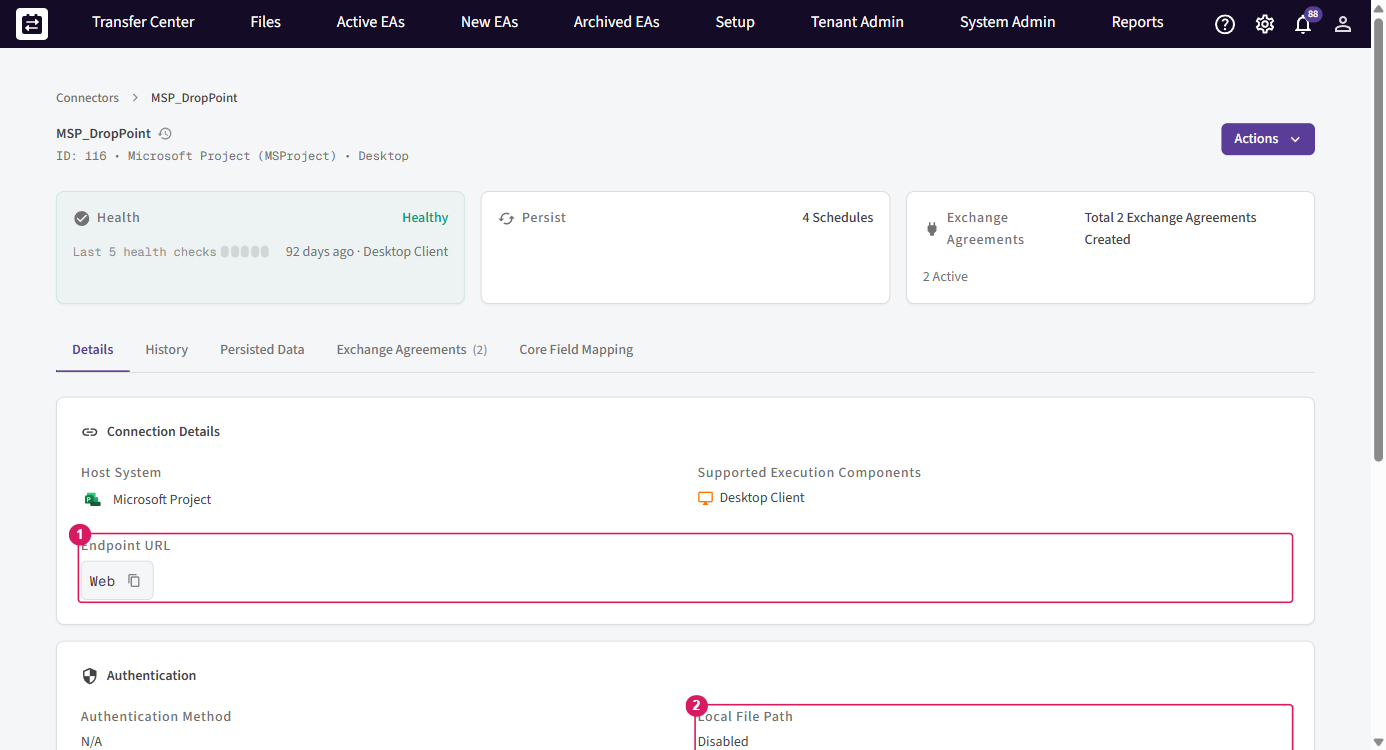
If the connector shows a folder path or a SharePoint URL instead of Web, it is not in Web-storage
mode, and dropped files will not reach it. Ask a Setup Admin to switch it to Web storage.
3. Create a schedule for the connector
A Web-storage Microsoft Project connector does not discover schedules on its own. Each schedule is created and named by hand, and its name is what lets a future .mpp find it. You create a schedule once; after that, every drop of the matching file updates it.
The naming rule
The schedule name must be the .mpp file name without the .mpp extension. When you later drop a file, SchedEx takes the file name, removes .mpp, and looks for a schedule with exactly
that identifier. The comparison ignores upper and lower case, but everything else — spaces,
hyphens, numbers — must match.
Worked example:
| You plan to send this file | Name the schedule | Why |
|---|---|---|
North-Platform-2026.mpp | North-Platform-2026 | The file name without .mpp. A later drop of North-Platform-2026.mpp finds this schedule. |
Phase 2 Detailed.mpp | Phase 2 Detailed | Spaces are kept exactly. Phase2 Detailed would not match. |
If you get this wrong, the file will not match the schedule, and SchedEx shows the mismatch message in section 7.
Two ways to create the schedule
A. From the connector (planned, by a Setup Admin). Open the Microsoft Project connector and go to its Persisted Data (its schedules and host fields). A Setup Admin uploads an .mpp here to create the schedule and read in its columns and user-defined fields. SchedEx reads the file's structure to define what fields exist for mapping; it does not keep the file bytes from this step. The schedule's name is taken from the file name, so name the file correctly before you upload it here.
B. From Upload Files, when a dropped file matches nothing. When you drop an .mpp on the Upload Files tab and no schedule matches its name, SchedEx offers to create a schedule from the file. This option appears only for .mpp (and .xer) files, and only if you have the Setup
Admin role and your organization has a suitable connector. Choosing it makes a new schedule named after the dropped file, so the same file (and future versions of it) will match from then on.
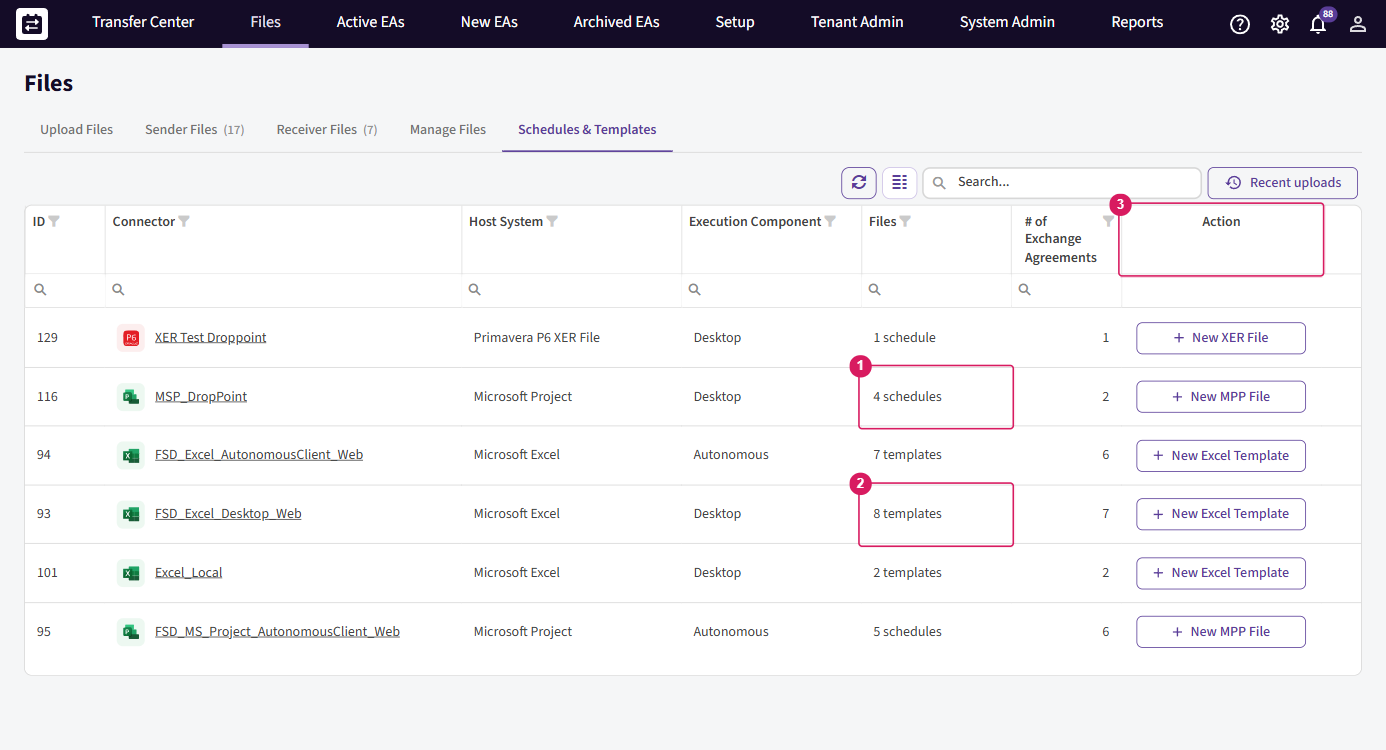
You can see a connector's schedules and how many each holds on the Files > Schedules & Templates tab.
4. Persist first: the schedule and its fields
This is the key dependency to understand for Microsoft Project. Before you can build a Config (the concrete data mapping) or run a transfer, the Microsoft Project connector must be persisted, and persisting needs a representative .mpp file.
Persist is schema-only. When you upload an .mpp in the connector's Persisted Data tab, SchedEx reads and stores the schedule and its user fields — the custom columns, the code set. It does not store the activity data from the file, and it does not keep the file itself. What it keeps is the shape: which schedule exists and which fields you are allowed to map.
You persist from the connector's Details → Persisted Data tab using its Upload button. The button opens the MSP upload wizard — the same wizard that offers "Reuse an existing schedule's host fields" (see section 5). The grid's Persist summary shows how many Schedules the connector already has.
So the two kinds of file play different roles:
| File | When you supply it | What SchedEx takes from it |
|---|---|---|
The persisted .mpp (Persisted Data tab) | Once, at setup | The schedule (its ID is the file name without the extension) and the user fields / code set you can map. The activity data is ignored. |
The dropped .mpp (at transfer time) | Every delivery | The real activity data that is carried to the partner. |
Note: Uploading a file in Persisted Data is how a schedule is created — the schedule's identifier is the file name without its
.mppextension — and it is how that schedule's fields become available to map. The data does not need to be present in the persisted file, but the user fields / code set must be. Persist a file that carries the full set of custom columns you intend to map, even if its activity rows are empty or a sample.
5. Merge several files into one code set and Config
You can make several different .mpp files share one code set, so a single Config covers them all — set the mapping up once instead of building a Config for every schedule. This works on a Web-storage connector: a connector can hold several code sets, and any number of schedules can share one. You choose it explicitly while uploading, in the Persisted Data → Upload wizard:
- Reuse an existing code set. On the first step, tick "Reuse an existing schedule's host fields" (when adding a new schedule) — or "Change this schedule's host fields" when updating one. The helper text says it plainly: "Schedules with the same host fields can share one config, so you set it up once instead of building a config per schedule." Leave it unticked to give the file its own new code set.
- Pick which schedule to share with. In "Use host fields from schedule", choose the existing code set to join. Each entry is labelled with the schedules already on it — for example
'Schedule_A' (+2 other schedules)— so you can see exactly what you are joining. - Reconcile the fields. Choose how to handle any differences between the file and the code set you picked:
| Option | What it does | When to use it |
|---|---|---|
| Add new host fields | Adds any fields the file has that the shared code set is missing, and keeps the existing fields. The schedules stay on one shared code set. | The normal choice — keep one code set and one Config across several schedules. |
| Replace all host fields | Syncs the shared code set to exactly this file, removing fields the file does not have. This affects every schedule on that code set. | Only when you deliberately want the code set to match one file exactly. Use with care. |
| Keep existing host fields | Adopts the chosen code set unchanged — nothing added or removed. | When the file already matches and you only want to attach the schedule to the shared set. |
Once two schedules share a code set, a single Config built on that code set covers both.
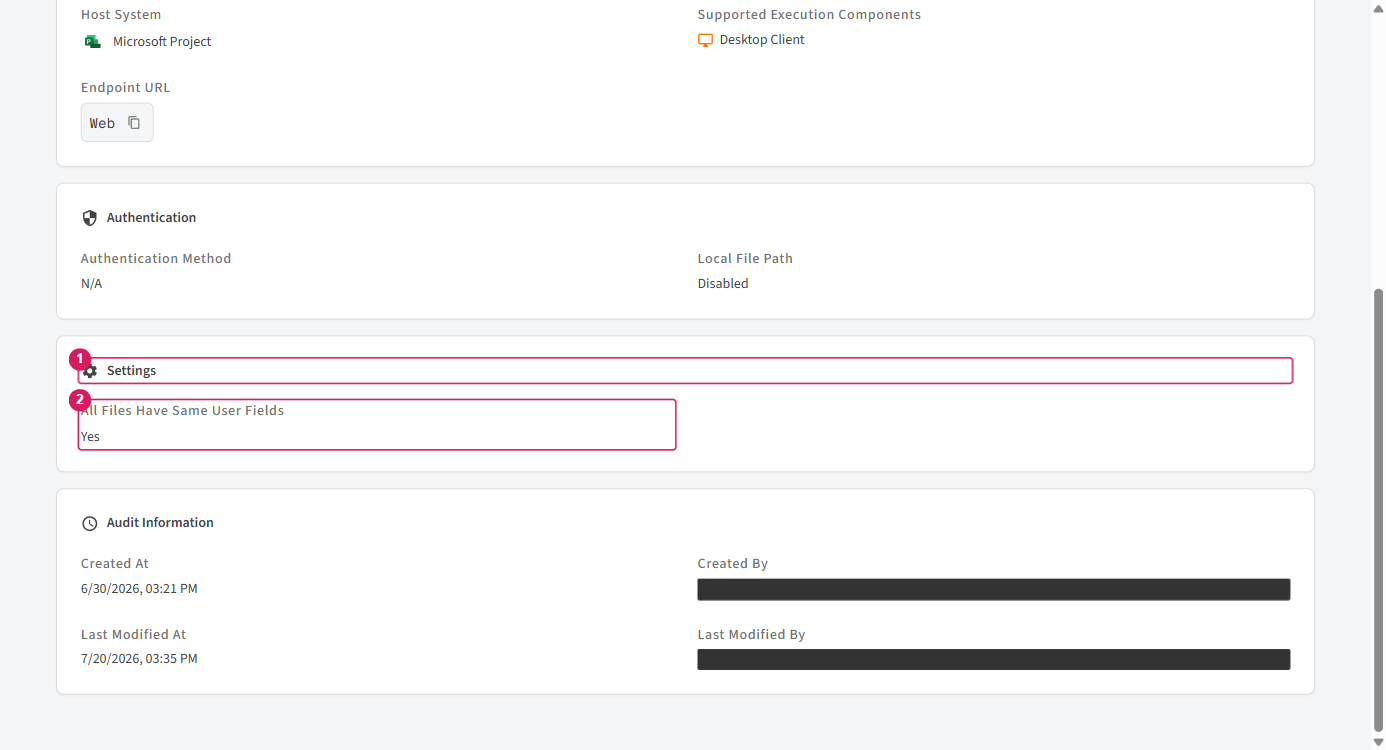
Note: On Local folder and SharePoint connectors you don't pick per file. Instead the connector setting "All files have same user fields" (on the connector's Details, help text "Enable this if all files use custom fields with matching aliases") treats every file in the directory as one shared code set, taken from the first file.
6. Drop the .mpp file
Once the schedule exists and an Exchange Agreement sends from it, you deliver a schedule by dropping the file on the Upload Files tab.
- Export the schedule from Microsoft Project as an
.mppfile. - Name the file so that the part before
.mppis exactly the sender schedule's identifier. See the naming rule. You can map only the user fields that were present in the persisted file — see section 4. - Open Files, then the Upload Files tab.
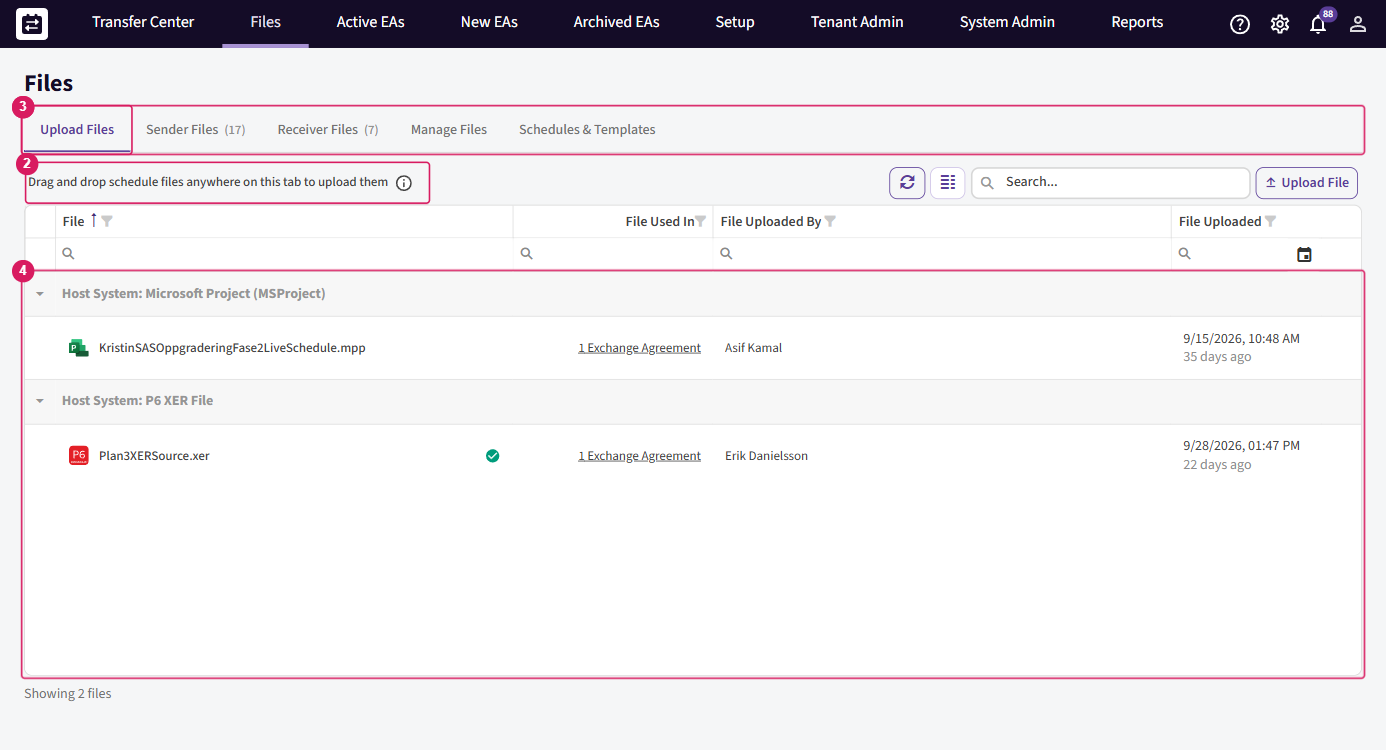
- Drag the file onto the tab (the whole tab is the drop area), or select Upload File and pick the file. You upload one file at a time.
- Read the dialog that lists the Exchange Agreements this file reaches, then confirm.
The full drag-and-drop walkthrough, the match dialog and the result dialog are covered in the hub, Drop a file.
On the Upload Files grid, Microsoft Project files are grouped under Host System: Microsoft
Project, so you can see your .mpp files separately from Primavera P6 or Excel files.
Two Microsoft-Project-specific rules decide whether the drop is accepted:
- Only the
.mppextension is supported for Microsoft Project uploads. Any other extension is refused before the upload starts. - The file name without the extension must equal the sender schedule's identifier. This is how SchedEx links the file to the right schedule.
7. Avoiding common errors
These are the three messages you are most likely to see with a Microsoft Project upload, and how to avoid each one. The hub lists the full set of file, matching, transfer and storage messages.
| Message | Why it appears | How to avoid it |
|---|---|---|
| Only .mpp files are supported for Microsoft Project source uploads. | You tried to upload a file that is not an .mpp to a Microsoft Project schedule, for example an .xml or .xer export. | Export the schedule from Microsoft Project as an .mpp file and upload that. Microsoft Project transfers accept only .mpp. |
| Invalid Microsoft Project file. The file could not be parsed. | The file is damaged, was not saved as a real .mpp, or was renamed from another format. SchedEx opens every .mpp to confirm it is a genuine Microsoft Project file. | Open the project in Microsoft Project and save it again as .mpp. Do not rename a file of another type to .mpp. |
| The uploaded file '{fileName}' does not match the schedule selected for this IEA ('{scheduleId}.mpp'). Upload the matching .mpp or update the IEA's schedule. | The file name (without .mpp) is not the schedule identifier that the Exchange Agreement sends from. | Rename your file to the name shown in the message (the scheduleId plus .mpp) and upload again, or ask a Setup Admin to point the Exchange Agreement at the schedule you are sending. |
8. Frequency: when the transfer runs
An Exchange Agreement has a Frequency that decides when the Data Transfer runs. For a file you drop, the two cases that matter are:
- On File Upload. The transfer starts the moment you upload a matching
.mpp. Each successful drop creates a new Data Transfer, so the partner receives the file as soon as you deliver it. This is the common choice for Microsoft Project deliveries. - Scheduled or manual. The file you drop waits in the schedule. It is sent on the next planned run, or when someone starts a transfer by hand. Your drop updates the stored file; the transfer sends whatever the schedule holds at the time it runs.
An On File Upload Microsoft Project Exchange Agreement looks like this — Frequency set to On File Upload, Host System Microsoft Project, and your organization on the sender side:
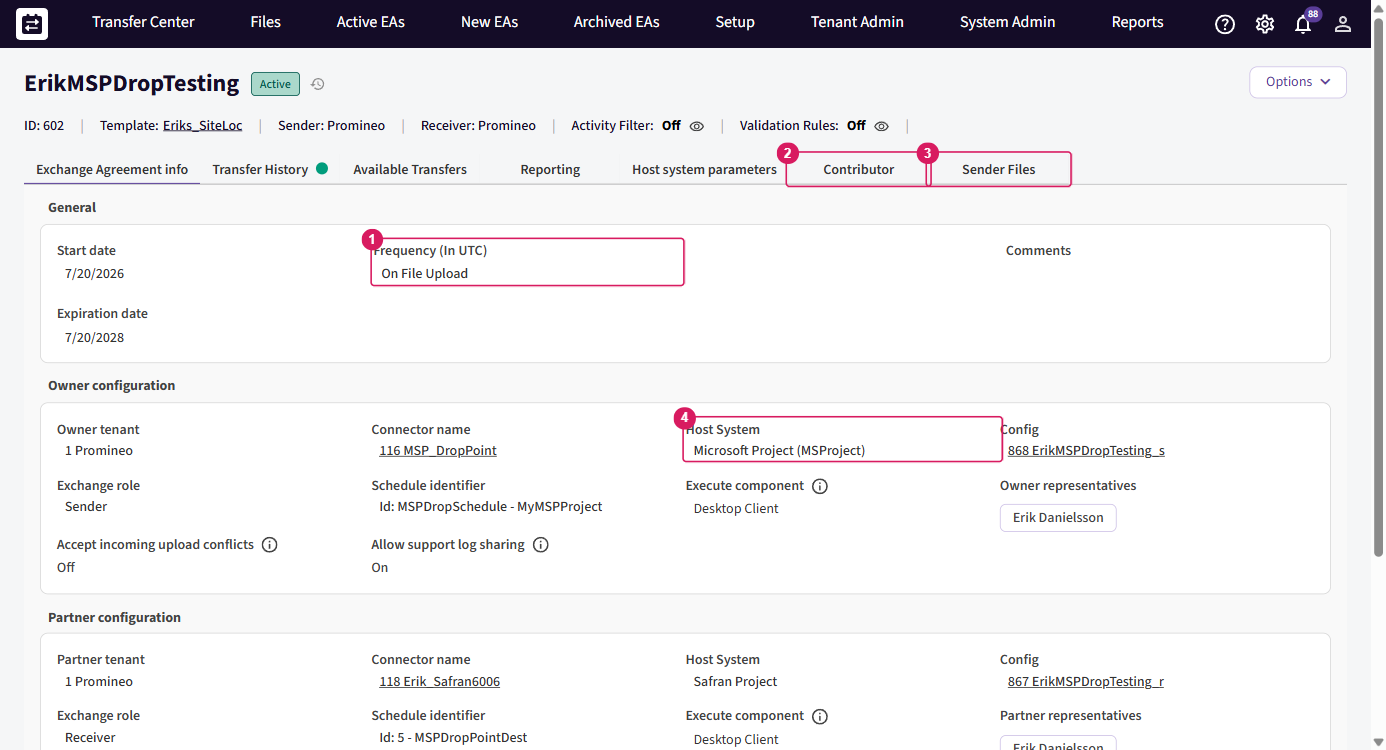
The hub explains every frequency and what happens when a drop does not create a new transfer (for example, when a transfer is already waiting): Frequency.
9. Upload (sender) and download (receiver)
A Microsoft Project transfer always has a sending side and a receiving side.
The sender uploads
Your organization, as the sender, drops the .mpp on Upload Files (section 6). SchedEx validates it, encrypts it, stores it against the schedule, and — for an On File Upload agreement — starts the transfer. You can confirm what you have staged on the Files > Sender
Files tab, which lists the files your side holds and the Exchange Agreements that use each one.
The receiver downloads
The receiving organization does not upload anything. After the transfer runs, the file SchedEx delivered is available to the receiving side on the Files > Receiver Files tab. From there a receiving representative can download the file and read it into the receiving system.
Note the two-file pattern: the receiving side does not get your original .mpp. The transfer produces the destination result, and the receiver downloads that generated file from Files → Receiver Files — not a copy of the file you dropped.
Which tab you see depends on your side of the agreement: senders see Sender Files, receivers see Receiver Files, and a user whose organization is on both sides (or a Tenant Admin) can see both.
10. Replace a file, delete a file, and the rules that apply
Replace a file
To replace a file, drop an .mpp with the same name again, or use Re-upload file in the file's row menu. The new file takes the place of the old one — SchedEx keeps one file for each schedule, with no version history. Every Exchange Agreement that sends from that schedule now points at the new file, and each On File Upload agreement gets a fresh Data Transfer.
Delete a file
Deleting a file removes it for the whole schedule, and therefore for every Exchange Agreement that shares it. Transfers fail for those agreements until a new .mpp is uploaded. Only a Tenant
Admin or System Admin of the sending side can delete a file, and a delete cannot be undone.
The step-by-step replace and delete flows, the confirmations and the "transfer already running" cases are in the hub: Replace or delete a file.
Constraints specific to Microsoft Project
- Extension:
.mpponly. - File must be a genuine Microsoft Project file. SchedEx opens every
.mppto confirm this; a renamed or damaged file is refused. - Name must equal the schedule identifier (without
.mpp). - One file at a time, up to the drop-point size limit (see the hub). The maximum is 100 MB; a larger file is refused with "The uploaded file is too large. The maximum file size is 100 MB."
- Receiver-side writing is not supported. Microsoft Project through Web storage is a sender (upload) host system; the other side receives and reads the file.
11. Summary: steps to set up, upload, and download
A concise checklist of the whole flow, end to end.
Set up and create
- Create a Microsoft Project connector with Web storage.
- Open Persisted Data → Upload and upload a representative
.mpp. This creates the schedule and its fields. To share one code set across schedules, tick "Reuse an existing schedule's host fields" and pick the schedule to join (see Merge several files into one code set and Config). - Build a Config mapping those fields.
- Add the Config to an Exchange Agreement.
Upload / send
- In Files → Upload Files, drop the actual
.mpp(file name = the schedule ID). - With On File Upload frequency the transfer runs immediately; otherwise it runs on schedule or when you run it.
Download / receive
- The receiving side downloads the produced file from Files → Receiver Files.
12. Permissions
Who can do what mirrors the general drop-point rules; the Microsoft-Project-specific point is that the Setup Admin owns connector and schedule setup.
| Action | Who can do it |
|---|---|
| Create or change the Microsoft Project Web-storage connector | A Setup Admin. |
| Create a schedule (connector Persisted Data, or "Create a schedule" from Upload Files) | A Setup Admin. |
Upload or replace an .mpp | A representative of the sending side, a Tenant Admin or System Admin of the sending organization, or a contributor with the Send role. |
| Download the received file | A representative of either side, a Tenant Admin or System Admin of either organization, or a contributor with the Receive role. |
Delete an .mpp | Only a Tenant Admin or System Admin, and only on the sending side. |
A representative is a person named as responsible for one side of one Exchange Agreement. A contributor is a person or organization added to an agreement with a Send role, a Receive role, or both. See the contributor guide for how contributor access works.
Glossary
- Connector — the configured link between SchedEx and one of your systems. For this guide, a Microsoft Project connector set to Web storage.
- Contributor — a person or organization added to an Exchange Agreement with a Send role, a Receive role, or both.
- Data Transfer — one unit of work that moves data from the sender to the receiver. It has an upload part and a download part.
- Exchange Agreement — the agreement between two organizations that says which data moves, in which direction, and how often. Also called an Inter-Exchange Agreement (IEA).
- Host system — the planning or business system at one end of a transfer, for example Microsoft Project, Primavera P6 or Excel.
.mpp— the Microsoft Project file format. The only format Microsoft Project transfers accept.- Representative — a person named as responsible for one side of one Exchange Agreement.
- Schedule (sender schedule) — the named project schedule inside a connector. The uploaded file belongs to the schedule. For Microsoft Project, the schedule's identifier equals the
.mppfile name without its extension. - Setup Admin — a person who configures connectors, schedules and templates.
- System Admin — a platform administrator.
- Tenant Admin — an administrator of one organization.
- Web storage — file storage inside SchedEx. Only a connector that uses Web storage reads a dropped file; a Local or SharePoint connector does not.
For the full, shared vocabulary, see the Glossary.
Related guides
- Transfer schedules as files through a drop point — the hub for file transfers: drag-and-drop basics, the shared-schedule rule, frequencies, the full message list, replace and delete.
- Contributor organizations — how contributor Send and Receive roles work.
- Glossary — shared SchedEx terminology.
Was this article helpful?
That’s Great!
Thank you for your feedback
Sorry! We couldn't be helpful
Thank you for your feedback
Feedback sent
We appreciate your effort and will try to fix the article