TABLE OF CONTENTS
- Introduction
- How an update reaches your agreements
- How you're told
- Step 1: Update the Config
- Step 2: Accept the updates on the Exchange Agreement
- Reading the previous and new values
- If you do nothing
- Who can do this
- Related guides
Introduction
Templates are shared and reused. When a template changes, the Configs and Exchange Agreements built on it don't change automatically. Instead they're marked Update available, and you decide when to preview and accept the change.
Before you accept, SchedEx shows you exactly what changes: for every changed term, you see the previous value next to the new value. This guide walks you through both steps — updating the Config, then accepting the update on the Exchange Agreement.
How an update reaches your agreements
An update moves through two steps:
| Step | Where | Who | What happens |
|---|---|---|---|
| 1. Update the Config | Setup → Configs | Each side, for its own Config | You preview the template changes, give the input that new terms need, and select Update Config. The Config is published with the changes. |
| 2. Accept the updates | The Exchange Agreement | The owner of the agreement | When the Configs of both sides are updated, the owner previews the changes and selects Accept updates. The agreement then uses the updated Configs. |
Until step 2 is done, the agreement keeps running on its current Configs.
Note: Step 2 also follows an ordinary Config edit. When you Save & publish a Config, every Exchange Agreement that uses it gets a Config update to accept — except for changes to the title, labels and host system parameters.
How you're told
| You see | Where |
|---|---|
| An Update available tag on the Config | The Configs list. Use the Update available filter at the top to list them. |
| "The template that is used in this config has updates." with View updates | The Config page |
| An Update available tag on the agreement | Active EAs. Use the Updates filter at the top to list them. |
| "This Exchange Agreement has config updates." with View updates | The agreement page (owner) |
| "This Exchange Agreement have some pending updates, awaiting changes to be accepted by the owner." | The agreement page (partner, before the owner accepts) |
| "This Exchange Agreement has been updated by the owner." | The agreement page (partner, after the owner accepts). Close it with ×. |
You can also get notifications (see Notifications):
| Notification | When |
|---|---|
| Config Update Available | A template change affects one of your Configs. |
| Config Update Required | The other side of an agreement has updated its Config, and the Config on your side is out of date. |
| Exchange Agreement Update Available | The Configs of both sides are updated, and the agreement can be updated. |
Step 1: Update the Config
- Go to Setup → Configs and open the Config with the Update available tag.
- Select View updates in the bar "The template that is used in this config has updates." (or select Options, then View template updates).
- The Template Updates window lists every term the template added or changed. The Action column says Added or Updated. In a changed cell, the previous value is shown above the new one — see Reading the previous and new values. Where the allowed values of a term changed, select See value changes in the # of values column to see which values were added or removed.
- Select Provide required input to update config.
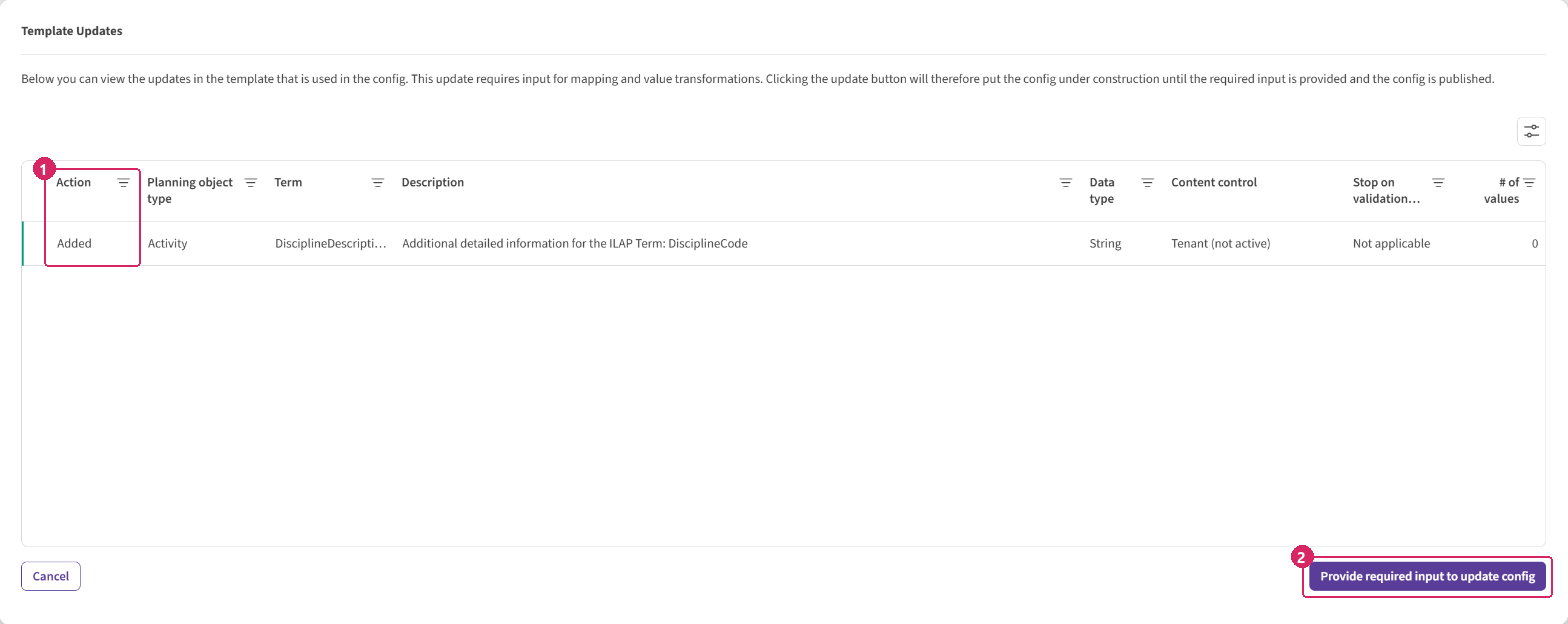
The Template Updates window of a Config: (1) the Action column, (2) Provide required input to update config.
- Give the mapping for the added terms. The Direct Mapping, Value Transformation and Content Control tabs are shown only when they have terms to fill in; the number on each tab is the number of terms.
- Select Update Config. SchedEx shows "Config updated." and publishes the Config.
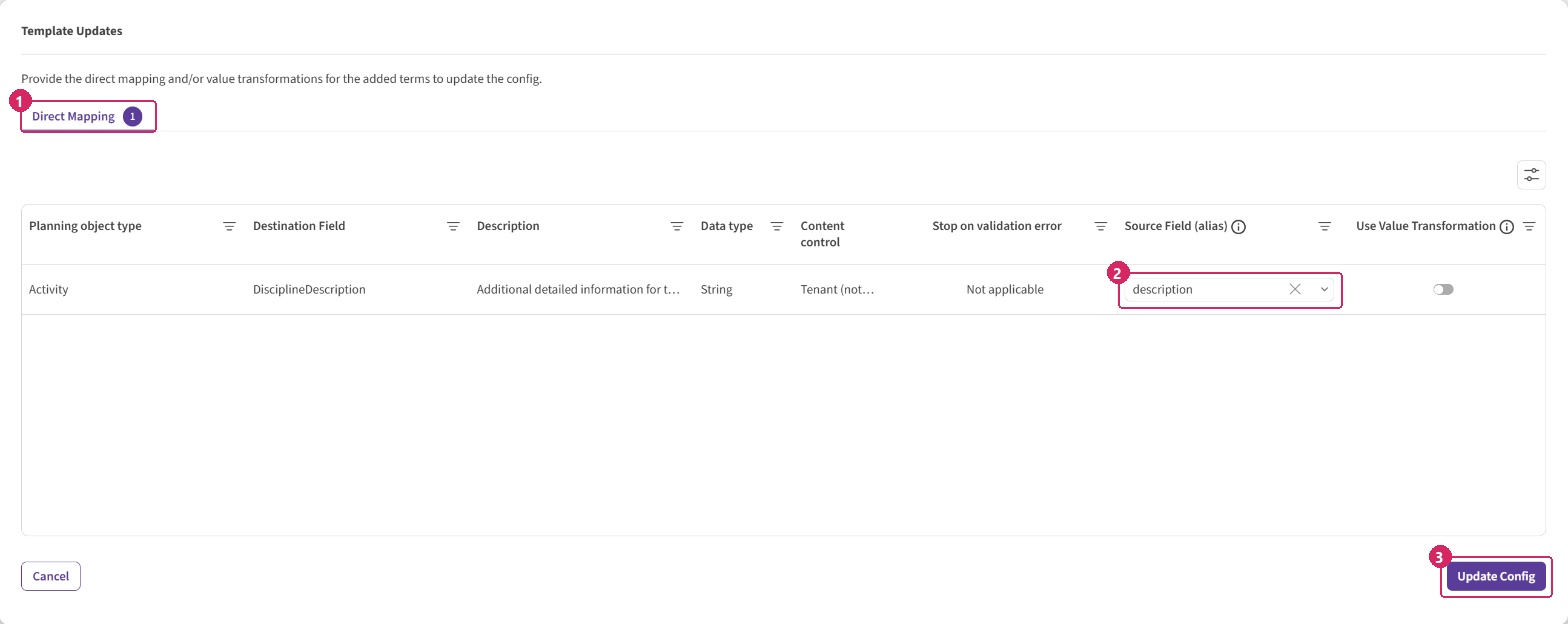
Giving the input for an added term: (1) the Direct Mapping tab, (2) the source field for the new term, (3) Update Config.
If the Config on the other side of an agreement is not updated yet, SchedEx tells you which agreements are waiting for it:
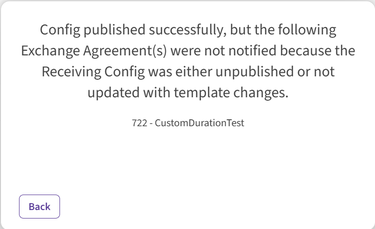
The sending Config is published, but agreement 722 is not notified until its receiving Config is updated too.
Note: Nothing changes in the Config until you select Update Config. Select Cancel to close the window and decide later.
Step 2: Accept the updates on the Exchange Agreement
When the Configs of both sides are updated, the owner of the agreement accepts the updates:
- Open the Exchange Agreement. Select View updates in the bar "This Exchange Agreement has config updates."

The bar the owner sees on the agreement page: (1) View updates.
- The Config Updates window opens. Choose Sender or Receiver to see the changes of that side's Config. The number on each tells you how many terms changed; the window opens on the side that has changes.
- Use the Mappings and Value transformation chips to show only the terms whose mapping or value transformation changed. The grid then shows the columns of that kind, such as Mapping formula, Source Field (alias) and Value map.
- Select the arrow at the start of a row to open it. It lists the changes under Updated terms, Mappings and Value transformation.
- Select Accept updates. SchedEx shows "Exchange agreement updated." From then on, transfers use the updated Configs.
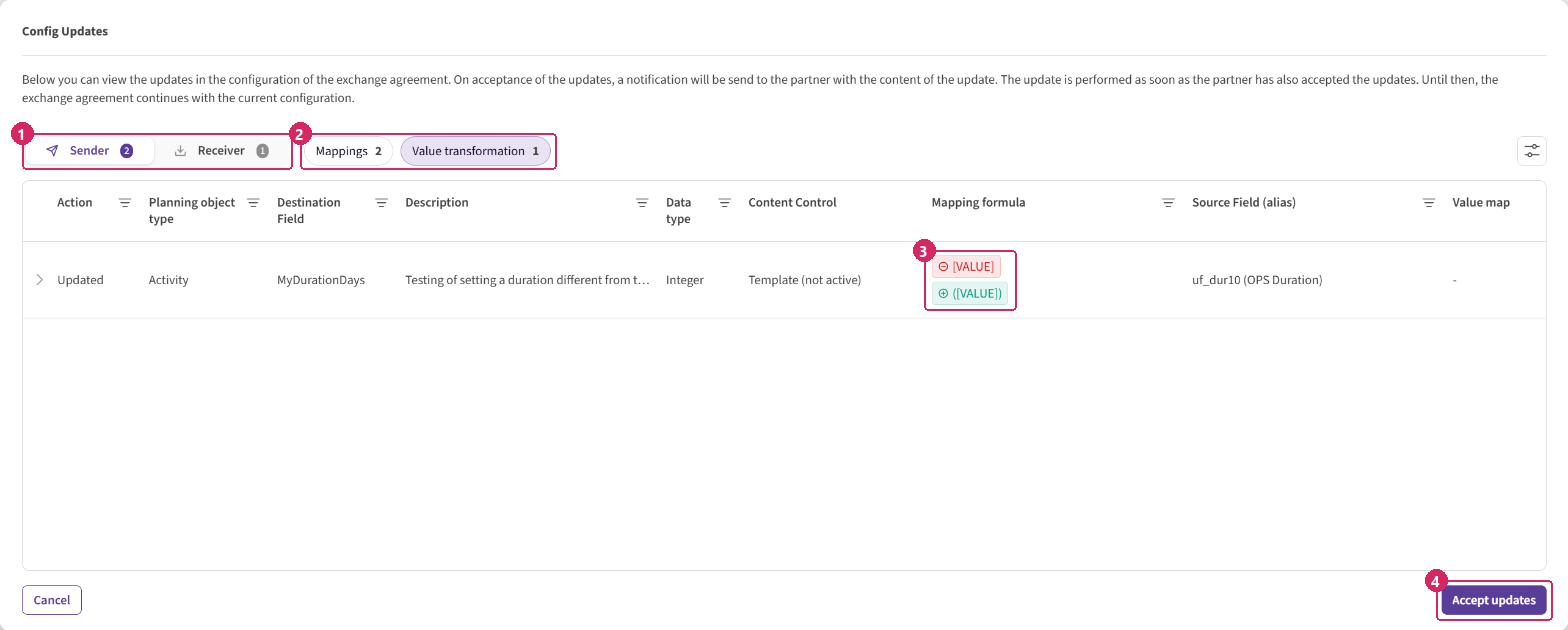
The Config Updates window of an Exchange Agreement: (1) Sender and Receiver, (2) the Mappings and Value transformation chips, (3) a changed mapping formula — previous value above the new one, (4) Accept updates.
The partner then sees "This Exchange Agreement has been updated by the owner." on the agreement, and the agreement is marked as updated in their Active EAs list.
Note: The text at the top of the Config Updates window says the update is performed once the partner has also accepted it. In fact, the owner's Accept updates applies it straight away; the partner is informed.
Reading the previous and new values
Both windows show what changes the same way:
- In the grid, a changed cell shows the previous value in red with a minus sign (⊖), and the new value below it in green with a plus sign (⊕).
- In an opened row, each change is listed with the previous value struck through, an arrow, and the new value — for example Mapping formula: ⊖ [VALUE] → ⊕ ([VALUE]). For an added term, the row shows set to and the new value only.
- Rows with details have an arrow at the start. Rows without details have no arrow.
- Where many values changed, a link opens a window with the full list:
- Term Values lists the allowed values of a term that were added or removed, with Value and Description.
- The value map window lists the changed value-map rows, with From value, From value description, To value and To value description.
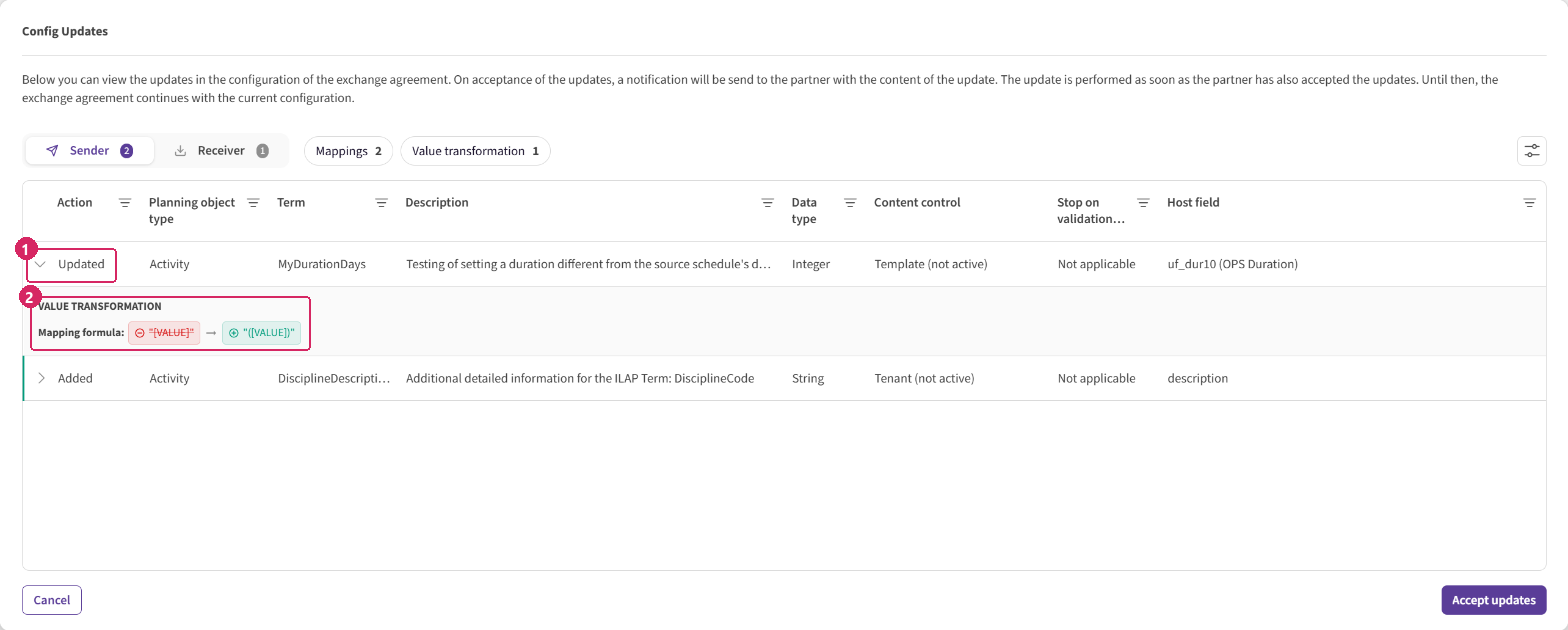
(1) An opened row. (2) The change: the previous mapping formula, struck through, and the new one.
If you do nothing
Accepting is your choice and your timing. If you don't accept, the Config and the agreement keep working on their current mappings, and the Update available tag stays until you do. There's no separate "reject" — leaving it is the same as deferring.
Who can do this
| Step | Who |
|---|---|
| Update a Config (step 1) | A user who can edit Configs for that tenant: a Setup Admin or Tenant Admin |
| Accept the updates on an agreement (step 2) | A representative on the owner side of the agreement |
Related guides
Was this article helpful?
That’s Great!
Thank you for your feedback
Sorry! We couldn't be helpful
Thank you for your feedback
Feedback sent
We appreciate your effort and will try to fix the article