TABLE OF CONTENTS
Introduction
The Setup Admin has access to a "portal page" where all the prerequisite settings can be made before creating EAs: Connectors, Templates and Configs can be set up and modified: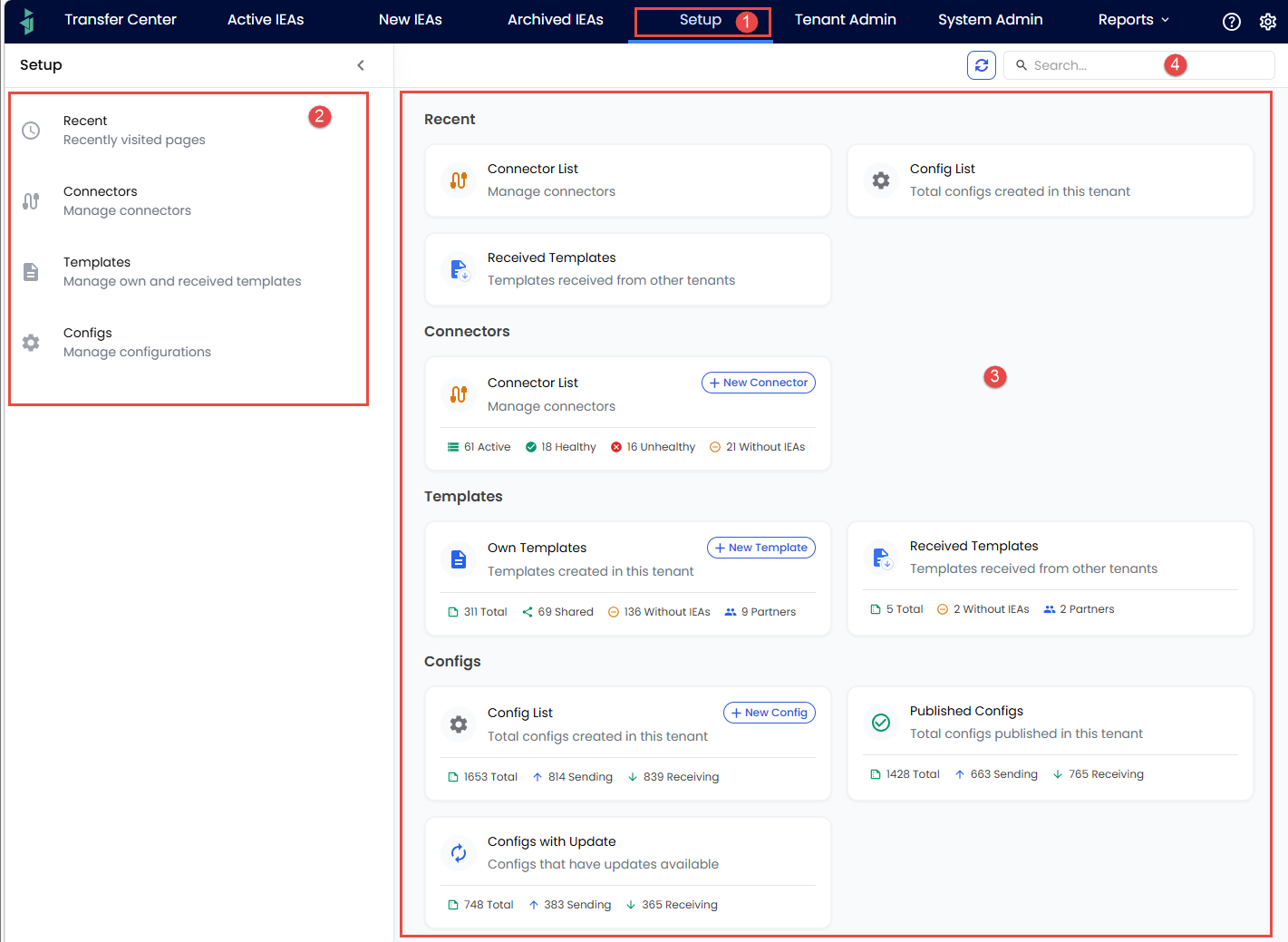
The form seen when pressing "Setup" (1), where on the left (2) the list of "topics" are seen and the details on the right (3). Search can be made in (4).
The things to create/edit
The sections of the the page are shown as "topics" on the left hand side, and each of the following subchapters describes each of these options:
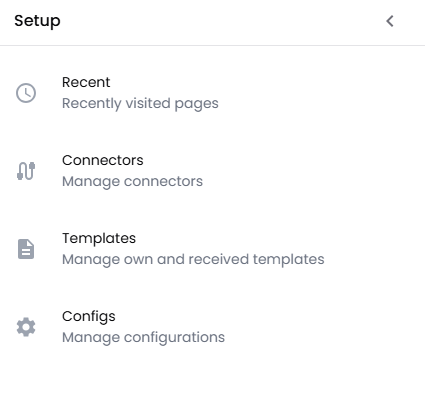 The "topics" shown on left hand side of page.
NOTE: The "Recent" option is self explanatory and will not be covered further, as it only shows the most recent list of pressed "topics".
Connectors

The "Connector"-summary shows some useful statistics as well as a button to create a new Connector.
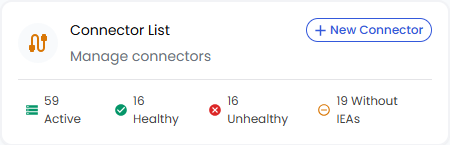 When pressing the "+ New Connector"-button, you will start the wizard for creating a new Connector - described here.
Connector Main form
When pressing anywhere else on the "Connector List" frame, you will see the details behind the statistics (each red number is described below):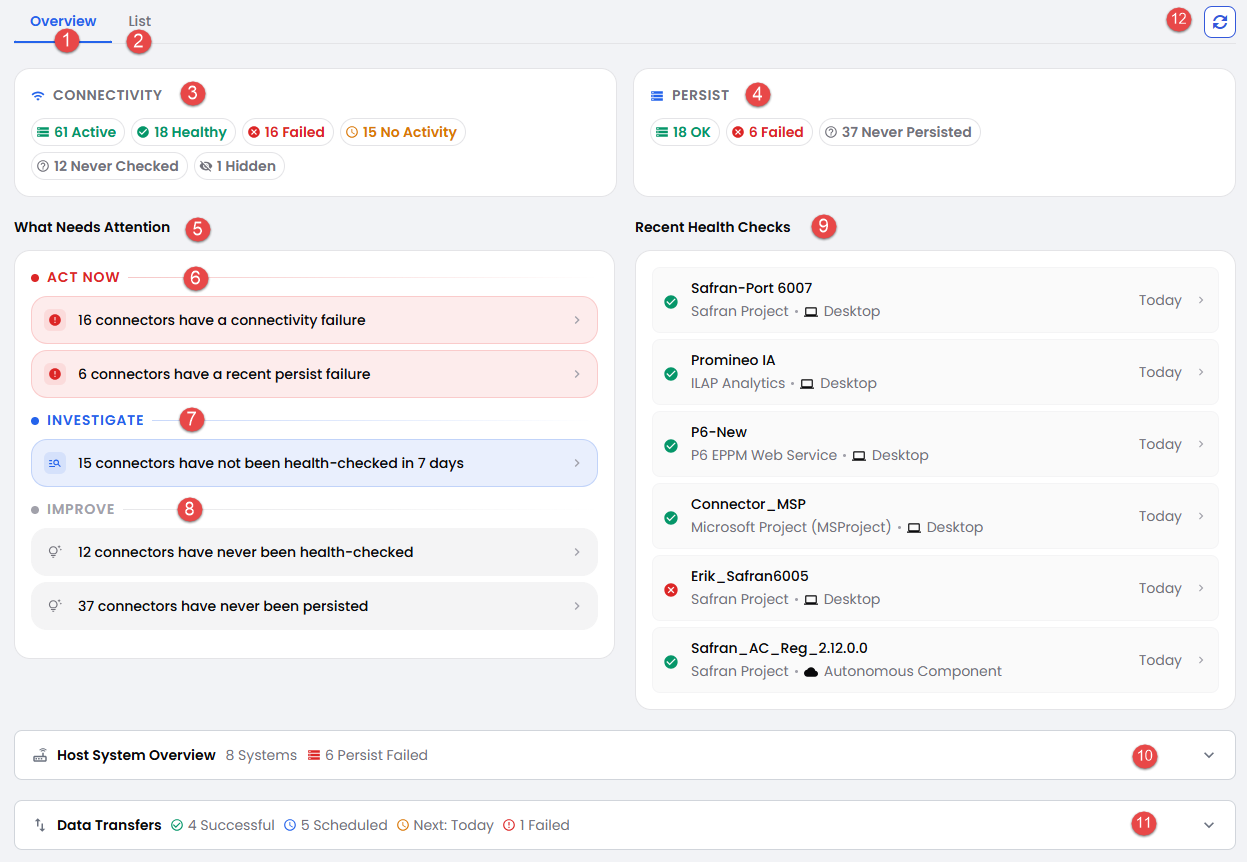 The details seen when pressing the "Connector List"-button. See below for details.
- The "Overview"-tab showing the detail statistics and hints for connectors
- The "List"-tab shows a searchable grid with all the connectors
- The "Connectivity" status for all connectors
- The "Persist" status for all connectors
- "What Needs Attention" section with subcategories described below:
- "Act Now" shows shortcut(s) to filtered list of connectors with specific problems
- "Investigate" shows shortcut(s) to filtered list of connectors worthy of investigation
- "Improve" shows shortcut(s) to filtered list of connectors needing improvement
- "Recent Health Checks" shows the 6 most recent health checks performed
- "Host System Overview" (see separate section below) shows connectors grouped on host system
- "Data Transfers" (see separate section below) shows connectors based on transfers
Connector Host System Overview
Here you will see status of Connectors based on Host System classification. Note that the by pressing one of the "colored numbers" at right side of form, you will show the filtered Connectors that contribute to the "number":
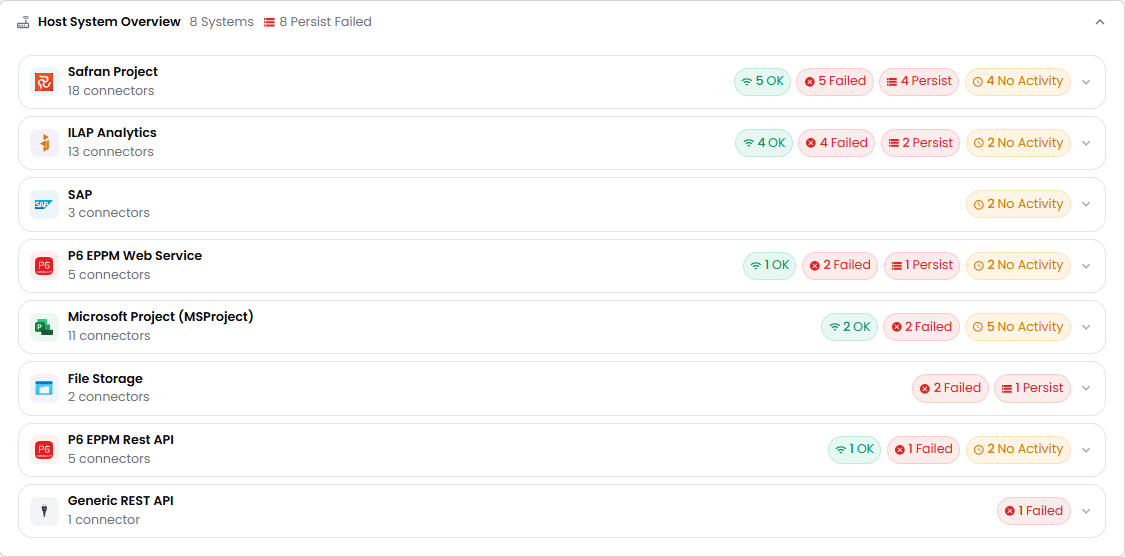
The Connector status based on Host System. Each Host System has a set of numbers at right that act as a shortcut for filtering Connectors.
Connector Data Transfers
Here you will see the last 5 recent transfers (at left), and the next 5 upcoming transfers (at right). Note that the by pressing any of the recent transfers, you will filter on that EA's logs, and similarly, pressing on one of the upcoming transfers will filter the EA:
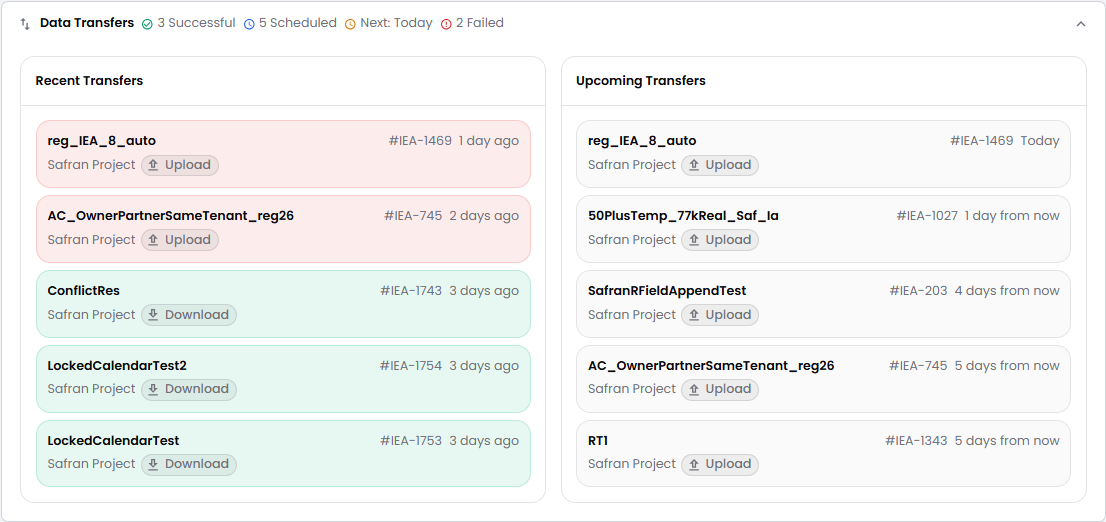 The section showing 5 most recent transfers (at left) as well as 5 next upcoming transfers (at right)
Templates

The "Templates topic" has 2 sub-items (buttons): "Own Templates" and "Shared Templates" described below.
Own Templates
Pressing this button (but not the part with the "+ New Template") will show the list of existing Templates that your organization has created. The button also shows some useful statistics as well as a button to create a new Template.
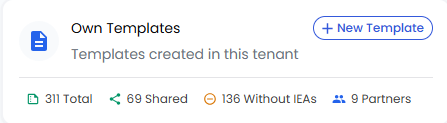
When pressing the "+ New Template"-button, you will start the process of creating a new Template - described here.
Received Templates
Pressing this button will show the list of Templates that have been created by other organizations and shared (read-only) with your organization. The button also shows some useful statistics.
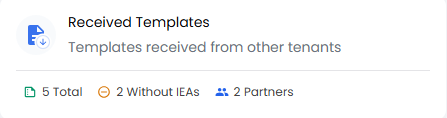 More info on how to share a template is found here.
Configs

There are 3 buttons seen for this topic and each will result in showing a filtered list of Configs:
- Config List: All Configs
- Published Configs: The Configs that have been published
- Configs with Update: The Configs that have updates (i.e. changes made to used Templates)
Each has its own useful statistics and the "Config List"-button also has an embedded "+ New Config"-button to start the process of creating a new Config - described here.
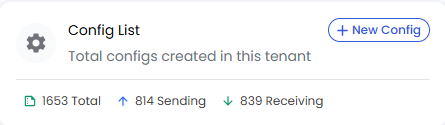
The "Config List"-button with the embedded button to "+ New Config".
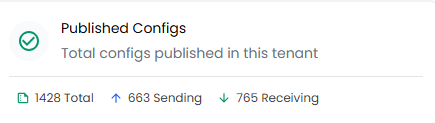
The "Published Configs"-button with stats. Press to see list of all Published Configs.
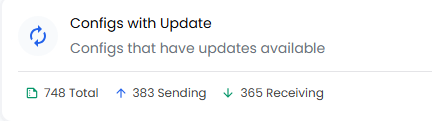
The "Configs with Update"-button with stats. Press to see list of all Configs having updates (Template changes).
Here is an example of a list of existing Configs. More info here:
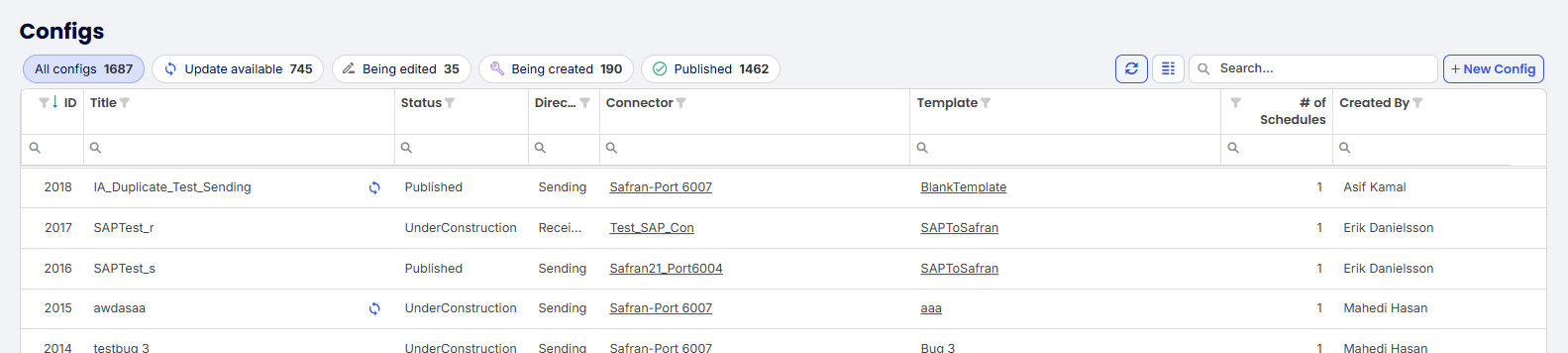
When pressing one of the 3 buttons mentioned above, you will see a list like this.
Was this article helpful?
That’s Great!
Thank you for your feedback
Sorry! We couldn't be helpful
Thank you for your feedback
Feedback sent
We appreciate your effort and will try to fix the article