TABLE OF CONTENTS
- Introduction
- A realistic use case to help us understand things
Introduction
Excel is not inherently designed for the reliable transfer of scheduling data. Its flexibility, while one of its greatest strengths, also makes it difficult to control and validate the structure and content of the information it contains. Even minor user modifications—such as inserting new columns, renaming headers, or entering text in fields intended for numeric values—can disrupt the accurate interpretation and processing of the data.
To address these challenges, the solution described in this article transforms Excel into a controlled and robust container for scheduling information. Common sources of error are eliminated by protected headers, locked worksheets, restricted column layouts, and data validation rules. In addition, dropdown lists and other input controls can be configured to ensure that only valid values are entered.
This article explains how to create an Excel Connector and how to generate a controlled Excel-based scheduling template that can be completed by planners and subsequently processed by SchedEx. The completed schedules can be transferred from a local file, a SharePoint location, or a web-based drop point, providing a flexible and reliable integration workflow.
A realistic use case to help us understand things
To illustrate the process, it is helpful to start with a use case that defines a desired outcome. This provides context for each configuration step and makes it easier to understand the purpose of the solution being built.
Objective:
The objective is to transfer schedule data from two subcontractors, A and B, using Excel as the exchange format (using the same columns for each), into a single master schedule in Safran. Although each subcontractor maintains a separate Excel schedule, all activities will ultimately be imported into the same destination schedule. They can then be updated on a regular (typically weekly) basis and update the Safran master schedule.
Requirements:
Unique Activity IDs
To avoid conflicts between activities originating from different subcontractors, each Activity ID must be prefixed with the subcontractor identifier during the import process.
For example:
- Activity
0010from subcontractor A becomesA_0010 - Activity
0010from subcontractor B becomesB_0010
- Activity
Discipline Validation
The Excel template must contain a field named OG_Act_DisciplineCode. This field may only contain one of the following valid values:
E,I,T.
Data validation should ensure that no other values can be entered (except blank value).Constraint Mapping
We want the start and finish dates in Excel to be transferred into Safran as "Must Start On" and "Must Finish On" constraints, to ensure that dates are same in Safran as in Excel.
Making the connector
The general article for making SchedEx Connectors does not cover this type, since it
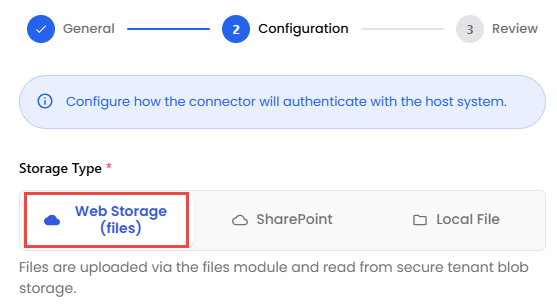 The screenshot above shows the 3 option for how the Excel schedule files are accessed. Each giving information to user on how to proceed.
Making a ShedEx Template for getting SchedEx Terms into the Excel Schedule
In case you need any SchedEx Terms in your transfer (which is typically the case), you must make a SchedEx Template to define these, and then refer to this Template when creating the Excel Schedule.
In our case we chose the Term "OG_Act_DisciplineCode" for transferring our discipline value. Next we can set up Content Control (valid values) for this SchedEx Term:
Setting up Content Control for a SchedEx Term in Template
In order to have a dropdown with valid values when entering Schedule data in Excel, we can use Content Control for the Term, and define such values that will later (automatically) find their way into the final Excel Workbook. See screenshot for how to do this (and more info here):
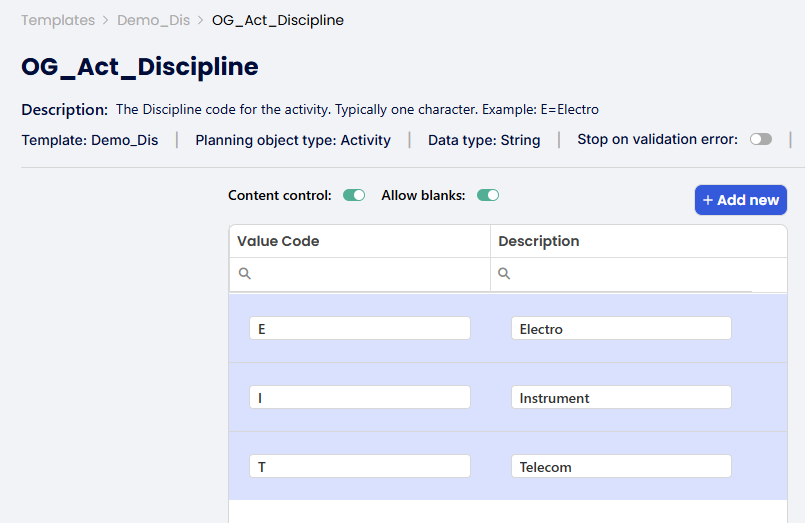
In this example we want to allow the SchedEx Term ("OG_Act_Discipline") to have only 3 values (and blanks).
How to create the empty Excel schedule
In screenshot below, you can see that the Connector itself has a tab called "Excel Templates", where you can create the empty Excel schedule (to be manually populated):

When pressing the "+ New Excel Template" the wizard below starts- see below.
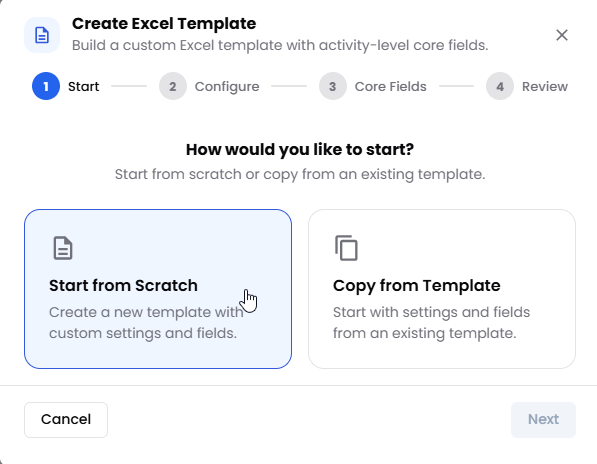
The first time you need to use the "Start from Scratch" option as there are no previous Excel templates to "clone".
On the next step of the wizard you need to give the Excel Template a name (1) as well as specify if you need Activity Links (2) and/or Resource Assignments (3) as separate input sheets. Finally you need to specify which (if any) SchedEx Template to use (in case you need to set values for any SchedEx Terms):
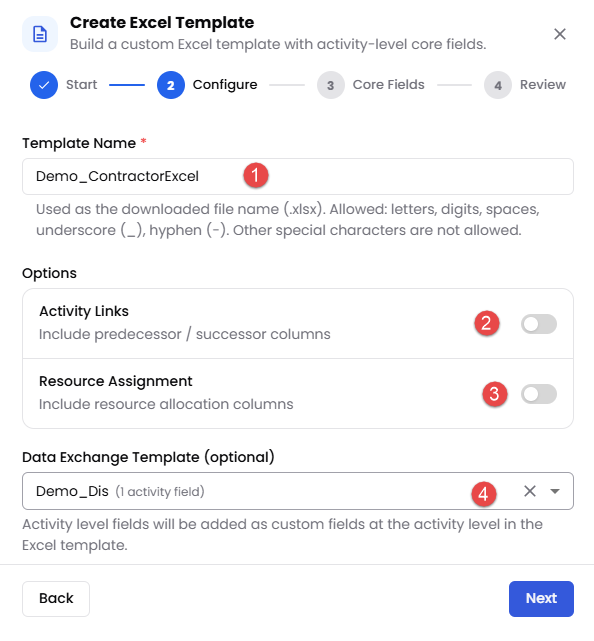
Setting up properties for the Excel Template.
In the next step you can add further (beyond the default selected) Core fields at Activity level:
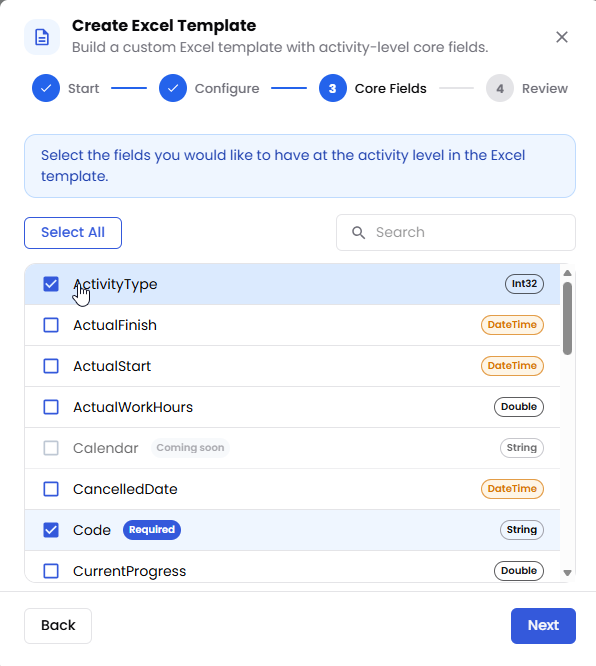
Add Core fields for Activity level (beyond the one's that are default selected).
And in the last step, you will see a review of all your settings before creating and downloading the Schedule file:
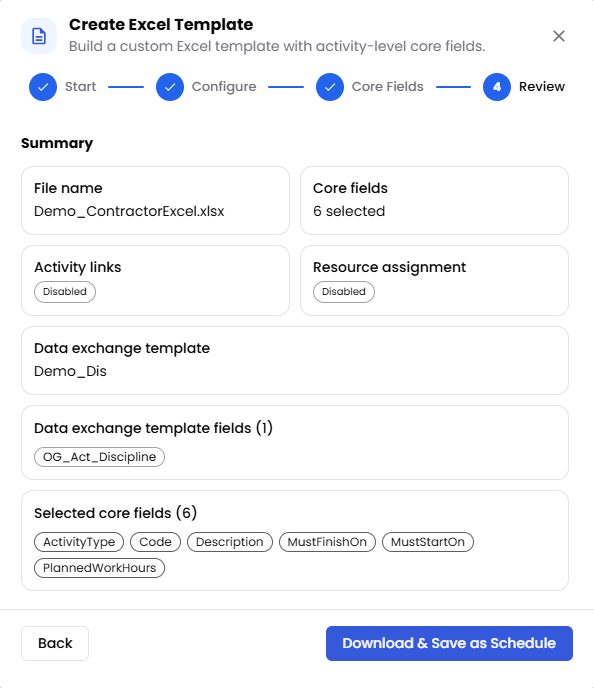
After these steps you will see something like this in the "Excel Templates" tab:
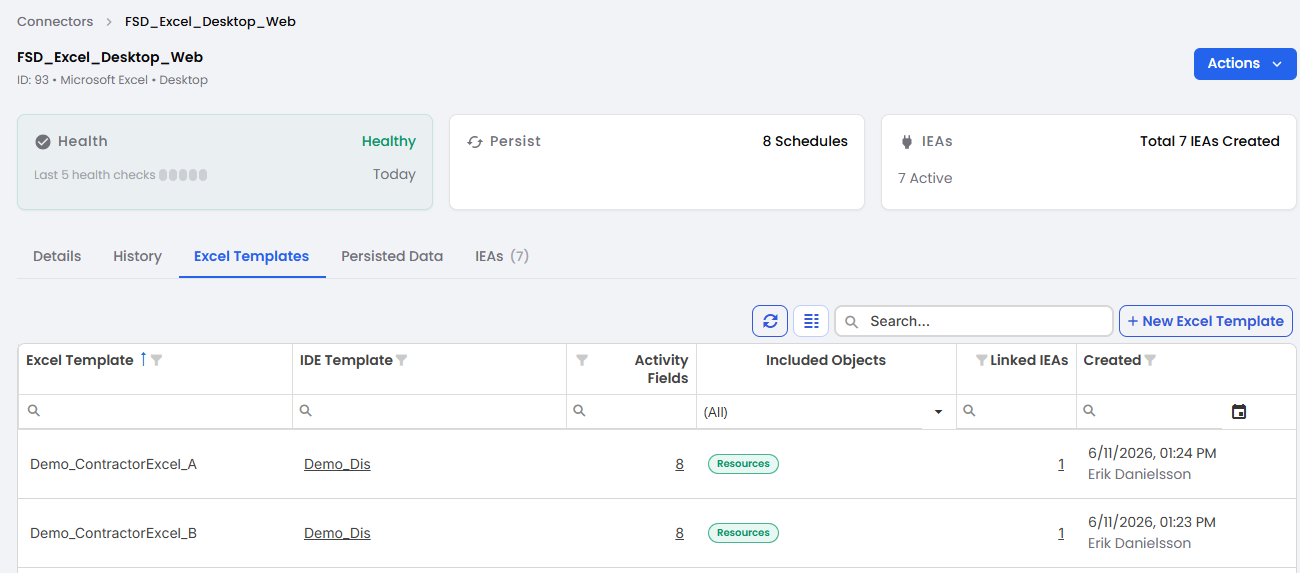
The result after running the wizard.
Populating the Excel schedule
In the wizard described above, you ended up creating an Excel schedule that was automatically downloaded to you downloads folder:
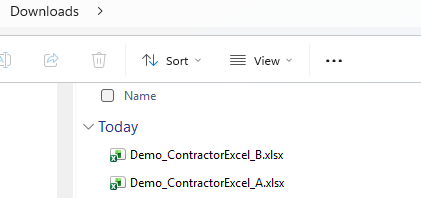
The download folder contains the created Excel Templates (schedules).
You can then send these (by mail) to your Contractors A and B and have them populate the data:

The column order in the generated Excel Schedule is currently not possible to change, but will be in upcoming release. Please note that the finish column is at the left of start column so can easily be confused when entering dates. Note that the SchedEx Terms (if any) are at the far right of sheet in alphabetic order.
Making a Config
Making the config(s) is identical to the "normal" procedure. In reality 3 steps:
1. Select Schedule.
2. The Direct Mapping is automatically populated with mappings.
3. You need to make a Value Transformation for the prefix of Code.
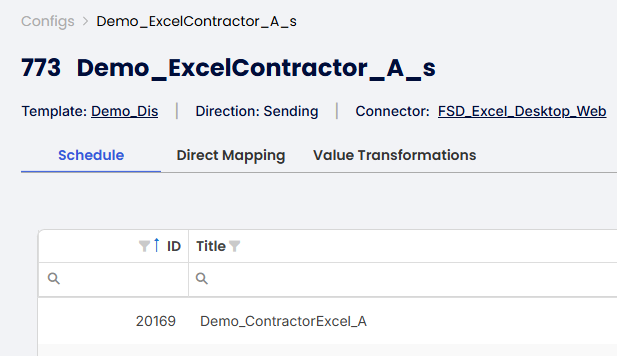
Step 1: Select Schedule
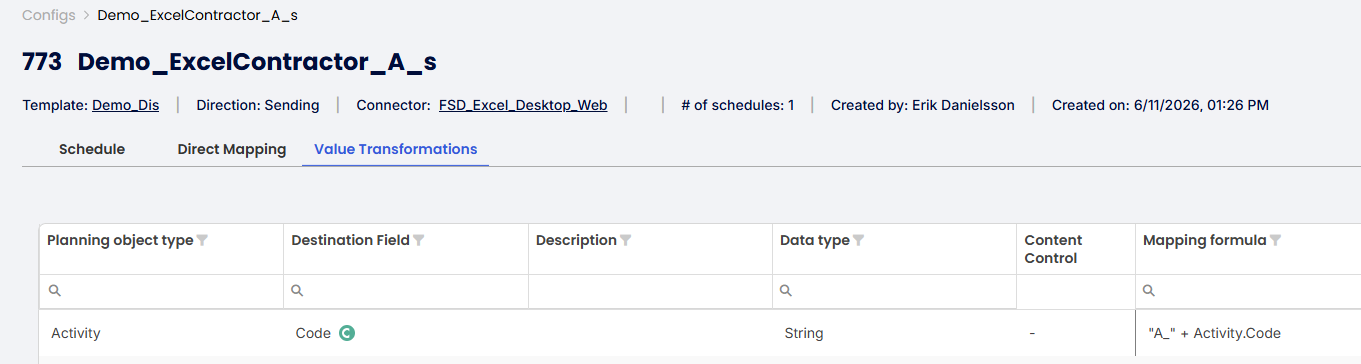
Step 3 (no Step 2 needed): Make a formula to set the prefix to "A_" for Contractor "A" uploads.
Making an EA
This is completely in line with standard setups, so no need for any further explanations, other than these two things (only present when the Excel Connector is involved in the EA):
1. There is a new (recommended) Frequency choice: "On File Upload"
2. Two new tabs can be seen in EA form: "Contributor" and "Sender Files".
Setting up Contributor(s) (who can upload/download)
When pressing the "Add Contributor"-button, this dialog is seen, and the indicated red numbers are explained here:
1. The button to press.
2. The Tenant to give access to.
3. The direction to give access to (typically Sending).
4. The list of users to select for the selected Tenant (at 2).
5. Button to press to confirm choice of selected users.
6. Save-button (that closes dialog).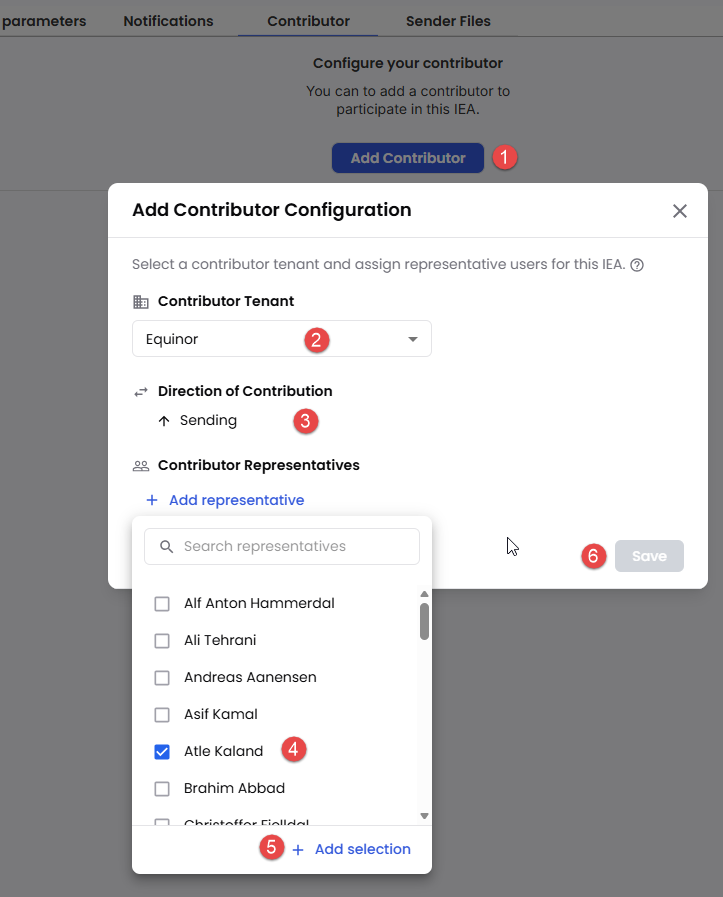
Form for adding Contributor.
Uploading the Excel schedule
The other new EA tab mentioned above is called "Sender Files", and this is the form you will see when selecting it:
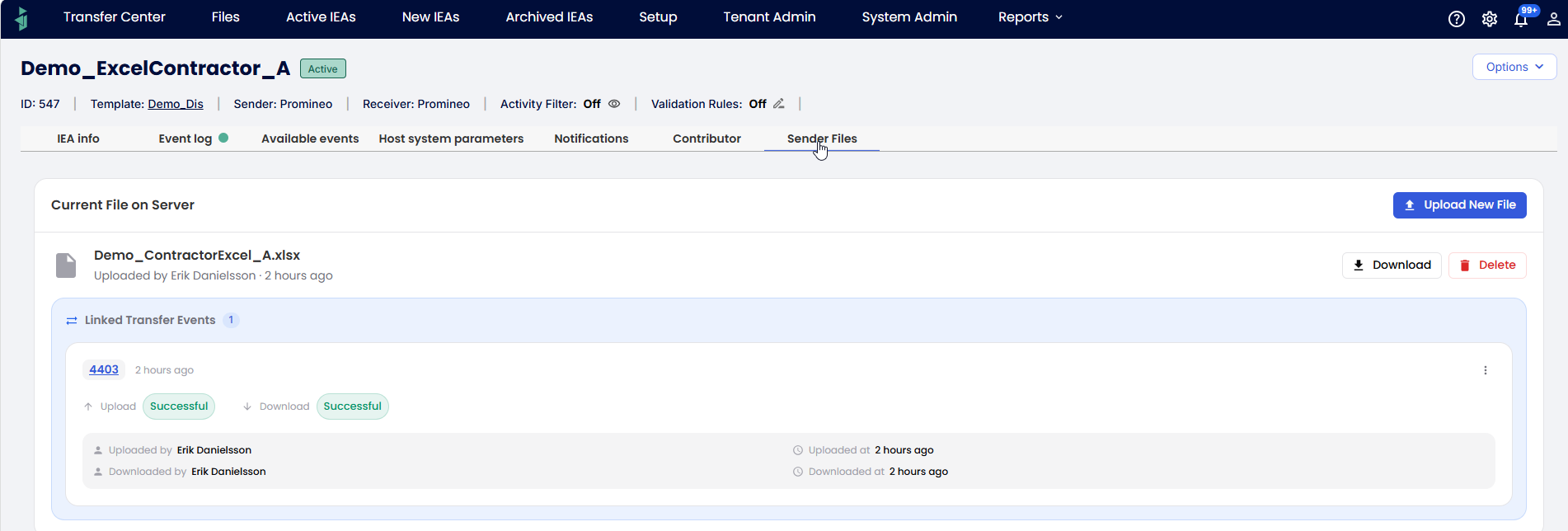 The EA form with special tab "Sender Files" for uploading Excel Schedules.
This is the form seen when pressing the "Upload New File"-button:
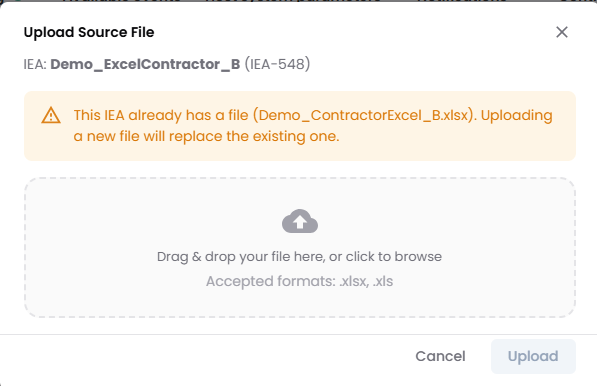
Form for selecting file to upload.
Once you have uploaded a new file, it will look like this:
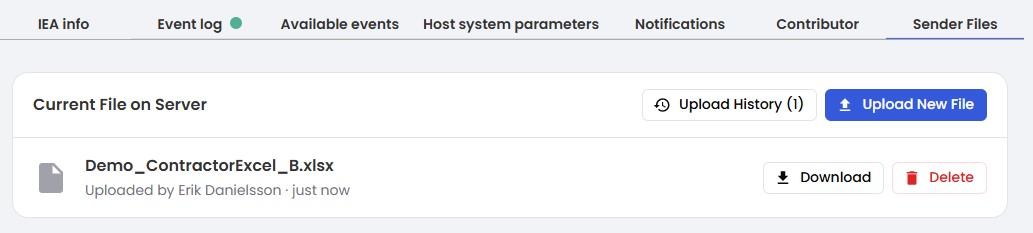
Confirmation that you file has been uploaded, including data validation.
Running a transfer
As mentioned earlier, the recommended "Frequency" setting for the EA involved in the transfer is "On File Upload". This means that after you have uploaded the file as described above, you will see the Event in Desktop Client (if that is the Executing Component):

The Transfer event is shown in Desktop Client as soon as file is uploaded.
In the case that you have Autonomous Component, you will not need to do this last step (as it will be done automatically).
Looking at the result of the use case
Let's look at the final result in Safran with import from 2 schedules (one from Contractor A and one from Contractor B):
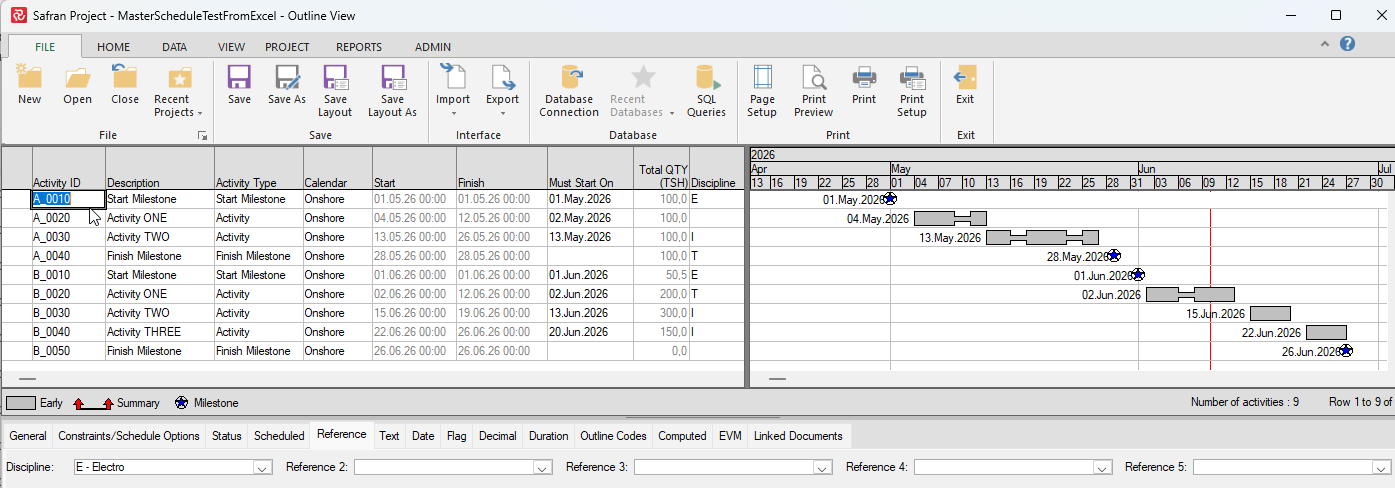
The resulting Safran "Master Schedule" containing Excel schedule data from 2 contractors.
Uniqueness - Yes:
Activity 0010 from subcontractor A becomes A_0010, Activity 0010 from subcontractor B becomes B_0010
Validation - Yes:
Provide a dropdown in Excel with the valid values: E, I, T.
Constraints -Yes:
Ensure that the dates in source are preserved by using MustStartOn and MustFinishOn constraints.
Was this article helpful?
That’s Great!
Thank you for your feedback
Sorry! We couldn't be helpful
Thank you for your feedback
Feedback sent
We appreciate your effort and will try to fix the article