Transfer schedules as Excel files
This guide explains how to exchange schedule data as an Excel workbook (.xlsx) through Web storage in SchedEx. It covers both directions: the sending side uploads a filled workbook, and the receiving side downloads the workbook that the transfer produces.
Excel works differently from Primavera P6 (.xer) or Microsoft Project (.mpp). You do not build an Excel schedule by hand. You first create a Template with the Excel
Template Wizard. The wizard generates a workbook that already has the right sheets, the
right columns, and a hidden, signed metadata sheet that ties the workbook to its Schedule.
You fill that generated workbook with your data and drop it in. Most of this guide is about
that template, because getting the template right is what makes an Excel transfer work.
This guide is for a person who has not used this feature before. It explains each SchedEx term the first time the term appears. A full list of terms is in the Glossary.
If you have not yet read the file-transfer hub, start there. It explains how Web storage, Schedules, and transfer frequency work for every file format. This guide only adds what is special about Excel. See Further reading.
Contents
- What Excel transfers let you do
- The key difference: you build a Template, not a schedule
- Why a SchedEx template is required
- Core fields vs terms
- Where the Excel Templates live
- The Excel Template Wizard, step by step
- What's inside the generated workbook
- Dropdowns, content control and data types
- Resource assignments and links — how to connect them to activities
- The Instructions (help) sheet
- Fill the template and drop it in
- File name and uniqueness
- Dos and don'ts
- Avoiding common errors
- When transfers run (frequency)
- Upload and download
- Managing your templates
- Constraints
- Permissions
- Questions and answers
- Further reading
1. What Excel transfers let you do
An Excel transfer moves schedule data between two organizations as a single Excel workbook (.xlsx). The data lives in ordinary worksheet rows: one row per activity, and,
when you choose to include them, rows for the links between activities, the resources, and
the resource assignments.
Excel is a good choice when the person who owns the data works in a spreadsheet rather than in a dedicated planning tool. Anyone with Excel can open the workbook, read it, and type into it. No Primavera P6 or Microsoft Project licence is needed.
Excel supports both directions of a transfer:
- Upload (sending side). You fill the generated workbook and drop it in. The next Data Transfer reads it and sends the data to your partner.
- Download (receiving side). The transfer produces a workbook for you. You download it and open it in Excel.
Excel transfers are used with Web storage — file storage inside SchedEx. This guide describes the Web storage path. A Config whose Excel connector reads from SharePoint or from a folder on your own computer does not use the Upload Files tab; it is managed outside the application.
2. The key difference: you build a Template, not a schedule
With Primavera P6 or Microsoft Project you export a file from your planning tool and upload it as it is. With Excel there is no planning tool to export from, so SchedEx gives you the workbook to fill.
That workbook comes from a Template. A Template is a reusable pattern that decides which fields appear as columns and which kinds of object the workbook carries. You create the Template once, with the Excel Template Wizard. The wizard then generates a .xlsx workbook for you to download.
The generated workbook is not an empty spreadsheet. It contains:
- One Activities sheet, with one column for each field the Template includes.
- Optional Links, Resources, and Assignments sheets, if the Template includes those objects.
- A hidden, signed metadata sheet. You will not normally see it. It records exactly which Schedule the workbook belongs to and exactly which columns and data types the Template expects. SchedEx signs this sheet so it can prove the workbook came from SchedEx and was not tampered with.
That signed metadata is why you must always start from a generated template. If you build a workbook by hand, copy your data into a blank spreadsheet, or edit the hidden sheet, the signature no longer matches and SchedEx refuses the file. This is also why, for Excel, the file name matters less than it does for P6 or Project: the metadata inside the workbook — not the file name — tells SchedEx which Schedule the data is for. (For Web storage you should still name the file to match the sender Schedule Title; see Fill the template and drop it in.)
3. Why a SchedEx template is required
You cannot upload just any .xlsx. Every template SchedEx generates carries a hidden, cryptographically signed _meta sheet. That sheet holds three things:
- the schedule identity — which Schedule the workbook belongs to,
- the field schema — exactly which sheets, columns, headings, and data types are expected,
- a signature that proves the workbook came from SchedEx and was not tampered with.
A blank or hand-made workbook has no _meta sheet, so the upload fails with:
"Template signature metadata (_meta) is missing."
The rule follows from this: always start from a SchedEx-generated template; never paste your
data into a fresh workbook. Download the workbook SchedEx produced, fill in the rows, and upload that same file. If you copy your rows into a clean spreadsheet, the _meta sheet is lost and the file is refused.
Why it works this way. The signed
_metasheet is what lets SchedEx identify the Schedule from the file's contents rather than from its name, and prove the structure has not been altered. It is the backbone of every Excel transfer, which is why you must never edit, rename, or remove it.
4. Core fields vs terms
An Excel template carries two kinds of activity field: core fields and terms.
4.1 Core fields
Core fields are the built-in activity fields that SchedEx understands directly. You pick them in step 3 of the wizard.
- Code and Description are Required — they are always included and are locked, so you cannot clear them.
- The default-selected optional fields are PlannedWorkHours, MustStartOn, and MustFinishOn. They are ticked for you, and you can clear them if you do not need them.
- Other optional core fields — more dates, hours, floats, and flags — can be toggled on as you need them.
Each core field shows its data type in the wizard. The types you will see are:
| Data type | Means |
|---|---|
| String | Text. |
| Decimal | A number that can have decimals. |
| Datetime | A date (and optionally a time). |
| Boolean | True or false. |
| Integer | A whole number. |
Calendar is not supported yet ("Coming soon"). The wizard lists a Calendar field marked Coming soon, so you cannot assign a calendar per activity. A default calendar is applied instead.
4.2 Terms (custom fields)
Terms are custom fields. They come from an optional "Data Exchange Template" that you pick in step 2 of the wizard. Each term has:
- a data type (the same set as above),
- an allow-blank flag — whether the field may be left empty, and
- optionally a fixed list of allowed values, which becomes a dropdown in the workbook.
Choose a Data Exchange Template when your transfer needs fields beyond the built-in core set; leave it blank to use only core fields.
5. Where the Excel Templates live
Excel Templates belong to an Excel connector — the configured link between SchedEx and your Excel data. You find them on the connector's Excel Templates tab.
A Setup Admin opens the connector and selects the Excel Templates tab. The tab lists every template on that connector, with a New Excel Template button above the list.
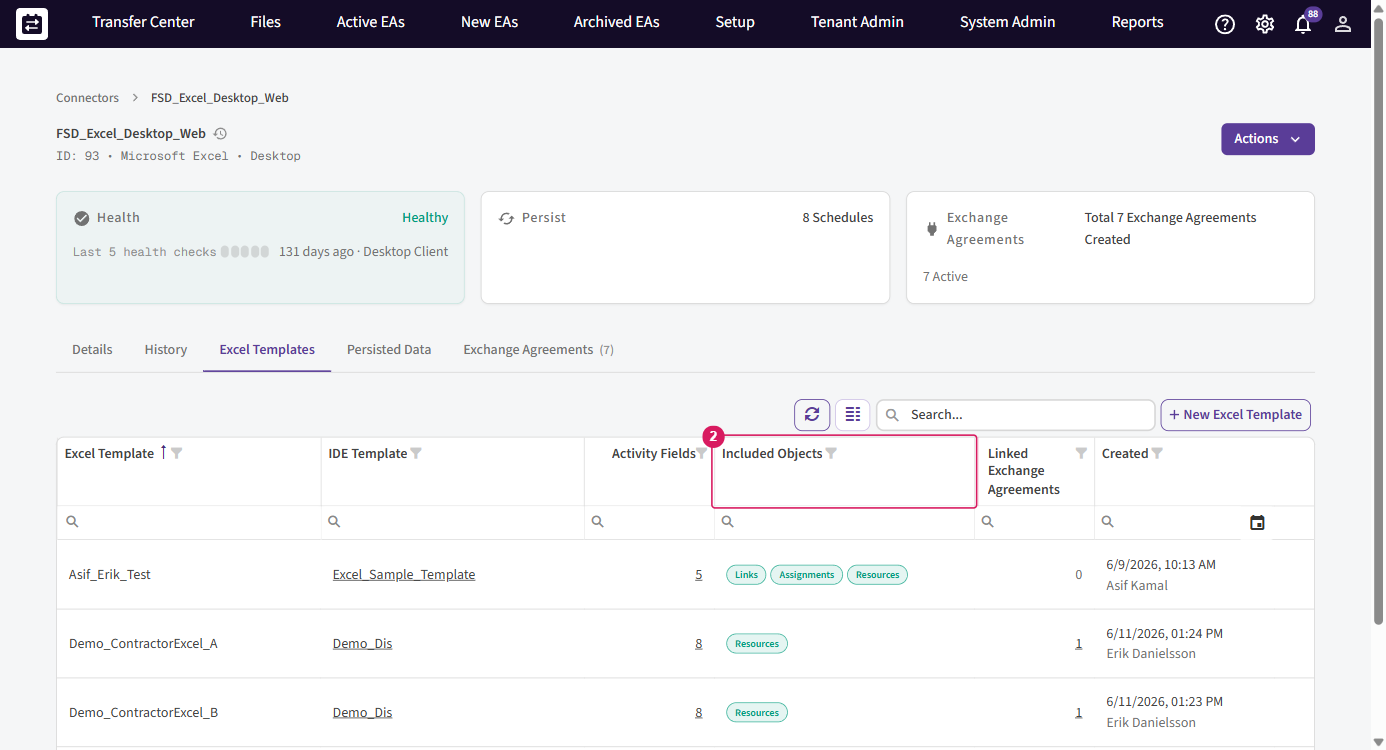
Each row in the list shows:
| Column | What it shows |
|---|---|
| Excel Template | The name you gave the template in the wizard. This is also the default name of the workbook you download. |
| IDE Template | The Data Exchange Template the fields were taken from, if you chose one. |
| Activity Fields | How many activity-level fields the template includes as columns. |
| Included Objects | Which extra objects the workbook carries: Links, Assignments, Resources. |
| Linked Exchange Agreements | How many Exchange Agreements send or receive through this template's Schedule. |
| Created | When the template was created. |
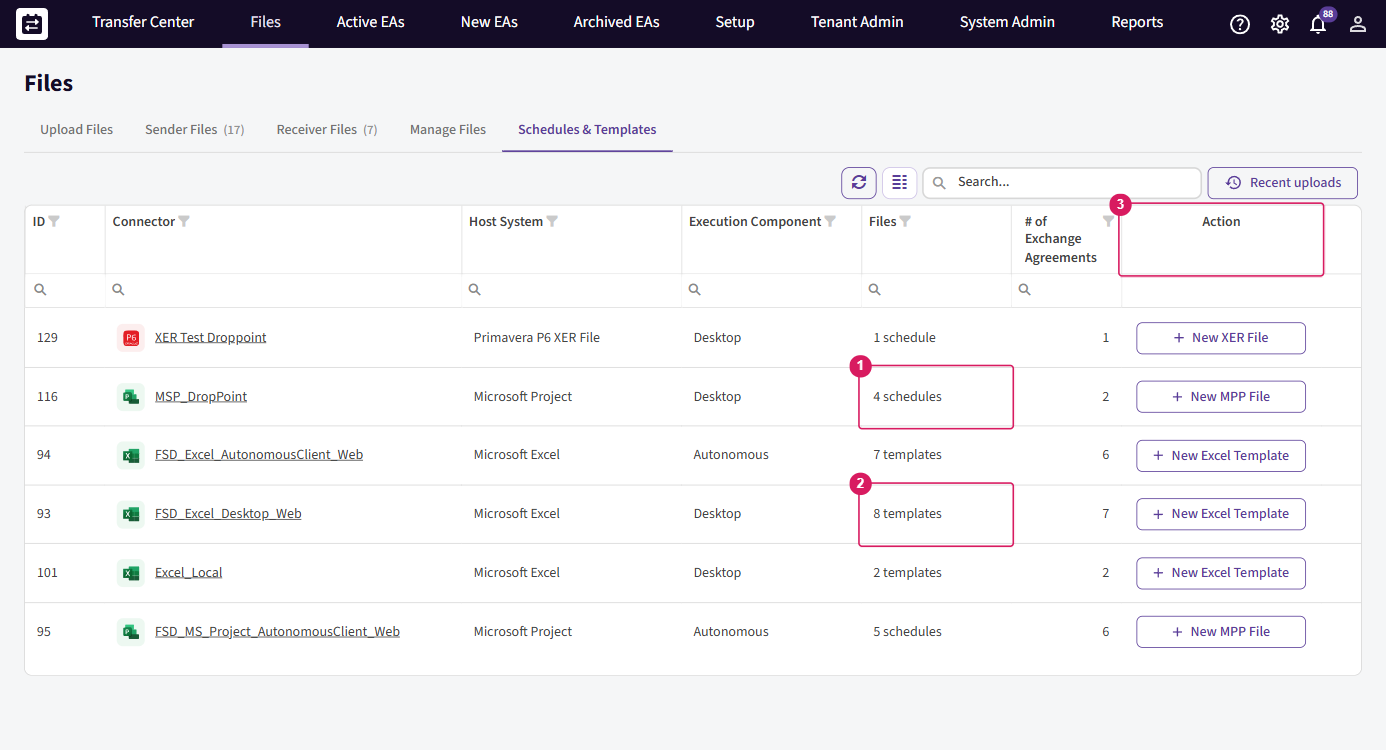
You can also reach the templates from the Files page. Open Files, then the Schedules & Templates tab. It lists your Excel connectors with the number of templates on each, and lets a Setup Admin jump to the connector to create or edit a template.
6. The Excel Template Wizard, step by step
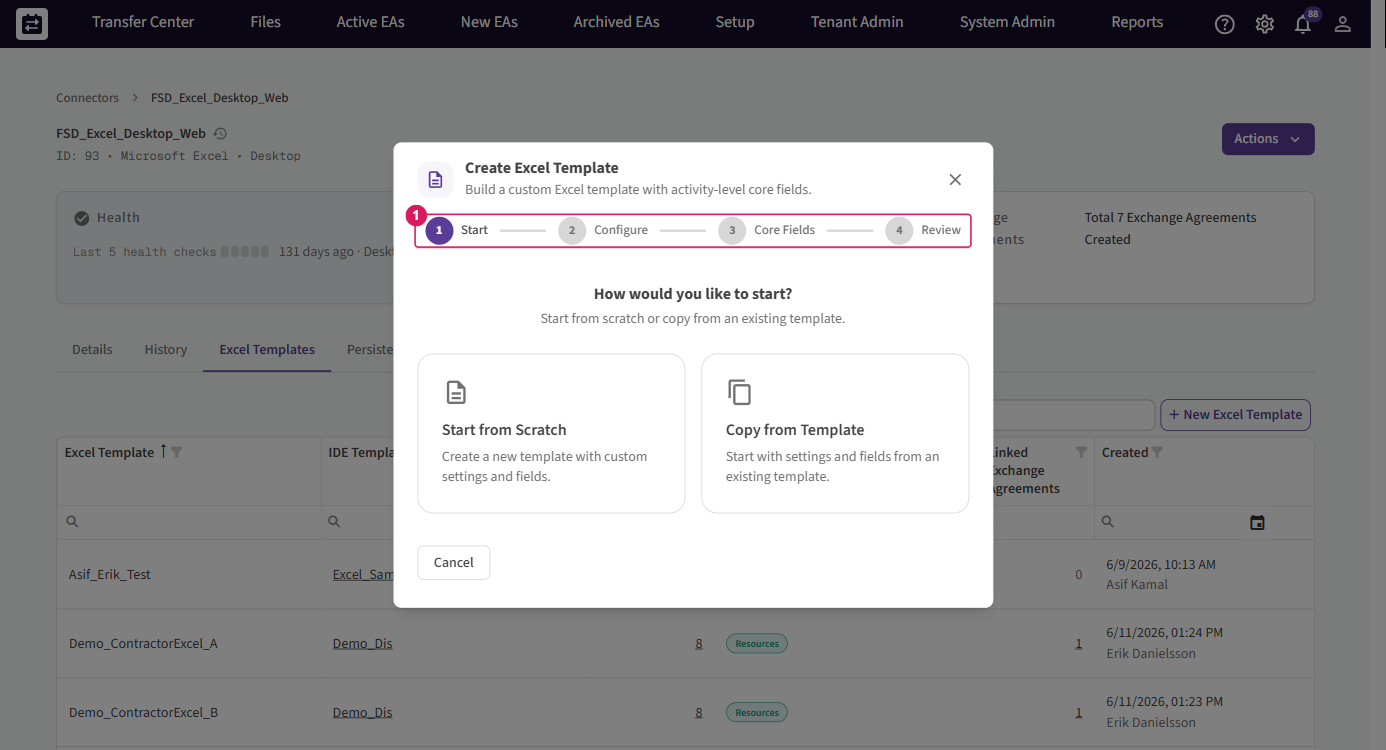
Select New Excel Template on the connector's Excel Templates tab to open the wizard. The wizard has four steps, shown in a stepper along the top: Start, Configure, Core Fields, and Review.
6.1 Step 1 — Start
The wizard asks How would you like to start? and offers two choices:
- Start from Scratch. Build a new template from nothing. You choose every setting and every field yourself. Use this the first time.
- Copy from Template. Begin from an existing template on the same connector, then adjust it. A dropdown lists the Schedules that already have a template. Use this when a new template is almost the same as one you already have.
Make your choice and continue to Configure.
6.2 Step 2 — Configure
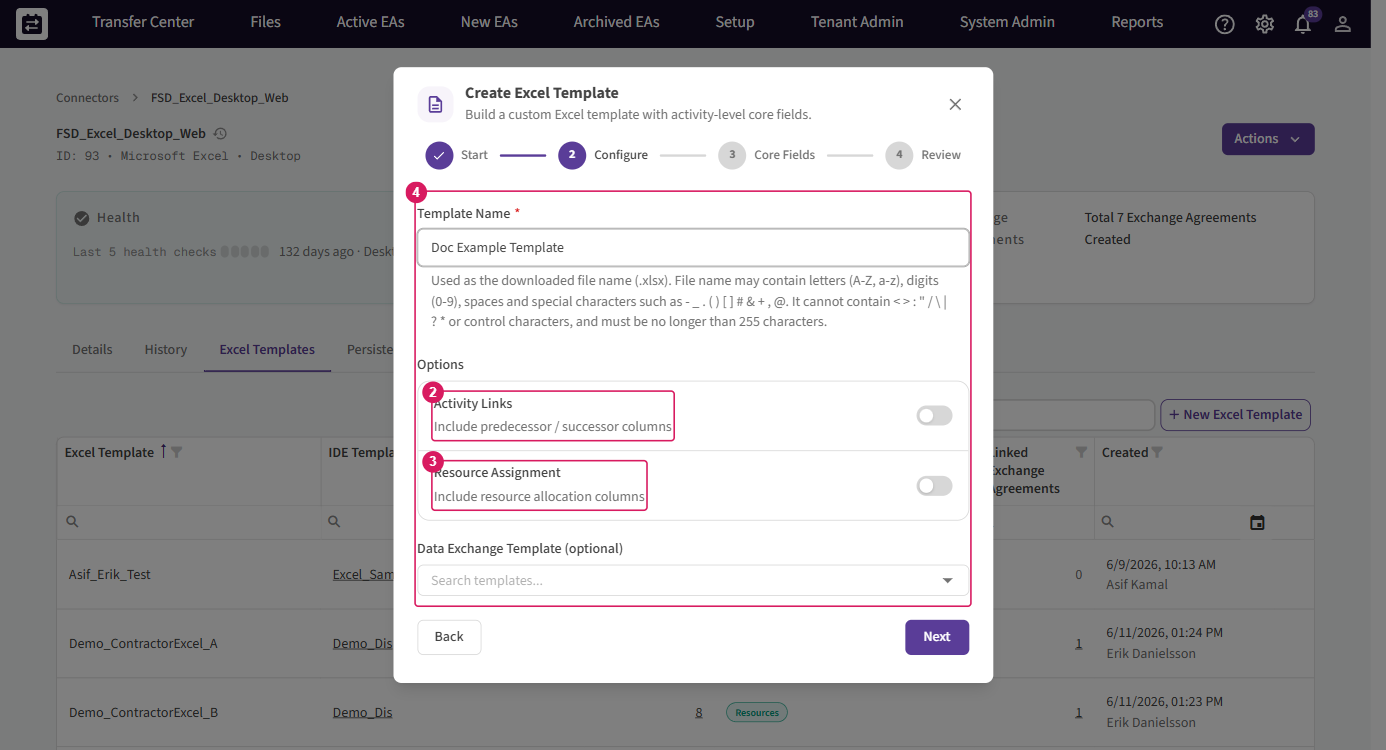
Here you name the template and decide what it carries:
- Template Name (required). This becomes the name of the downloaded
.xlsxfile. It must be unique on the connector (it is used as the schedule name). Allowed characters are letters, digits, spaces and- _ . ( ) [ ] # & + , @— not< > : " / \ | ? *— and it may be at most 255 characters. - Activity Links toggle. Turn this on to include the predecessor/successor columns — the workbook then gets a Links sheet.
- Resource Assignment toggle. Turn this on to include the resource allocation columns — the workbook then gets an Assignments sheet.
- Data Exchange Template (optional). Pick a Data Exchange Template to add custom term columns (see Core fields vs terms). Leave it blank to use only the core fields you choose in the next step.
Continue to Core Fields.
6.3 Step 3 — Core Fields
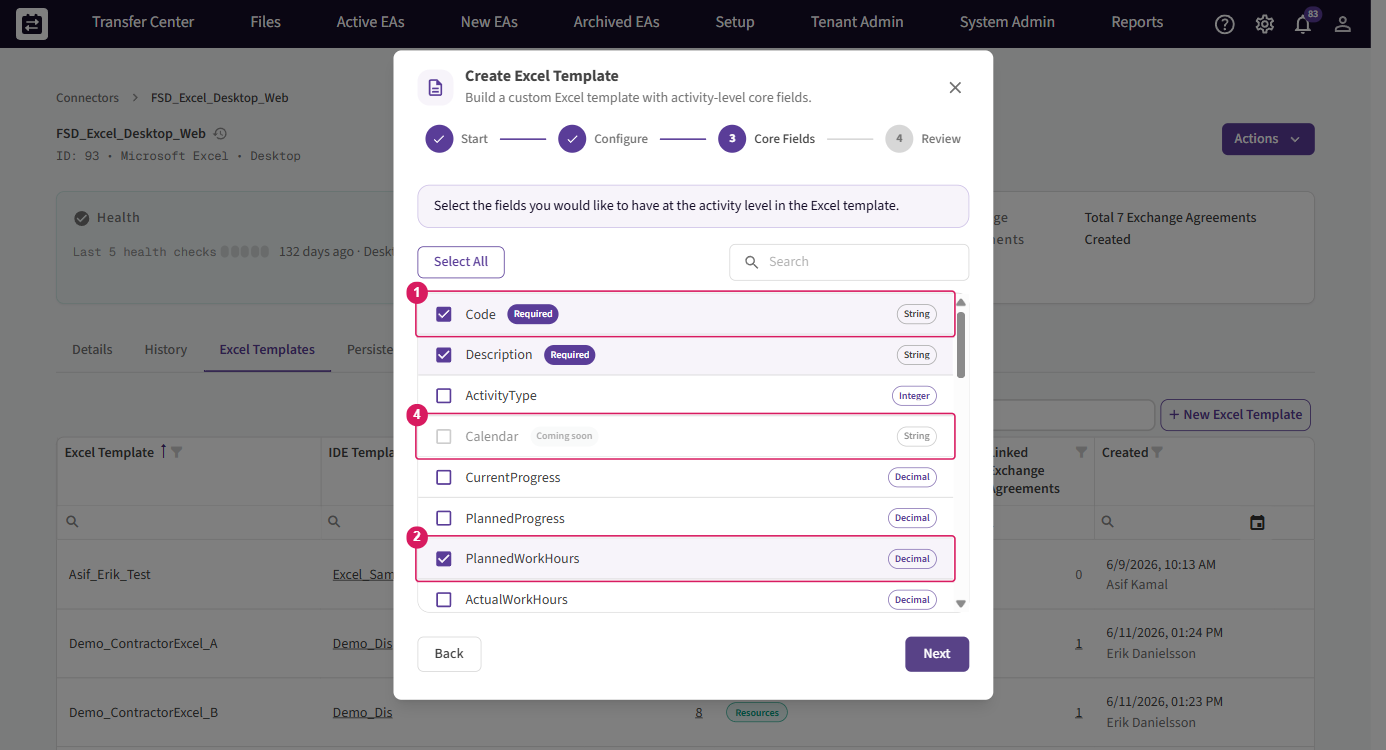
This step is where you pick the activity-level fields that become columns on the Activities sheet. You see a searchable list of the available fields, each with a checkbox and its data type.
- Code and Description are required and locked — they are always included.
- PlannedWorkHours, MustStartOn, and MustFinishOn are checked by default. Clear them if you do not need them.
- Toggle on any other optional core fields your partner needs. Each selected field becomes one column.
- Use Select All to add every field at once, or the search box to find a field quickly in a long list.
- Calendar is marked Coming soon and cannot be selected yet; a default calendar is applied instead.
The objects you turned on in step 2 (Activity Links, Resource Assignment) already have their own sheets with a fixed set of columns, so you do not pick columns for them here — this step is about the activity columns.
Continue to Review.
6.4 Step 4 — Review
The last step shows a read-only summary of everything you chose: the name, the included objects, the Data Exchange Template, and the list of fields. Read it, and go back to change anything that is wrong.
For a Web storage connector you also see an Add as Schedule option. Leave it on so the new template is saved as a Schedule you can transfer through straight away. (For SharePoint or Local connectors the wizard shows an information note instead, because templates for those storage modes are managed outside the application.)
When the summary is correct, generate the template. SchedEx builds the signed .xlsx workbook and, for Web storage, creates the matching Schedule. The new template then appears in the Excel Templates list, and you can download the generated workbook from its row.
Note. A single generated workbook can hold up to 50,000 activity rows. If your schedule is larger than that, split it across more than one Schedule.
7. What's inside the generated workbook
The workbook the wizard produces is not an empty spreadsheet. It contains a set of sheets, each with a clear job:
| Sheet | What it is for |
|---|---|
| Activities | One row per activity. Each core field or term you chose is a column. This is the main sheet. |
| Resources | One row per resource, each with a unique resource code. Present when Resource Assignment is enabled. |
| Assignments | Links a resource to an activity (and optional hours, dates, lag). Only present if Resource Assignment is enabled. |
| Links | The logical links between activities (predecessor, successor, link type, lag). Only present if Activity Links is enabled. |
| Instructions | A visible, protected help sheet that explains how to fill the workbook. Read it first — see The Instructions (help) sheet. |
| _meta (hidden) | The hidden, signed metadata sheet that carries the schedule identity, field schema, and signature. Never edit, rename, or remove it. |
8. Dropdowns, content control and data types
SchedEx turns the field rules — what the industry calls content control — into real Excel dropdowns and validation, so the workbook guides you as you type.
8.1 How content control becomes dropdowns
- A term with a fixed value list becomes a dropdown: you can only pick one of the allowed values.
- A field whose allow blank = false is required — you must enter a value.
Dropdowns also appear automatically on the relationship sheets:
| Sheet | Column | Dropdown |
|---|---|---|
| Links | Predecessor | A dropdown of activity codes. |
| Links | Successor | A dropdown of activity codes. |
| Links | Link Type | FS / SS / FF / SF. |
| Assignments | Activity | A dropdown of activity codes. |
| Assignments | Resource | A dropdown of resource codes. |
8.2 Data-type rules
The Instructions sheet lists these rules too:
| Type | How to enter it |
|---|---|
| Date | YYYY-MM-DD — for example 2026-03-15. |
| Decimal / Number | Numbers only. |
| Boolean | TRUE or FALSE, picked from the dropdown. |
| Text | Any value. |
| Dropdown | Pick from the list only. |
If a value breaks a rule, the upload is refused with a message such as:
"Invalid value for {header}." "{field} must be a valid date." "{field} must be numeric." "'{value}' is not a valid value for {header}. Allowed values: {list}"
9. Resource assignments and links — how to connect them to activities
Resources and links are joined to activities by activity code. This is the single idea behind both the Assignments sheet and the Links sheet.
9.1 Resource assignments (Assignments sheet)
To assign a resource to an activity:
- Put the activity's Code in the Activity column (via its dropdown).
- Put the resource's Code in the Resource column (via its dropdown).
- Optionally fill Planned Hours, Duration, Actual Hours, Early Start, Early Finish, and Lag.
You connect a resource to an activity by the activity code. Both Activity and Resource are required. You may add several assignment rows for the same activity/resource pair.
If a code is wrong or missing, the upload reports:
"Activity '{code}' not found in Activities sheet (may have been deleted or misspelled)." "Resource '{code}' not found in Resources sheet (may have been deleted or misspelled)."
9.2 Activity links (Links sheet)
To link two activities:
- Put the predecessor activity code in Predecessor (via the dropdown of activity codes).
- Put the successor activity code in Successor (via the dropdown of activity codes).
- Choose a Link Type:
- FS — Finish-to-Start. The successor can start once the predecessor finishes (the most common relationship).
- SS — Start-to-Start. The successor can start once the predecessor starts.
- FF — Finish-to-Finish. The successor can finish once the predecessor finishes.
- SF — Start-to-Finish. The successor can finish once the predecessor starts.
- Optionally add a Lag — a delay between the two. A negative lag is a lead (the successor may start earlier).
Both codes are required and must exist. Validation messages include:
"Link Type must be FS, SS, FF, or SF." "Predecessor and Successor cannot be the same." "Duplicate link: {type} relationship from '{pred}' to '{succ}' already exists. Each predecessor-successor-type combination must be unique."
10. The Instructions (help) sheet
The generated workbook includes a visible, protected Instructions sheet. Read it first — it is tailored to the exact template you downloaded. It contains:
- Template info — the template name and which schedule it is for.
- Which data sheets exist in this particular workbook.
- A "What You CAN Do" list — edit the editable columns, add and delete rows, sort and filter, use the dropdowns, and create new activities and resources where allowed.
- A "What You CANNOT Do" list — the structural changes that break the workbook.
- The validation rules for each sheet.
- A data-type reference (dates, numbers, booleans, text, dropdowns).
- A list of the selected core fields in this template.
Because the Instructions sheet is generated from your template, it always matches the workbook in front of you — treat it as the authoritative guide for that file.
11. Fill the template and drop it in
Once the template exists, a normal transfer looks like this:
- Download the generated workbook. On the connector's Excel Templates tab, download the
.xlsxfrom the template's row. (A Setup Admin can do this and share the file with the person who fills it.) Always start from this generated file — never from a blank spreadsheet. - Enter your data in Excel. Type into the rows on the Activities sheet, and the Links, Resources, and Assignments sheets if the template has them. Keep to the columns that are there. Where a cell has a dropdown, pick one of the offered values.
- Do not change the structure. Do not add, remove, or rename sheets, tables, columns, or headings, and do not touch the hidden metadata sheet. Changing the structure breaks the signature and the file is refused.
- Name the file to match the sender Schedule. For Web storage, name the workbook after the Title of the sender Schedule, plus
.xlsx— for examplePlan A.xlsx. The comparison ignores upper and lower case, but everything else, including spaces, must match. - Drop it in. Open Files, go to the Upload Files tab, and drop the workbook there (or use the Upload File button). SchedEx reads the signed metadata, confirms which Schedule and which Exchange Agreements the file reaches, and stores it.
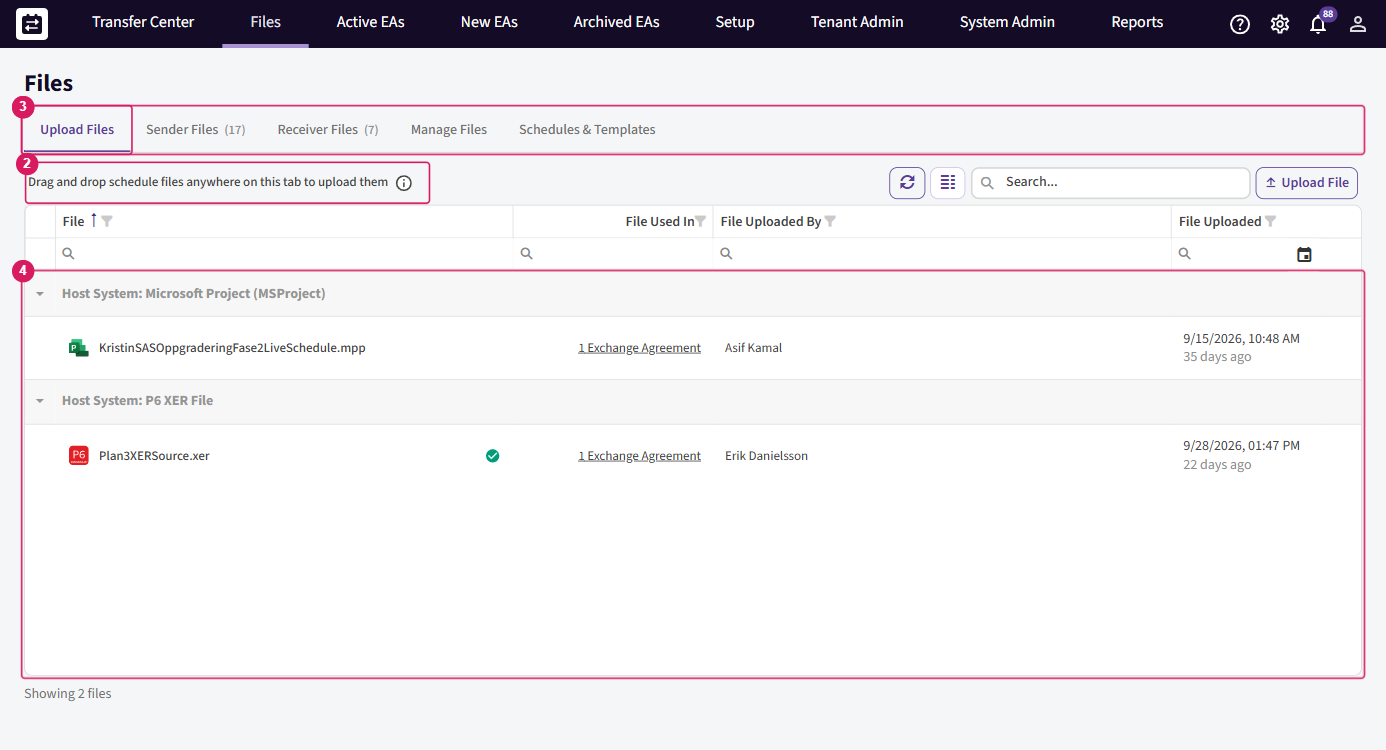
The uploading, matching, and multi-agreement behaviour on the Upload Files tab is the same for Excel as for any other format. The dedicated upload guide explains the dialogs, the match list, and the result statuses in detail — see Further reading.
12. File name and uniqueness
Two kinds of name must be right: the file name when you upload, and the template name when you create it. Inside the sheets, codes must also be unique.
12.1 The uploaded file name
For a Web-storage connector, the uploaded file name without its extension must match the sender schedule's Title. If it does not, the upload is refused:
"File name must match the sender schedule. Rename the file to "{name}.xlsx" and upload again."
Rename the file to the exact name in the message and upload again.
12.2 The template name
The Template Name must be unique on the connector — it is used as the schedule name. A clashing name is rejected:
"File name must be unique for this connector (used as schedule name)."
12.3 Codes must be unique inside the sheets
Activity codes must be unique on the Activities sheet:
"Duplicate activity code '{code}'. Each activity must have a unique code."
Resource codes must be unique on the Resources sheet:
"Duplicate resource code '{code}'. Each resource must have a unique code."
13. Dos and don'ts
One rule covers nearly everything: start from the generated template, fill the editable columns, use the dropdowns, and keep the structure exactly as it was.
13.1 Do
- Start from the generated template — the file SchedEx produced, never a blank workbook.
- Fill the editable (white) columns with your data.
- Use the dropdowns where they are offered.
- Read the Instructions sheet first.
- Keep the file name matching the sender schedule Title.
13.2 Don't
- Don't add, remove, rename, or reorder columns.
- Don't rename sheets or tables.
- Don't enter formulas— only plain values are allowed:
"Formula found in {sheet}/{table}/{cell}. Only plain values are allowed."
- Don't modify the hidden
_metasheet. - Don't paste your data into a blank workbook.
- Don't duplicate activity codes, resource codes, or links.
- Don't leave required fields blank.
- Don't type values outside a dropdown's list.
- Don't put the wrong data type in a cell (for example text in a number column).
- Don't set Predecessor = Successor on a link.
13.3 What you can't do in Excel (not supported)
- Per-row calendar assignment — a default calendar is applied (Calendar is Coming soon).
- Any file other than
.xlsx. - Adding columns after the template is generated — the structure is fixed by the template.
14. Avoiding common errors
Most Excel problems come from one of three causes: the wrong file type, a name that does not match the Schedule, or a workbook that is no longer the one the wizard generated. The table lists the messages you may see and what to do.
| Message | What it means | What to do |
|---|---|---|
| Only .xlsx files are supported for Excel source uploads. | You tried to upload something that is not an .xlsx workbook (for example a .csv or an old .xls). | Save the workbook as .xlsx and upload again. |
| File name must match the sender schedule. Rename the file to "{expectedFileNameStem}.xlsx" and upload again. | The workbook is valid, but its name is not the Title of the sender Schedule. | Rename the file to the exact name in the message, then upload again. |
| Template signature metadata (_meta) is missing. | The workbook has no signed metadata sheet. It was not generated by the wizard, or the sheet was removed. | Download a fresh template from the connector's Excel Templates tab and enter your data there. |
| Signature verification failed. File was not generated by the templating system or it was altered. | The workbook came from somewhere other than SchedEx, or a protected part of it was changed. | Start again from a freshly generated template and copy your data into it. Do not edit the hidden sheet. |
| Missing required sheet / Unexpected sheet present / Column count mismatch / Header mismatch | The sheets, columns, headings, or data types no longer match what the template defines. | Do not add, remove, or rename sheets, tables, columns, or headings. Keep each value the right type (dates as dates, numbers as numbers). Start from a new template if in doubt. |
| Invalid Excel file. The file cannot be parsed as an OpenXML workbook. | The file is damaged or is not really an .xlsx. | Open it in Excel and save it again as .xlsx. |
| The uploaded file is too large. The maximum file size is 100 MB. | The workbook is over the 100 MB upload limit. | Reduce the file size, or split the schedule across more than one Schedule (a workbook can hold up to 50,000 activity rows). |
The single rule that prevents nearly all of these: always start from a workbook the wizard generated, enter data without changing the structure, and name the file after the sender Schedule Title.
15. When transfers run (frequency)
Whether an upload sends the data straight away depends on how the Exchange Agreement is set to transfer:
- On File Upload. Dropping the workbook in creates a Data Transfer at once, so the data goes to your partner as soon as you upload.
- Scheduled or manual. The workbook is stored and waits. The data goes out on the next planned transfer, or when someone runs the transfer by hand.
Frequency is a property of the Exchange Agreement, not of Excel, and it works the same for all file formats. The hub explains the options in full — see Further reading.
16. Upload and download
An Excel transfer has two halves, one on each side.
16.1 Sending side (upload)
The sender fills the generated workbook and uploads it on the Upload Files tab, as described in Fill the template and drop it in. When the transfer runs, SchedEx reads the workbook's sheets, turns the rows into schedule data, and sends that data to the receiving side.
16.2 Receiving side (download)
On the receiving side the transfer produces an Excel workbook from the same Template and stores it for you. To get it, open Files and go to the Receiver Files tab, then download the produced .xlsx. Open it in Excel to read the data your partner sent.
The receiver never uploads. Only the sending side stages a source file; the receiving side downloads the result of the transfer.
Two files, one per side. An Excel transfer is a two-file pattern. The sender fills and uploads their workbook; SchedEx then generates a fresh
.xlsxfrom the transferred data on the receiving side. What the receiver downloads from Files → Receiver Files is that generated workbook — not the sender's original file.
17. Managing your templates
A Setup Admin manages templates from the connector's Excel Templates tab. Each template row has an actions menu with three choices:
- Edit. Reopens the wizard so you can change the template's name, its included objects, or its fields. Editing re-generates the workbook. Because the structure changes, anyone filling the old workbook should download the new one — an old workbook no longer matches the updated template and will be refused.
- Download. Gets the current generated
.xlsxfor this template, ready to fill. - Delete Template. Removes a template you no longer need. A confirmation is shown first, and it warns you when the template has Linked Exchange Agreements — deleting then affects every agreement that transfers through the template's Schedule. You cannot delete a template whose Schedule is still used by an Exchange Agreement; remove it from those agreements first.
The Linked Exchange Agreements count on the row is a link: select it to open the list of the agreements that send or receive through this template's Schedule. Check this before you edit or delete, because every change reaches all of them.
Changing a template regenerates its workbook. Anyone still using the old file should download the new one — the old workbook no longer matches the updated template.
Copy from Template in the wizard (step 1) currently reuses an existing per-Schedule template on the same connector. If you want a template that is almost identical to one you already have, start the new one with Copy from Template and adjust the differences.
18. Constraints
- Format. Only
.xlsxis accepted. Older.xls,.csv, and other formats are refused. - Generated workbooks only. The workbook must still carry the wizard's signed metadata. Hand-built workbooks, or workbooks whose structure was changed, are refused.
- Structure must match the template. The sheets, columns, headings, and data types must be exactly those the template defines.
- File name for Web storage. The name before
.xlsxmust be the Title of the sender Schedule. Case is ignored; everything else must match. - Activity rows. A single Excel schedule workbook can hold up to 50,000 activity rows. If your schedule is larger, split it across more than one Schedule.
- File size. One file can be up to 100 MB. A larger file is refused with:
"The uploaded file is too large. The maximum file size is 100 MB."
- Storage mode. This guide applies to Web storage Excel connectors. SharePoint and Local connectors do not use the Upload Files tab.
- One template per Schedule. Each Schedule has one Excel template at a time.
19. Permissions
Who can do what mirrors the other file formats, with one addition: building templates needs the Setup Admin role.
| Action | Who can do it |
|---|---|
| Create, edit, or delete an Excel Template; run the wizard | A user with the Setup Admin role on the connector's organization. |
| Download the generated workbook | A Setup Admin, or anyone you share the downloaded file with. |
| Upload a filled workbook | A representative of the sending side, a Tenant Admin of the sending organization, or a contributor with the Send role. |
| Download a produced workbook (Receiver Files) | A representative of either side, a Tenant Admin of either organization, or a contributor with the Receive role. |
| Delete a stored source file | Only a Tenant Admin or System Admin, on the sending side. |
Actions you are not allowed to take are either hidden from you or refused with a message that explains why. See the upload guide and the contributor guide for the exact messages.
20. Questions and answers
Why can I not just make my own spreadsheet and upload it?
Because SchedEx needs the hidden, signed metadata the wizard puts in the workbook. That metadata says which Schedule the data is for and which columns are expected, and the signature proves the file came from SchedEx. A spreadsheet you built by hand has none of that, so it is refused. Always start from a generated template.
I copied my rows into a clean workbook and now it is refused. Why?
Copying into a clean workbook loses the signed metadata sheet and the exact structure. Download a fresh template instead, then type or paste your data into that workbook without changing any sheets, columns, or headings.
Does the file name still matter for Excel?
Less than for P6 or Project, because the metadata inside the workbook identifies the Schedule. But for Web storage you should still name the file after the sender Schedule Title, plus .xlsx, so the upload matches cleanly. If the name is wrong you get the message File name must
match the sender schedule….
Can the receiving side change the template?
The Template lives on the connector that owns it. The receiving side downloads the produced workbook from Receiver Files; it does not build or edit the Template and does not upload.
I edited a template. Do people need a new workbook?
Yes. Editing a template re-generates the workbook, so its structure changes. An old filled workbook no longer matches and will be refused. Share the newly generated template with anyone who fills it.
Can one template serve several Exchange Agreements?
Yes. The template belongs to a Schedule, and several Exchange Agreements can transfer through the same Schedule. The Linked Exchange Agreements count on the Excel Templates tab tells you how many.
21. Further reading
- File-based transfers — the hub — how Web storage, Schedules, transfer frequency, and the Upload Files / Receiver Files tabs work for every file format. Start here if you have not read it.
- Contributor organizations — how Send and Receive roles work for contributors.
- Glossary — shared definitions of Config, Exchange Agreement, Schedule, Template, Web storage, and the other terms used here.
Was this article helpful?
That’s Great!
Thank you for your feedback
Sorry! We couldn't be helpful
Thank you for your feedback
Feedback sent
We appreciate your effort and will try to fix the article