TABLE OF CONTENTS
Introduction
This article explains how Application Roles work in SchedEx and how these roles determine what users can see and do in the web application.
Depending on the assigned role, a user may be able to set up configs, manage tenants, or simply sign and send data through Exchange Agreements (EAs).
There are four roles in IDE, each with specific permissions and responsibilities. This guide walks through each of them in detail.
Roles Overview
IDE currently supports four roles:
Application User – for EA signers and transfer initiators (if they are representatives of EAs).
Tenant Setup – for managing Connectors, Templates, Configs and creating & editing EAs.
Tenant Admin – for maintaining users in a tenant, controlling which Global SchedEx terms are visible for tenant, creating Tenant Specific SchedEx Terms, and managing clients & installations.
System Admin – for full access across tenants and system-level setup.
Application User
This role is typically assigned to people responsible for signing EAs and transferring data, either as the sender or the receiver. Application Users focus on executing and monitoring the data transfer through EAs.
When a user with this role logs in, they see the following tabs:
Transfer Center – Monitor ongoing transfers
Active EA – View a list of active EAs
New EA – Access EAs that are being created or are pending start
Archive EA – View EAs that have expired
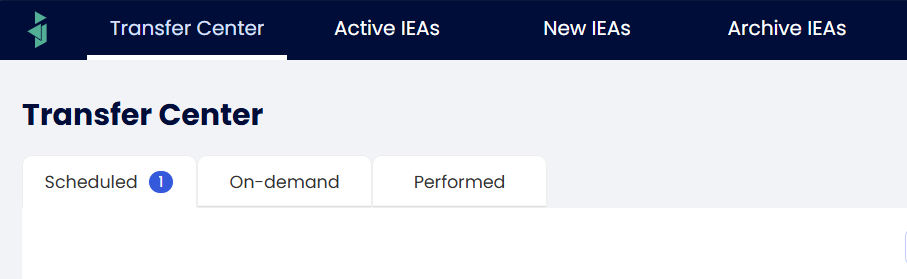
Image of available tabs for users with the Application role
What they can do:
Get access to Transfer Center where EA transfers are monitored and managed.
Sign EAs that they have been made representatives for.
View EA details and if there is any update in the EA.
Download transfer data for support.
If owner of an EA: edit general info (expiration date, frequency, transfer window, comments, labels).
If sender: add or edit activity filters.
Manage representative to the EA they are involved in.
View and edit host system parameters of the EA.
Pause EA.
Generate transfer events, perform transfers.
View transfer logs.
On rare occasions: Create Test event and upload 50 rows of "real" sample data for testing mapping in IEA.
What they cannot do:
Create, edit, or delete Connectors, Templates, Configs, IEAs.
Accepts pending changes to IEA based on changes to related config.
Skip ongoing transfers of an IEA.
Manage tenants, users, or ILAP terms.
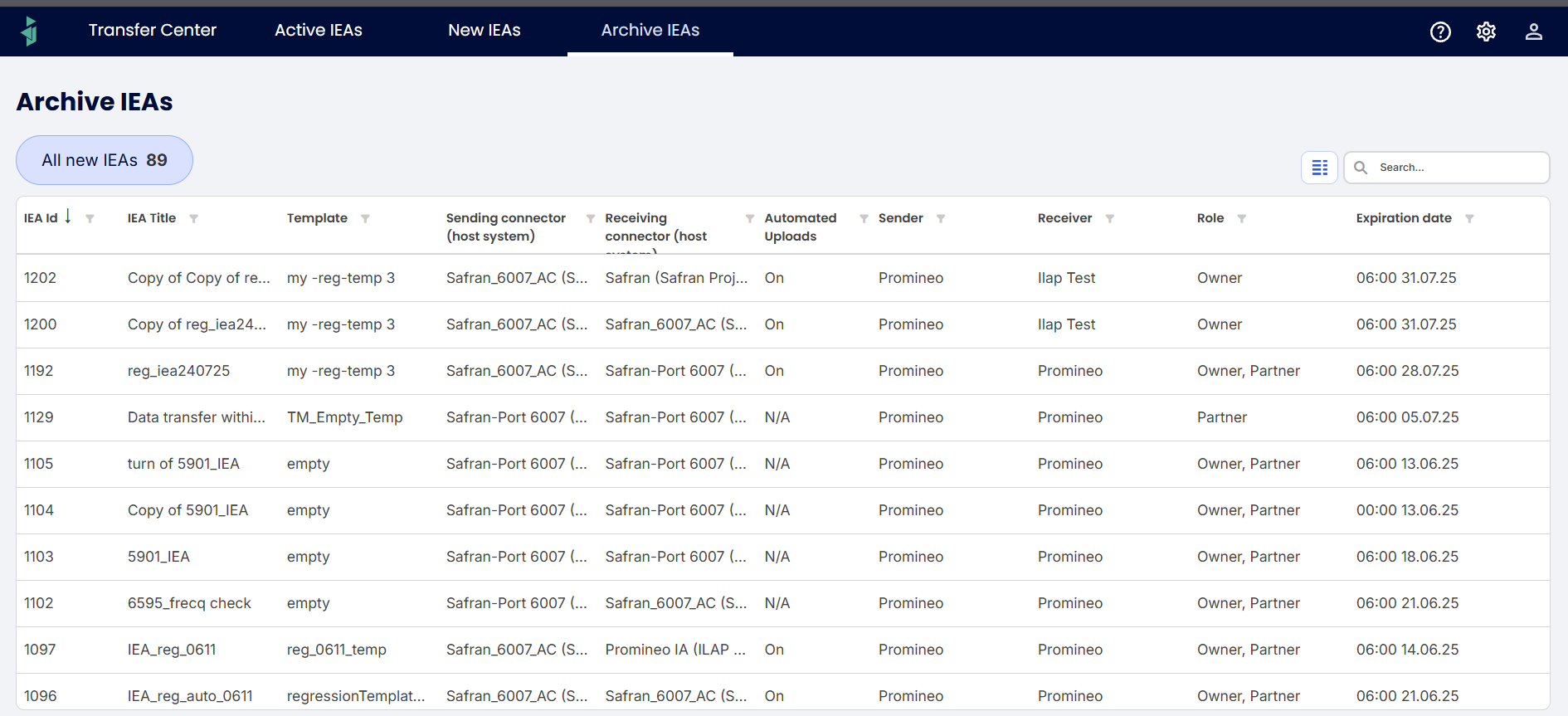
Some sample screenshots of Tabs they can access from web UI:
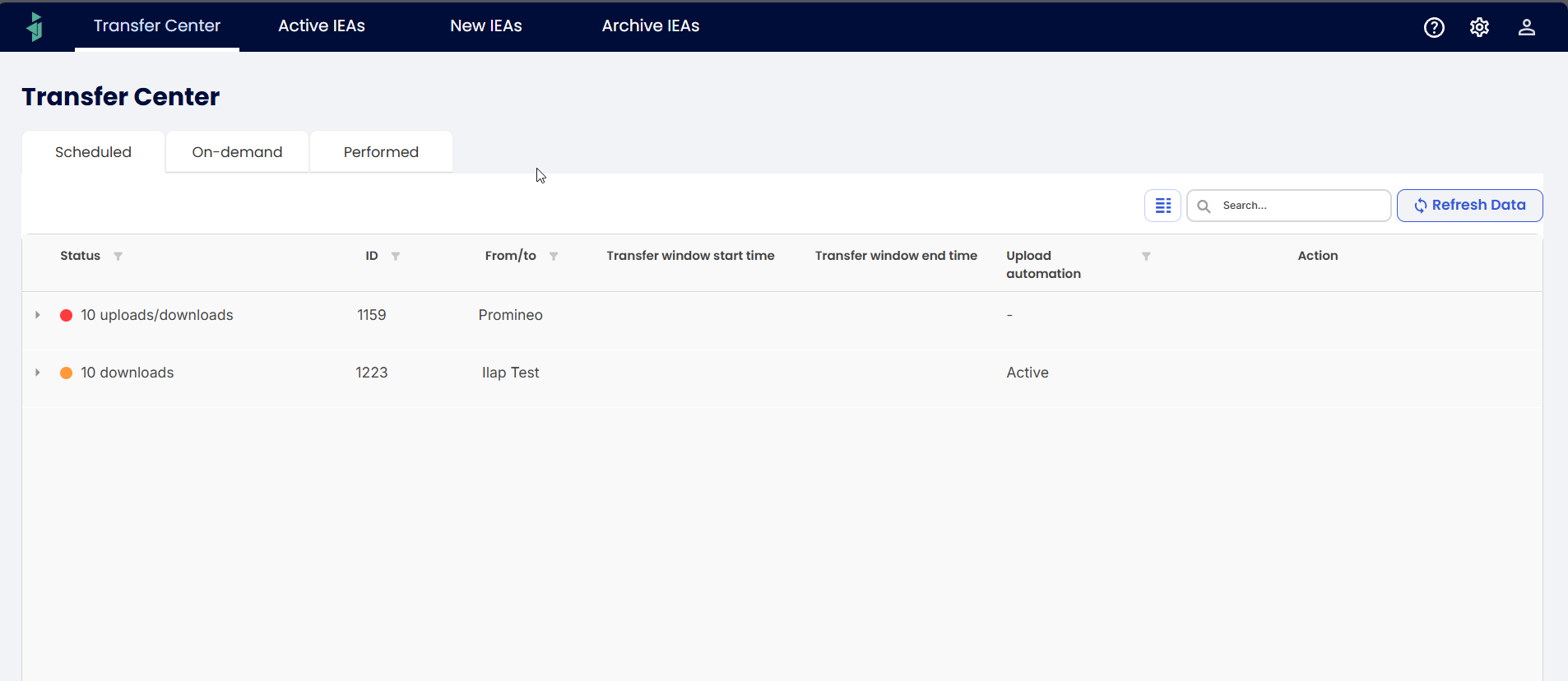
Image of Transfer center
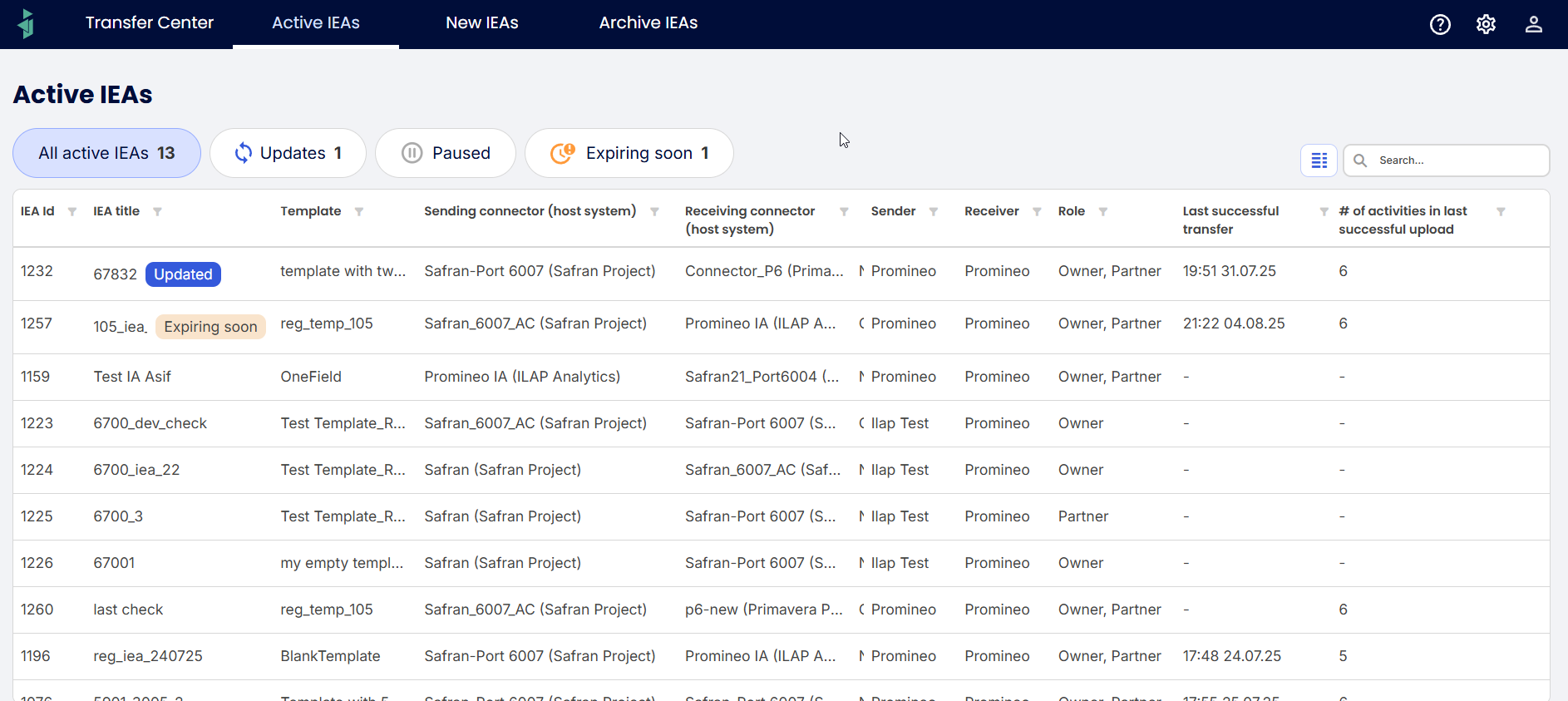
Image of Active IEA
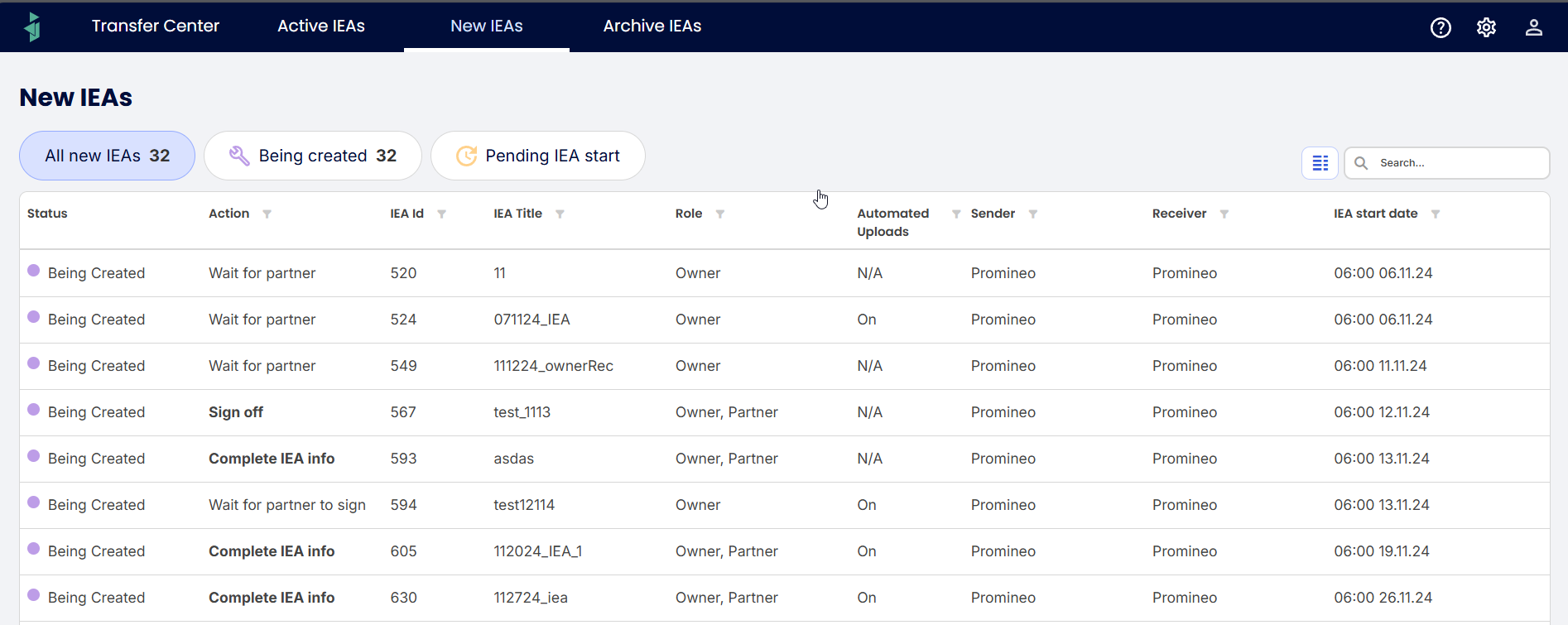
Image of New IEAs
Setup Admin
The Setup Admin is responsible for creating and maintaining connectors, templates, and configs used to build or update an IEA. Setup admin creates everything for application user to sign IEA and do successful data transfer.
When setup admins log in to the system, a new tab is seen named Setup, which contains access to Connectors templates & configs.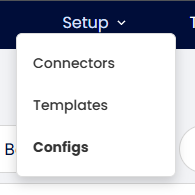
Image of avilable options for users with the Setup Admin role
What they can do:
Create, edit, or delete connectors, templates, and configs.
Manage ILAP terms when content control is set as “template”
Create IEAs
Access all functionalities available to Application Role users
What they cannot do:
Manage ILAP terms with content control set as “tenant” or “system”
Edit tenant details, users, or installed clients
Some sample screenshots of Tabs they can access from web UI:
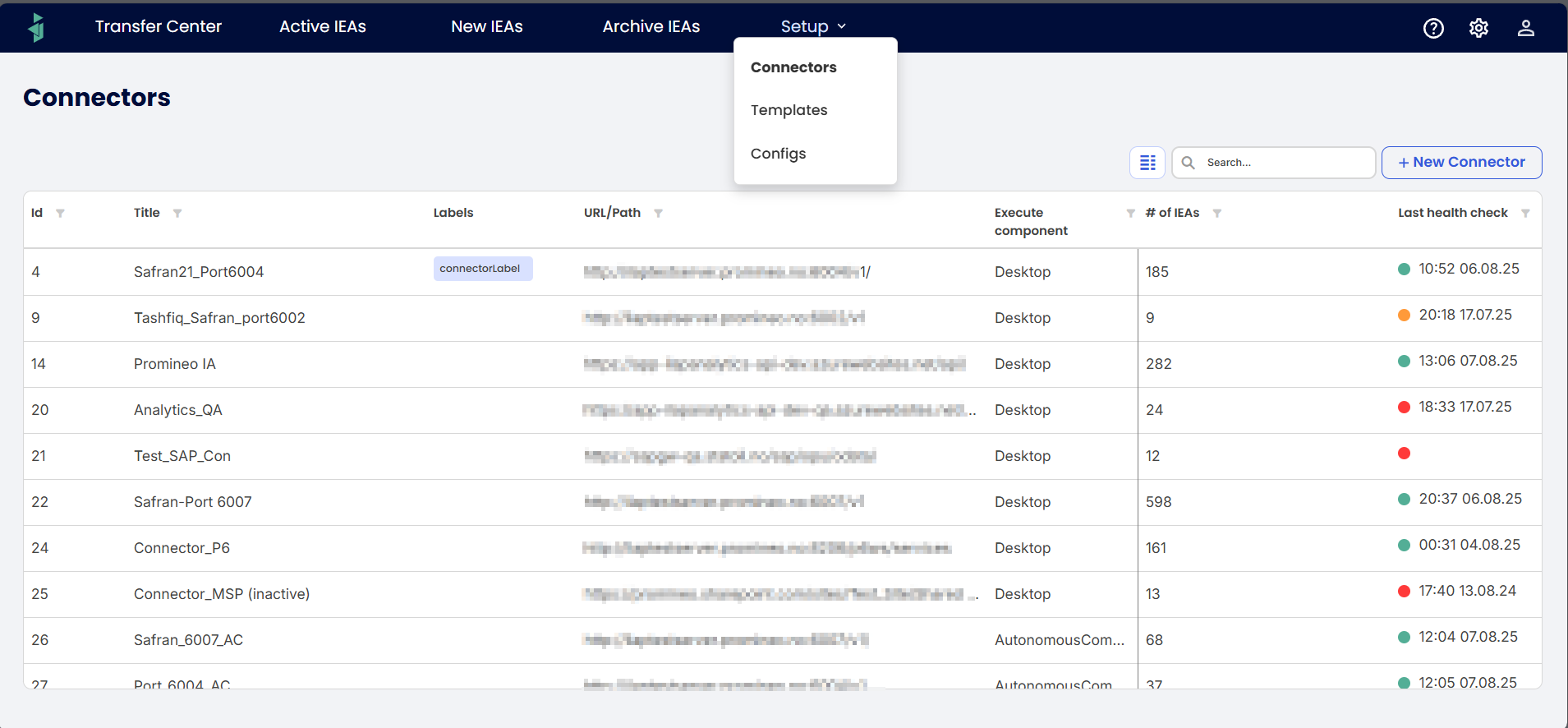 Image of connector list
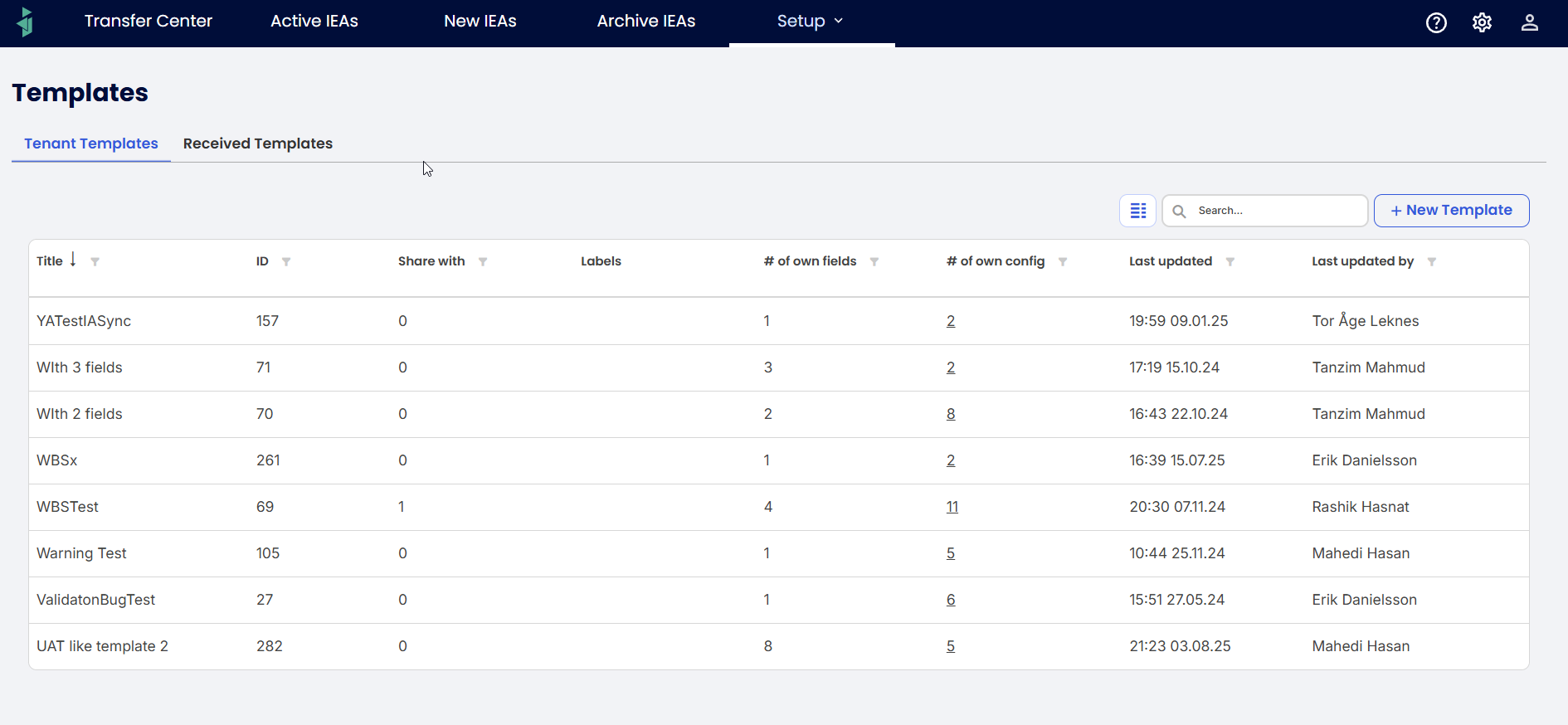 Image of list of templates
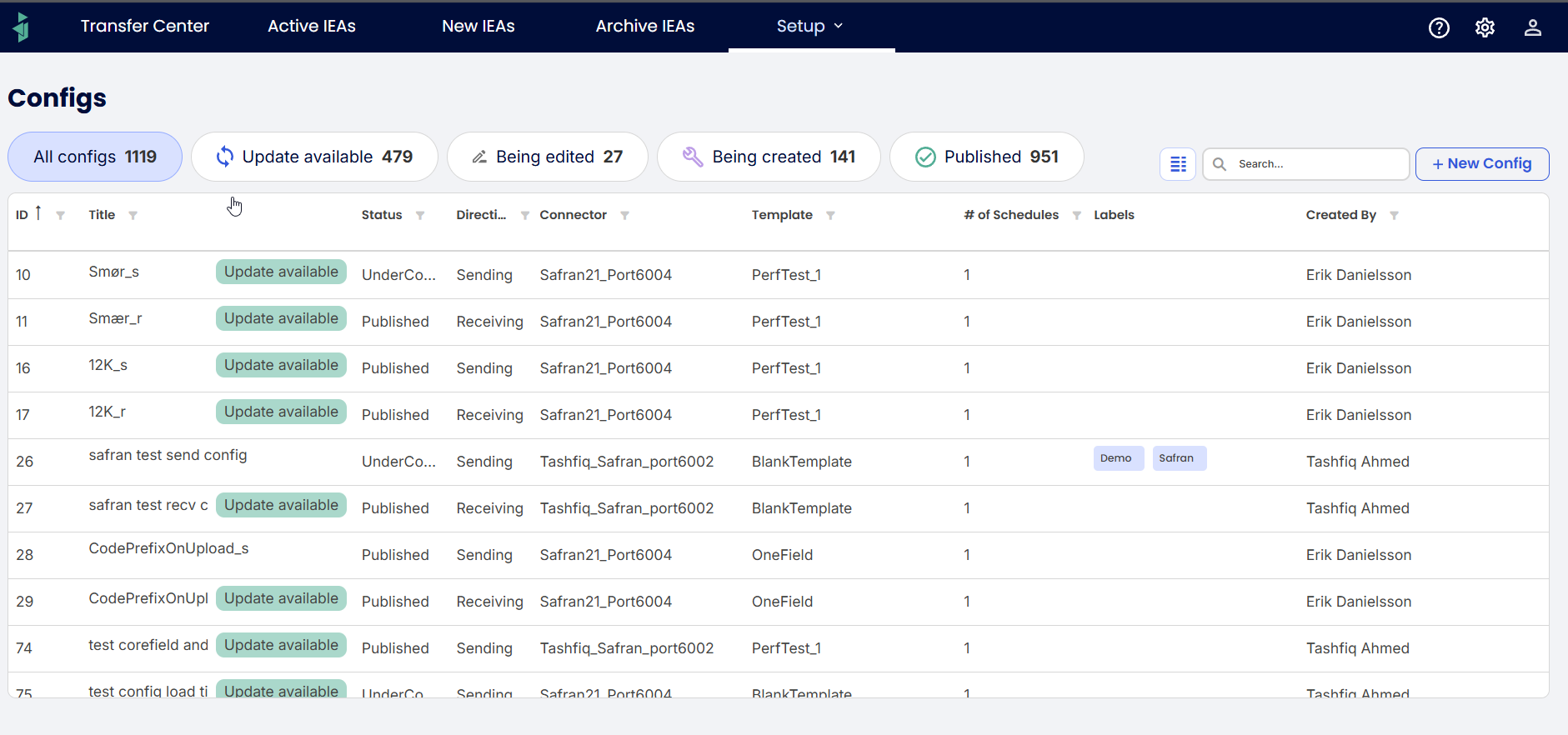 Image of all configs of the tenant
Tenant Admin
The Tenant Admins are responsible for managing their tenant. This includes handling user access, setting up client tokens, moderate IEAs of the tenant and controlling ILAP terms within the tenant.
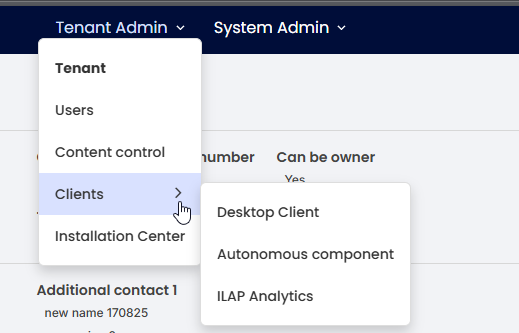
Users with tenant admin role have a unique tab called Tenant Admin which has access to the following:
- Tenant Details
- Users
- Content Control
- Clients
- Desktop client
- Autonomous client
- ILAP Analytics
What they can do:
Add or remove users and assign roles
Maintain tenant information (e.g., SharePoint URL, contact info)
Administrate clients & tokens for them
Create Tenant Specific ILAP Terms (not part of the Global list)
Manage content control of the ILAP terms used in the tenant
Manage IEAs of the tenant
Can add themselves as representative of an IEA.
Moderate IEAs and Accept changes changes in the config used the IEA
Skip running transfers
Access all functionalities available to Application Role users
What they cannot do
- Manage connectors, templates and configs
- Create ILAP terms
- Create IEA
- Avail the functionalities of Setup or System admin.
Some sample screenshots of Tabs they can access from web UI:
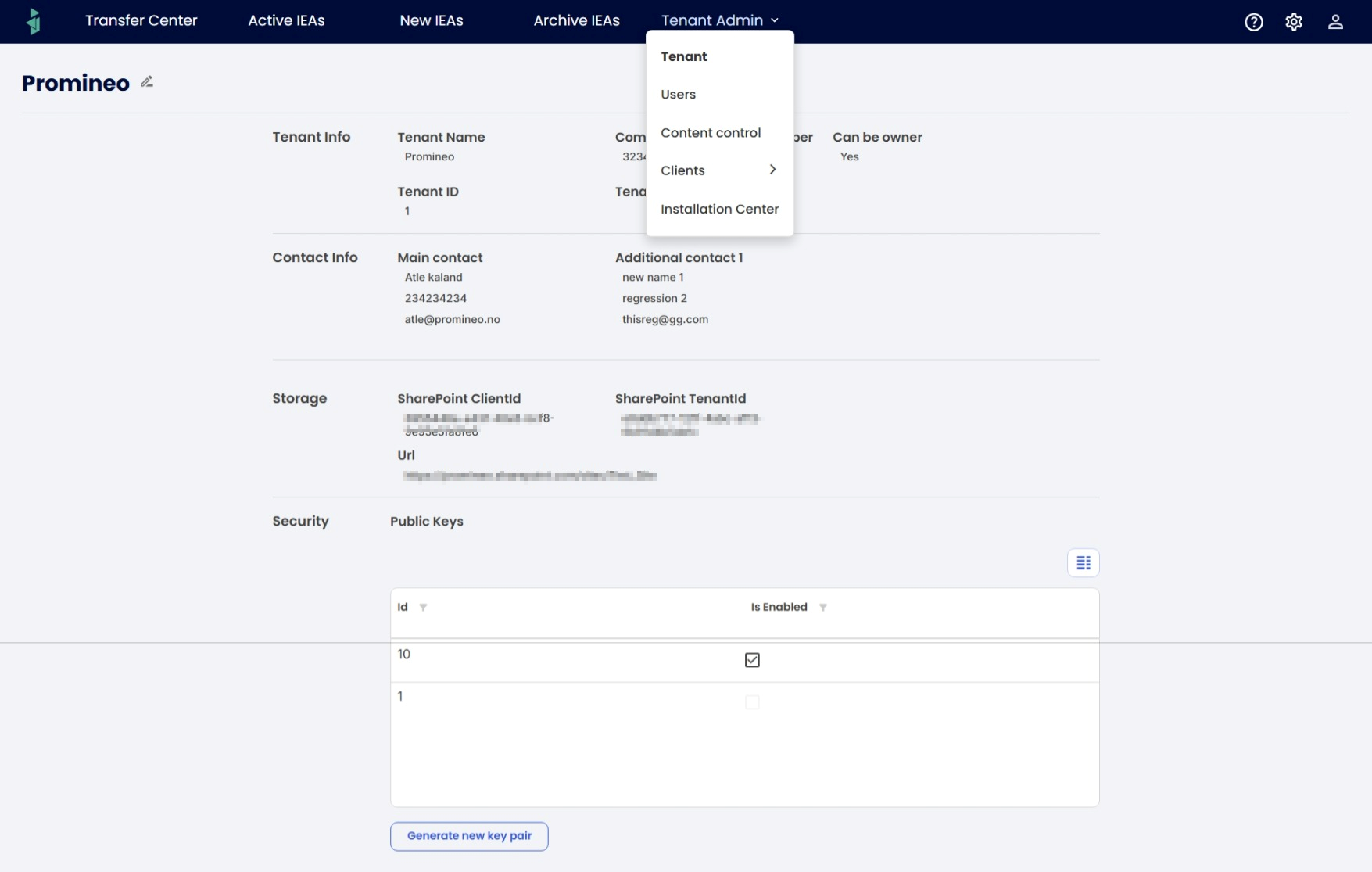 Image of Tenant details
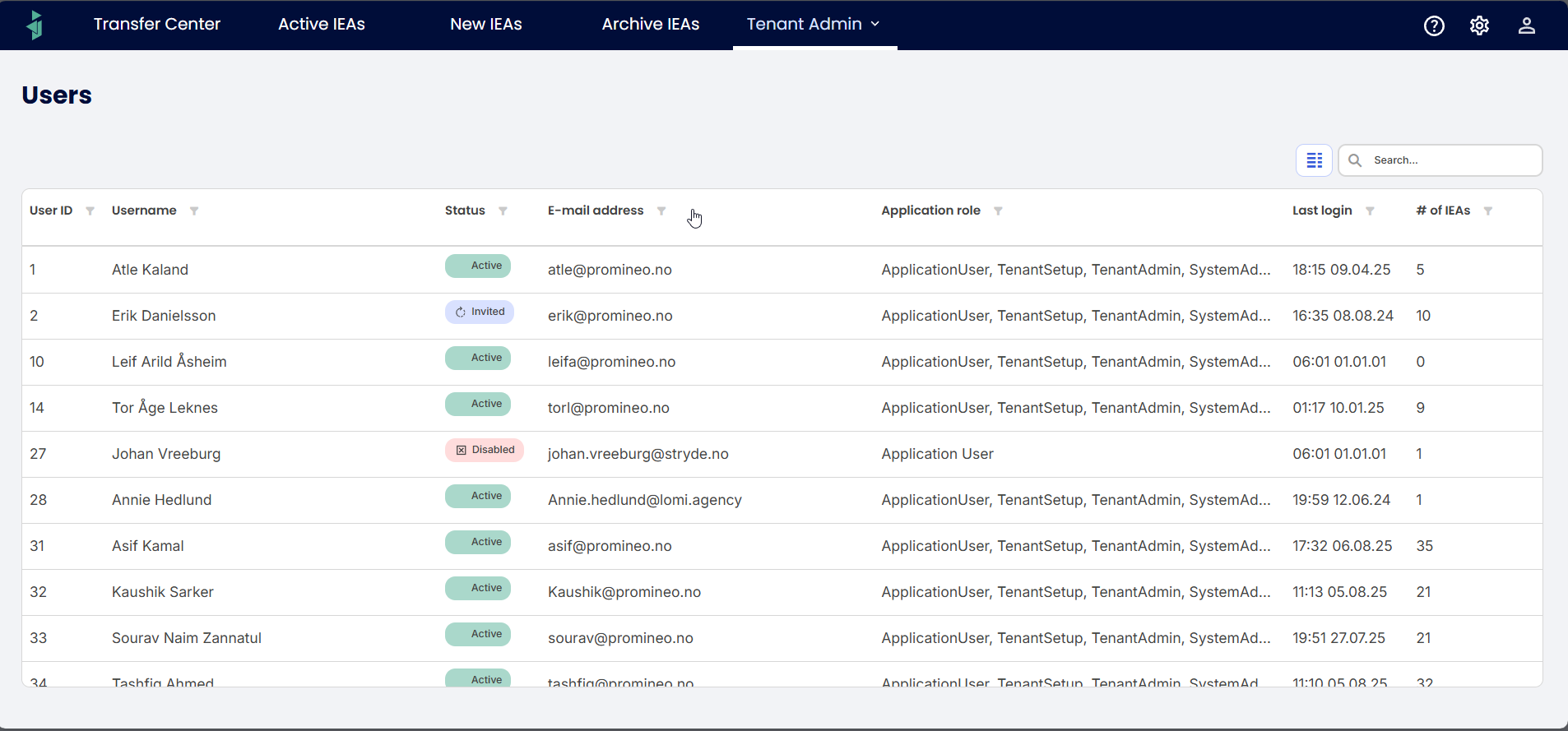
Image of list of users of a tenant

Image of edit user modal for a tenant admin

Image of list of ILAP terms and the content control set up tenant admin
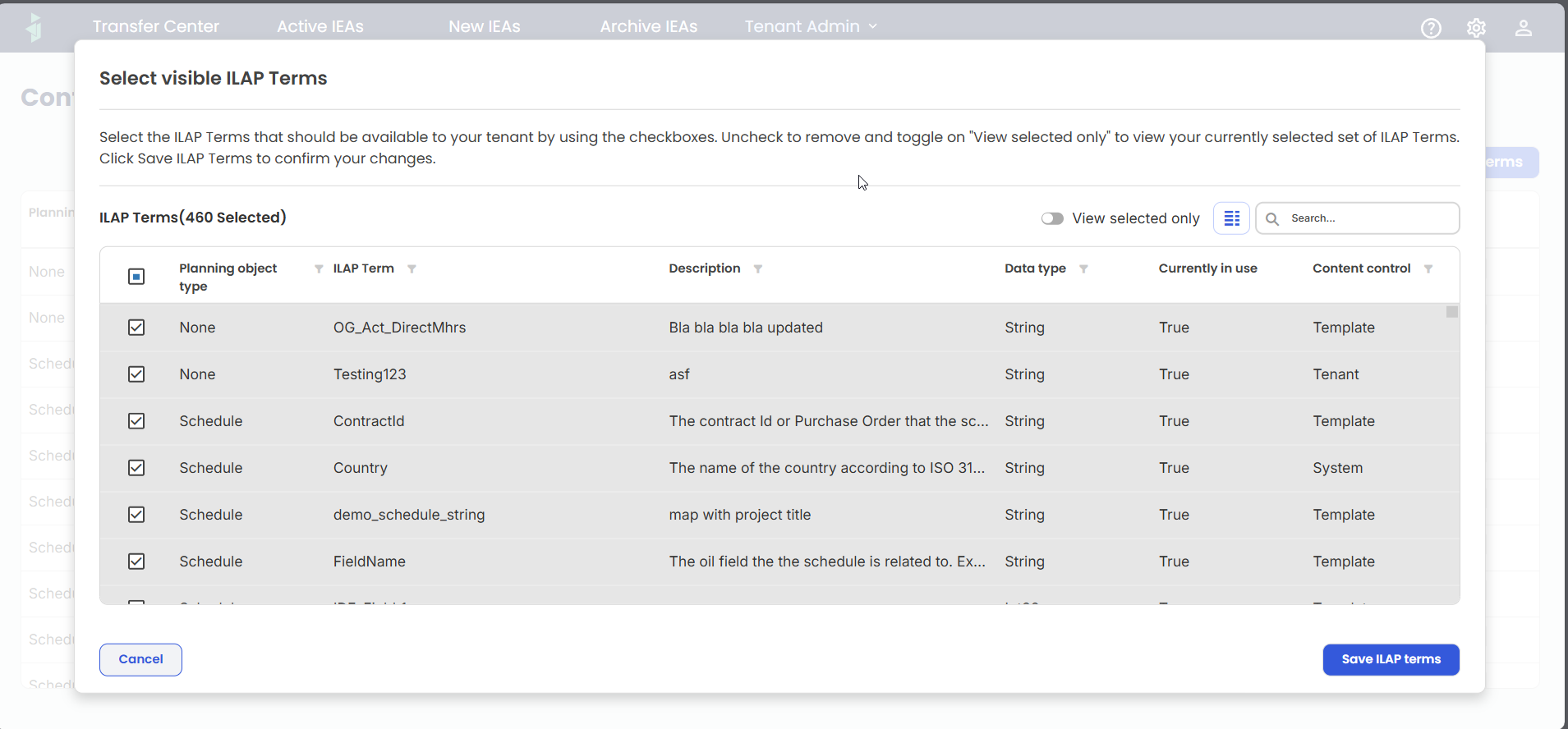
Image of managing visible ILAP terms for the tenant
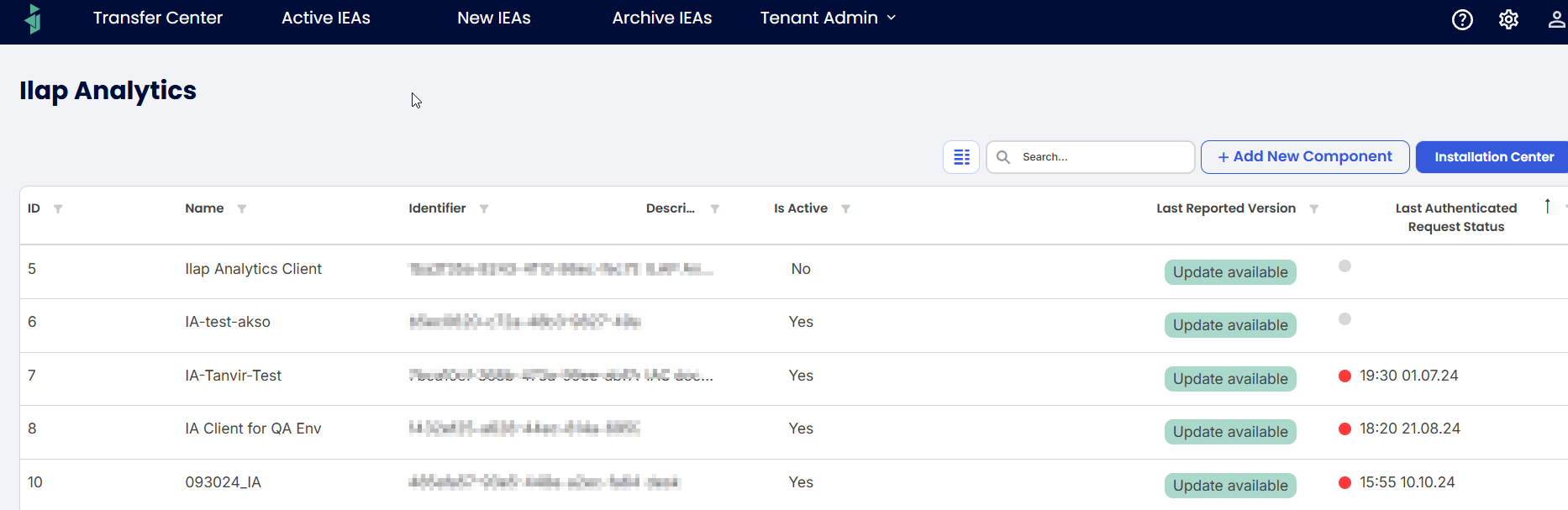
Image of List of Analytics Clients in the tenant
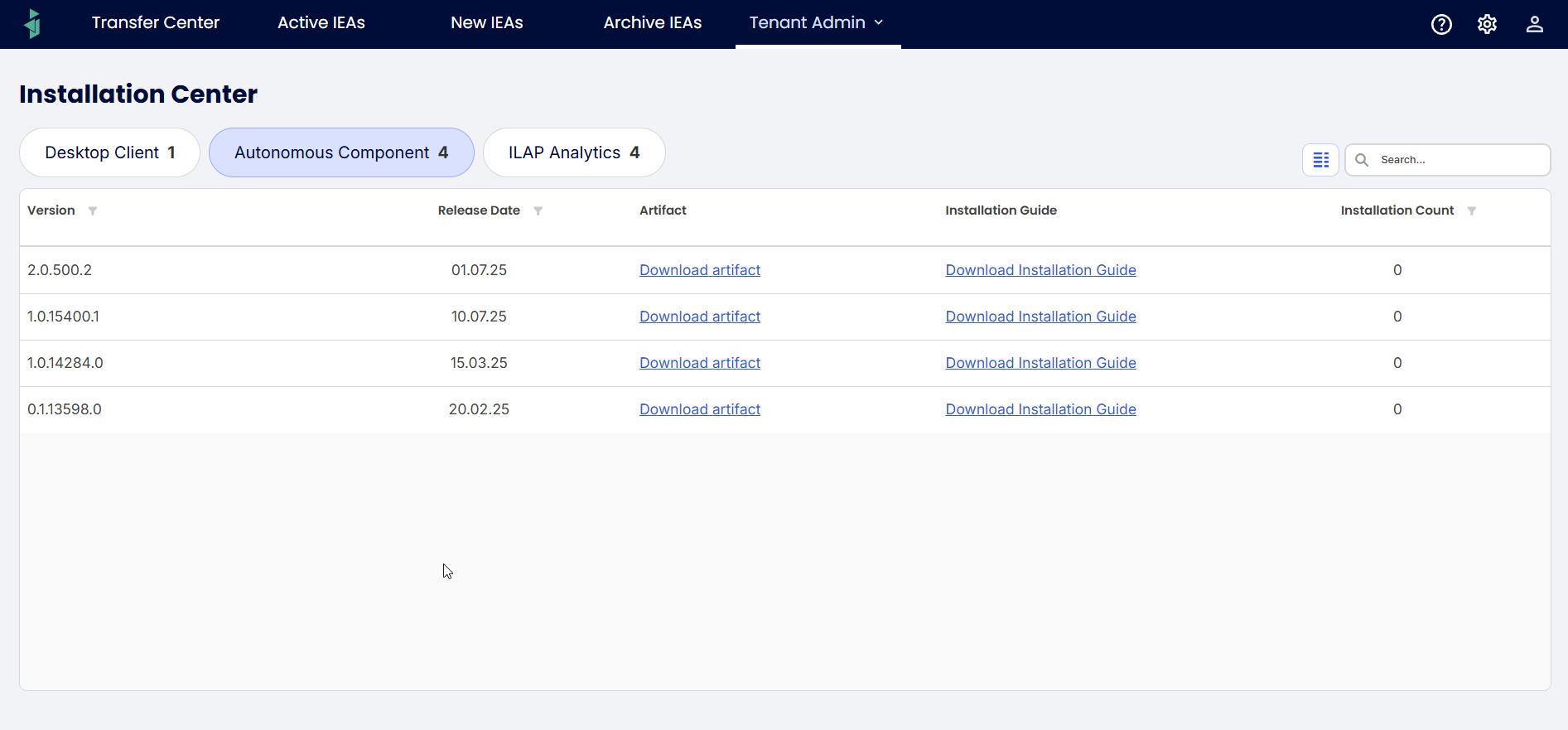
Image of List of Autonomous Component for the tenant
System Admin
The System Admin has full access across all tenants and system-wide settings. This role is typically assigned to teams responsible for maintaining the shared environment all tenants depend on.

What they can do:
Create and manage tenants
Add or remove users across tenants
Define and edit Global ILAP Terms
Maintain Clients
Autonomous component
Desktop client
ILAP Analytics
Manage Deployment Center of the clients
Access all functionalities available to Application Role users
What they cannot do:
- Change their own attributes (for example, update their own role in the system)
Some sample screenshots of Tabs they can access from web UI:
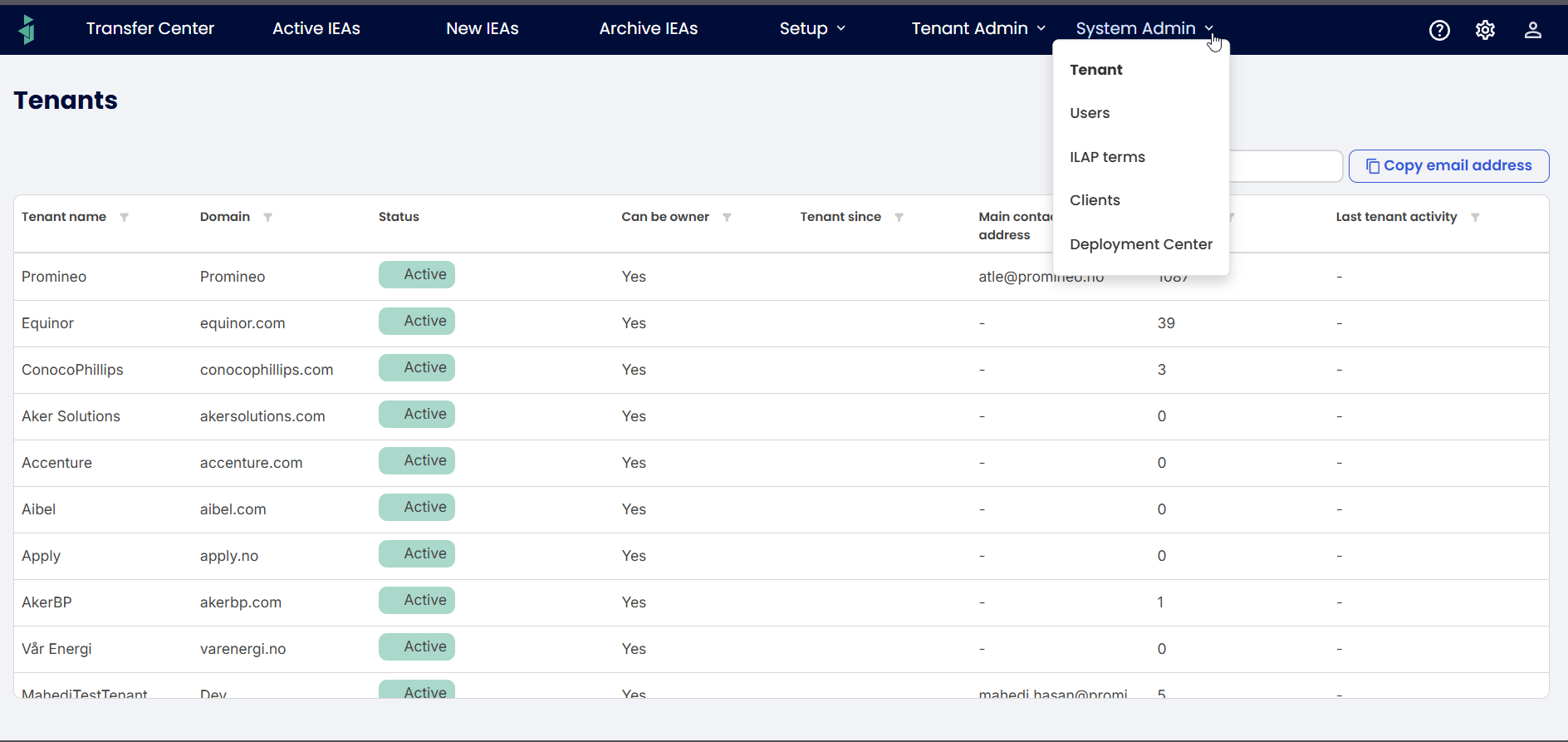 Image of List of tenants
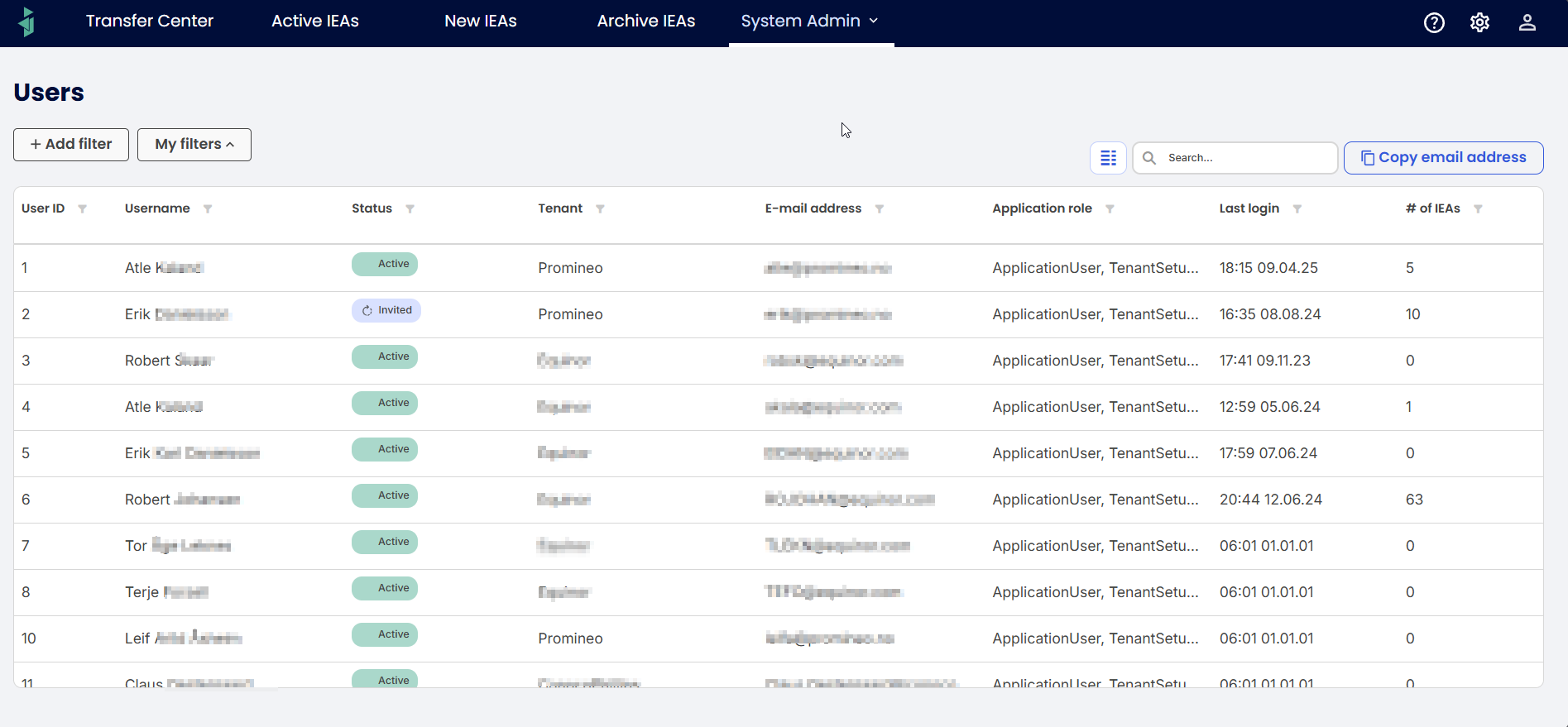
Image of list of users in the system
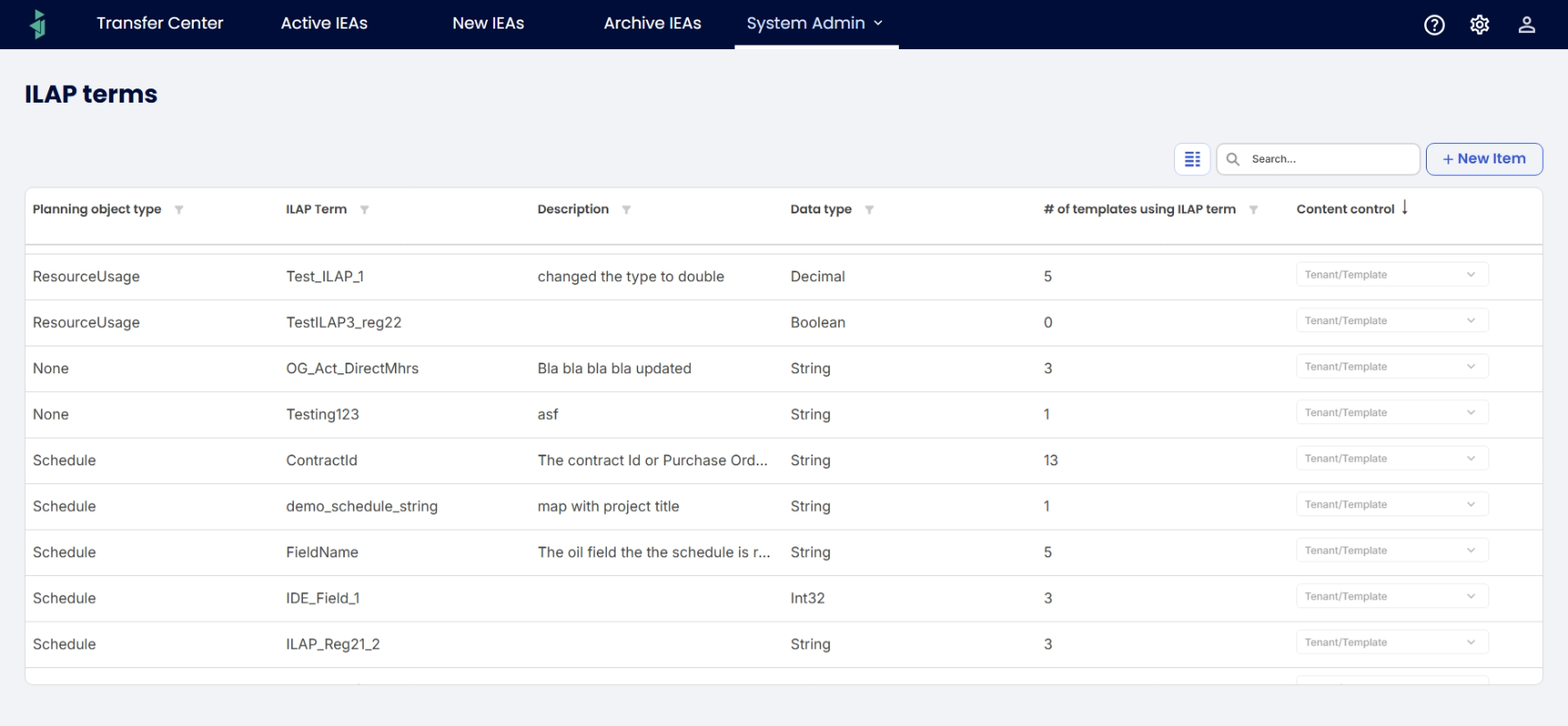
Image of ILAP Terms in the system
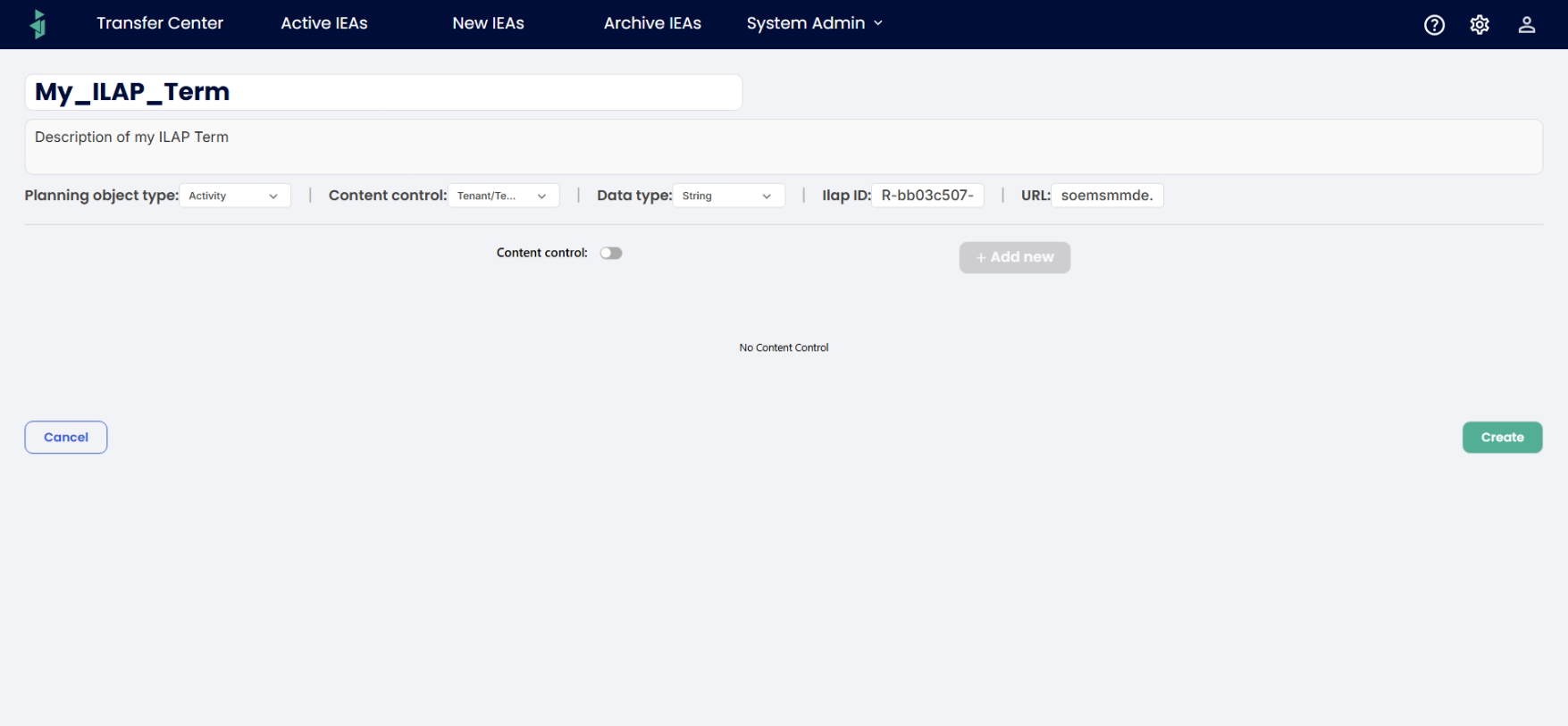 Image of system admin adding a new ILAP term
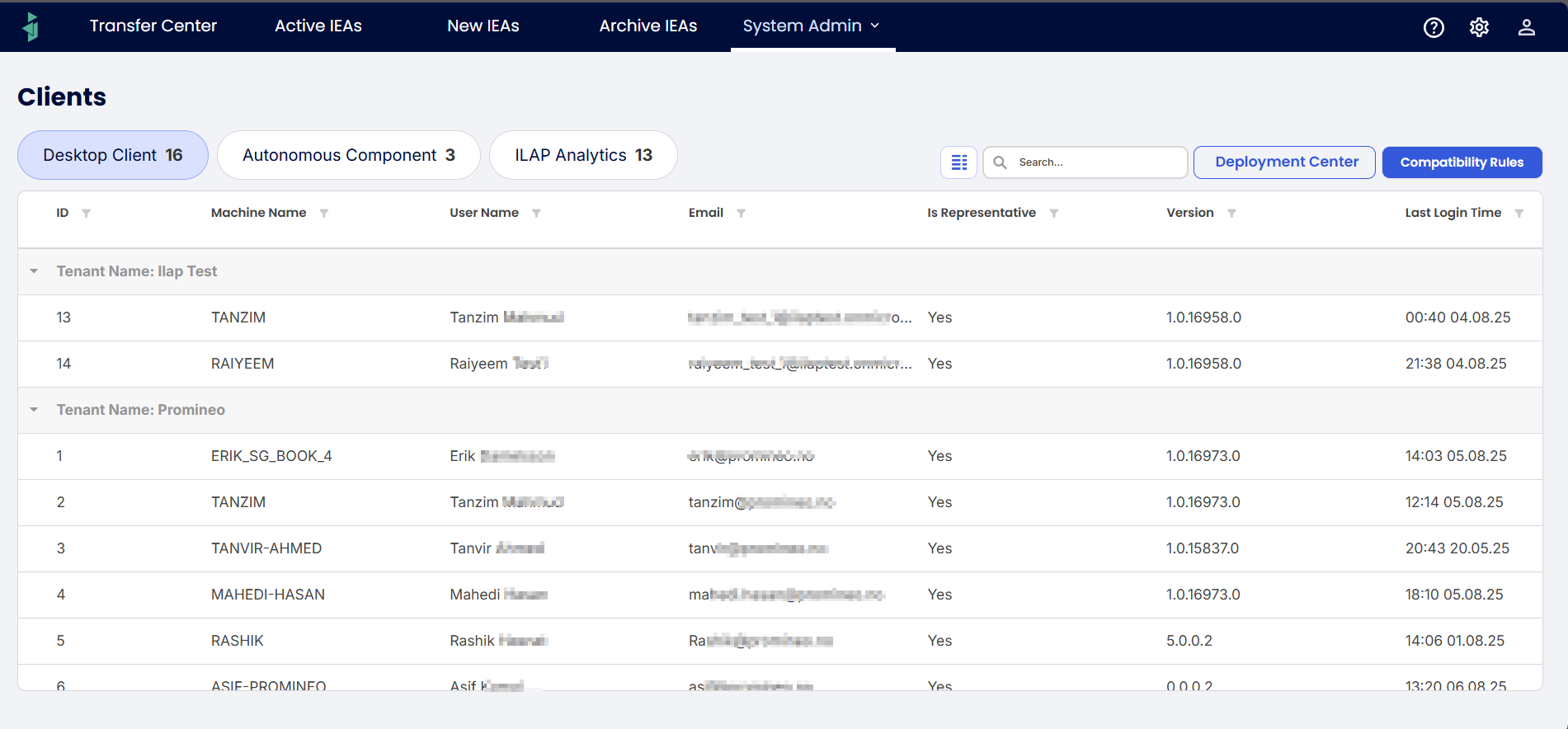
Image of list of clients in the system
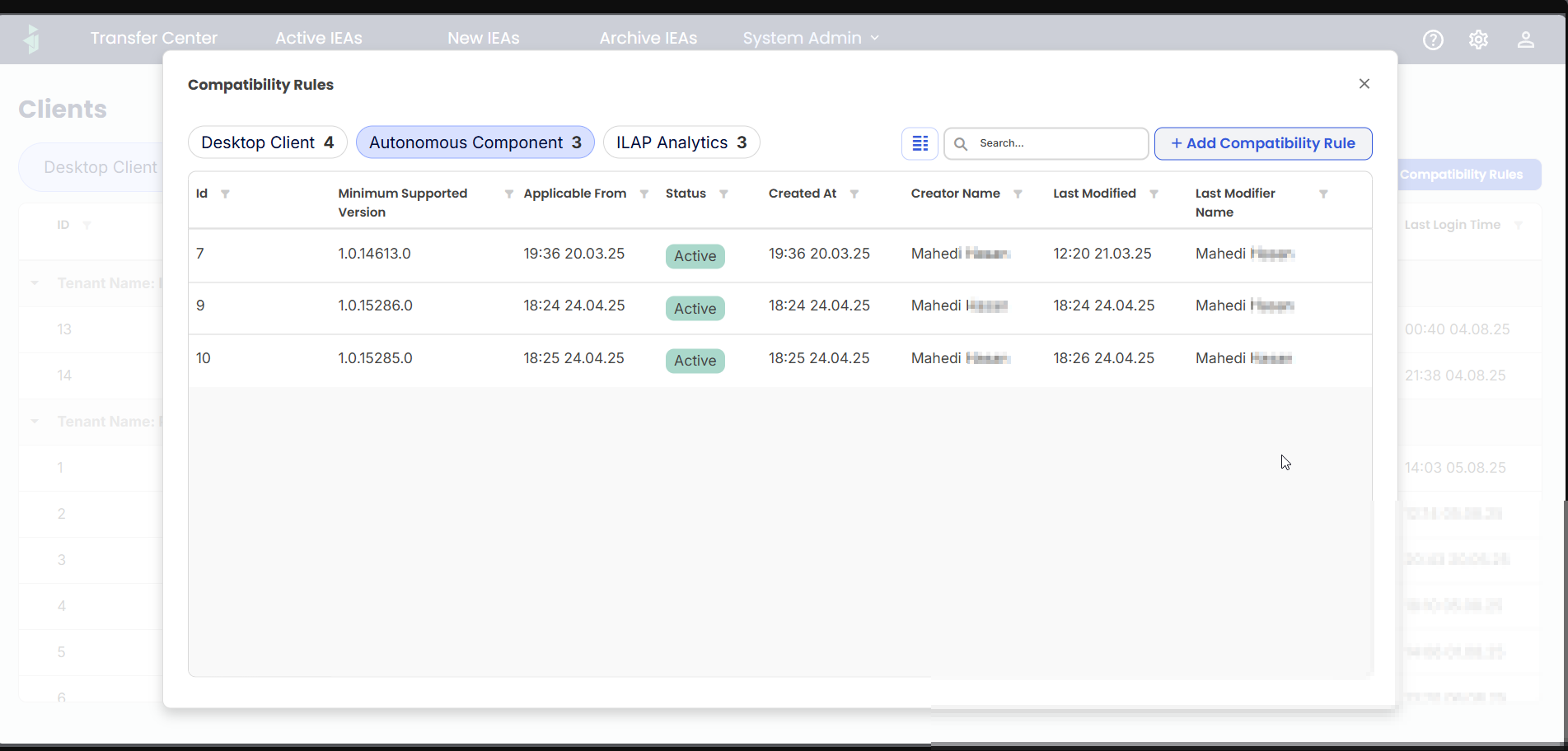
Image of viewing compatibility rules for clients
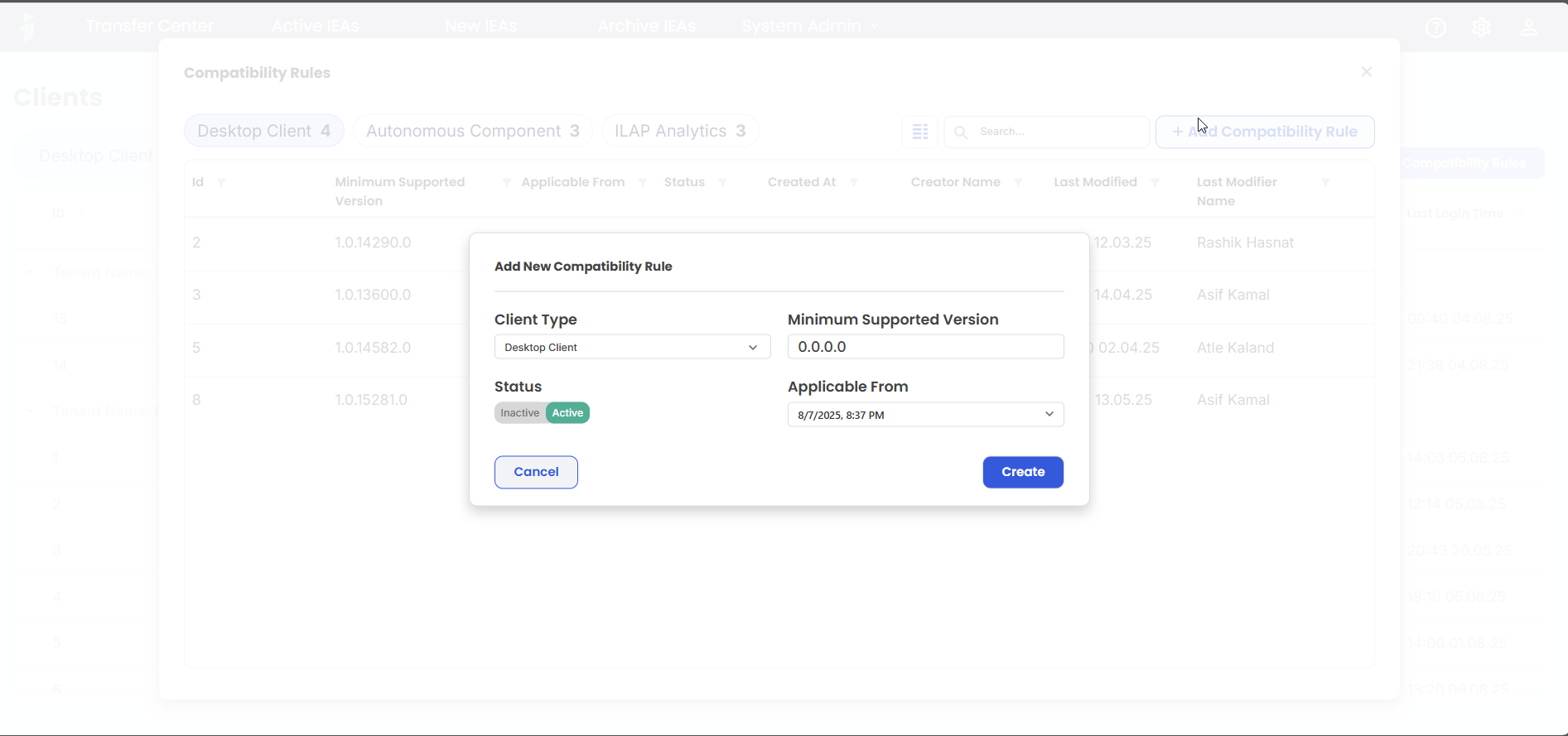 Image for adding new compatibility rule
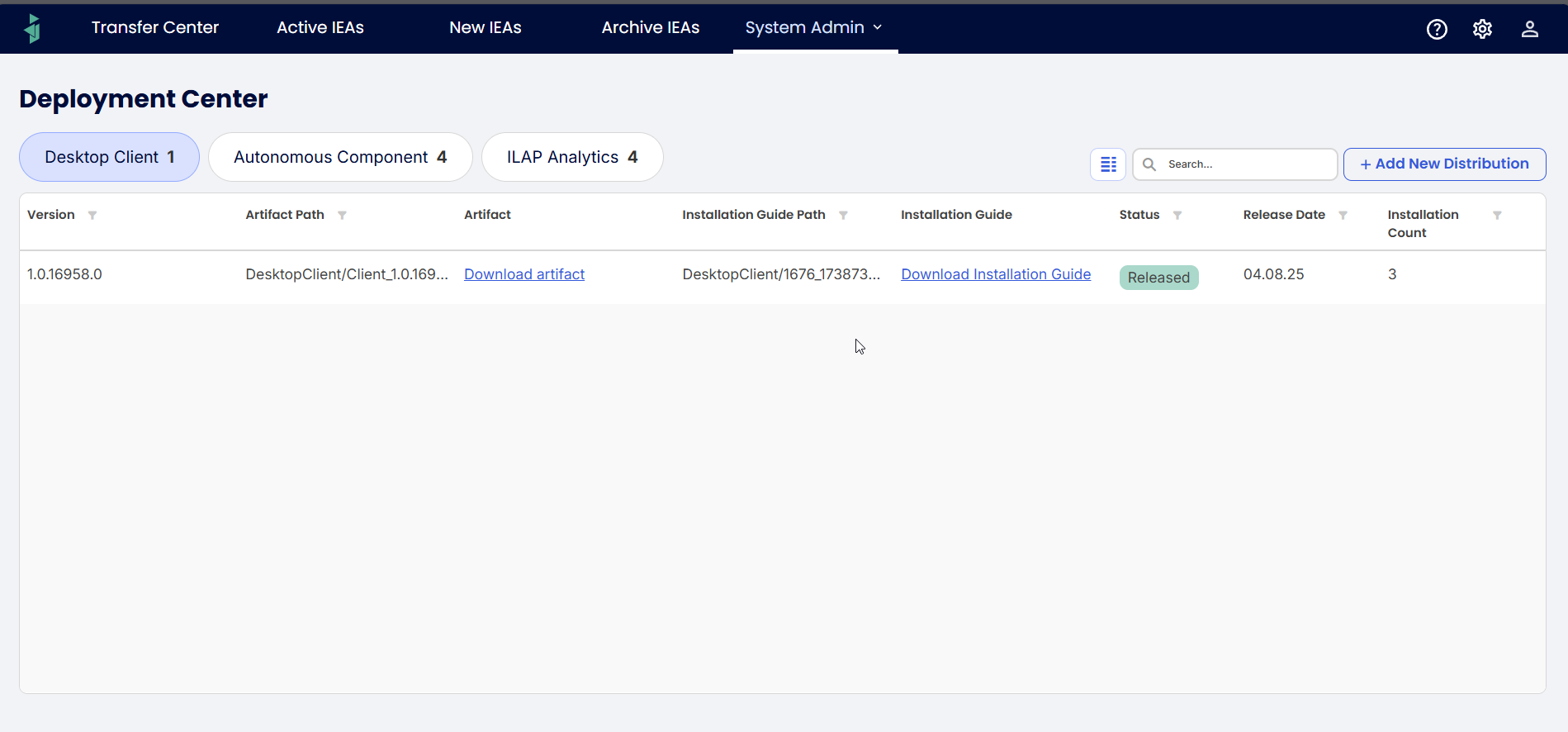 Image of deployed clients
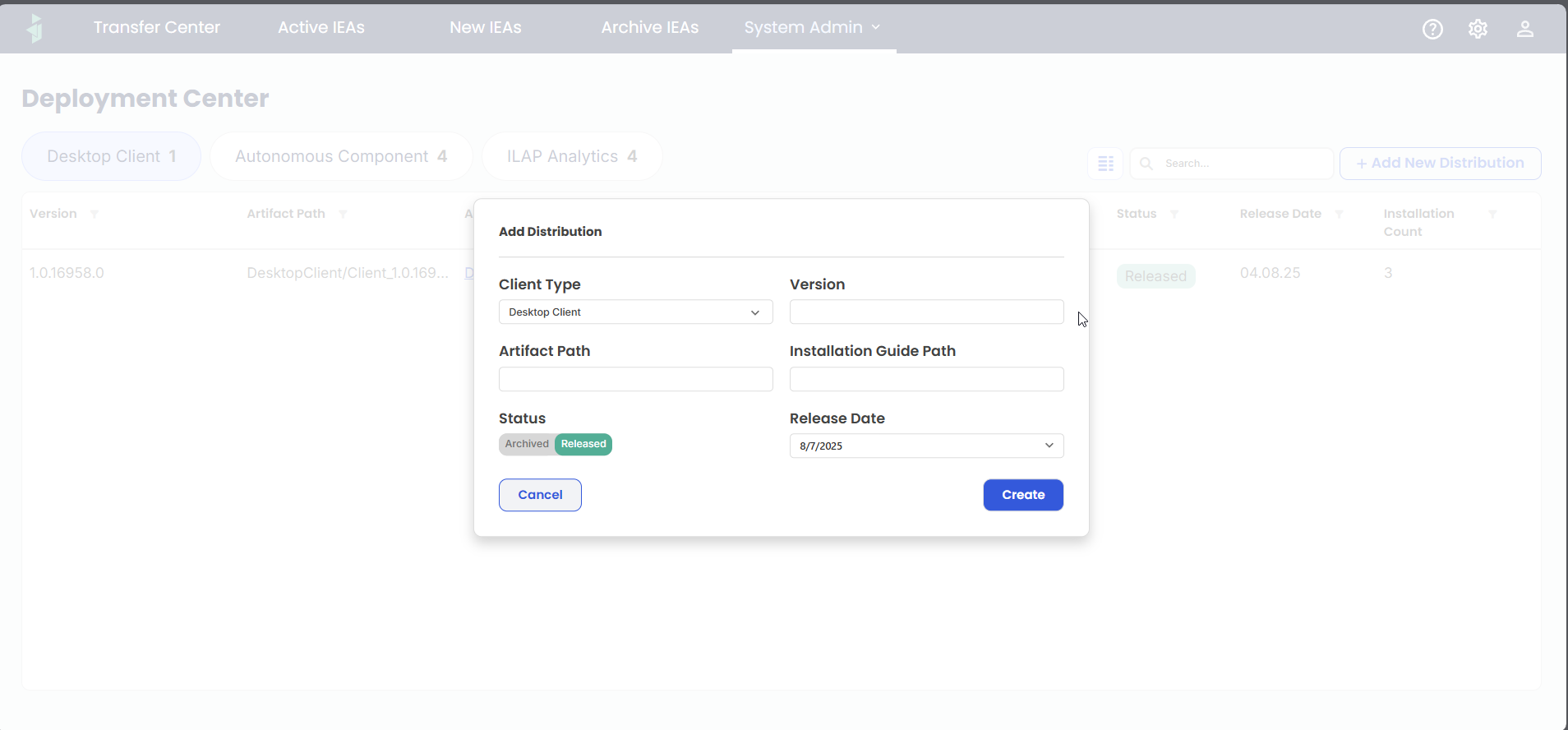 Image for adding new distribution
Was this article helpful?
That’s Great!
Thank you for your feedback
Sorry! We couldn't be helpful
Thank you for your feedback
Feedback sent
We appreciate your effort and will try to fix the article