TABLE OF CONTENTS
- Introduction
- At a glance
- Open the Overview and the Connector List
- How SchedEx decides if a connector is healthy
- The Overview: Connectivity and Persist cards · What Needs Attention · Recent Health Checks · Host System Overview · Data Transfers · Setup page cards
- The Connector List: Status chips · Search, filters and toolbar · Columns · Status, Recent Connectivity and Last Health Check · Copy the address · Row actions
- How SchedEx keeps connector credentials safe
- Questions and answers
- Glossary
- Related articles
Introduction
This article shows you how to check that your connectors are healthy, and what to do when they are not. SchedEx has two views for this:
- The Overview shows the health of all your connectors at once, lists what needs your attention, and shows your latest and next data transfers.
- The Connector List shows every connector in a table, with its status, its last health check and a menu of actions.
The article also explains how SchedEx keeps the passwords and keys of your connectors safe.
Who can see these views: users with the Tenant Setup role. A Tenant Admin sees them only if they also have the Tenant Setup role.
You do not need to be technical. Every status in this article comes with a plain explanation and a list of things to do.
Looking for how to create or change a connector? See Creating, Editing and Copying a Connector. For running a test or a persist, see Testing and Persisting a Connector.
1. At a glance
A healthy connector has passed its latest test within the last 7 days, and its latest persist worked within the last 30 days.
A quick weekly check takes two minutes:
- Open the Overview (section 2).
- Look at What Needs Attention. If it says All connectors are healthy. No issues detected., you are done.
- Otherwise, select an item. SchedEx opens the Connector List with only the connectors that have that problem. Use the tables in section 4.2 to fix them.
Jump table:
| I want to… | Go to |
|---|---|
| See if anything is wrong right now | What Needs Attention |
| Understand a red, amber or grey icon in the list | Status, Recent Connectivity and Last Health Check |
| Know when the status changes | How SchedEx decides if a connector is healthy |
| See which host system has problems | Host System Overview |
| Check my latest and next transfers | Data Transfers |
| Find one connector quickly | Search, filters and the toolbar |
| Copy a connector's address | Copy a connector's address |
| Edit, copy, hide, persist or delete a connector | The actions menu |
| Know how my passwords are protected | How SchedEx keeps connector credentials safe |
2. Open the Overview and the Connector List
- Open the Setup page.
- In the Connectors section, select one of the two cards:
- Connector Overview (View connector health and status) opens the Overview.
- Connector List (Manage connectors) opens the Connector List.
 The Setup page. Each card opens one of the two views.
You can also go straight to the addresses /connectors/overview and /connectors/list, for
example https://test.schedex.com/connectors/overview.
Most numbers and items on the Overview can be selected. They open the Connector List already filtered to the connectors behind that number.
3. How SchedEx decides if a connector is healthy
SchedEx tracks two things for every connector: its connectivity (can SchedEx reach the host system and sign in?) and its persist (could SchedEx read the projects, codes and fields from the host system?).
Connectivity
SchedEx updates a connector's connectivity every time it tests the connector:
- when someone selects Test for the connector in the SchedEx desktop client,
- when the desktop client connects to the host system during a data transfer,
- before every persist, from the desktop client or from the Autonomous Component.
The latest test result decides the status:
| Status | When | Shown as |
|---|---|---|
| Healthy | The latest test worked, and it was less than 7 days ago. | Green check mark |
| Failed (Health Check Failed, Unhealthy) | The latest test failed. It stays failed, however old it is, until a test works. | Red cross |
| No Activity | The latest test worked, but it was more than 7 days ago. | Amber clock |
| Never Checked | The connector has never been tested. | Grey question mark |
One status per connector. If a connector is used by both the Desktop Client and the Autonomous Component, its status comes from whichever of them tested it last. The list tells you which one did (see section 5.4).
Persist
| Status | When |
|---|---|
| OK (Persist OK) | The latest persist worked, and it was less than 30 days ago. |
| Failed (Persist Failed) | A persist failed in the last 30 days, and no persist has worked since. A failed test before a persist counts as a failed persist. |
| No Activity (Persist No Activity) | The last persist that worked was more than 30 days ago. |
| Never Persisted | No persist has ever worked for this connector (and none failed in the last 30 days). |
Hidden connectors
A connector that you have hidden is left out of all these numbers. It is only counted as Hidden.
4. The Overview
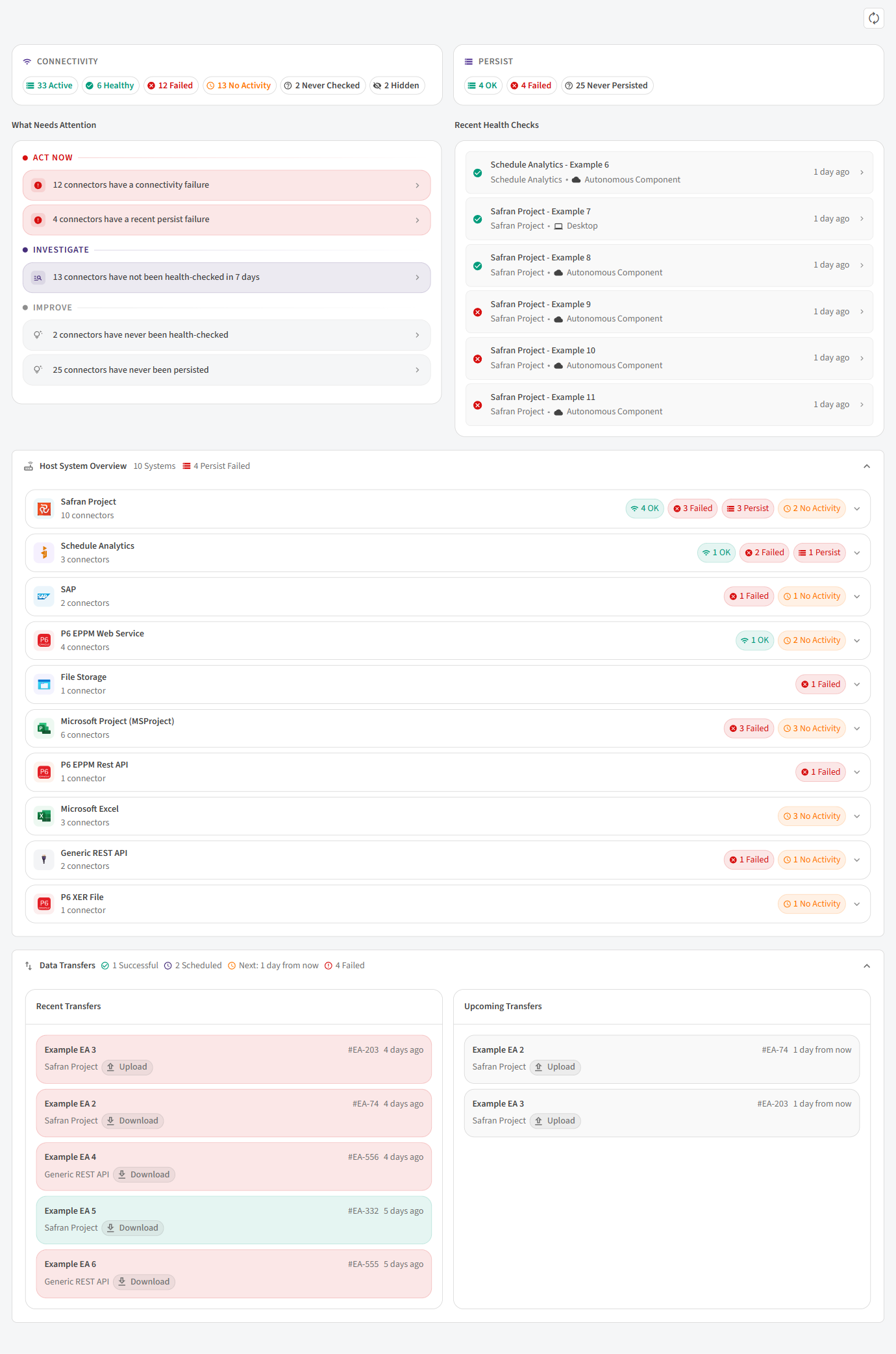 The Overview. From the top: the two summary cards, what needs attention, the latest health checks, each host system, and your data transfers.
Refresh the numbers: select the round refresh button at the top right (Refresh overview data). SchedEx keeps the numbers for up to one minute, so select it after you have run a test or a persist. It spins while the data loads.
4.1 The Connectivity and Persist cards
 The two summary cards. Only counts above zero are shown.
The Connectivity card shows how many connectors have each connectivity status. The Persist card does the same for persist. A count of zero is not shown. Point at a count to see what it means, and select it to open the Connector List filtered to those connectors.
| Card | Count | What it shows | What to do |
|---|---|---|---|
| Connectivity | Active | Connectors that are not hidden (Active Connectors). | Nothing. |
| Connectivity | Healthy | Tested successfully in the last 7 days (Stable connection). | Nothing. |
| Connectivity | Failed (red) | The latest test failed (Unstable connection). | See Act Now. |
| Connectivity | No Activity (amber) | Last test was more than 7 days ago (Last health check was more than 7 days ago). | See Investigate. |
| Connectivity | Never Checked | Never tested (Connector has never completed a health check). | See Improve. |
| Connectivity | Hidden | Connectors you have hidden (Hidden connectors). | Nothing, unless you want to use one again. |
| Persist | OK | Last persist completed successfully | Nothing. |
| Persist | Failed (red) | Last persist failed | See Act Now. |
| Persist | No Activity (amber) | Last successful persist was more than 30 days ago | See Investigate. |
| Persist | Never Persisted | Connector has never completed a persist operation | See Improve. |
4.2 What Needs Attention
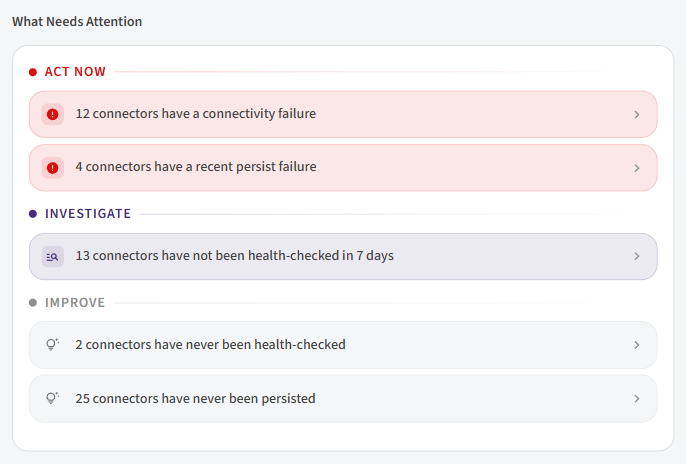 What Needs Attention groups problems by how urgent they are. Select an item to see the connectors.
This section turns the counts above into a to-do list. Items are grouped in three groups, most urgent first. A group with nothing in it is not shown. Each item says how many connectors are affected, for example 2 connectors have a connectivity failure. Select an item to open the Connector List with only those connectors.
When nothing needs attention, the section says All connectors are healthy. No issues detected.
Act Now
Red group. Something is broken and data transfers that use these connectors may fail.
… connector has a connectivity failure / … connectors have a connectivity failure
| What it means | Why it happens | What to do |
|---|---|---|
| The latest test of the connector failed. SchedEx could not reach the host system or sign in. | The password or token has expired or changed. The address (Base URL) has changed. The host system is down. The PC or server cannot reach the host system (network, VPN, firewall). The user lost permissions in the host system. | 1. Point at the red icon in the Status column to see which component tested it. 2. If the sign-in changed, edit the connector and enter the new credentials (how). 3. Run Test again in the desktop client (how). 4. If the Autonomous Component tested it, ask a Tenant Admin to check the Connectors panel of the Autonomous Component dashboard. Point at its error icon to see why. 5. Still failing? Ask your host system administrator whether the system is up and the account still works. |
… connector has a recent persist failure / … connectors have a recent persist failure
| What it means | Why it happens | What to do |
|---|---|---|
| A persist failed in the last 30 days and none has worked since. Configs may not show the latest projects, codes or fields. | The test before the persist failed (same reasons as above). The host system user cannot read all projects or settings. The persist timed out on a large database. | 1. Fix connectivity first if the connector also has a connectivity failure. 2. Run Persist again: in the desktop client, or with Persist in the actions menu for the Autonomous Component. 3. Ask a Tenant Admin to check the latest persist on the Autonomous Component dashboard. 4. Open the connector and look at its history for the error message. |
Investigate
Blue group. Nothing is known to be broken, but SchedEx has not seen the connector work recently.
… connector has not been health-checked in 7 days / … connectors have not been health-checked in 7 days
| What it means | Why it happens | What to do |
|---|---|---|
| The latest test worked, but it is more than 7 days old. SchedEx does not know if the connector still works. | Nobody has tested it, run a desktop transfer with it or persisted it for a week. This is normal for a connector used only by the Autonomous Component. | 1. Run Test in the desktop client, or Persist the connector. 2. If no Exchange Agreement uses the connector any more (# of Exchange Agreements shows No Exchange Agreements), consider hiding it. |
… connector has not persisted in 30 days / … connectors have not persisted in 30 days
| What it means | Why it happens | What to do |
|---|---|---|
| The last persist that worked is more than 30 days old. New projects, codes or fields in the host system may be missing in SchedEx. | Persist runs only when someone starts it. | Run Persist again, especially if projects or fields have changed in the host system. |
Improve
Grey group. Setup was never finished.
… connector has never been health-checked / … connectors have never been health-checked
| What it means | Why it happens | What to do |
|---|---|---|
| The connector has never been tested. | It was just created, or it was created but never used. | Run Test in the desktop client (how). |
… connector has never been persisted / … connectors have never been persisted
| What it means | Why it happens | What to do |
|---|---|---|
| No persist has ever worked. You cannot pick projects or fields from this connector in Configs. | The persist was never run, or every attempt failed more than 30 days ago. | Run Persist. If it fails, see recent persist failure above. |
4.3 Recent Health Checks
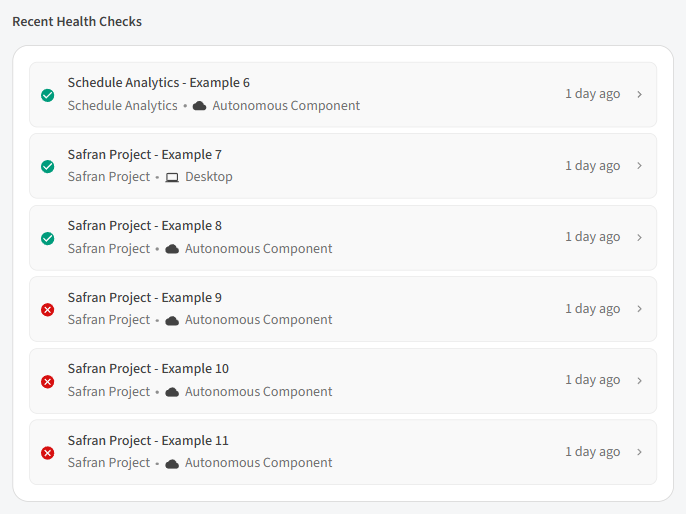 The six most recent health checks. Green means the test worked, red means it failed.
This list shows the six connectors that were tested most recently, newest first. Hidden connectors are left out. Each row shows:
- a green check mark (the test worked) or a red cross (it failed),
- the connector name, its host system and its execution component (a PC icon for the Desktop Client, a cloud icon for the Autonomous Component),
- how long ago the test ran, for example 2 hours ago.
Select a row to open the connector. When no connector has been tested yet, the list says No health check data available.
4.4 Host System Overview
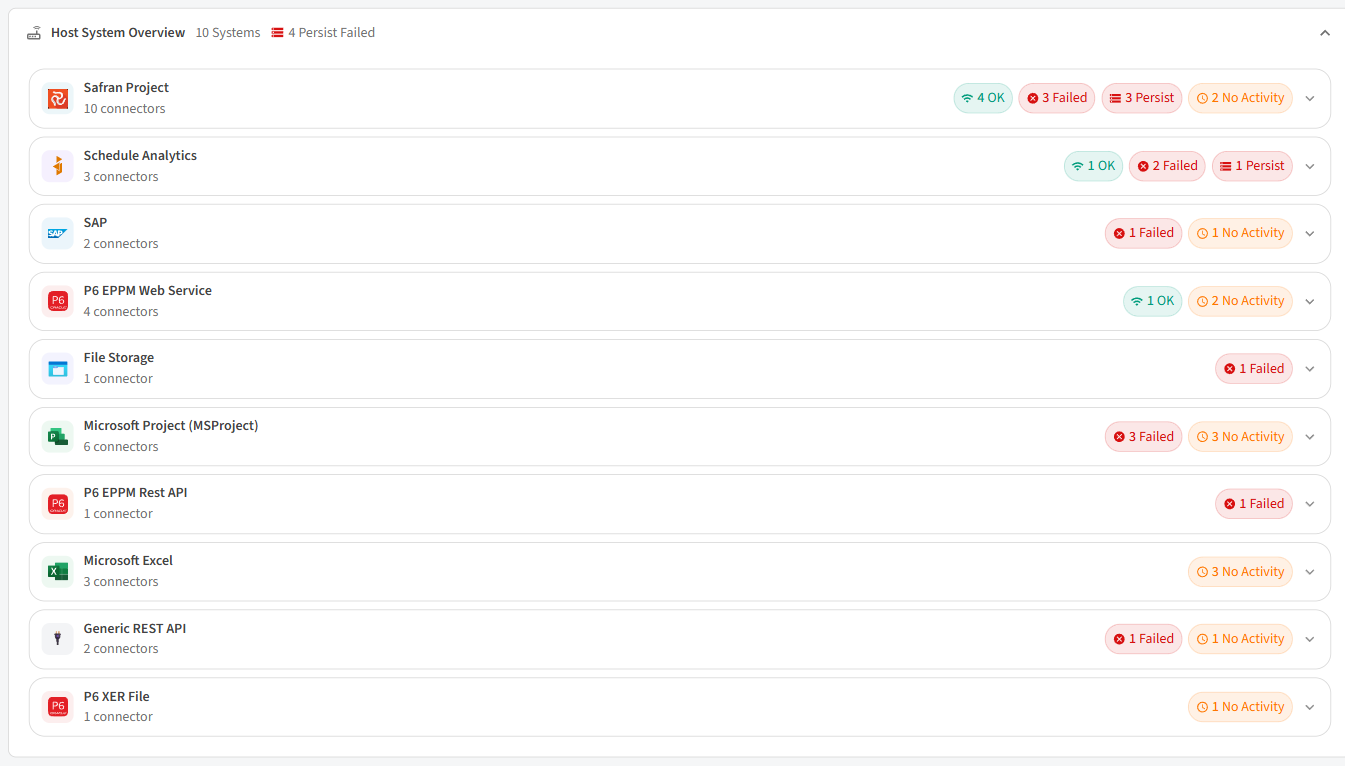 One row per host system. Expand a row to see each execution component, persist and Exchange Agreements.
This section has one row for each host system you have connectors for, for example Primavera P6 or Safran. Hidden connectors are left out. The header shows how many host systems there are (N Systems) and, if any, N Persist Failed. When you have no connectors, it says No connector data available.
Each row shows the host system's logo and name, how many connectors it has, and small badges. A badge with zero is not shown. Select a badge to open the Connector List with that host system and status already filtered.
| Badge | What it shows | What to do |
|---|---|---|
| OK (green) | Connectors tested successfully in the last 7 days. | Nothing. |
| Failed (red) | Connectors whose latest test failed. | See Act Now. |
| Persist (red) | Connectors with a recent persist failure. | See Act Now. |
| No Activity (amber) | Connectors with no health check in the last 7 days. | See Investigate. |
Select the row to expand it. You then see:
- One line per execution component (Desktop Client, Autonomous Component) with the number of connectors that support it, and how many are OK, Failed, No Activity or Never Checked. Select a number to open the list filtered to that host system and component.
- Persist, with the number of connectors and how many are OK, Failed, No Activity (no persist in the last 30 days) or never persisted.
- Exchange Agreement Count, the number of Exchange Agreements that use these connectors, on either side. It is not shown when there are none.
A connector that supports both components is counted on both lines, with its one status.
4.5 Data Transfers
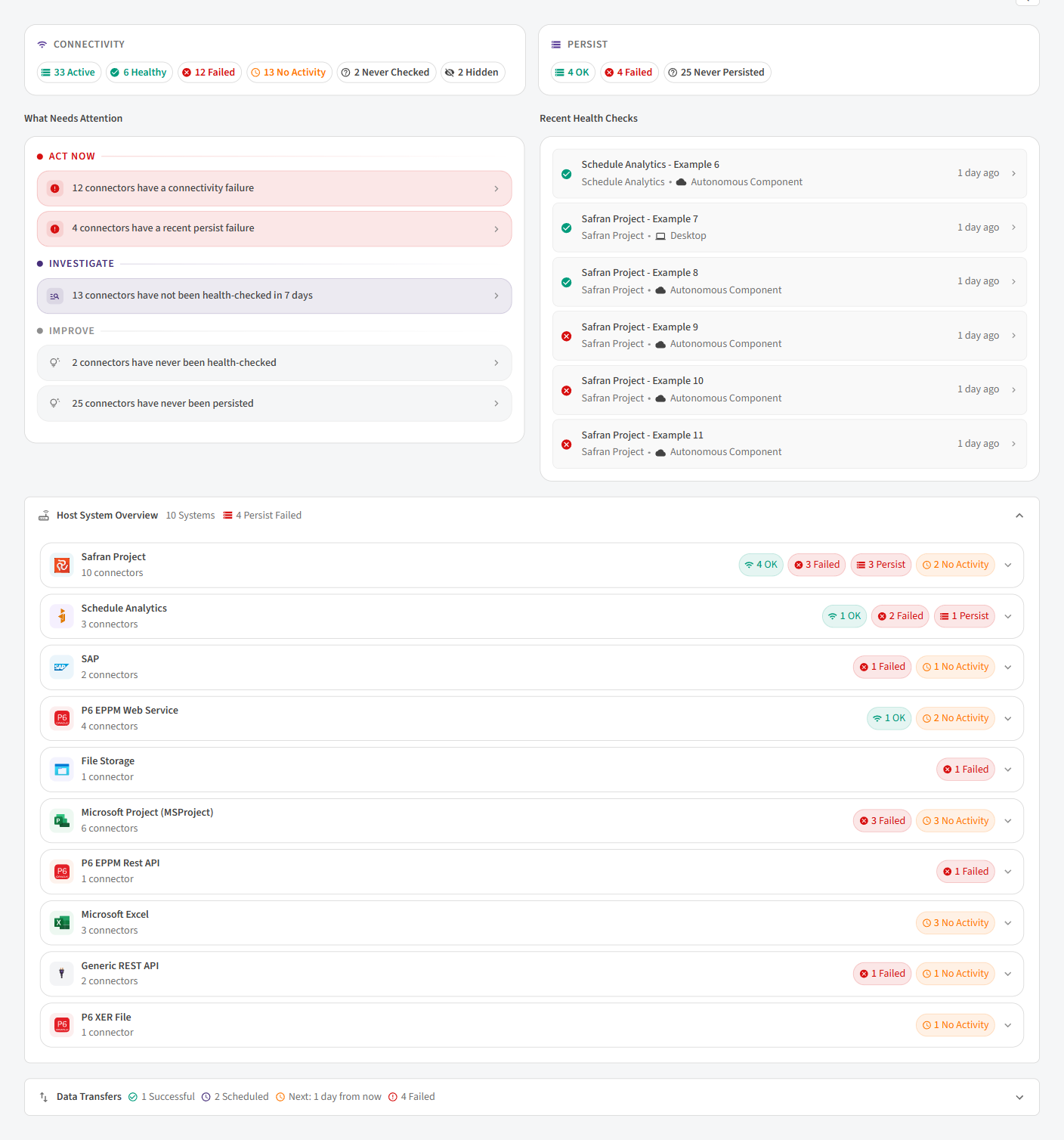 Your latest and next data transfers. Green means the transfer worked, red means it failed.
This section shows transfers of the Exchange Agreements you are a responsible person for. Only signed, active Exchange Agreements within their start and end dates count. Test transfers are left out.
- The header shows N Successful, N Scheduled, Next: (when the next transfer runs) and N Failed, when those numbers are above zero.
- Recent Transfers: the five most recent finished transfers, one per Exchange Agreement. Each
shows the Exchange Agreement name and number (
#EA-…), the host system, Upload (sending) or Download (receiving), and how long ago it ran. A green item worked; a red item failed. Select it to open the Exchange Agreement. When there are none, it says No recent transfers available. - Upcoming Transfers: the next five scheduled transfers, one per Exchange Agreement, soonest first. Exchange Agreements that run manually or on file upload are not included. When there are none, it says No upcoming transfers available.
| What you see | What to do |
|---|---|
| A red item in Recent Transfers | Open the Exchange Agreement and check the transfer's log. If the error is about connecting or signing in, check the connector in the Connector List. |
| A transfer you expect is missing from Upcoming Transfers | Check that the Exchange Agreement is signed, active, not paused, and has a schedule. |
4.6 The cards on the Setup page
The Connectors section of the Setup page also shows the main numbers, so you can spot problems without opening the Overview. Point at a number to see what it means.
| Card | Number | What it shows |
|---|---|---|
| Connector Overview | Persisted | Connectors that persisted successfully in the last 30 days. |
| Persist Failed | Connectors with a recent persist failure. | |
| Idle | Connectors that persisted before, but not in the last 30 days. | |
| Never | Connectors that never persisted. | |
| Connector List | Active | Connectors that are not hidden. |
| Healthy | Connectors tested successfully in the last 7 days (Stable Connection). | |
| Unhealthy | Connectors whose latest test failed (Health Check Failed). | |
| Without Exchange Agreements | Connectors not used in any Exchange Agreement. |
The Connector List card also has a New Connector button.
5. The Connector List
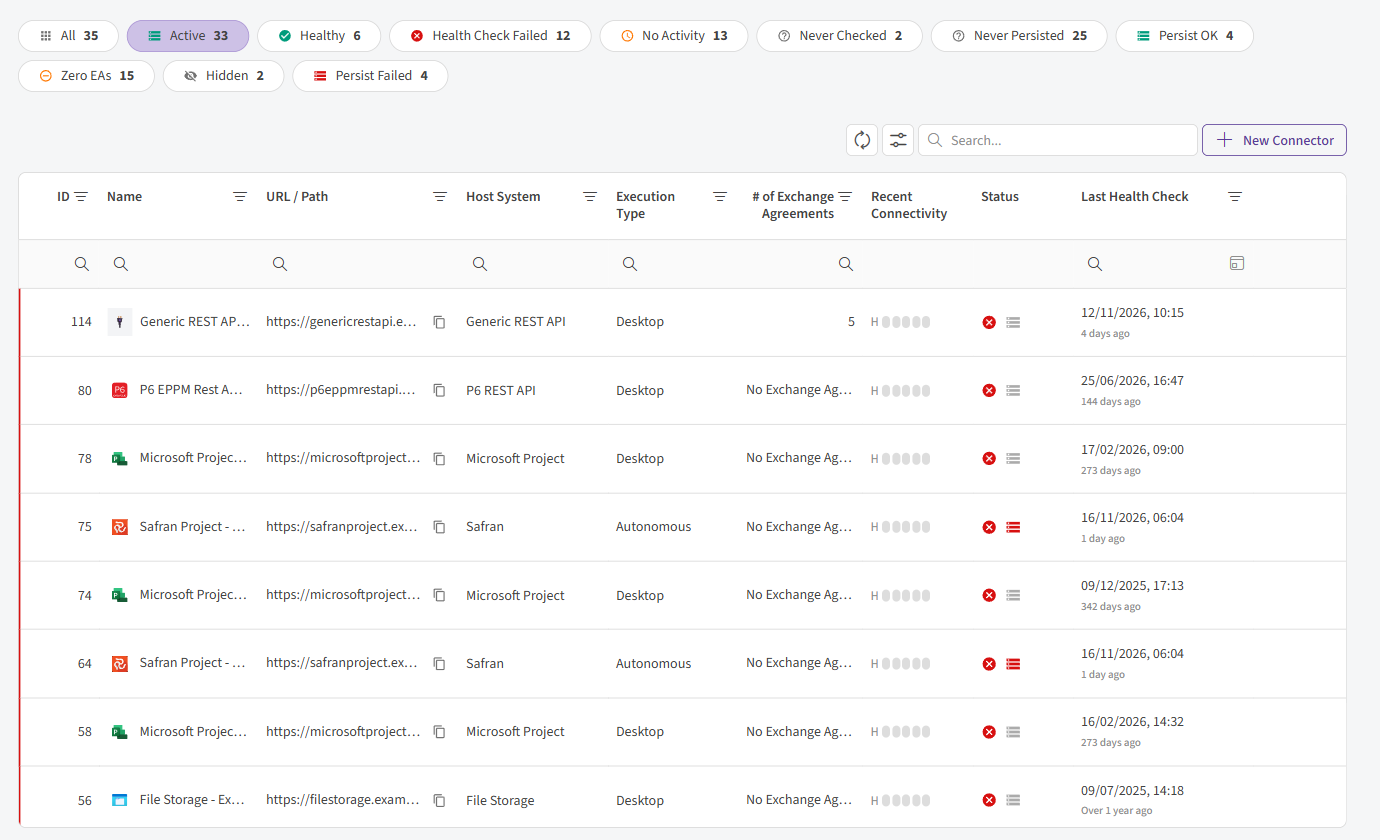 The Connector List. Status chips at the top, then the table. Unhealthy connectors come first.
The list shows your connectors, unhealthy ones first, then the newest. Each row has a thin colored line on the left: green (healthy), red (failed), amber (no activity) or grey (never checked). Select a row to open the connector.
5.1 The status chips
 Select a chip to show only those connectors. Chips with no connectors are not shown.
The chips above the table filter the list. Each chip shows a count, and a chip with a count of zero is not shown (except All). When you open the list, Active is selected. When you come from the Overview, the matching chip is selected for you.
| Chip | Shows | Tooltip |
|---|---|---|
| All | Every connector, hidden ones too. | All connectors: Active N, Hidden N |
| Active | Connectors that are not hidden. | Active Connectors |
| Healthy | Tested successfully in the last 7 days. | Stable connection |
| Health Check Failed | Latest test failed. | Unstable connection |
| No Activity | Last test more than 7 days ago. | Last health check was more than 7 days ago |
| Never Checked | Never tested. | Connector has never completed a health check |
| Never Persisted | Never persisted. | Connector has never completed a persist operation |
| Persist OK | Persisted in the last 30 days. | Last persist completed successfully in the last 30 days |
| Persist No Activity | Last successful persist more than 30 days ago. | Last successful persist was more than 30 days ago |
| Zero EAs | Not used in any Exchange Agreement. | No Exchange Agreements created |
| Hidden | Connectors you have hidden. | Hidden connectors |
| Persist Failed | Recent persist failure. | Last persist failed |
All chips except All and Hidden leave hidden connectors out.
5.2 Search, filters and the toolbar
 Search box, refresh, New Connector and the grid options menu. Below the headers is the filter row.
| Tool | What it does |
|---|---|
| Search... | Finds connectors whose text in any visible column contains what you type, for example part of a name or an address. |
| Refresh button (Refresh data) | Loads the latest statuses. Use it after a test or a persist. |
| New Connector | Opens the wizard to create a connector. |
| Grid options menu | Reset Layout (back to the standard columns and order), Export to Excel (download the list) and Column Chooser (show or hide columns). |
| Filter row (the empty boxes under the column headers) | Type or pick a value to filter one column, for example a date range in Last Health Check. |
| Header filter (the funnel icon in a column header) | Pick one or more values from a list, for example only Primavera P6 Web Service in Host System, or only Autonomous in Execution Type. |
| Group panel (above the headers) | Drag a column header there to group the rows, for example by Host System. |
Recent Connectivity and Status cannot be sorted, filtered or grouped. SchedEx remembers your layout (columns, sorting, filters), except when you open the list from the Overview.
5.3 The columns
Columns marked (hidden) are not shown by default. Turn them on with Column Chooser.
| Column | What it shows | What to do |
|---|---|---|
| ID | The connector's number in SchedEx. | Give it to support when you report a problem. |
| Name | The host system logo and the connector name. Point at the name to see a summary card (see below). | Select the row to open the connector. |
| URL / Path | The address SchedEx connects to, or the file path. - when there is none. |
Use the copy button (section 5.5). |
| Host System | The type of system, for example Safran or SAP. | Filter on it to see one host system. |
| Host System Version (hidden) | The host system version SchedEx last read during a successful test. N/A for host systems that do not report a version. | Useful when your host system is upgraded. |
| Execution Type | Which SchedEx programs can run the connector: Desktop, Autonomous, or both. | Filter on it to see the connectors one program uses. |
| # of Exchange Agreements | How many Exchange Agreements use the connector. No Exchange Agreements when none. | A connector with none may be left over. Consider hiding it. |
| Recent Connectivity | The last five desktop tests, as five small bars. | See section 5.4. |
| Status | Connectivity icon and persist icon. | See section 5.4. |
| Last Health Check | Date and time of the latest test, and how long ago. Never if never tested. | See section 5.4. |
| Authentication Mode (hidden) | How the connector signs in to the host system. | |
| Created At, Created By (hidden) | When and by whom the connector was created. | |
| Last Modified At, Last Modified By (hidden) | When and by whom it was last changed. | Check this when a connector suddenly fails. |
The summary card: point at a connector's name to see its host system, execution type, Connectivity (Healthy, Failed, Warning or Unknown) with how long ago and which component tested it, Persist (OK, Failed or Never) with how long ago, the number of Schedules and Host Fields SchedEx has read, and who created and last modified it. When a connector supports both components, the card says which one has not tested it, for example Not checked by Desktop.
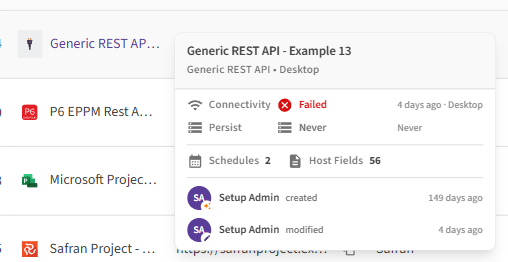 The summary card. It shows connectivity and persist at a glance.
5.4 Status, Recent Connectivity and Last Health Check
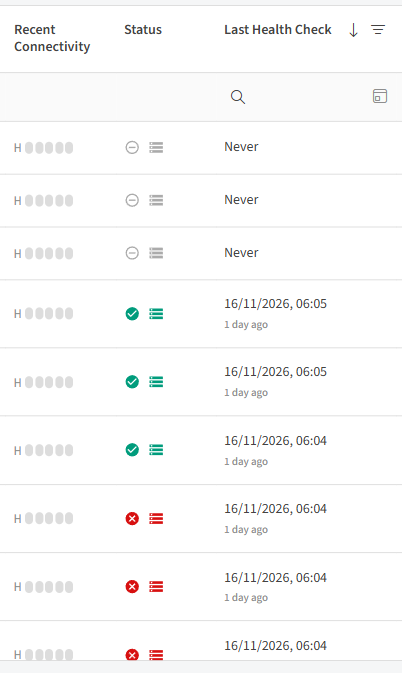 The three health columns. Point at an icon to see what it means.
Status
The Status column has two icons.
The first icon is connectivity. It follows the rules in section 3. Point at it to see the text and which program ran the latest test, for example (checked by Autonomous).
| Icon | Tooltip | What it means | What to do |
|---|---|---|---|
| Green check mark | Healthy - Connection OK | Latest test worked, less than 7 days ago. | Nothing. |
| Red cross | Unhealthy - Connection Failed | Latest test failed. | See Act Now. |
| Amber clock | Warning - Not Checked Recently | Latest test worked, but more than 7 days ago. | Run Test again. |
| Grey question mark | Never Checked - Run a test to verify connectivity | Never tested. | Run Test in the desktop client. |
The second icon (a small database) is persist.
| Color | Tooltip | What it means | What to do |
|---|---|---|---|
| Green | Last Persist OK | A persist has worked, and no persist has failed since. | Nothing. Persist again when the host system changes. |
| Red | Last Persist Failed | A persist failed in the last 30 days and none has worked since. | See Act Now. |
| Grey | Never Persisted | No persist has ever worked. | Run Persist. |
The green persist icon does not check the 30-day limit. To find connectors that have not persisted for 30 days, use the Persist No Activity chip.
Recent Connectivity
The letter H with five small bars shows the results of the last five times someone selected Test for the connector in the desktop client, newest first. Green bars worked, red bars failed, and faded grey bars are empty slots (fewer than five tests). Point at the bars to see a summary, for example Last 5 Checks: 4 successful 1 failed, or No health check history.
| What you see | What it means | What to do |
|---|---|---|
| All green | The connection is stable. | Nothing. |
| Green and red mixed | The connection sometimes fails. | Ask your IT department about network or host system stability. |
| All red | Every recent test failed. | See Act Now. |
| All grey | Nobody has selected Test in the desktop client. | Normal for Autonomous-only connectors. Check the Status column instead. |
Tests before a persist, during a transfer, or from the Autonomous Component change the Status and Last Health Check, but do not add a bar here.
Last Health Check
The date and time of the latest test of the connector, from any program, with how long ago below it (for example 3 days ago). It shows Never if the connector has never been tested. It changes as soon as a new test result arrives. Select Refresh to see it.
| What you see | What to do |
|---|---|
| Less than 7 days ago | Nothing. |
| More than 7 days ago | Run Test or Persist so SchedEx checks the connector again. |
| Never | Run Test in the desktop client. |
5.5 Copy a connector's address
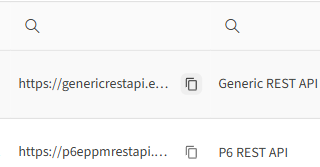 Select the copy button to copy the full address.
- Point at the row. A copy button shows at the right of the URL / Path cell.
- Select it. SchedEx copies the full address, exactly as shown in the column (also the part cut off on screen). The button turns into a green check mark for a moment.
Rows without an address show - and have no copy button. Copying does not open the connector.
5.6 The actions menu
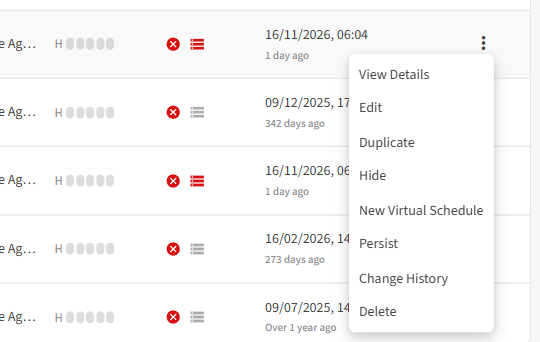 Point at a row and select the three-dot Actions button.
Point at a row and select the Actions button (three dots) at the right. Anyone who can open the Connector List (Tenant Setup users) can use these actions. Some only appear for some connectors.
| Action | What it does | Shown when |
|---|---|---|
| View Details | Opens the connector. Same as selecting the row. | Always |
| Edit | Opens the connector so you can change it, for example to enter a new password. | Always |
| Duplicate | Opens the wizard with a copy of this connector's settings. Give it a new name and a new address. | Always |
| Hide | Hides the connector. It is left out of the Overview and the Active chip. | The connector is active |
| Make Active | Shows a hidden connector again. | The connector is hidden |
| New MPP File, New Excel Template, New Virtual Schedule, New XER File | File actions for file-based connectors. See the Microsoft Project, Excel and XER articles. | Only for connectors of that type |
| Persist | Asks the Autonomous Component to persist the connector. It picks up the request within 3 minutes. You see Persist request sent — this may take a moment. If the connector also supports the Desktop Client, SchedEx first explains that this persist runs on the Autonomous Component. While a request waits, the action is grey: Request is already in queue. Please wait. | The connector supports the Autonomous Component, can be persisted, and is not hidden |
| Change History | Shows who changed what on the connector, and when. | Always |
| Delete | Asks Are you sure you want to delete connector "…"? and deletes it on Yes. If a Config or an Exchange Agreement still uses it, SchedEx shows Connector cannot be deleted with the list of what uses it. | Always |
To test a connector, use the desktop client. The web list has no Test action. Test from the desktop client, or persist from the actions menu: a persist always tests the connector first. See Testing and Persisting a Connector.
6. How SchedEx keeps connector credentials safe
Connectors hold the passwords and keys SchedEx uses to sign in to your host systems. This is how SchedEx protects them.
Encrypted before it is saved. When you save a connector, SchedEx encrypts its passwords, secrets and tokens with AES-256 before they are written to the database. Each value is encrypted separately. If a connector has a separate sign-in for the Desktop Client and the Autonomous Component, both are encrypted. The values encrypted are:
| Connector | Encrypted values |
|---|---|
| Primavera P6 (Web Service and REST API) | User name, password |
| Safran | User name, password, client secret |
| SAP | User name, password, client secret |
| Schedule Analytics | Token |
| Generic REST API | Service token |
The key is kept apart from the data. The encryption key is stored in Azure Key Vault, separate from the database. Someone who gets a copy of the database cannot read the passwords without that key.
Not encrypted: the address, user IDs of apps (tenant ID, client ID), the Key Vault and certificate names, custom header values, the connection string of a File Storage connector that uses connection-string sign-in, and the APIM subscription value of a SAP connector. Do not put a password in a custom header if you can avoid it.
Connectors without stored secrets. Microsoft Project, Excel and XER connectors that read from SharePoint or OneDrive sign in with your Microsoft account, so no password is stored.
What you see when you edit a connector. The saved password or key is filled in, hidden as dots. Select the eye icon to show it. If SchedEx cannot read a saved value (for example after a key change), the field is empty and you need to enter it again.
How the Desktop Client and the Autonomous Component get the credentials. They ask SchedEx for the connector's sign-in details over their signed-in connection when they test, persist or transfer. SchedEx decrypts the values when one of them asks, and when a user with the Tenant Setup role opens the connector to edit it.
Your own sign-in on the PC. When you sign in to the desktop client, it keeps your sign-in token in your Windows user profile, encrypted by Windows so that only your Windows account can read it. Microsoft sign-ins for SharePoint files are cached the same way. The Autonomous Component keeps its tokens only in memory.
7. Questions and answers
My connector shows a red cross but transfers work. Why? The status comes from the latest test only. A failed test stays red until a test works. Run Test again. If it works, the icon turns green.
My connector turned amber without any change. Is it broken? No. Amber means the latest test worked, but more than 7 days ago. Run Test or Persist to check it again.
The Recent Connectivity bars are grey, but the Status is green. Is that wrong? No. The bars only count tests started with Test in the desktop client. Tests before a persist or from the Autonomous Component update the Status but not the bars.
I fixed the connector, but the Overview still shows a problem. Select the refresh button. The Overview keeps its numbers for up to one minute.
Can I test a connector from the web app? Not from the Connector List. Use Test in the desktop client, or Persist for the Autonomous Component, which tests first.
How do I check the Autonomous Component's side? Ask a Tenant Admin to open the Autonomous Component dashboard. Its Connectors panel shows each connector's health and latest persist.
Why are some of my transfers missing from Data Transfers? It only shows Exchange Agreements you are a responsible person for, and only signed, active ones.
I hid a connector. Where did it go? Hidden connectors are left out of the Overview and most chips. Select Hidden or All in the Connector List to see it, and Make Active to use it again.
Can SchedEx staff see my passwords in the database? The database only holds the encrypted values. The key is kept separately in Azure Key Vault.
8. Glossary
| Term | Meaning |
|---|---|
| Connector | The saved settings SchedEx uses to connect to one host system. |
| Host system | The planning system a connector connects to, such as Primavera P6, Safran or SAP. |
| Health check / Test | SchedEx signs in to the host system and reads from it to check the connection. |
| Persist | SchedEx reads the projects and the codes and fields from the host system, so you can pick them in Configs. |
| Execution component | The SchedEx program that runs the connector: the Desktop Client on a user's PC, or the Autonomous Component on a server. |
| Hidden | A connector you have put aside. It is kept but left out of the overview numbers. |
| Exchange Agreement (EA) | An agreement between two organizations to exchange data, using a connector on each side. |
| Base URL | The address of the host system that the connector connects to. |
| Azure Key Vault | A Microsoft service that stores keys and secrets securely, separate from the database. |
9. Related articles
- Creating, Editing and Copying a Connector
- Testing and Persisting a Connector
- Reading the Autonomous Component Dashboard
- Primavera P6 connectors: overview
- Safran connector
- SAP connector
- Generic REST API connector
- Schedule Analytics connector
- Microsoft Project connector
- Excel connector
- XER file connector
- File Storage connector
Was this article helpful?
That’s Great!
Thank you for your feedback
Sorry! We couldn't be helpful
Thank you for your feedback
Feedback sent
We appreciate your effort and will try to fix the article