TABLE OF CONTENTS
- Introduction
- Automatic or approved — the choice
- The two settings
- Where to set them
- How approval works
- Approving a transfer
- Who can approve
- Notifications
- When approval is required — quick reference
- Messages you might see
- Related guides
Introduction
When a connector runs on your Autonomous Component (the unattended service that runs transfers without anyone signing in), you decide whether it should run transfers automatically or wait for a person to approve each one. This guide explains the two settings that control that, who can approve, and where approval happens.
These settings only matter for connectors whose Execution Component is the Autonomous Component. A connector that runs on the Desktop Client is driven by the person using that client, so there is nothing to approve here.
Automatic or approved — the choice
A transfer has two halves: the sender uploads, then the receiver downloads. When either half runs on an Autonomous Component, you can run it one of two ways:
- Automatic — the Autonomous Component runs that half on its own as soon as it is due. No one has to do anything.
- Approved — the Autonomous Component prepares the transfer but holds it until a responsible person approves it. This gives you a checkpoint before data moves.
You choose this per Exchange Agreement, and separately for the upload side and the download side, so you can (for example) let uploads flow automatically but require approval before anything is written into your receiving system.
The two settings
| Setting (on the agreement) | Which half it controls | When ON | When OFF |
|---|---|---|---|
| Automated uploads | The sending side | The AC uploads automatically when due. | The upload waits for a sender-side approval. |
| Automated downloads | The receiving side | The AC downloads automatically after the upload succeeds. | The download waits for a receiver-side approval. |
Leaving a setting off is the safe default: nothing runs unattended on that side until someone approves it.
Where to set them
Both settings appear on the Exchange Agreement configuration as Automated uploads and Automated downloads (each an On/Off switch), next to its other automation options. A Setup Admin or an admin editing the agreement turns them on or off. Enabling one shows a quick confirmation ("Are you sure you want to enable automatic uploads?"), because turning it on lets the Autonomous Component process the agreement's transfers without approval.
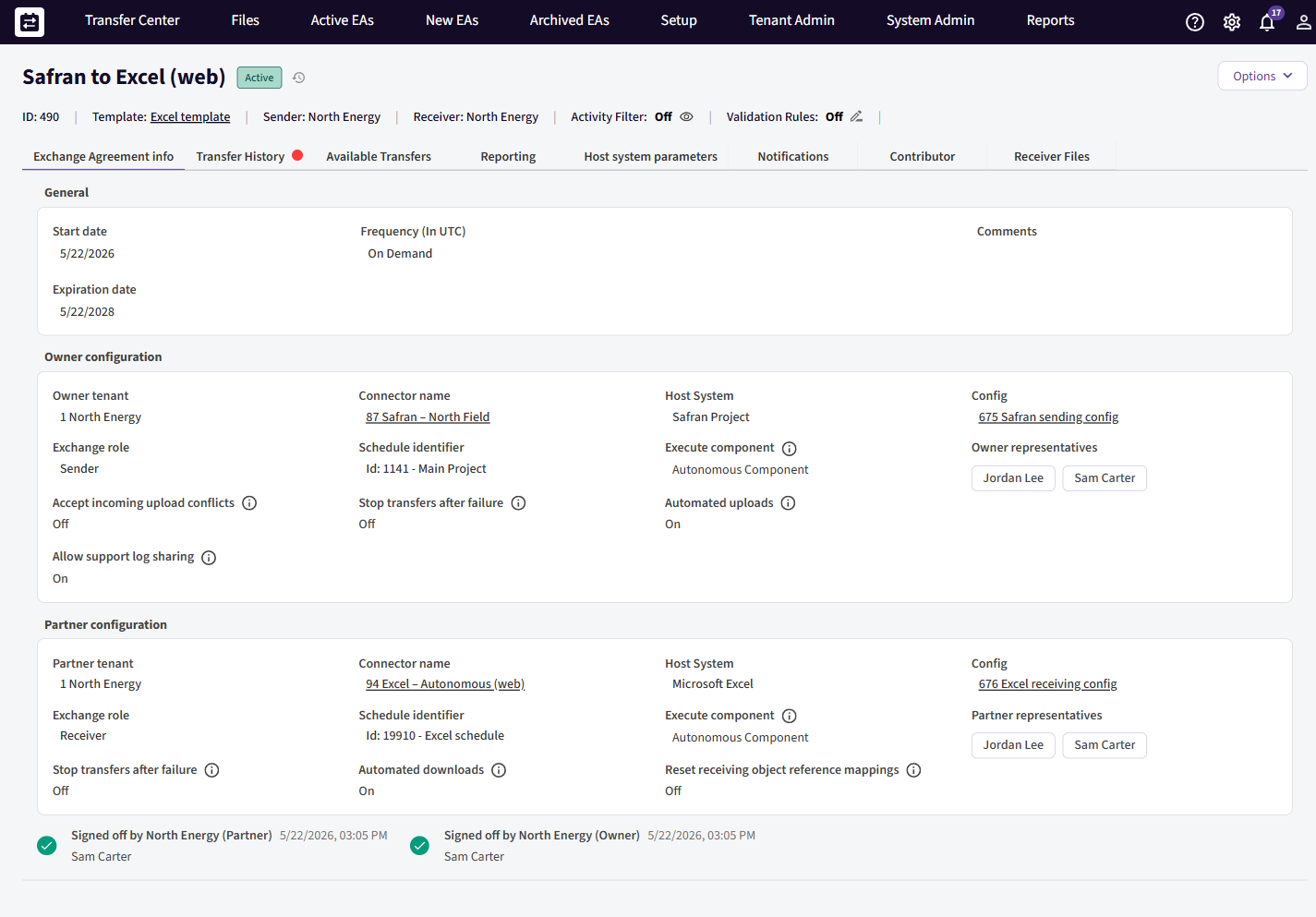
An Exchange Agreement showing Execute component = Autonomous Component on both sides, with Automated uploads and Automated downloads set to On.
Because they are per agreement, two agreements on the same connector can behave differently — one fully automatic, one requiring approval.
How approval works
When a side is set to approved (its automatic setting is off) and that side runs on the Autonomous Component, the transfer reaches a point where it is ready but not yet run, and it appears in the Transfer Center under Awaiting Approval:
- Upload side (sender): an upload that is due but not yet sent waits for a sender-side approval.
- Download side (receiver): once the upload has succeeded, the matching download waits for a receiver-side approval before it writes into the receiving system.
A download can only be approved after its upload has succeeded — there is nothing to download until the file has arrived. And if several transfers for the same agreement are waiting, you approve the oldest one first.
Approving a transfer
- Open the Transfer Center.
- Find the transfer in the Awaiting Approval group (or open the agreement from the notification — see Notifications).
- Select Approve.
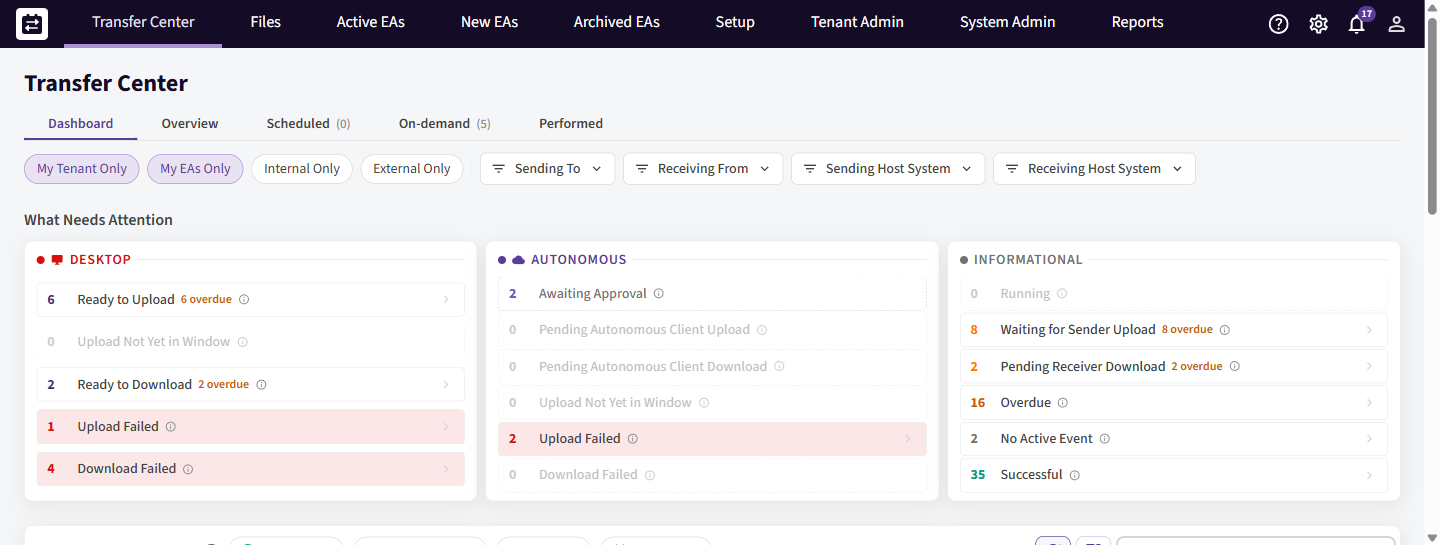
The Autonomous Component then runs that half on its next pass. You do not run it yourself — approving simply releases it to the AC.
If the agreement is set to automatic on that side, there is no Approve button — the transfer just runs. If you try to run a download manually on an automatic agreement, SchedEx stops you with a message (see Messages you might see).
Who can approve
Approval follows the agreement's responsible persons, not a special role:
- An upload is approved by a representative of the sending side.
- A download is approved by a representative of the receiving side.
Being a Tenant Admin does not by itself grant approval of a specific transfer — approval is tied to being a responsible person for the relevant side of that agreement. Make sure the people who should approve are named as responsible persons on the correct side.
Notifications
When a download is waiting, SchedEx notifies the receiving side's responsible persons so nothing sits unnoticed:
- In-app: "Download Approval Required — A transfer for '{Agreement}' is awaiting approval before it can be downloaded into the receiving system."
- Email: subject "Download Approval Required: {Agreement}, Transfer ID — [{id}]", with an Open Awaiting Approval button that takes you straight to the Transfer Center.
When approval is required — quick reference
A transfer half waits for approval only when all of these are true:
- That side's connector runs on the Autonomous Component (not the Desktop Client).
- The matching Automated uploads / Automated downloads setting is off.
- For a download: the upload has already succeeded.
- It is the oldest not-yet-successful transfer for that agreement on that side.
If the automatic setting is on, the Autonomous Component just runs it — no approval, no waiting.
Messages you might see
| Message | What it means | What to do |
|---|---|---|
| Manual download is not allowed for this data transfer because its Exchange Agreement is configured for automatic downloads. | You tried to run/approve a download on an agreement set to automatic. | Nothing — the Autonomous Component will run it. Turn automatic download off if you want an approval step. |
| Downloads can be approved only after the upload has succeeded. | The file has not arrived yet. | Wait for the upload to succeed, then approve. |
| You can only approve the oldest unsuccessful download. | An earlier transfer is still waiting. | Approve the oldest one first. |
| Only pending/overdue downloads can be approved. | The transfer is not in a state that needs approval. | Check the transfer's status in the Transfer Center. |
Related guides
- Reading the Autonomous Component Dashboard — see what the AC is doing and what it has run.
- Support logs — requesting logs from the Autonomous Component.
- Glossary — shared SchedEx terms.
Was this article helpful?
That’s Great!
Thank you for your feedback
Sorry! We couldn't be helpful
Thank you for your feedback
Feedback sent
We appreciate your effort and will try to fix the article