A contributor tenant lets you invite a third organisation into a single Exchange Agreement so it can take part in the file exchange, alongside the two organisations that already own the agreement. You add the organisation, choose what it may do (upload files, download files, or both), and name the people from that organisation who are allowed to act on it.
This guide is for a person setting up or taking part in a contributor arrangement for the first time. It explains each SchedEx term the first time the term appears. A full list of terms is in the Glossary.
TABLE OF CONTENTS
- What a contributor tenant is
- When you can use it - the three requirements
- How to add a contributor
- What a contributor can do
- Use cases
- How a contributor sends files
- Notifications
- Avoiding common errors
- Questions and answers
- Related guides
1. What a contributor tenant is
An Exchange Agreement normally has two sides: an owner organisation and a partner organisation. These are the two tenants (organisations on the platform) that the agreement belongs to.
A contributor tenant is a third organisation that you invite into one Exchange Agreement so it can take part in that agreement's file exchange. The contributor is not the owner and not the partner. It is an extra participant that you add on purpose, for this one agreement.
Two points matter and are the source of most questions:
- A contributor is a tenant, not just a user role. You add an organisation, and then you name one or more of that organisation's users as its representatives. You are not simply flagging an existing person. You are bringing a whole other organisation into the agreement and saying which of their people may act.
- Contribution is per Exchange Agreement. A contributor you add to one agreement has no access to any other agreement. You repeat the setup for each agreement that needs the same third party.
A contributor is added from a dedicated Contributor tab on the Exchange Agreement.
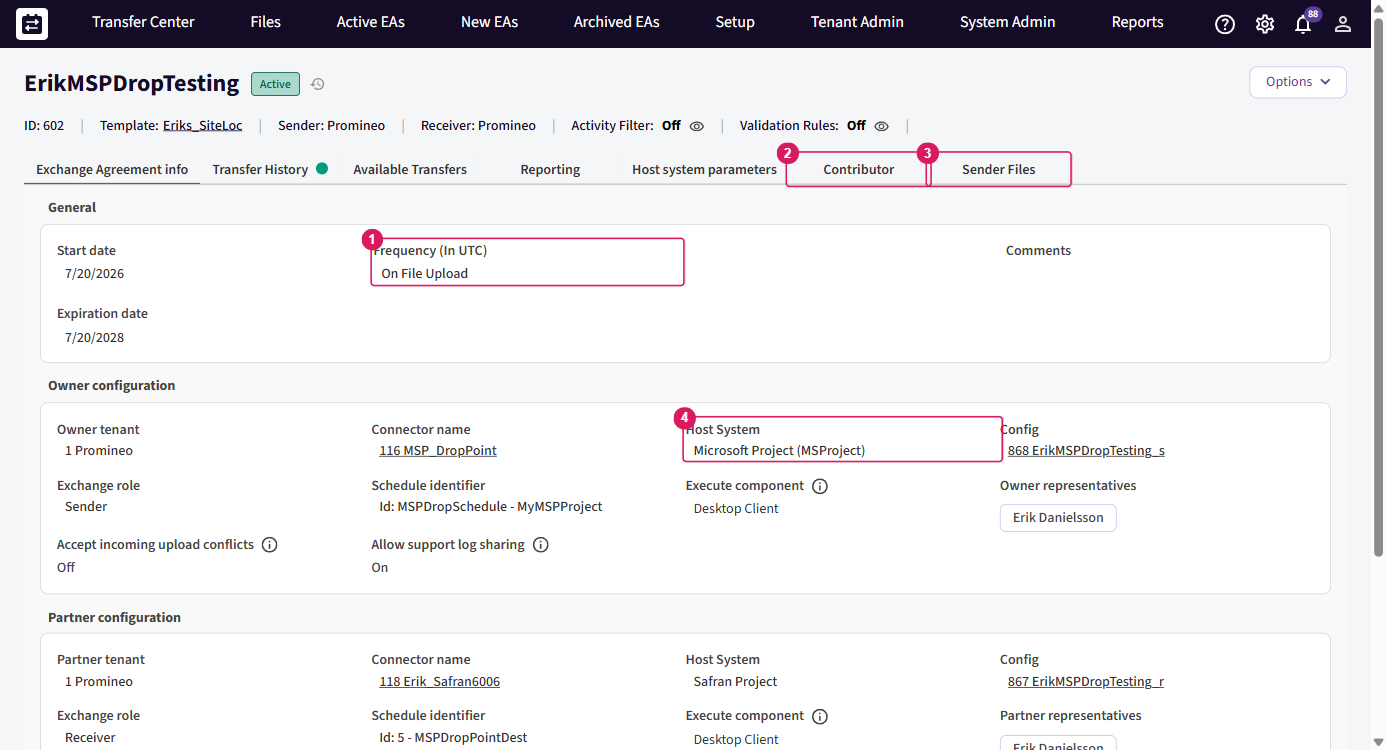
Figure: an Exchange Agreement with the Contributor tab visible in its tab bar. In this example the owner and the partner are the same organisation (Promineo), which is the arrangement contributors require - see the next section.
2. When you can use it - the three requirements
The Contributor tab appears, and you can add a contributor, only when all three of these are true. If any one is missing, SchedEx refuses the contributor and shows a message. The exact messages are in Avoiding common errors.
| # | Requirement | Why |
|---|---|---|
| 1 | The Exchange Agreement is a same-tenant agreement - the owner organisation and the partner organisation are the same organisation | Contributors are only available on same-tenant agreements. A same-tenant agreement is one where you exchange between your own two connectors - you are both sides. A contributor is the way to bring an outside party into that internal exchange. |
| 2 | At least one side (connector) uses Web storage | Contributors are for file-based staging. Web storage is file storage inside SchedEx. A contributor sends or receives files through that storage, so at least one connector in the agreement must use it. A connector that reads from SharePoint or from a local folder does not stage files in SchedEx. |
| 3 | The contributor organisation is a different tenant from the owner and the partner | The contributor is the third party. It cannot be the organisation that already owns both sides of the agreement. |
What "same-tenant agreement" means
Most Exchange Agreements are between two different organisations - your organisation and a partner organisation. Those agreements do not support contributors.
A same-tenant agreement is different: one organisation sits on both sides. You are moving data between two of your own connectors - for example, from your Primavera P6 connector into your Excel connector. Because there is no external partner organisation in that picture, the Contributor tab gives you a controlled way to let a genuine third party take part.
Why it must be a same-tenant agreement
Contributors are only available when the owner and partner are the same organisation - that is, when you are exchanging between your own two connectors. A contributor is invited into your internal arrangement: you have a file exchange set up inside your own organisation, and you want to let an outside party take part in it.
On a two-organisation agreement the concept is not needed. When the agreement is between two different organisations, every participant is already named as a representative on the agreement itself - both sides are accounted for, so there is no "extra, un-named" party for a separate contributor concept to fill. For that reason, on a two-organisation agreement the Contributor tab is not offered.
3. How to add a contributor
- Open the Exchange Agreement.
- Select the Contributor tab in the agreement's tab bar.
- Select Add Contributor. The Add Contributor Configuration dialog opens.
- Fill in the three fields (described below).
- Select Save.
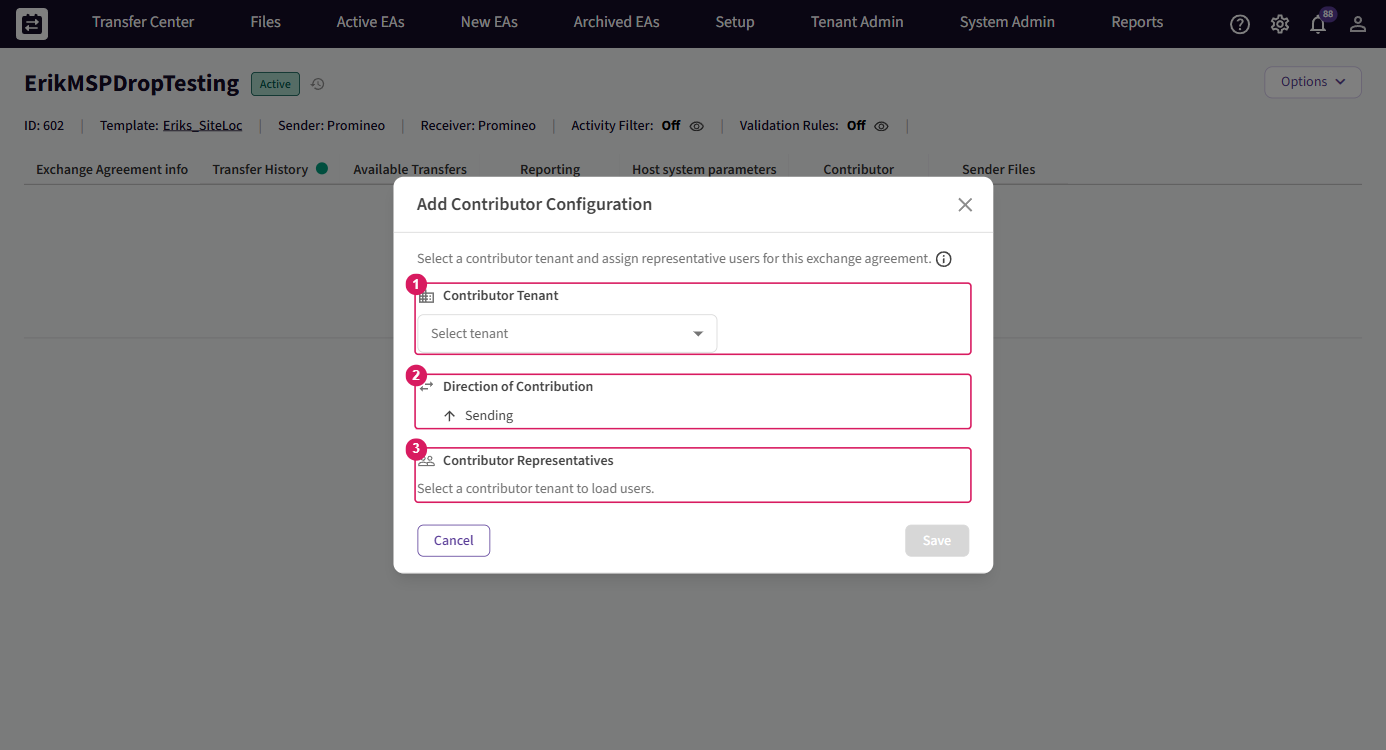
Figure: the Add Contributor Configuration dialog, with the fields Contributor Tenant (Select tenant), Direction of Contribution (Sending), and Contributor Representatives.
The fields
| Field | What to enter |
|---|---|
| Contributor Tenant | Select the organisation you want to invite. You may choose any tenant that is not the owner or the partner of this agreement. |
| Direction of Contribution | Choose what the contributor is allowed to do: Sending (the contributor may upload files), Receiving (the contributor may download files), or Sending & Receiving (both). |
| Contributor Representatives | Choose one or more users from the contributor tenant you selected. These are the only people from that organisation who may act on the agreement. You must add at least one. |
After you save, the contributor organisation sees the agreement in its Files module, marked with the contributor role, and its named representatives can act according to the direction you chose.
Editing and removing a contributor
Only users of the owner or partner organisation (which, on a same-tenant agreement, is the same organisation) can manage contributor configurations. An owner or partner admin can:
- Edit a contributor configuration from the Contributor tab - change the tenant, the role (Direction of Contribution), or the representatives.
- Remove a contributor configuration from the Contributor tab.
A contributor representative has a single, limited editing right: a representative may edit only their own representative list - that is, who from the contributor organisation takes part. A contributor representative cannot change the direction (role) of the contribution, cannot change the contributor tenant, and cannot edit the rest of the agreement's setup. A representative who tries to change the role sees: "Contributor representatives can't change the contribution role."
4. What a contributor can do
A contributor's abilities follow the Direction of Contribution you chose.
| Direction of Contribution | Upload files (send) | Download files (receive) |
|---|---|---|
| Sending | Yes | No |
| Receiving | No | Yes |
| Sending & Receiving | Yes | Yes |
Regardless of direction, a contributor:
- Can never delete a staged file. Deleting a staged source file needs a Tenant Admin of the owner organisation. Contributors are never granted delete, whatever their role. A non-admin who tries to delete sees: "Only a Tenant Admin can delete a source file. Please contact your Tenant Admin."
- Cannot act against the direction it was given. A contributor on the receiving side of the exchange cannot upload or delete the source file. A receiving-side user who tries sees: "Your organization is on the receiving side of this exchange agreement, so it cannot upload or delete the source file."
- Sees the agreement in the Files module marked with the "contributor" role, so a representative can tell at a glance that they are taking part as a contributor rather than as owner or partner.
- Cannot edit the agreement's setup. A contributor representative can edit only their own representative list - not the role and not the tenant (see Editing and removing a contributor).
How a contributor shows up and what they see
A contributor does not open the Exchange Agreement's setup. Instead, the agreement appears to them in the Files module, marked with their role: the My Role column shows Contributor. That is how a representative knows they are taking part as a contributor rather than as owner or partner.
What they do next depends on the Direction of Contribution they were given:
- With the Send role, they use the normal Files > Upload Files flow - the same flow an owner or partner sender uses.
- With the Receive role, they download from Files > Receiver Files.
In both cases they can only act on files; they cannot open or change the agreement's setup.
5. Use cases
- A subcontractor or supplier who stages files. A supplier that is neither the owner nor the partner uploads schedule files into the exchange. Give them the Sending role so they can upload but nothing else.
- Temporary external access for a project. A consultant or partner firm needs to take part for the length of a project. Add them as a contributor for that one agreement, then remove them when the project ends.
- A central staging hub. One organisation collects files from several sources and deposits them into the exchange. Give the hub the Sending role so it can drop files in.
- Dual-direction exchange. The contributor uploads raw data and later downloads the processed result. Give them Sending & Receiving so they can both upload and download.
6. How a contributor sends files
A contributor with the Sending role uploads files through exactly the same flow as an owner or partner sender: Files > Upload Files. There is no separate contributor upload screen.
The contributor can upload from either the web app or the desktop client — both have the same Files → Upload Files tab with the same drag-and-drop area and Upload File button, and both go through the same matching and permission checks, so a Send-role contributor is recognised in either one. The desktop client's Files tab looks like this:
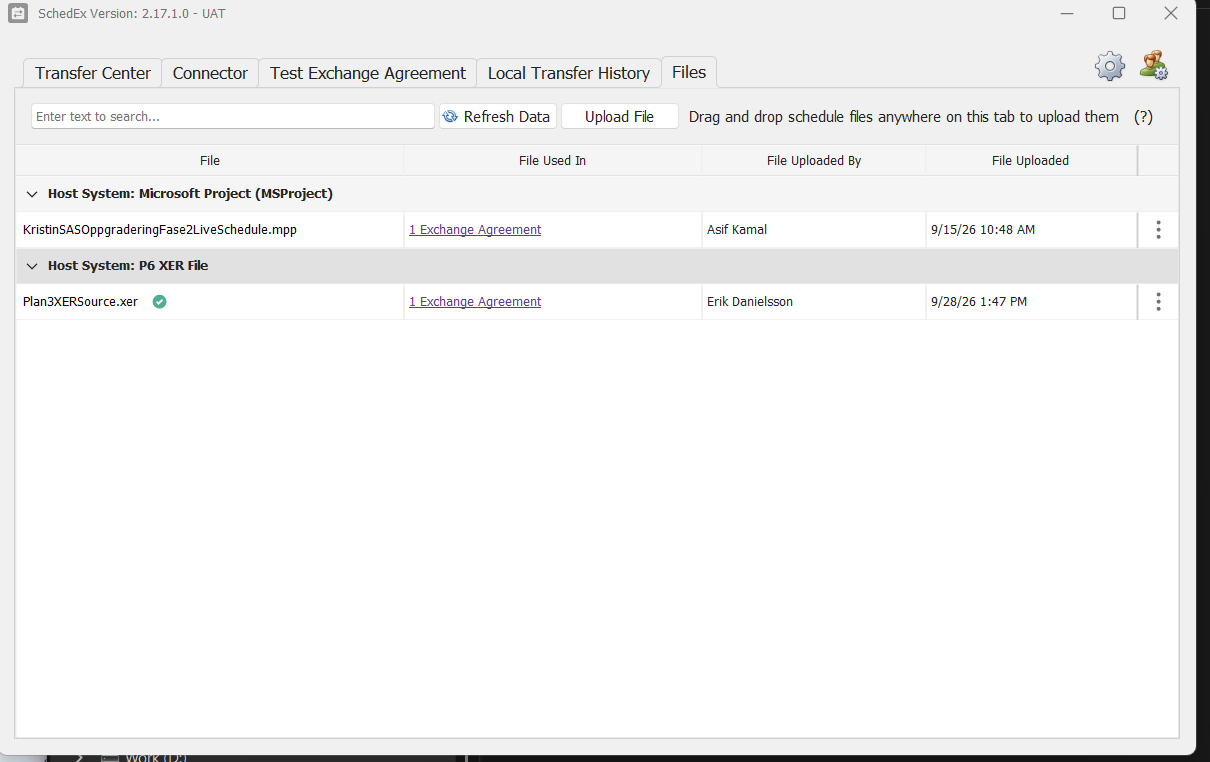
When the contributor uploads a file and the agreement starts a transfer on upload, SchedEx sends a file-uploaded notification, just as it does for an ordinary sender.
Because contributor file exchange runs on the file-based staging pipeline, the detailed upload behaviour - how to name the file, how one file can reach several agreements, and what each result means - is the same as for any sender. Read those details in the file hub and the per-format guides:
- The file hub (overview of staging, uploading, downloading and the Files module):
../file-based-drop-point/user-guide.md - Uploading source files, step by step:
../upload-files/user-guide.md - Per-format guides: Excel, Microsoft Project, Primavera P6 (XER)
7. Notifications
When a contributor with the Send role uploads a file, SchedEx sends the file-uploaded notification to the owner and partner representatives of the agreement - the same people who are notified for an ordinary sender's upload.
A Receive-only contributor is not notified of uploads. Notifications about an upload go to the owner and partner representatives, not to a contributor whose role is Receive only. A receiving contributor takes part by downloading files, so it has no upload for SchedEx to notify about.
8. Avoiding common errors
SchedEx validates a contributor configuration when you save it. Each message below tells you what went wrong and how to avoid it.
| Message | What it means | How to avoid it |
|---|---|---|
| Contributor config is only available for exchange agreements within the same organization. | The agreement is between two different organisations, which does not support contributors. | Add contributors only on a same-tenant agreement, where the owner and partner are the same organisation. See requirement 1. |
| Contributor config needs at least one connector side with Web storage. | Neither connector in the agreement uses Web storage, so there is nowhere to stage files. | Make sure at least one side of the agreement uses Web storage. Ask a Setup Admin to adjust the connector if needed. |
| The contributor organization can't be the same as the owner or partner organization. | You chose the organisation that already owns the agreement as the contributor. | Choose a different organisation - a genuine third party. |
| Please add at least one contributor representative. | You saved without naming anyone from the contributor organisation. | Add at least one user from the chosen contributor tenant to Contributor Representatives. |
| Only owner or partner organization users can manage contributor configs. | A user who is not from the owner or partner organisation tried to add, change, or remove a contributor. | Ask a representative or Tenant Admin of the owner/partner organisation to make the change. A contributor representative can edit only their own representative list. |
| Contributor representatives can't change the contribution role. | A contributor representative tried to change the Direction of Contribution. | Only the owner or partner organisation can change the role. Ask them to adjust it. |
9. Questions and answers
Is a contributor a user or an organisation?
An organisation (a tenant). You add the organisation and then name one or more of its users as representatives. It is not simply a role you flip on an existing person.
Why can I not see the Contributor tab on my Exchange Agreement?
The tab appears only on same-tenant agreements - where the owner and partner are the same organisation - and only when at least one connector uses Web storage. If your agreement is between two different organisations, contributors do not apply.
Can a contributor delete a staged file?
No. Contributors can never delete files, regardless of their role. Deleting a staged file needs a Tenant Admin of the organisation that owns the agreement.
Can a contributor change the agreement, or its own role?
No. A contributor representative can edit only their own representative list - who from the contributor organisation takes part. They cannot change the direction of contribution, the contributor tenant, or any other part of the agreement's setup. Only the owner or partner organisation can do that.
Does a contributor get notified when it uploads a file?
Yes. A contributor with the Sending role uploads through the normal Files > Upload Files flow and receives a file-uploaded notification, the same as any other sender.
Can one contributor take part in several of my agreements?
Yes, but you add it to each agreement separately. A contributor added to one agreement has no access to any other agreement.
Can I change what a contributor is allowed to do after I add it?
Yes. A user of the owner or partner organisation can change the Direction of Contribution - Sending, Receiving, or Sending & Receiving - from the Contributor tab.
10. Related guides
- File hub - the overview of file-based staging and the Files module:
../file-based-drop-point/user-guide.md - Upload Files - staging a source file step by step:
../upload-files/user-guide.md - Glossary - shared terms (Tenant, Exchange Agreement, Owner/Partner, Schedule, Web storage):
../GLOSSARY.md
Was this article helpful?
That’s Great!
Thank you for your feedback
Sorry! We couldn't be helpful
Thank you for your feedback
Feedback sent
We appreciate your effort and will try to fix the article