What this lets you do
Some of your systems do not talk to SchedEx over a live connection. Instead you export a file from them — a Microsoft Project file, a Primavera P6 export, or an Excel workbook — and you want that file to travel to your partner. A drop point is exactly that: you drop a file into SchedEx, and SchedEx sends it on the next Data Transfer.
This is the hub guide for file-based transfers that use Web storage — the storage inside SchedEx where a dropped file is kept, encrypted, until the transfer runs. You drop one file, SchedEx stores it once, and every Exchange Agreement that sends from the matching Schedule uses it.
This guide explains the concept and the shared steps. The file-format details live in the per-type guides, which this guide links to:
- File transfers with Microsoft Project (
.mpp) - File transfers with Primavera P6 (XER) (
.xer) - File transfers with Excel (
.xlsx)
Tip: The "drop point" is a where, not a when. Dropping a file always stores it. Whether a transfer runs straight away depends on the agreement's Frequency — see Frequency: when the dropped file actually transfers.
TABLE OF CONTENTS
- What a drop point is
- Key terms
- The three storage options a file-based connector can use
- How to recognise a web-storage connector
- How to drop a file
- How a dropped file is matched
- Frequency: when the dropped file actually transfers
- Upload (sender) versus download (receiver)
- What download delivers (the two-file pattern)
- The Files tabs
- The Files tabs, at a glance
- Transfer statuses
- When a drop does not start a transfer right away
- Running and re-running a transfer
- Storage and security
- Notifications
- What works and what does not
- Constraints and limitations
- Avoiding common errors
- When things look empty or blocked
- Permissions: who can drop a file
- Related guides
What a drop point is
A file-based transfer has two sides, just like any transfer:
- The sending side exports a file from its planning tool and drops it into SchedEx.
- The receiving side downloads the file that the transfer produced.
The drop itself happens in the Files > Upload Files tab. You drag one or more files onto the tab, or you select Upload File. SchedEx stores each file and, depending on the agreement's Frequency, either sends it immediately or holds it until the next scheduled or manual run.
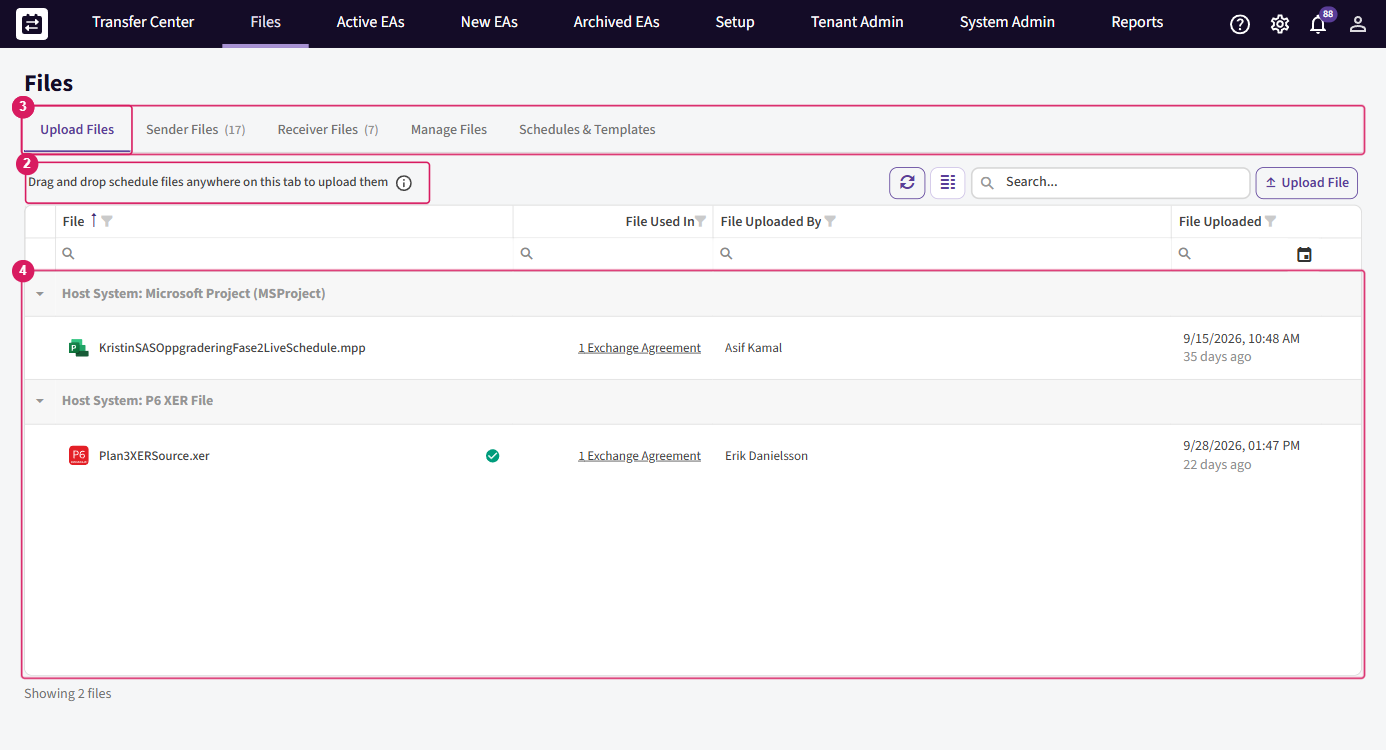
You can drop a file from either place — the SchedEx web app or the desktop client. Both have the same Files → Upload Files tab, the same drag-and-drop area and Upload File button, and they run the same matching, validation and permission checks (they call the same SchedEx service). The result is identical whichever you use, so pick whichever you already have open. The desktop client's Files tab looks like this:
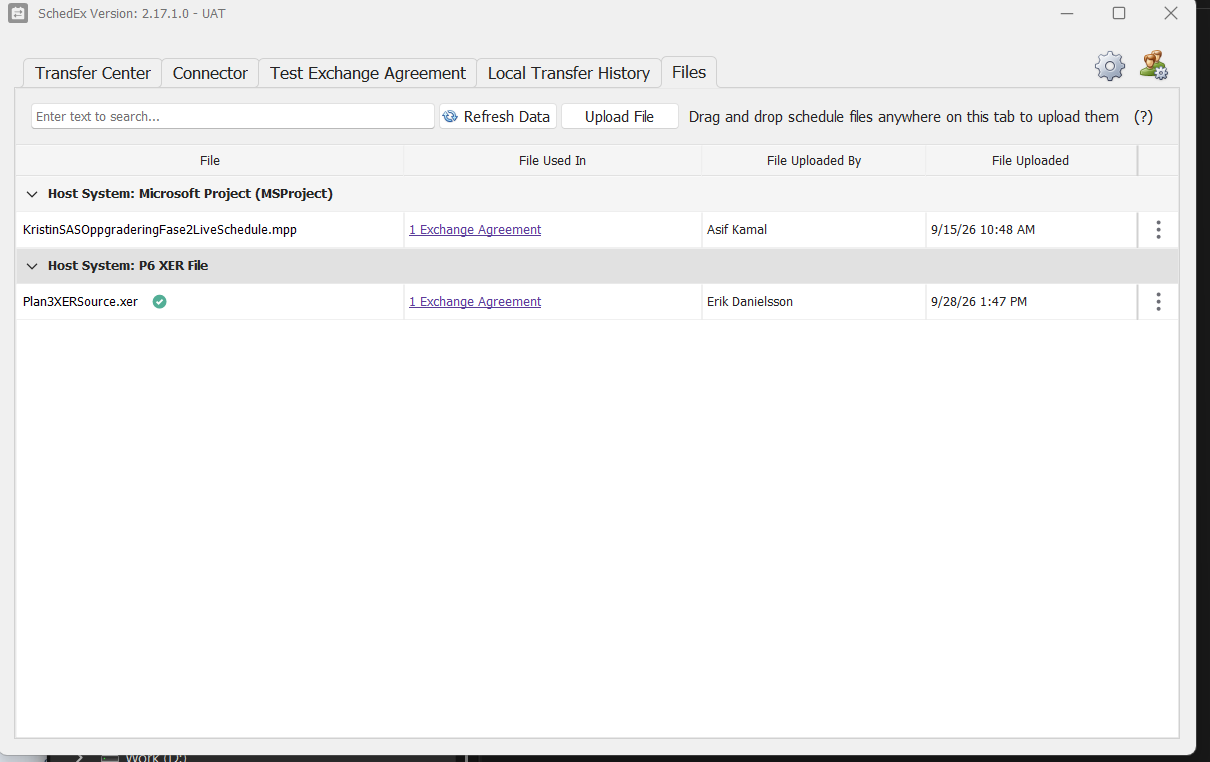
Three facts shape everything else in this guide:
- The file travels for a whole Schedule, not for one agreement. SchedEx stores one file per sender Schedule. If several Exchange Agreements send from that Schedule, one drop updates them all. See How a dropped file is matched.
- A drop point only works with Web storage. A file-based connector can read from Web storage, from SharePoint, or from a local folder. Only Web storage reads a dropped file. See The three storage options a file-based connector can use.
- The file name has to match the Schedule. This is how SchedEx knows where the file belongs. See How a dropped file is matched.
Key terms
This guide explains each SchedEx term where it first appears. The Glossary holds the shared definitions. The ones you need most here:
- Connector — the configured link between SchedEx and one of your systems, for example a Microsoft Project connector or an Excel connector.
- Schedule (sender Schedule) — the named project schedule inside a connector. A dropped file belongs to the Schedule, not to one Exchange Agreement.
- Web storage — file storage inside SchedEx. Files are uploaded through SchedEx and read from secure, encrypted, Tenant-scoped storage. Only a connector set to Web storage reads a dropped file.
- Exchange Agreement — the contract between two organizations that says which data moves, in which direction, and how often. (Also called an Inter-Exchange Agreement, IEA.)
- Config — a concrete data mapping between a source and a target host system, used inside an Exchange Agreement.
- Data Transfer — one unit of work that moves data from the sending side to the receiving side. It has an upload part on the sender and a download part on the receiver.
- Tenant — an organization on the platform. A user can belong to more than one.
The three storage options a file-based connector can use
A file-based connector (Microsoft Project, Primavera P6 XER, or Excel) has to know where to find the file it sends. There are three choices, set on the connector:
| Storage option | Where the file comes from | Can you drop a file into SchedEx? |
|---|---|---|
| Web storage | The file is uploaded through SchedEx and read from secure, encrypted, Tenant-scoped storage inside SchedEx. | Yes. This is the drop point, and this whole guide is about it. |
| SharePoint | The connector reads the file from a SharePoint site you have linked. | No. SchedEx reads SharePoint directly at transfer time; there is nothing to drop. |
| Local file | The connector reads the file from a folder on the machine that runs the connector (a desktop client or Autonomous Client). | No. You place the file in that folder yourself; SchedEx reads it from there. |
This guide covers Web storage only. If your connector is on SharePoint or Local file, the dropped-file flow does not apply — you manage the file in SharePoint or in the folder instead, and the agreement does not appear on the Upload Files tab.
How to recognise a web-storage connector
You can tell a connector is set to Web storage by looking at its details. Open the connector and read the storage fields:
- Endpoint URL shows Web (rather than a SharePoint site address or a drive path).
- Local File Path is Disabled (there is no local folder, because the file lives in SchedEx).
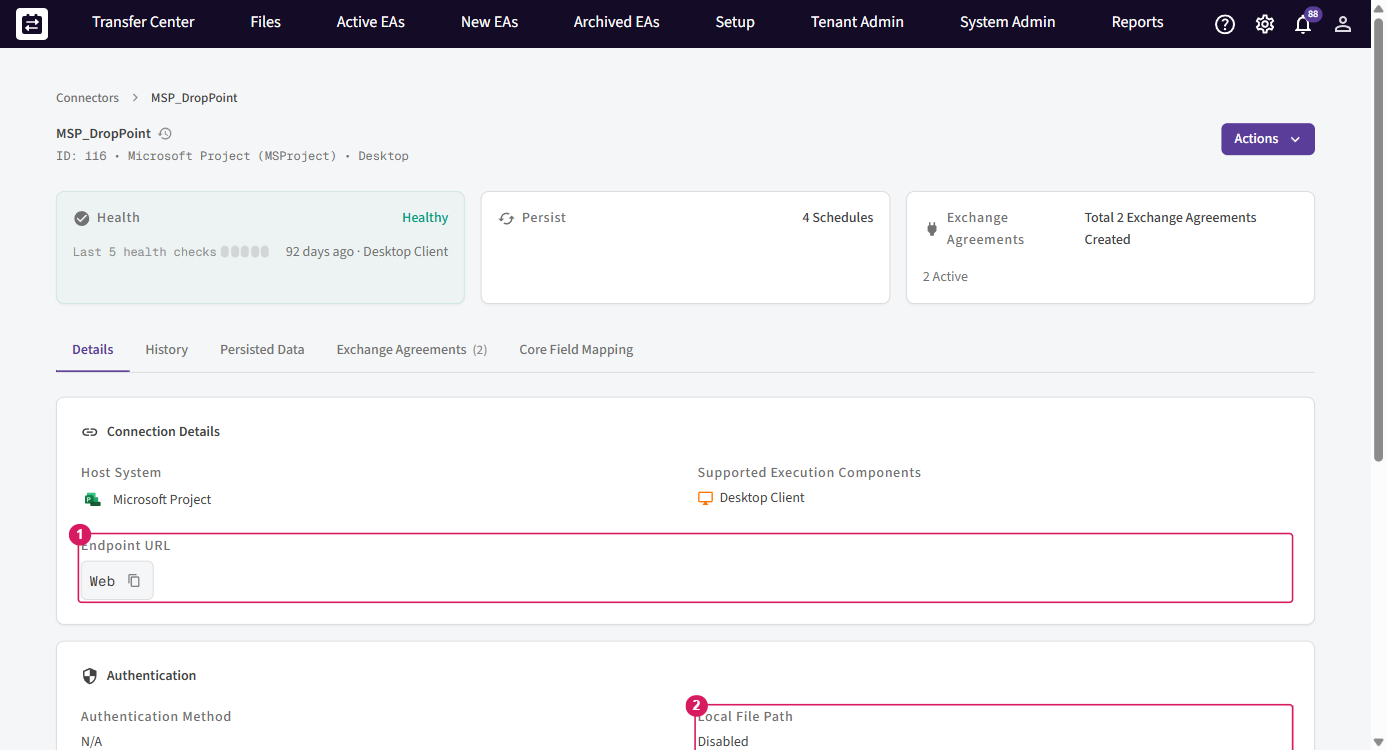 .png
If the Endpoint URL shows a SharePoint address, or Local File Path holds a folder path, the connector is not on Web storage, and you cannot drop a file into it. A Setup Admin can change the storage option on the connector if a drop point is what you want.
How to drop a file
You drop a file in the Files > Upload Files tab. The same area exists in the SchedEx desktop client, and it behaves the same way.
- Open Files. The first tab is Upload Files.
- Give your file the correct name. The name is how SchedEx finds the Schedule — see How a dropped file is matched.
- Either drag and drop one or more files anywhere on the tab, or select the Upload File button and pick one or several. The whole tab is the drop area, so you can release the files over the grid, over the hint line, or over the empty space.
- SchedEx opens an Upload Files dialog that lists each file with the Exchange Agreement(s) it reaches — because one file updates every agreement on that Schedule — and uploads them. Files of the wrong type, or larger than 100 MB, are skipped with a message while the rest still upload.
- Watch each file complete, then select Done (or Cancel to stop any files still waiting). SchedEx stores each file once for its Schedule and points every matched agreement at it.
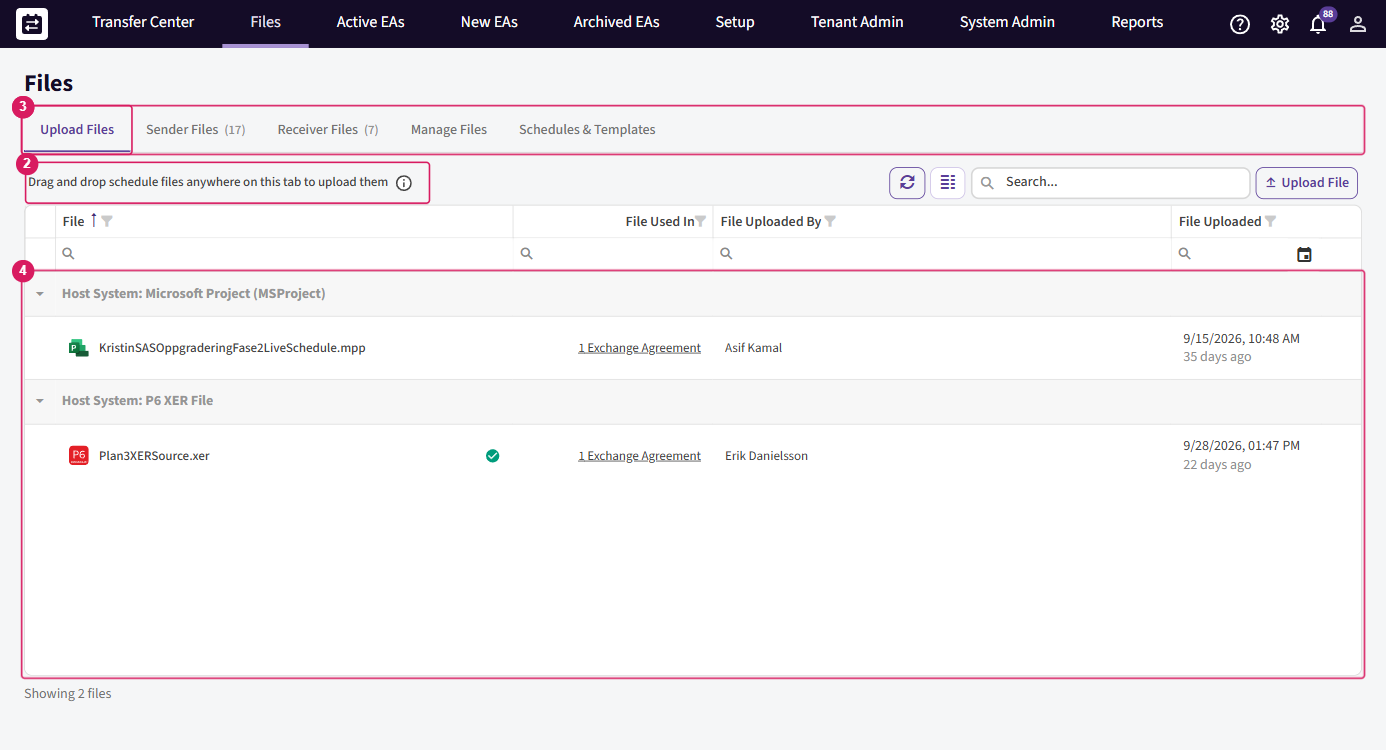
Supported formats are .mpp (Microsoft Project), .xer (Primavera P6 export) and .xlsx (Excel). Any other extension is refused before the upload starts.
In the files grid, dropped files are grouped by host system — one group for Microsoft Project, one for Primavera P6, one for Microsoft Excel — so you can see at a glance what is stored for each system.
Note: One drop is stored once per sender Schedule. You do not drop the file once for each Exchange Agreement. If your agreements send from different Schedules, you need one correctly named file for each Schedule.
For the full step-by-step of the Upload Files tab — the upload dialog, the results, replacing and deleting a file — see the per-type guides linked under What this lets you do.
How a dropped file is matched
SchedEx has to work out which Schedule a dropped file belongs to. It does this entirely from the file, in this order:
| Step | What SchedEx checks | Must be true |
|---|---|---|
| 1. File extension | The extension picks the sender host system. .mpp → Microsoft Project, .xer → Primavera P6, .xlsx → Excel. | The extension is one of the three supported formats. |
| 2. File name | The name without the extension must match the sender Schedule. For .mpp and .xer this is the Schedule ID. For .xlsx it is the Schedule title, or the signed metadata inside the workbook. | The name matches a Schedule you can send to. The comparison ignores upper and lower case; everything else, including spaces, must agree. |
| 3. Connector storage | The sender connector for that Schedule must use Web storage. | A SharePoint or Local-file connector never reads a dropped file. |
| 4. Your permission | You must be allowed to upload to the agreement. | See Permissions: who can drop a file. |
If all four hold, the upload dialog lists the Exchange Agreements the file reaches. If any one fails — a wrong name, a wrong format, a non-web connector, or a missing permission — the file matches nothing, and the no-match dialog shows you the exact names that would work.
Tip: A file that looks right can still be refused when the name is not exact. An added word, a date, a version number or a changed space makes the name different.
Plan A (rev 3).xlsxdoes not match the SchedulePlan A. Copy the name from the no-match dialog and rename your file.
The match is case-insensitive but otherwise exact. Upper and lower case are ignored, but spaces, hyphens and every other character must match exactly. Plan A.xlsx does not match PlanA.xlsx (a missing space) and does not match Plan A v2.xlsx (an added version), even though they look almost identical.
Frequency: when the dropped file actually transfers
Dropping a file always stores it. Whether a transfer runs depends on the Exchange Agreement's Frequency. There are three kinds:
| Frequency | Shown in SchedEx as | When the transfer runs |
|---|---|---|
| Manual | On Demand | Never on its own. The file is stored and waits. A transfer runs only when someone starts it by hand. |
| Scheduled | Scheduled | On a repeating plan — daily, weekly or monthly (a cron schedule) — or when a predecessor transfer completes. The file is stored and waits for the next planned run. |
| On File Upload | On File Upload | Immediately, each time you drop a file. Every drop creates a new Data Transfer event straight away. |
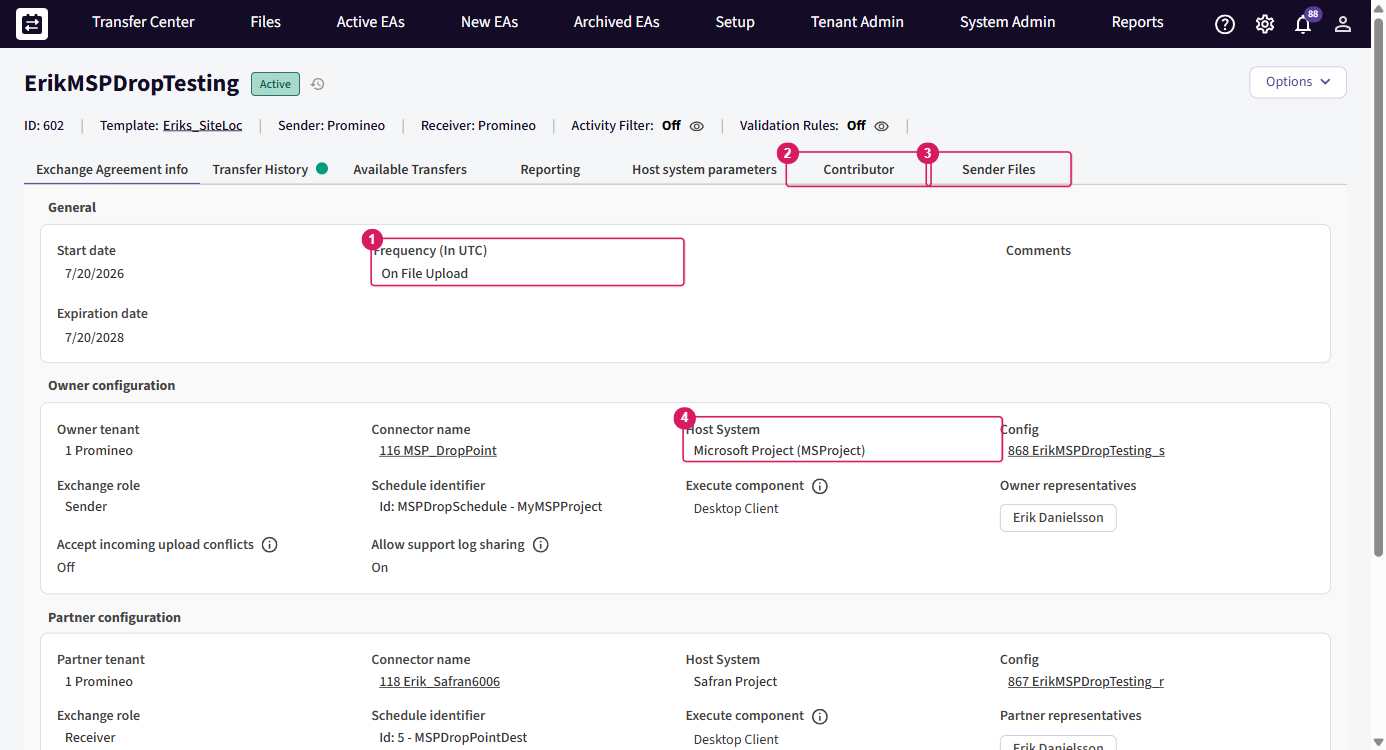
On File Upload
On File Upload is the frequency that turns the drop point into an instant send. Each time you drop a matching file, SchedEx creates a transfer event there and then, so the file is on its way as soon as you confirm the upload.
This frequency is only available when all of these are true:
- the sender is a web file host — Excel, Microsoft Project, or Primavera P6 XER — using Web storage;
- the Exchange Agreement is active and within its start and end dates.
If the agreement does not use On File Upload — that is, if it is Scheduled or Manual — your drop still succeeds and the file is stored, but no transfer runs yet. The file sits in Web storage and is sent the next time the schedule fires or someone runs the transfer by hand. The file that is sent is always the one the Schedule holds at the moment the transfer runs.
Note: When an agreement already has a transfer waiting, running, overdue or failed, SchedEx stores your new file but does not create a second transfer event. The waiting transfer picks up your new file when it runs. This is normal and needs no action from you.
Upload (sender) versus download (receiver)
A file-based transfer is still a two-sided Data Transfer, so the two organizations do different things.
On the sending side (upload). You drop the file. SchedEx encrypts it and stores it in Web storage against the sender Schedule. For an On File Upload agreement, a transfer event is created at once; otherwise the file waits. The stored file is encrypted with your organization's key, so only your organization and the agreement's receiver can ever read it.
On the receiving side (download). The receiver does not drop anything. Once the transfer has run, it produces a file for the receiver to take. The receiver downloads that produced file from the Files > Receiver Files tab, or from the Exchange Agreement itself.
| Side | What they do | Where |
|---|---|---|
| Sender | Drops the source file | Files > Upload Files |
| Receiver | Downloads the produced file | Files > Receiver Files, or the Exchange Agreement |
What download delivers (the two-file pattern)
The file the receiver downloads is not your original uploaded file. The Data Transfer runs your source file through the receiving side and produces a destination file in the receiver's own format. That destination file is what the receiver downloads from Files > Receiver Files.
So a single transfer involves two files: the source file you dropped on the sending side, and the destination file SchedEx builds for the receiver. SchedEx serves the destination file with the correct file type and the receiver's own file name — the receiver never sees your original upload, only the result the transfer produced for them.
The Files tabs
The Files page has several tabs. The one you use depends on your side of the agreement and your role:
| Tab | What it is for |
|---|---|
| Upload Files | Drop a source file on the sending side. This is the drop point. |
| Sender Files | See the source files your organization has staged, per agreement. |
| Receiver Files | Download the files produced for your organization as the receiver. |
| Manage Files | A cross-agreement view for Tenant Admins and users who send or receive on at least one agreement. |
| Schedules & Templates | For Setup Admins: the file-based connectors with their Schedules and Excel templates. |
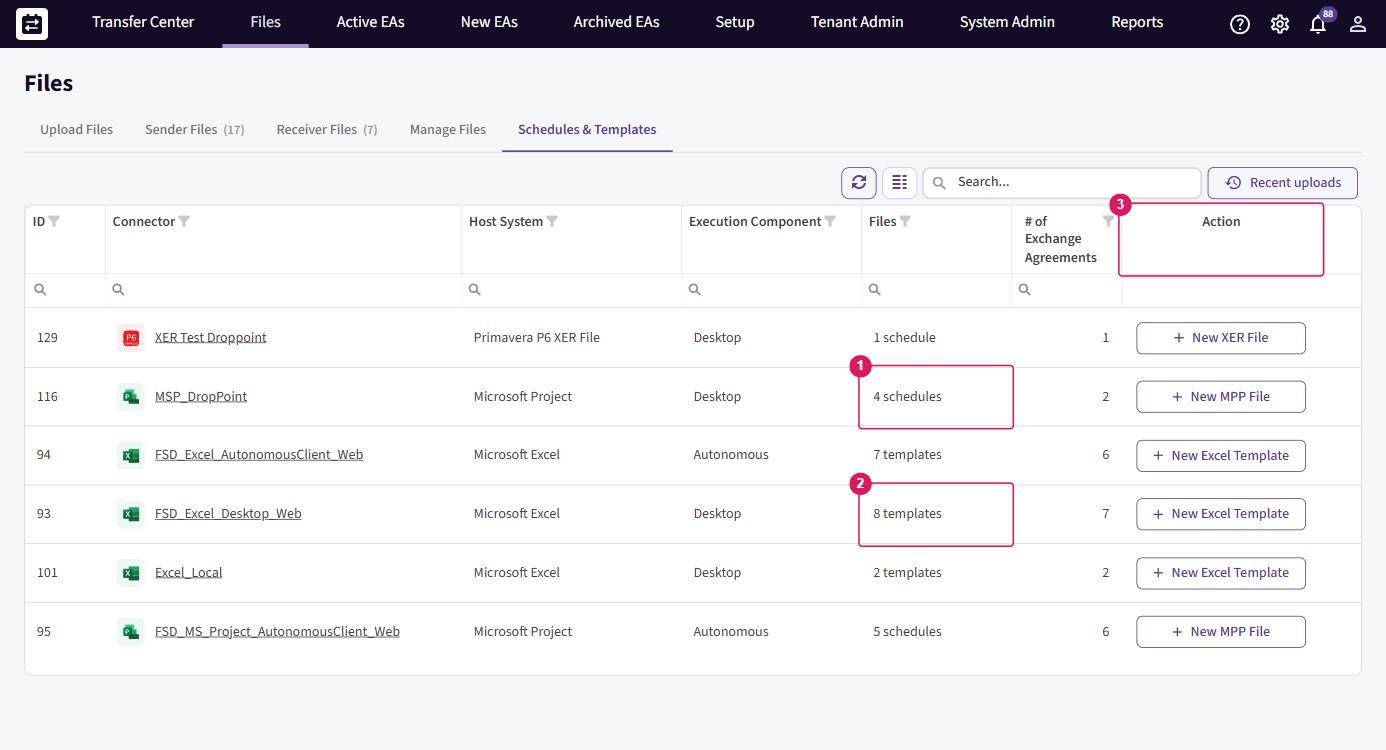
The Files tabs, at a glance
Here is what each tab under Files is for:
| Tab | Purpose |
|---|---|
| Upload Files | Drop files, see which Exchange Agreements they reach, and send them. This is the drop point. For the full drag-and-drop and send detail, see How to drop a file and the per-type guides. |
| Sender Files | The files you have sent, listed per Exchange Agreement, each with its upload status. |
| Receiver Files | The files available for you to download as the receiver, each with a download-history count you can open. |
| Manage Files | A cross-agreement view with sub-tabs for uploaded files versus received files. Tenant Admins also see File Retention Settings here. |
| Schedules & Templates | All your web-storage file connectors, with their schedule and template counts. |
Every file row has a three-dot (⋮) action menu with these actions:
| Action | What it does |
|---|---|
| View Exchange Agreements | Lists the agreements that use this file. |
| Download file | Downloads a copy of the file. |
| Re-upload file | Re-sends the stored file through its agreements. |
| Delete file | Removes the stored file. |
Tip: A green tick next to a file means every Exchange Agreement using it has already carried that latest file in a successful upload — there is nothing left to send.
Transfer statuses
A Data Transfer reports an outcome you can read in the Files grids and on the Exchange Agreement. The states you will see are:
| Status | Meaning |
|---|---|
| Success | The transfer ran and completed. |
| Fail | The transfer ran but did not complete. |
| Skipped | The transfer was skipped (for example, nothing to send). |
| Overdue | A scheduled transfer did not run in its expected window. |
| Pending | The transfer is queued and has not started yet (in progress). |
| Running | The transfer is executing now (in progress). |
| Pending-predecessor | The transfer is waiting for a predecessor transfer to complete first (in progress). |
Note: The grids colour-code these statuses and highlight failed and overdue rows so they stand out.
When a drop does not start a transfer right away
If an agreement set to On File Upload already has a transfer pending, overdue, or waiting, a new drop updates the stored file but does not create a second transfer event. The transfer that is already waiting picks up the newest file when it runs. This is normal behaviour, not an error — you do not need to drop the file again or raise a ticket.
Running and re-running a transfer
Dropping a file and downloading a result are handled by SchedEx itself — you do not need a desktop or Autonomous client to upload or download a file in the web app. But running the transfer (reading the file, mapping it with the Config, and writing it to the destination) is done by the agreement's execution component — a Desktop Client or an Autonomous Component — which must be available for the transfer to run. File-based connectors (Microsoft Project, Primavera P6 XER, Excel) work with either.
File-based transfers appear in the Transfer Center, where you monitor and re-run them:
| Where it runs | How to run or retry |
|---|---|
| Desktop Client | Run Now on the transfer. Retries are handled in the client. |
| Autonomous Component | Upload Now, Upload Again (retry a failed upload), Download Again (retry a failed download), and Approve Upload when manual approval is on. |
You can also Skip a transfer you don't want to run. A failed or overdue transfer stays visible in the Transfer Center until it succeeds, is skipped, or the next scheduled run clears it.
Storage and security
Files kept in Web storage are encrypted with your organisation's tenant key. The key is pinned at the moment of upload, so even if your organisation later rotates its key, the file can still be downloaded. A Tenant Admin can set file retention so that web-storage files are automatically deleted after a successful transfer — separately for the uploaded source file (default 14 days) and the received file (default 60 days), with an option to delete only files that were downloaded. This is managed from the Manage Files tab; see Managing files and file retention.
Notifications
When a file is uploaded, the owner and partner representatives of the Exchange Agreement receive a file-uploaded notification. When a transfer fails or goes overdue, the responsible people are notified so they can act.
What works and what does not
Works
- Dropping a Microsoft Project
.mpp, a Primavera P6.xer, or an Excel.xlsxfile into SchedEx for transfer to a partner. - One drop updating every Exchange Agreement that sends from the matching sender Schedule.
- Instant transfer on each drop, when the agreement uses On File Upload.
- Storing a file now and transferring it later, when the agreement is Scheduled or Manual.
- The same drop area in the web application and in the SchedEx desktop client.
Does not work
- Dropping a file into a connector that is not on Web storage. SharePoint and Local-file connectors read the file from their own location, not from a drop.
- Any extension other than
.mpp,.xer, or.xlsx. - Dropping a file whose name does not match a sender Schedule you can send to.
- Dropping a file as the receiving side. Only the sender stages a source file.
Constraints and limitations
| Area | Constraint |
|---|---|
| Storage | Web storage only. A connector on SharePoint or Local file does not accept a dropped file. |
| Formats | .mpp, .xer, .xlsx only. Other extensions are refused before upload. |
| Multiple files at once | You can drop or pick several files in one action. Each is matched to its Schedule by name; files of the wrong type or over 100 MB are skipped with a message while the rest upload. If two files resolve to the same Schedule, only the newest is sent. |
| File name must match the Schedule | .mpp / .xer → the Schedule ID; .xlsx → the Schedule title (or the signed metadata inside the workbook). The match ignores case but nothing else. |
| File size | One file can be up to 100 MB. |
| Scope of a drop | One drop replaces the stored file for the whole sender Schedule, so it affects every agreement on that Schedule. |
| On File Upload availability | Only for a web file host (Excel / MSP / XER) on Web storage, when the agreement is active and in date range. |
Avoiding common errors
| If you see… | It means… | Do this instead |
|---|---|---|
| The file is refused before the upload starts | The extension is not .mpp, .xer, or .xlsx | Export the Schedule again in a supported format. |
| One or more files are skipped with a message | Those files are the wrong type, or larger than 100 MB | The listed files are skipped; the rest still upload. Fix the skipped files and drop them again. |
| The file matches nothing | The name does not match a sender Schedule you can send to | Copy a name from the no-match dialog exactly, including the extension, and rename your file. |
| The agreement is missing from the Upload Files tab | The agreement is paused, expired, not yet started, on the receiving side, on a non-web connector, or one you cannot upload to | Check the agreement is active and in date range, that the sender uses Web storage, and that you have upload permission. |
| The file uploaded but no transfer ran | The agreement is Scheduled or Manual, or a transfer is already waiting | This is normal. The file waits for the next planned or manual run, or for the waiting transfer to pick it up. |
| "A Data Transfer upload is running in this Exchange Agreement. Kindly wait for the transfer upload to complete before uploading this file." | A transfer is currently running on that schedule's agreement (the plural variant reads "…running in N Exchange Agreements…") | Wait for the transfer upload to finish, then drop the file again. |
| "The uploaded file is too large. The maximum file size is 100 MB." | The file exceeds the 100 MB limit | Reduce the file size, or split the schedule into smaller parts. |
| An Excel file is refused at validation | The workbook was not generated by SchedEx, or its structure was changed | Start again from a fresh SchedEx Excel template and copy your data into it. |
A .xer or .mpp file is refused at validation | The file is not a valid P6 export or Project file, or its name is not the Schedule ID | Export again from the source tool, and name the file after the Schedule ID. |
When things look empty or blocked
- The Upload Files tab shows no agreements, or the grid is empty. You may have no agreement on the sending side that uses Web storage, or your agreements are paused, expired, or not yet started. Only agreements you can send to, on web-storage connectors, appear here.
- Your connector will not accept a drop. Check the connector's storage option — it must be Web storage (Endpoint URL = Web, Local File Path = Disabled). SharePoint and Local-file connectors do not accept a drop.
- You cannot see the Upload Files tab at all, or cannot drop. You may not have upload permission on the sending side. See Permissions: who can drop a file.
- You dropped a file but nothing transferred. Check the agreement's Frequency. Only On File Upload sends immediately; Scheduled and Manual store the file and wait.
Permissions: who can drop a file
Dropping a file is a sending-side action. SchedEx shows the Upload Files tab only for agreements you can send to, and it lists only the files of those agreements.
| Who | Can drop a file? |
|---|---|
| A representative of the sending side of the agreement | Yes. This is the normal working role. |
| A Tenant Admin (or System Admin) of the sending organization | Yes, on any agreement of that organization. |
| A contributor with the Send role | Yes. Contributors apply when the owner and partner are the same organization — see the Contributor tenant guide. |
| A representative or contributor on the receiving side only | No. The receiving side downloads the produced file; it never drops a source file. |
| A user from an unrelated organization | No. SchedEx never shows an agreement that does not belong to your organization. |
If you cannot drop a file and you believe you should be able to, ask a representative of the agreement, or your Tenant Admin, to upload for you or to grant you access.
Related guides
- File transfers with Microsoft Project — the
.mppdrop in detail. - File transfers with Primavera P6 (XER) — the
.xerdrop in detail. - File transfers with Excel — the
.xlsxdrop, templates and workbook validation. - Contributor tenant — how contributors with the Send role can drop files when the owner and partner are the same organization.
- Glossary — shared SchedEx terms (Tenant, Exchange Agreement, Config, Schedule, Data Transfer, Web storage).
Was this article helpful?
That’s Great!
Thank you for your feedback
Sorry! We couldn't be helpful
Thank you for your feedback
Feedback sent
We appreciate your effort and will try to fix the article