Table of contents
Introduction
This article explains Exchange Agreements (often called EAs for short) — what they are, where to find them, and what you'll see on each screen. Read this if you want to understand how data is shared between your company and a partner company, and how to check on the status of that sharing.
What is an Exchange Agreement?
An Exchange Agreement (EA) is simply the setup that controls how data moves between your company and a partner company — whether that happens automatically on a schedule, or only when someone starts it manually. It keeps track of everything needed to make that happen: which systems are involved, when transfers should run, and which side is sending and which side is receiving.
You'll find these under the top menu: Active EAs, New EAs, and Archived EAs.
Active EAs
This is the list of agreements that are currently up and running. You can quickly filter it to show only agreements with Updates, ones that are Paused, or ones that are Expiring soon.
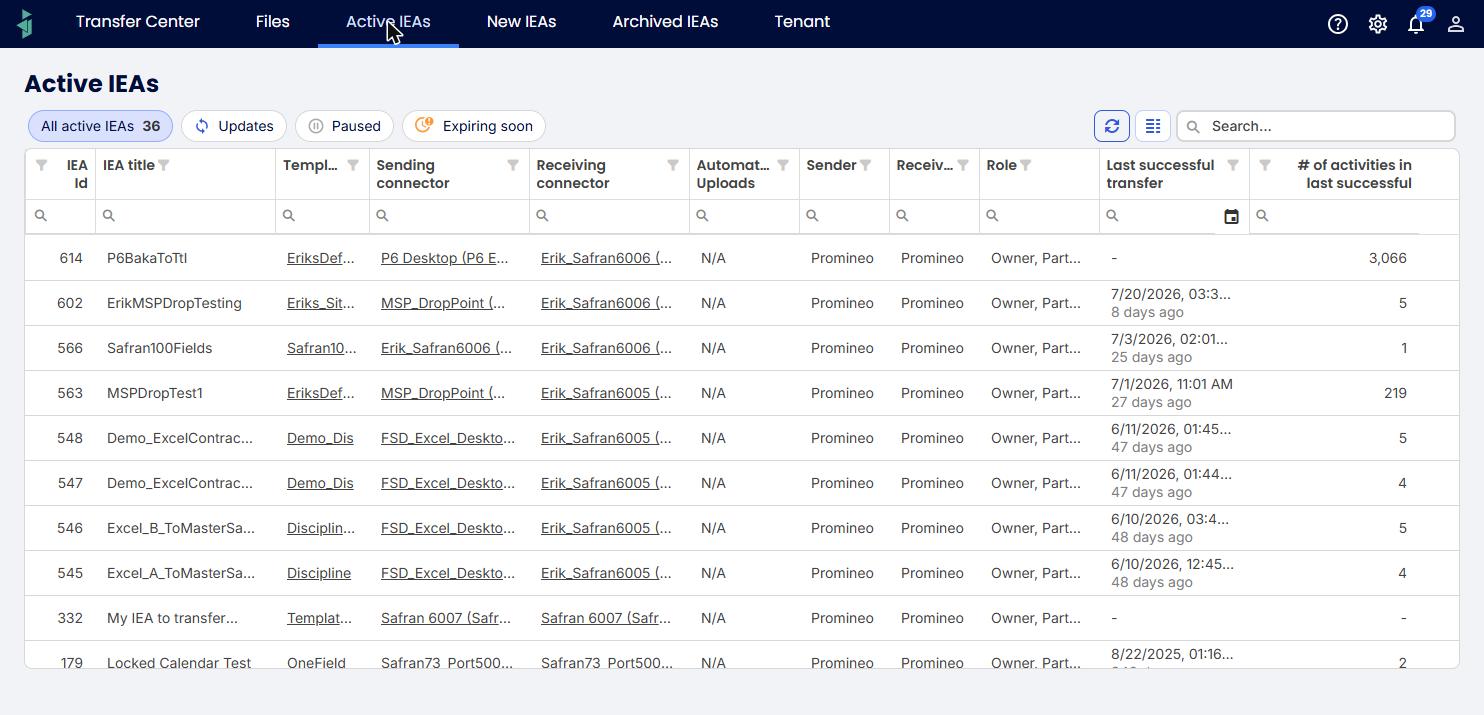
Each row shows things like the EA name, which template it uses, the sending and receiving connections, who's sending and who's receiving, and when the last successful transfer happened.
New EAs
This list shows agreements that are still being set up — either being drafted, or created but not yet started.
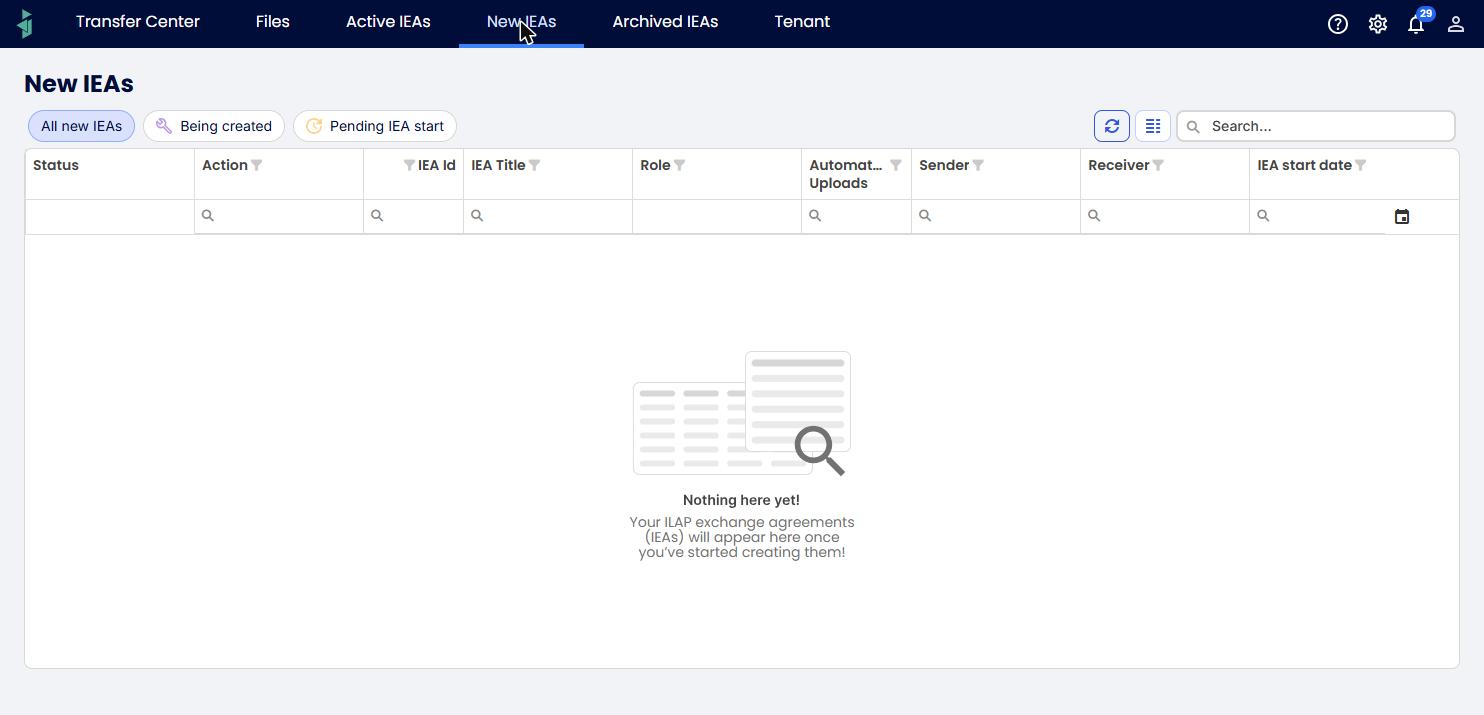
You can filter this view to show All new EAs, ones Being created, or ones Pending start.
Archived EAs
Agreements that have ended or been retired end up here, kept for your records.
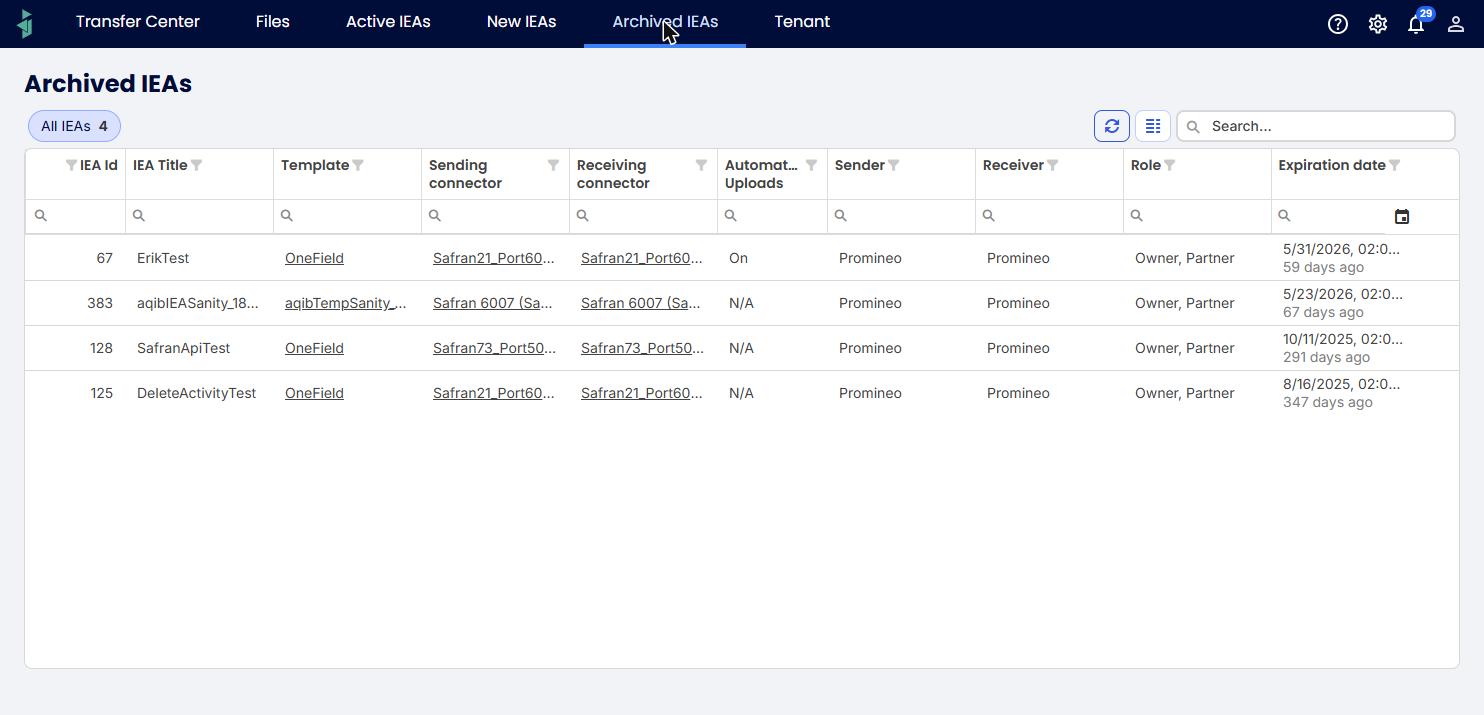
This list looks much like the Active EAs list, with one addition: an Expiration date column.
Looking at a single EA
Click any EA's name from one of the lists above to open its own page, which is organized into a few tabs.
Options menu
In the top-right corner of the page, the Options menu gives you a set of actions for this agreement:
- Edit — opens the agreement's settings so you can change them. If you're not already listed as a representative, you'll be asked to add yourself first.
- Create transfer event — manually starts a new, real data transfer right now, outside the normal schedule.
- View details — shows a read-only summary of the technical setup, including field mappings, contacts, and validation rules.
- Download data for support — downloads a file with this agreement's setup details, handy to send to Support if you need help troubleshooting.
- Archive now — ends the agreement immediately, stops any transfers still in progress from completing, and moves it to Archived EAs.
- Pause transfers — temporarily stops scheduled transfers without ending the agreement; you can resume it again later.
- Remove me as representative — removes you from the list of contacts responsible for this agreement on your side.
- Create test transfer event — runs a test transfer so you can check the setup works correctly, without it counting as a real transfer.
- Duplicate EA — opens the "new agreement" wizard pre-filled with this agreement's settings, so you can quickly create a similar one.
Info tab
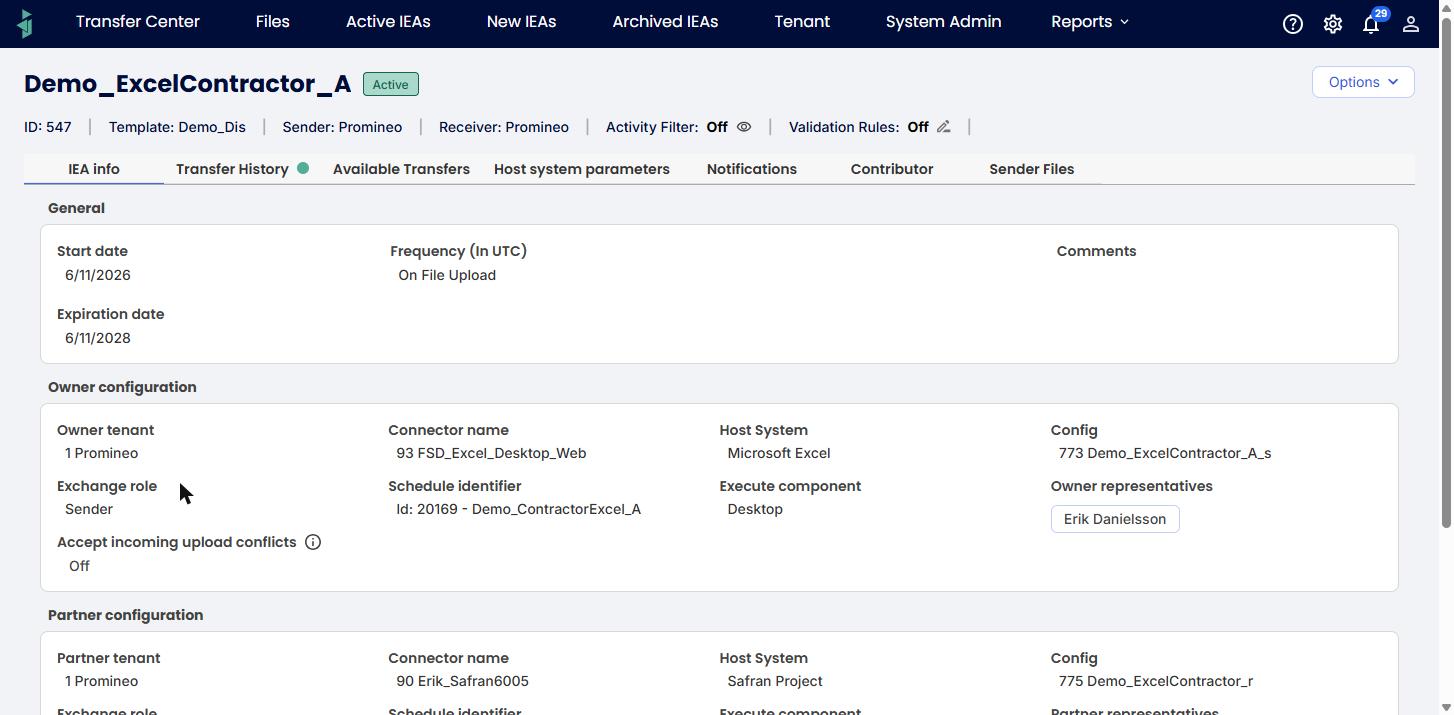
This is where the agreement's main details live:
- General — when it starts and ends, how often it runs, and any notes.
- Owner and Partner setup — for each side of the agreement, which company, which connection, which system, and who's listed as the contact person.
- Several values here are clickable links: the Template name near the top, and the Connector name and Config values under Owner and Partner setup. Clicking any of them takes you straight to that item's own details page.
- Near the bottom, Signed off by … (Owner) and Signed off by … (Partner) show the date and the person who approved the agreement on each side — both sides need to sign off before an agreement becomes active.
- At the top, you'll also see which company is sending and which is receiving, plus switches for Activity Filter and Validation Rules.
Transfer History tab
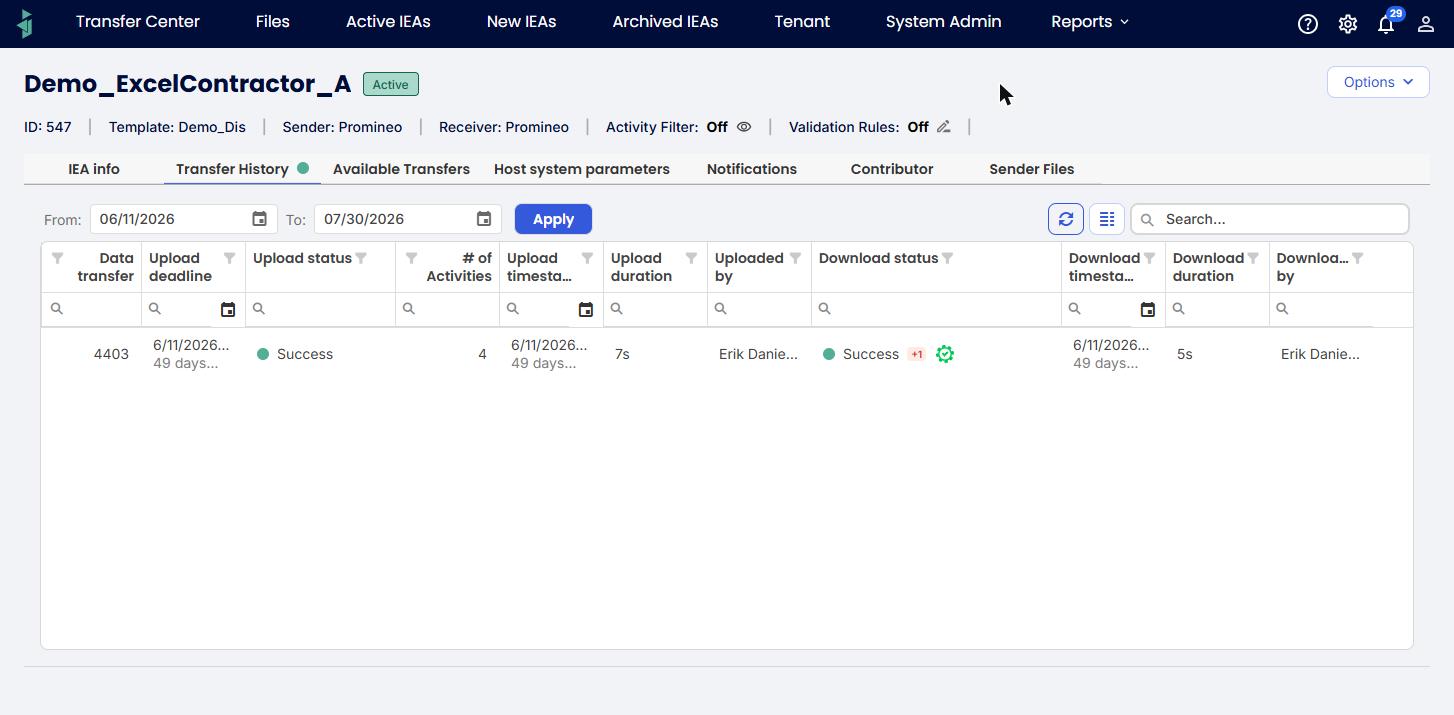
This tab shows a log of every transfer made under this agreement — whether it succeeded, when it happened, how long it took, and who was involved. You can narrow it down by date.
Available Transfers tab
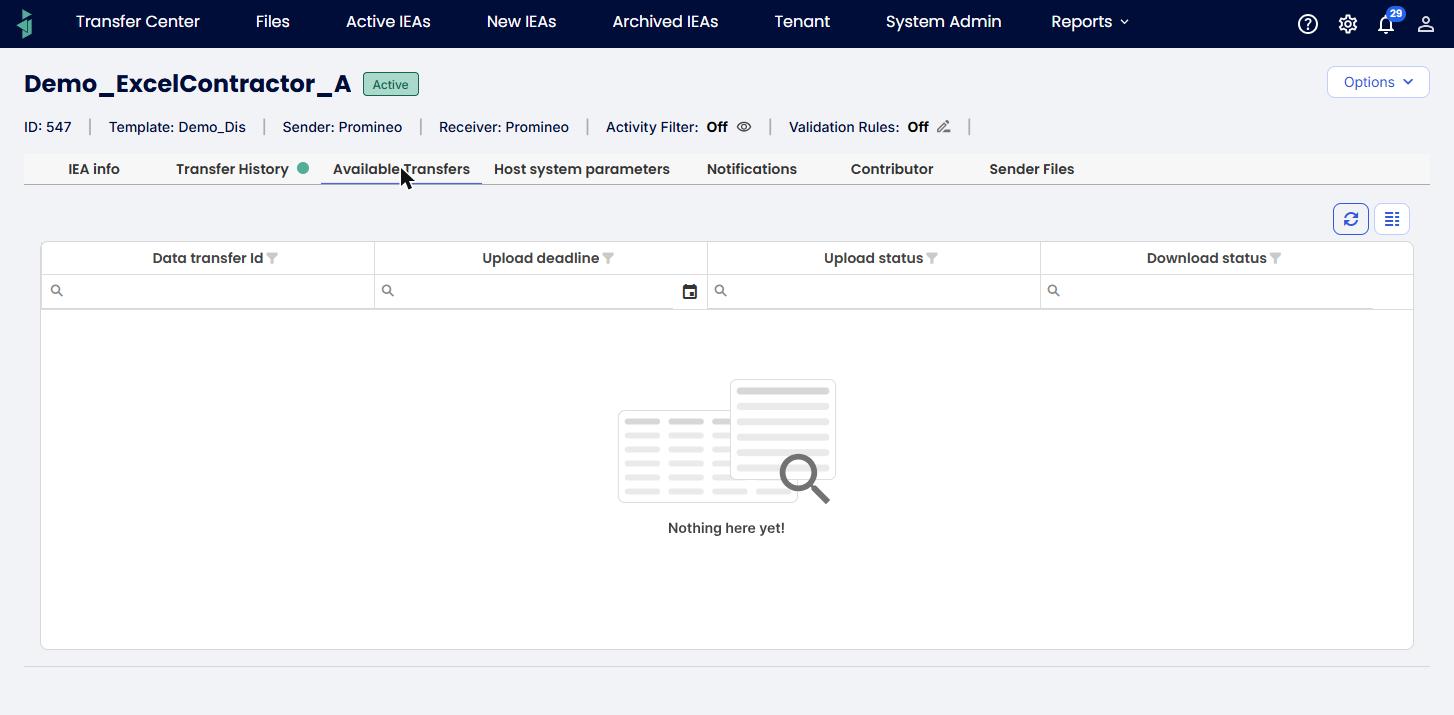
This tab lists any transfers that are ready and waiting to be picked up, but haven't happened yet. (Two more tabs, Host system parameters and Notifications, also exist on this page but aren't covered here yet.)
Was this article helpful?
That’s Great!
Thank you for your feedback
Sorry! We couldn't be helpful
Thank you for your feedback
Feedback sent
We appreciate your effort and will try to fix the article