TABLE OF CONTENTS
Introduction
An EA is an agreement that enables the scheduled transfer of planning data between actors and across different scheduling systems. In essence, the EA defines (a) the scheduling of the transfers, (b) the parties involved in the transfers and (c) what data to transfer. In combination with configurations in the background, this allows for seamless exchange of interoperable planning data.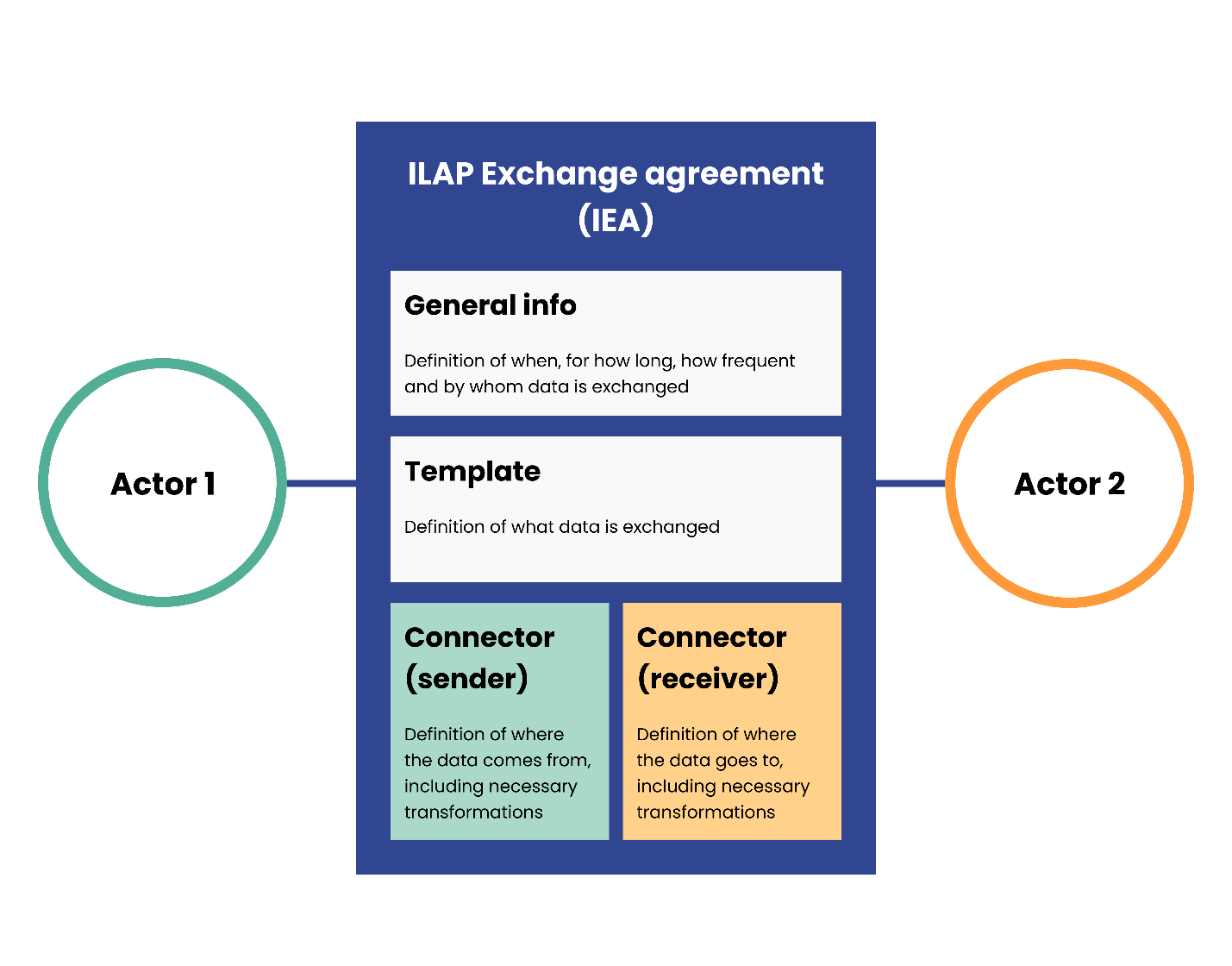
How an EA works
An EA contains all the information to transfer planning data from one actor to another, even when they use different planning systems. This is possible because the data from the planning systems is mapped to a common standard.
By creating an agreement, users are enabled to transfer data for a long as they want through scheduled transfer events. Using the (user installed) Desktop Client, a transfers can be completed with one click to upload (by sender) and one click to download (by receiver). If the Autonomous Component has been installed in an organization, it is even be possible to have this process fully automated.
Being part of an EA: Owner and Partner
EAs can be created by users within a Tenant that has an Owner status. Other users can participate on an EA as a Partner. The Owner of the EA controls most of the settings on the EA such as the scheduling and the Template (defining the expected data to be transferred). Both partner and owner are responsible for setting up their own Connectors (access to the schedule data), Configs (how mapping is done, including value transformation) and defining who has access to the EA (list of Representatives). Both owner and partner can be either Sender or Receiver of data.
How to get started?
Which of these 4 choices best describe your situation ("I want to..."):
- Execute schedule transfers which have already been set up
- Set up SchedEx so that planners can upload schedules
- Sign up to SchedEx on behalf of my company and transfer schedule(s)
- Set up SchedEx so that planners can receive schedules from planners elsewhere
...or you may want to read more here on general instructions for how to set up a transfer in SchedEx.
Was this article helpful?
That’s Great!
Thank you for your feedback
Sorry! We couldn't be helpful
Thank you for your feedback
Feedback sent
We appreciate your effort and will try to fix the article