TABLE OF CONTENTS
- Introduction
- Adding a new Validation Rule
- An example to see how it works in "real life"
- The result from running the Upload and Download
- Checking for duplicate values for Activities in the Schedule
- Checking for number of unique values in a field
Introduction
The filter feature can be used to limit the data uploaded, but the Validation feature can ensure that certain quality aspects of the filtered data is monitored and acted upon for both upload and download.
In short: By setting up validations for an EA, you can safeguard against "undesired" data being transferred.
There you can specify the following for both sender and receiver:
- The condition for the validation, expressed as a formula, that evaluates to True (pass) of False
- The message you want the user to see if triggered (False result in formula)
- If it should result in a warning in log or if the upload/download should stop (and be marked as "failed")
- Any number of such validations can be made for an EA
The form for setting up Validation

If you are a representative for the EA, you can press the "pen icon", and this form will open:
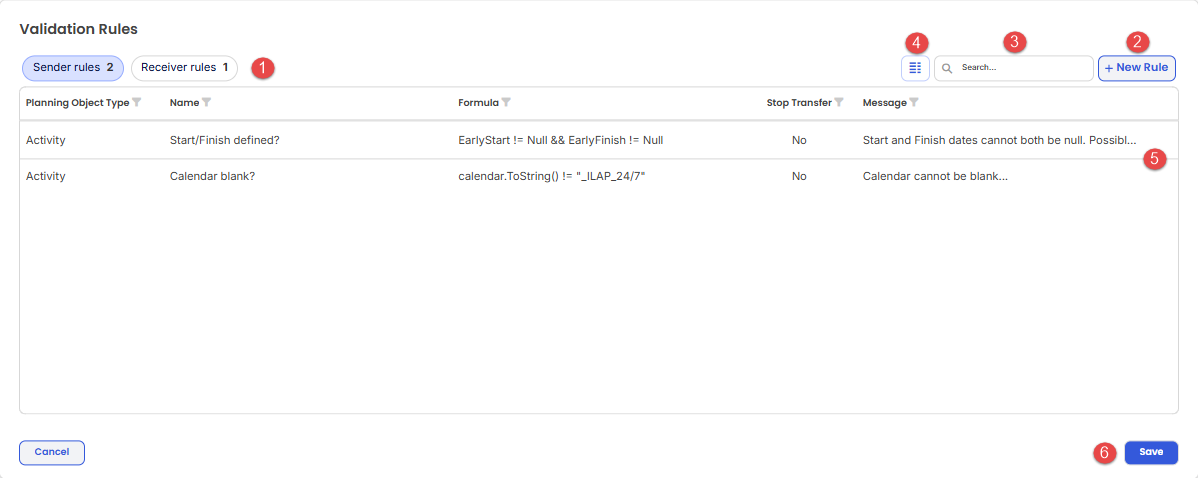 Pressing the "pen icon" opens the form below for editing Validations.
| Item | Description |
| 1 | Select which "direction" (tab) you wish to make validations for (Sender/Receiver). Note: You will only be able to define the side(s) you have access to here - i.e. you will not be able to change the receiver's validations if you are sender and vice versa. |
| 2 | Button for adding a new validation (resulting in new row in grid (5)). See next section for more information on the form. |
| 3 | Search "box" for filtering the rows in grid. |
| 4 | See separate article for more info on the Common Grid Features. |
| 5 | These are the columns in the grid (but can be customized by user): Planning Object Type: The type of planning object you are setting up validation for. 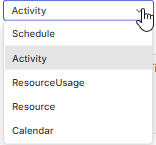 Name: The (short) name you choose to give the Validation. Name: The (short) name you choose to give the Validation.Formula: The formula to be evaluated in order to determine if Validation is violated or not. If evaluated result is True, this means "Validation passed", and False consequently means "Validation failed". Stop Transfer: Yes if transfer is stopped, No if only warning given. Message: The message to inform user about the cause of the validation breach. If you wish to edit or delete a row, you must press the "three dot"-menu at the right of each row: 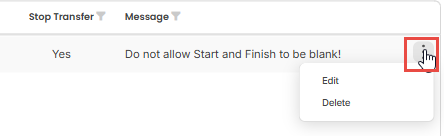 |
| 6 | "Save"-button to save the changes (if any) to validations. |
Adding a new Validation Rule
When pressing the "New Rule"-button, this form is seen:
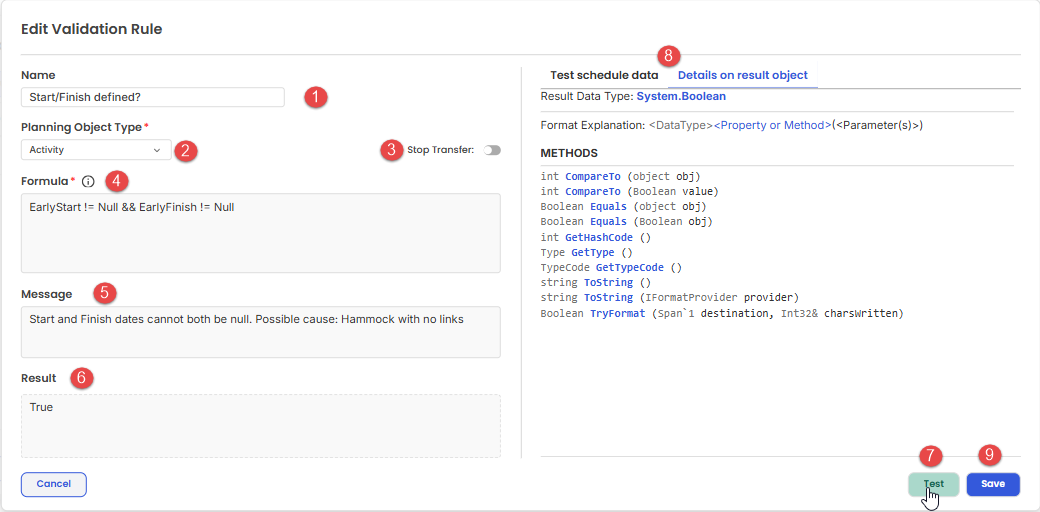
The form for defining a Validation Rule.
| Item | Description |
| 1 | Give the Rule a (short) name. |
| 2 | Select for which Planning Object Type this rule applies (see previous section for list of options). |
| 3 | Specify if the transfer should stop (on) or if only a warning should be given (off). |
| 4 | The formula to evaluate in order to determine if Validation was breached - i.e. if it returns False. See article on how to build these formulas. |
| 5 | The message to give user in case the Validation fails. |
| 6 | When "Test"-button pressed (see (7)), the result will show here. Please read the section on how to change the test data to match your Formula with realistic data. |
| 7 | "Test"-button to evaluate the formula (4) against the test data (at (8)) |
| 8 | 2 tabs: 1. Modify Test data, 2. View details on result of formula. More info here |
| 9 | "Save"-button for saving changes to the current Validation Rule. Note that the "Save"-button in the first form is the one that actually saves the data to database (this does not). |
An example to see how it works in "real life"
In the following example we will look at validations for an EA having a Safran to Safran transfer.
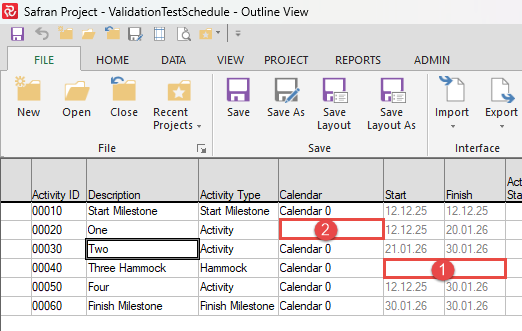
The Safran schedule being uploaded where we have missing dates (1) and a blank calendar (2)
Our goal here is to warn on upload if there are missing dates (both Start and Finish are blank - (1)), as well as warning if there are any activities having a "blank calendar" (2). We then want to stop the download if there are any missing dates.
This is how we set up the Sender rules to achieve this:
 The Sender rules warning about blank dates and blank calendar in Safran.
The formula for checking the dates is:
EarlyStart != Null && EarlyFinish != Null
The formula for checking if calendar is blank is a Safran specific construction that needs a bit of explaining:
For Safran, SchedEx automatically assigns a "synthetic calendar" with 24/7 work pattern to any activity having a blank calendar. This is the reason:
Safran will internally handle such a case as a 24/7 calendar, but we need to make this explicit to the receiving schedule, so therefore we assign this "synthetic calendar" called "_ILAP_24/7" in these cases. That is why the formula will look like this:
calendar.ToString() != "_ILAP_24/7"
NOTE: In reality it would be natural to not just warn about these 2 rules on upload, but actually set "Stop Transfer" to "Yes" - making the entire upload fail. The reason for having "Stop Transfer" to "No" is simply to demonstrate the effect of "Receiving rules"...otherwise we would never get to the download part of the transfer.
The rule of thumb for validations is:
"It is better to catch a problem near the source where the sender can correct it, than to have it cause problems downstream".
This is how we set up the Receiver rules to achieve this (same validation formula as for upload): The Receiver rules stopping blank dates from being downloaded (the formula would work for any receiving Host system).
The result from running the Upload and Download
When running the upload we see this log (warnings only):
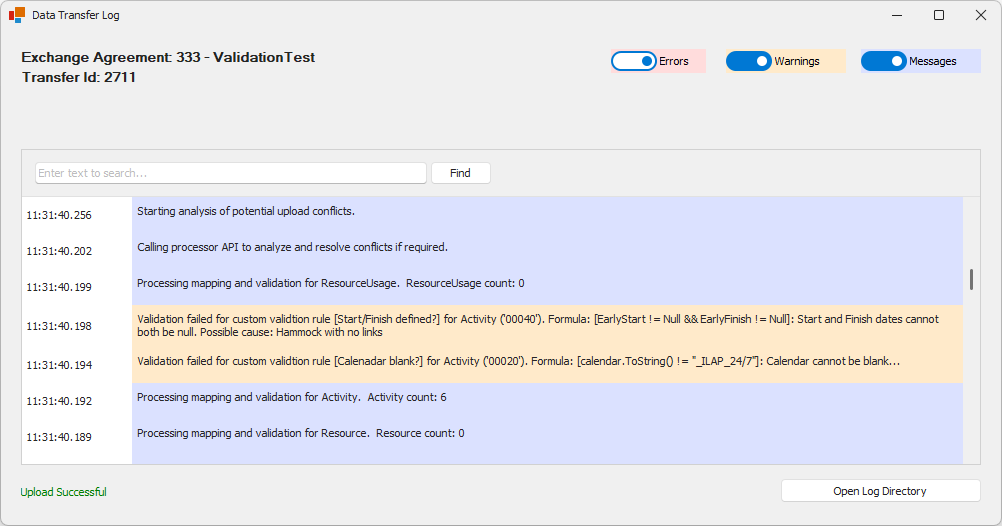
Two warnings shown on upload due to Validation violations.
And when running the download we see this log (validation stops the download):
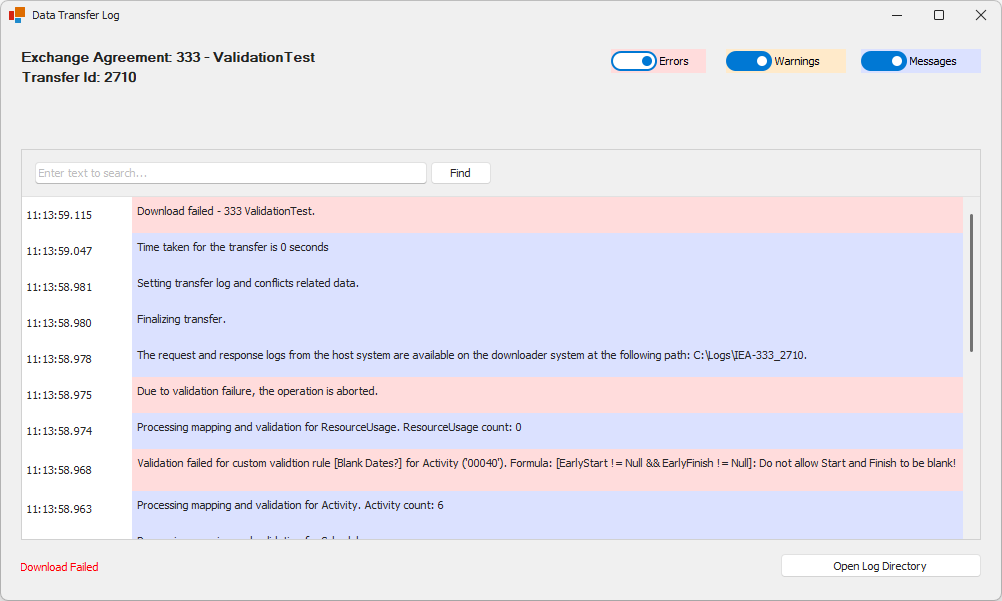
Running download stops due to Validation violation.
Checking for duplicate values for Activities in the Schedule
It is sometimes useful to be able to check for duplicates in your activities. One such case is when using 2 separate text fields in Safran to control which WorkOrder and OperationNumber to update in SAP. If these are duplicated, it will cause problems(!).
The following (very advanced) formula will return True if there are 2 activities in the entire schedule that has the same combination of value for Text1 and Text2 in Safran:
!Schedule.Activities.ToArray().GroupBy(a => new { a.GetFieldValue("uf_text1"), a.GetFieldValue("uf_text2") }).Any(g => g.Skip(1).Any())Here this has been added as a validation where any such occurrence will cause the transfer to stop.
Note that you have to select "Schedule" as the Planning Object Type in order for this to work, as the Schedule and all its activities is the context in which this formula operates:
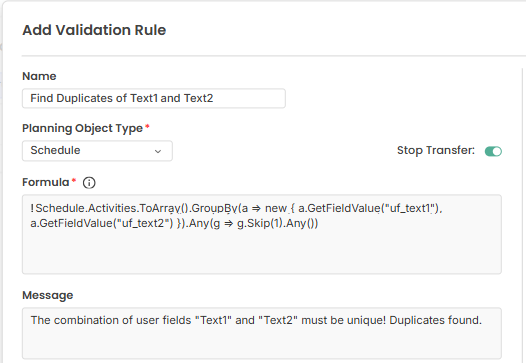
Validation to stop upload if duplicates found for combination of Text1 and Text2
In addition, it would in this SAP case also be useful to check that both uf_text1 and uf_text2 is not null:
Schedule.Activities.ToArray().Any(a => a.GetFieldValue("uf_text1") == null || a.GetFieldValue("uf_text2") == null)Screenshot where this is implemented:
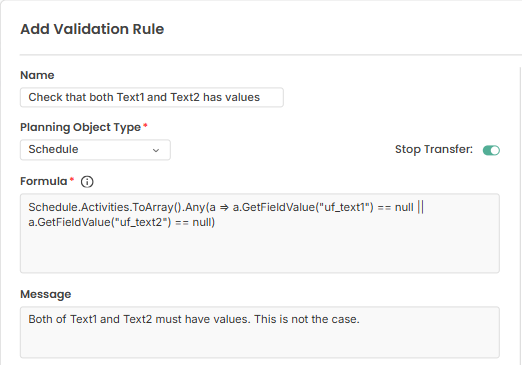
Validation to stop upload if either of Text1 or Text2 is null
Checking for number of unique values in a field
When uploading data from Safran (or P6) to be downloaded into SAP, it may be useful to stop a transfer that would result in creating more than a specified maximum number of WorkOrders (WOs). This would safeguard against unintentionally creating large numbers of "accidental" WOs.
The SAP-specific ILAP Term that controls the creation of WOs (and for which subsequent activities will be created as Operations for the new WO) is "ORD_OrderHeader". The VALUE of this field is not important - only the grouping on its UNIQUE VALUES, since each of these unique values will result in a new WO. Therefore our validation formula need to look for number of unique (non-null) values for a specified field (in this example "uf_ref1"):
Schedule.Activities.Select(a => a.GetFieldValue("uf_ref1")).OfType<string>().Distinct().Count() < 10Here is the screenshot from the UX:
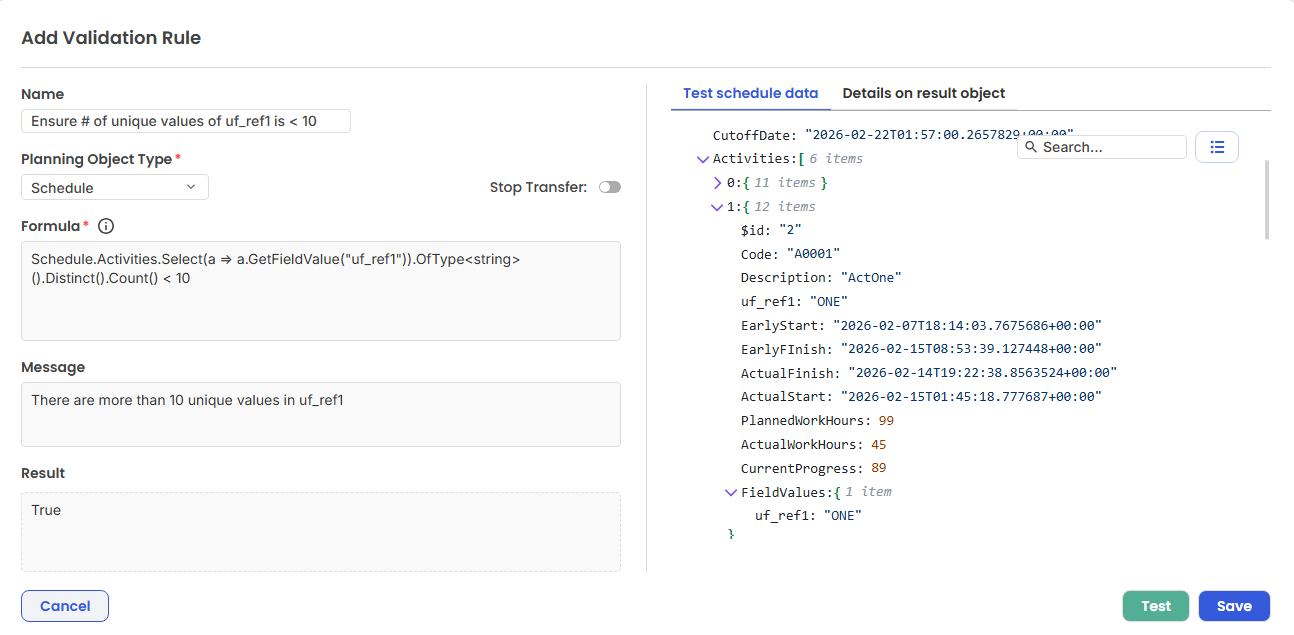
UX showing the validation of allowing max 10 unique (non-null) values of uf_ref1
Was this article helpful?
That’s Great!
Thank you for your feedback
Sorry! We couldn't be helpful
Thank you for your feedback
Feedback sent
We appreciate your effort and will try to fix the article