TABLE OF CONTENTS
- Introduction
- Topic: Clients
- Topic: Deployment Center
- Topic: ILAP Terms
- Topic: Tenant & Users
- Topic: Notifications
Introduction
The purpose of this article is to describe what option and features are available for the System Admin role. Having this role means that the "System Admin" menu is visible:

the choices seen when selecting "System Admin"-menu are quite similar to the "Tenant Admin"-menu, but there are some additional functionality that System Admins can do that Tenant Admins cannot.On the left part of the screen this list of topics appear, and each will be described in a separate chapter:
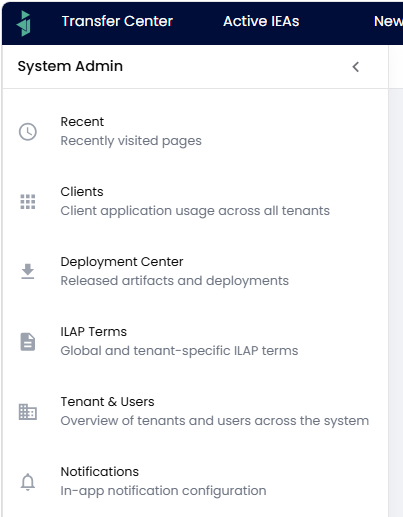
The list of main topics that a System Admin has access to. By clicking on one, the corresponding section on the right on screen is highlighted.
NOTE: The "Recent" option is self explanatory and will not be covered further, as it only shows the most recent list of pressed "topics".
Topic: Clients

To the right of the "Clients" topic, there are 3+1 types of "clients" (deployable additions) that can be installed with IDE. The reason for calling it "3+1" instead of "4" is that the first 3 of these have many things in common, while the "Internal Client" deviates from the others in some fundamental ways. As seen below, for each of the 3, you will see a summary of which version (if any) has been install and if it needs updating, whereas no such information is available for the Internal Client:
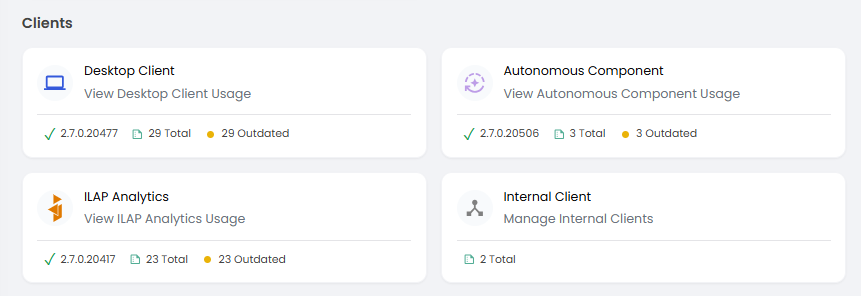
The 4 choices related to the "Clients" topic: "Desktop Client", "Autonomous Component", "ILAP Analytics" and "Internal Client"
Each of the 4 types of Clients ar described in next chapter.
Desktop Client
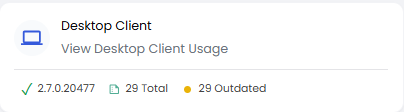
The button displays some high level summary information:
- The most recent available version
- Number of user/machine logins (where one user may have multiple entries is they have installed Desktop Client on different machines)
- The number of outdated versions running (29 of 29 here is not a good look...!)
When pressing the "Desktop Client"-button, the you will see a list, grouped by Tenant, of installed instances of the Desktop Client for users/machines, as well as information of the version used and last login time:
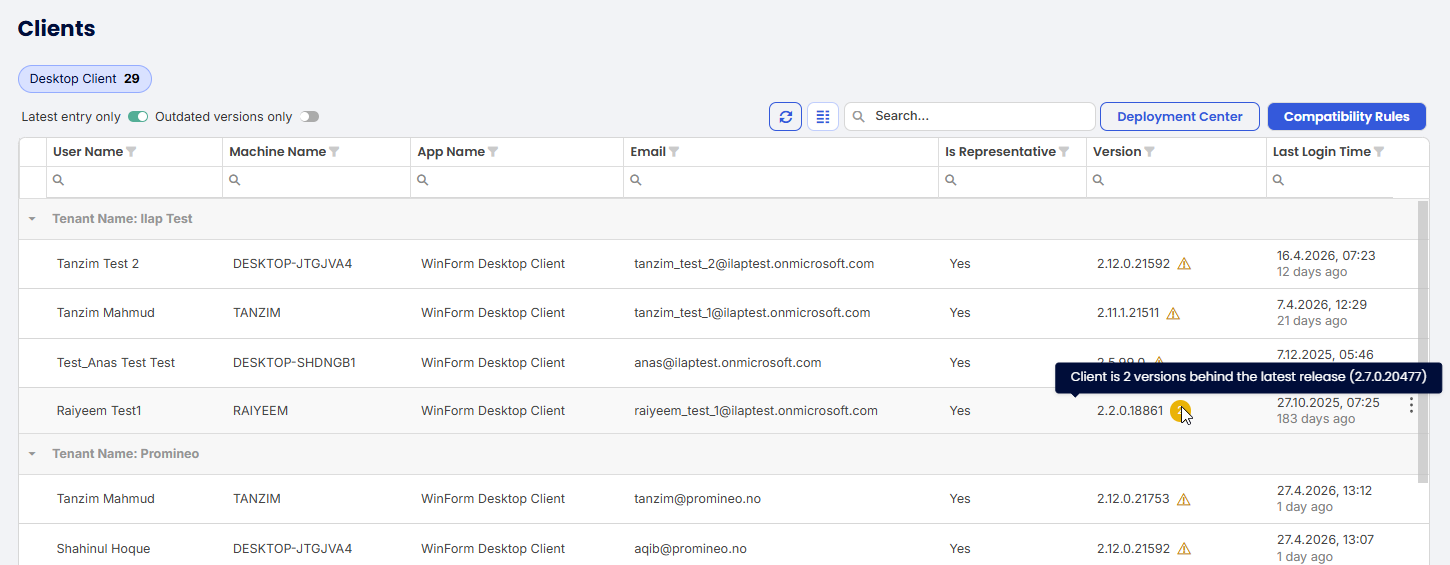
List of users per Tenant, and the version of Desktop Client they use, with indications of needed upgrades. Note that there is a "three-dot-menu" with a "Delete" option in case you wish to avoid showing the row (this will not delete the user!).

Filtering options for "Desktop Client" seen at top left of screenshot and described below.
Note that the filter options above allows only the latest entry of a user being seen (default), and turning this off will show multiple machines used for same user. It also allows for showing "Outdated versions only".
The 2 buttons at the top right of screenshot:
Pressing the "Deployment Center"-button (upper right corner) will bring up the same page as when pressing topic "Deployment Center"-topic and then clicking on "Desktop Client" (described further down in this document).
Pressing the "Compatibility Rules"-button (upper right corner) will bring up a page described here, and this button will be seen for each of the all Clients except Internal Client.
Autonomous Component
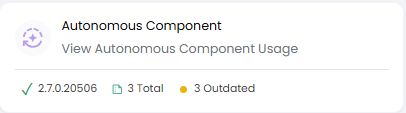
The button displays some high level summary information:
- The most recent available version
- Number of instances of installed components for tenant
- The number of outdated instances running (3 out of 3 instances are outdated here...)
When pressing the "Autonomous Component"-button, the list of installed versions (although typically only one!) for each Tenant is seen, with indications of need for update (the orange number in screenshot below shown tooltip saying it is N versions behind latest available release):
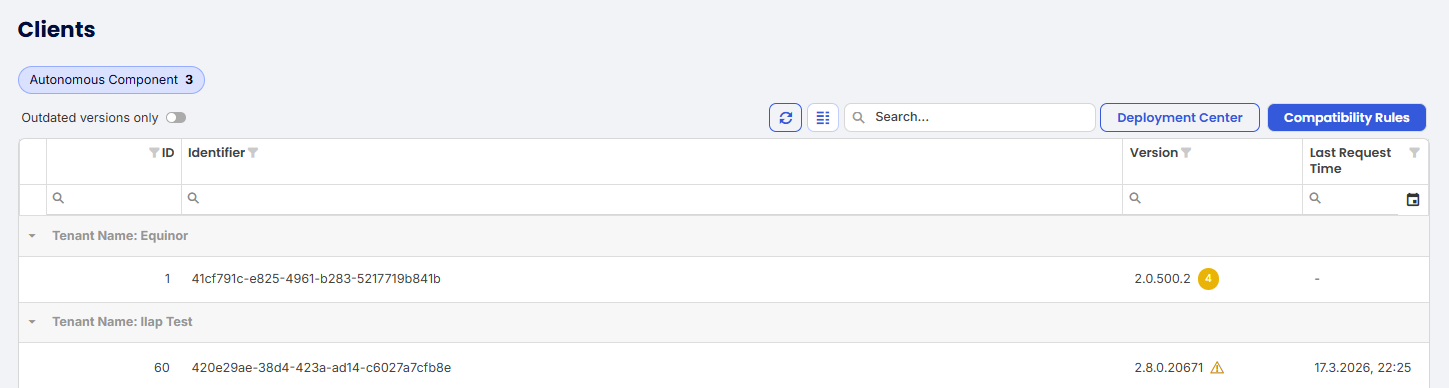
List of instances of Autonomous Component installed for the various Tenants.
Pressing the "Deployment Center" - button will bring up the same page as when pressing topic "Deployment Center" and then clicking on "Autonomous Component" (described later in document).
ILAP Analytics
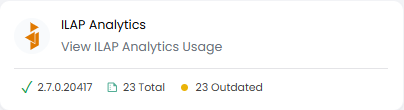
The button displays some high level summary information:
- The most recent available version
- Number of instances of installed components for tenant
- The number of outdated instances running (23 out of 23 instances are outdated here...)
When pressing the "ILAP Analytics"-button, the list of installed version(s) is seen for each Tenant, with indications of need for update (the Version Status has a button showing if update is available):
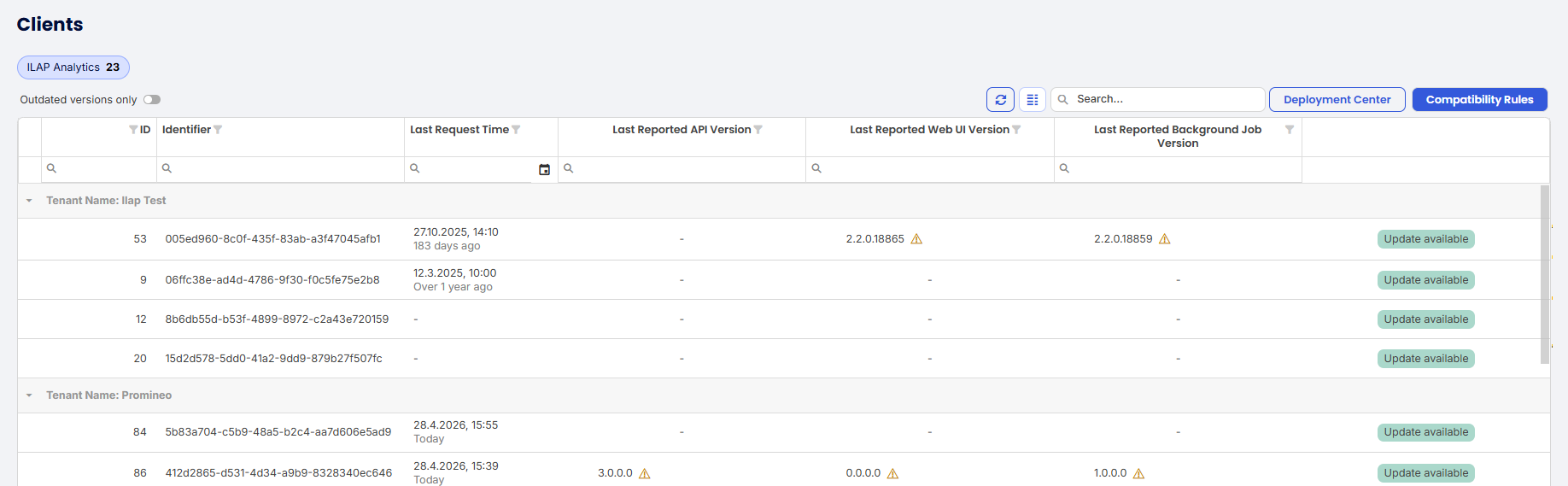
List of instances of ILAP Analytics for each Tenant.
Pressing the "Deployment Center"-button:
This will bring up the same page as when pressing topic "Deployment Center" and then clicking on "ILAP Analytics" (described later in document).
Internal Client
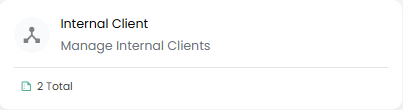
First: What does an "Internal Client" do?
Answer: It is an installed service that ensures that the ILAP Terms defined in a master instance (Production) of IDE is made available to other instances, such as UAT or Dev, and can be (one way) synched to these. I.e. all values found in Production will be available in the other environments.
The button displays how many instances are installed, and when pressed these will be listed:
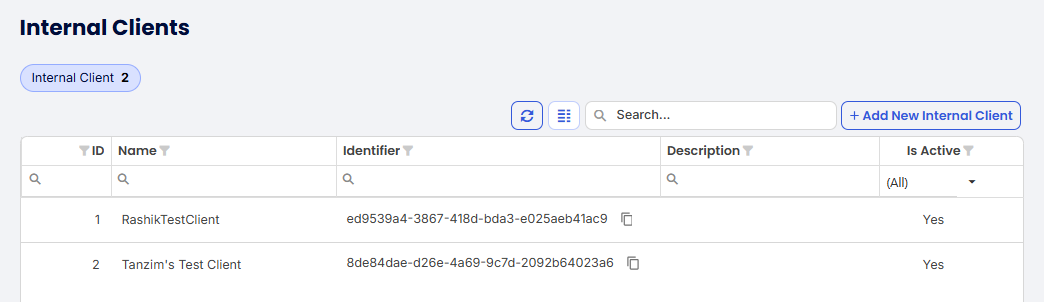 The form listing the installed "Internal Clients". The Identifier column shows the auto-generated identifier (not editable)
The 3-dot-menu gives some options:
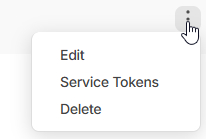
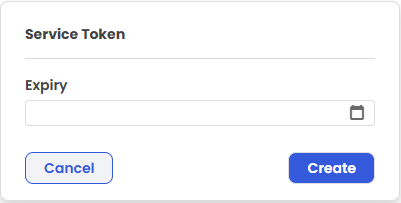
If the "Service Tokens" is pressed, you can set the expiry date for it:
When "+ Add New Internal Client" is pressed, or when pressing the "Three-dot-menu"-Edit, this form is seen. There Name and Description can be given, as well as the active state (on/off):
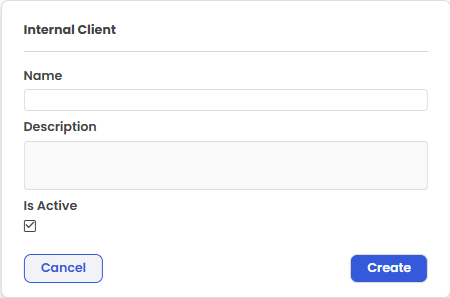
The form for giving the new Internal Client a name and description.
Compatibility Rules
First: What is the purpose of "Compatibility Rules"?
Answer: For each of the installed Client, you can control which version is required in order to make it accepted in an IDE transfer.
Example using screenshot below:
There is states that the minimum supported version of Autonomous Component (AC) is 1.0.15286.0.
Let's assume your organization has installed 1.0.14613.0, then when a transfer is attempted an error message will be given indicating that an upgrade is required (and that your version is 2 versions behind the most current one).
Summary: It is a safeguard against running outdated installed software used by IDE.
Compatibility Rules can be set up for Desktop Client, Autonomous Component, and ILAP Analytics. If a transfer uses one of these services, and the installed version does not match the its minimum supported version - the transfer will fail with a message indicating "incompatibility".When opening the form (by pressing button for one of the 3 clients), you will see this overview:
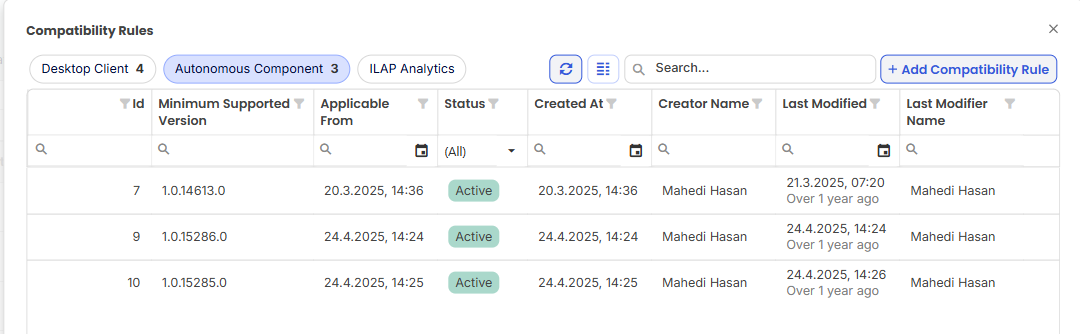
Form showing the list of existing Compatibility Rules. Pressing the "+ Add Compatibility Rule" will open a new dialog, seen below:
You can access the rules for each of the 3 Clients directly by pressing the filter button at top left of form (see screenshot above).
This is an quicker alternative compared to first selecting the Client and then pressing the "Compatibility Rules".
When pressing the "+ Add Compatibility Rule" you will be presented with this form, where Client Type, Minimum Supported Version, Applicable From, and Status can be set: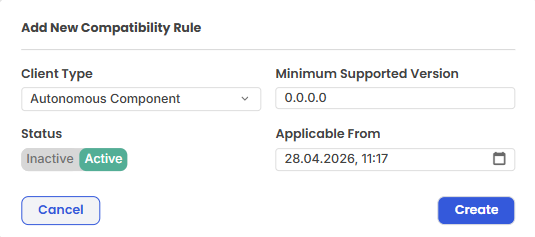
Form for adding a new Compatibility Rule.
It is possible to deploy a Client and in its Compatibility Rules specify an "Applicable From" date, by which this rule will be enforced.Topic: Deployment Center

To the right of the "Installation Center" topic, these items are seen:

Below each of these three choices will be described:
Desktop Client
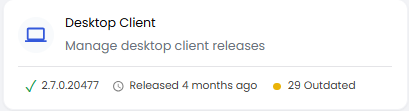
The button displays some high level summary information:
- The most recent available version
- Time passed since release (relative today)
- The number of outdated versions being installed across all Tenants
When pressing the button you will see a list of available versions:
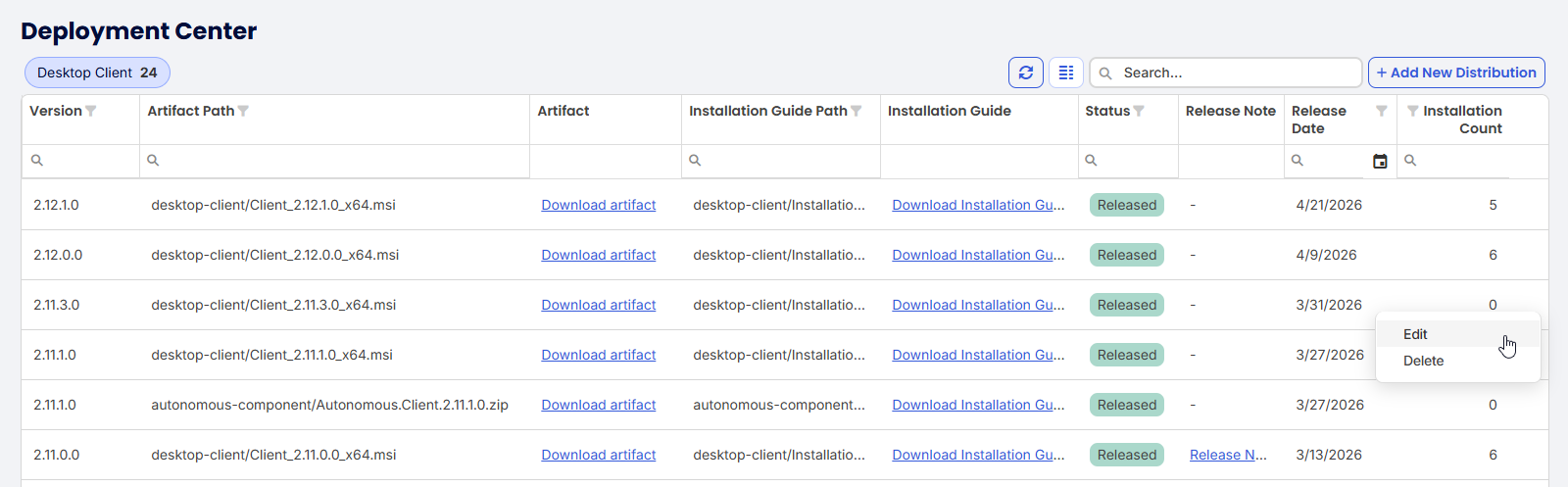 The list of available versions of the Desktop Client. Last columns shows number of installations.
When clicking on "Download artifact"-link you will be able to run the msi install file in downloads folder:

Pdf document with installation instruction details can be accessed by pressing "Download Installation Guide".
Release notes are also available for download as pdf document.
Autonomous Component
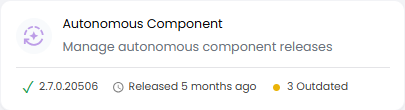
The button displays some high level summary information:
- The most recent available version
- The release date (relative today)
- The number of outdated instances running in the Tenant
When pressing the button you will see a list of available versions: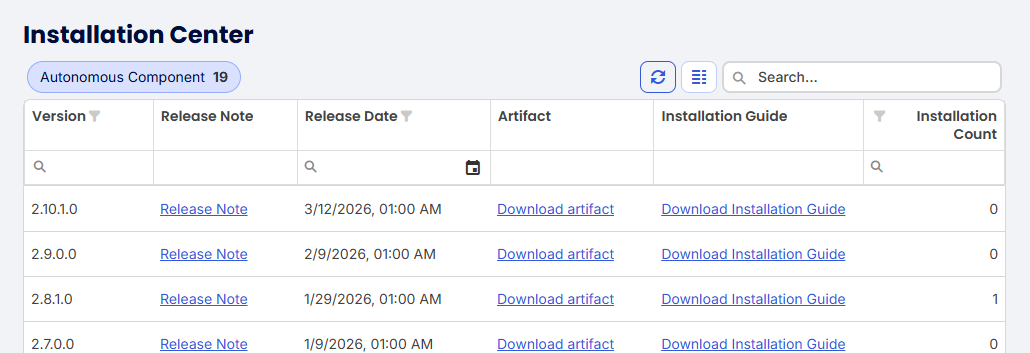
The list of available versions of the Autonomous Component. Last columns shows number of installations.
When clicking on "Download artifact"-link you will download a zip file:

Pdf document with installation instruction details can be accessed by pressing "Download Installation Guide".
Release notes are also available for download as pdf document.
ILAP Analytics
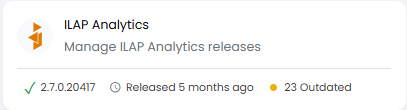
The button displays some high level summary information:
- The most recent available version
- The release date (relative today)
- The number of outdated instances running in the Tenant
When pressing the button you will see a list of available versions:
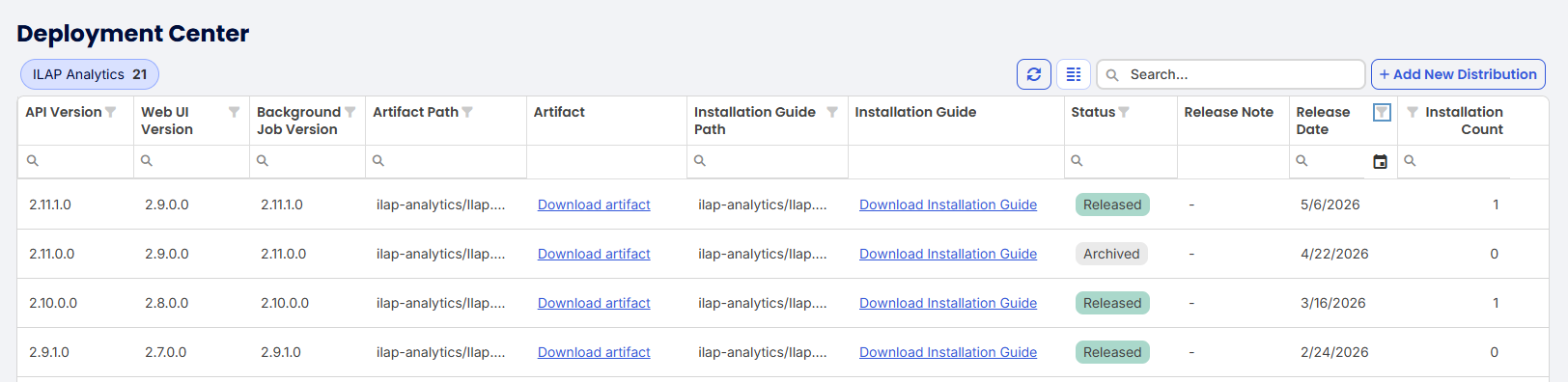
The list of available versions of the ILAP Analytics. Last columns shows number of installations.
When clicking on "Download artifact"-link you will download a zip file:

Pdf document with installation instruction details can be accessed by pressing "Download Installation Guide".
Release notes are also available for download as pdf document.
Topic: ILAP Terms

To the right of the "ILAP Terms" topic, the 3 sub-items are shown, and each described below:

Global
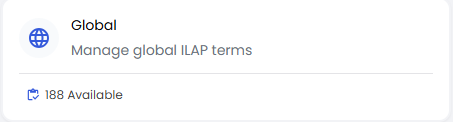
The button shows the number of Global ILAP Terms (in this case 188).
When pressing the "Global" button (see above), then all the Global ILAP Terms are shown, where you can decide at which level Content Control is done (System or Tenant/Template).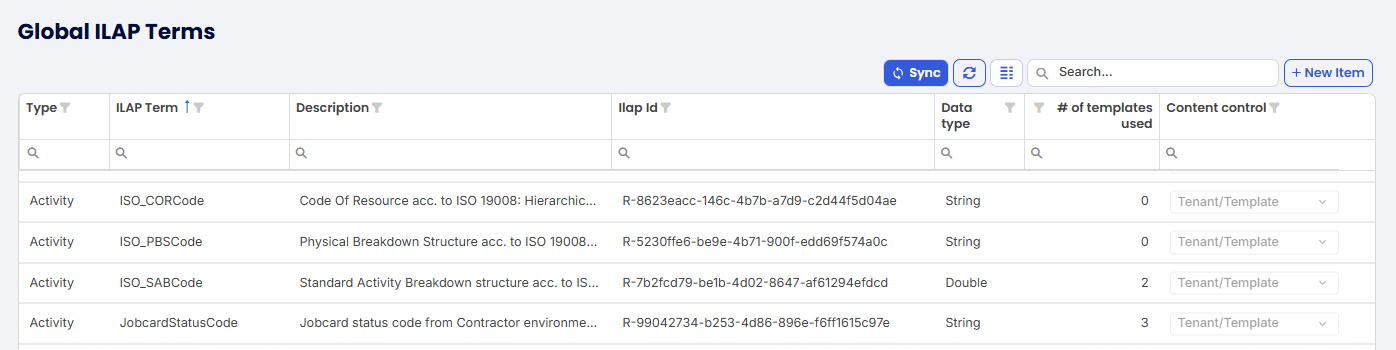
List showing the Global ILAP Terms.
By clicking the "three-dot" menu at the right of each row, you will see these options:
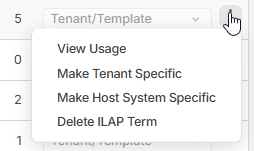
- View Usage:
Show a list of where the ILAP Term is used: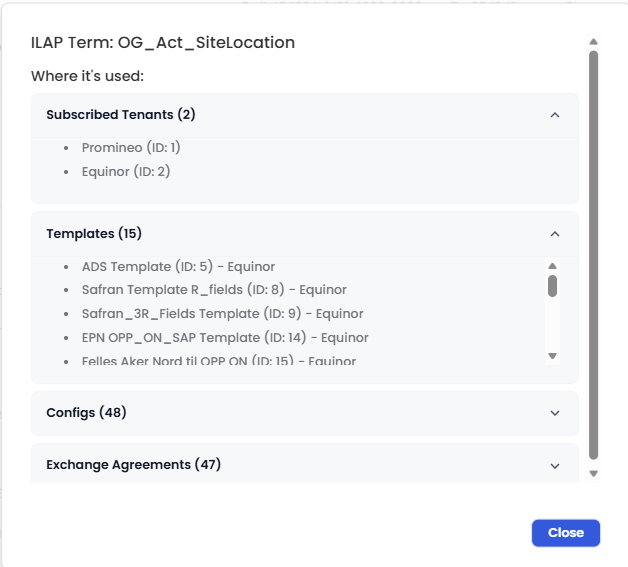
- Make Tenant Specific:
If pressed you will have to confirm that you want to make it specific for that Tenant: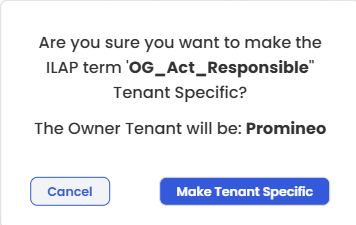
In case a term is used by more than one Tenant, the choice will be disabled but will offer an "i"-icon where a list of Tenants using it is shown when hovering over it: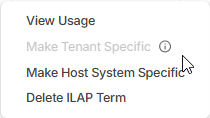
- Make Host System Specific
In case any of your Host Systems are extended with new properties, you have the option of adding a Global Term, and then making it specific to this Host System: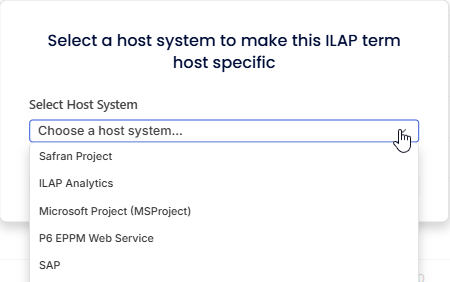
Such fields can later be accessed when making a Template and give the (rare) option of overriding any default mappings: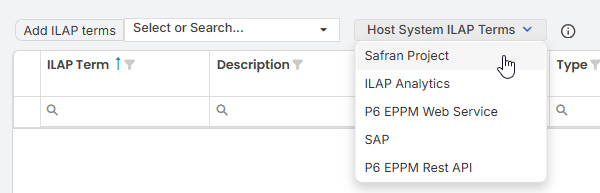
- Delete ILAP Term
In case you need to permanently remove an ILAP Term (even if it is in use!), there is a "nuclear option" to forcefully remove it from the Global list and all its related "entanglements" in Templates, Configs, and IEAs.
After pressing this option, you will be presented with a list of these entanglements so that you are aware of the consequences before you press the "Delete"-button: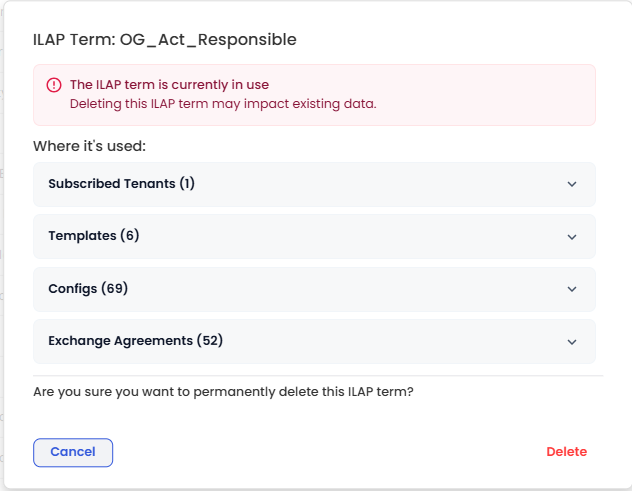
Tenant Specific
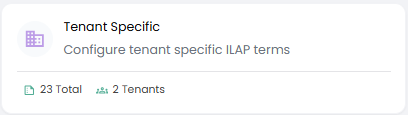
The button displays a high level summary information showing how many Tenant Specific ILAP Terms have been created for and across how many Tenants. When pressed, the detailed list is seen:
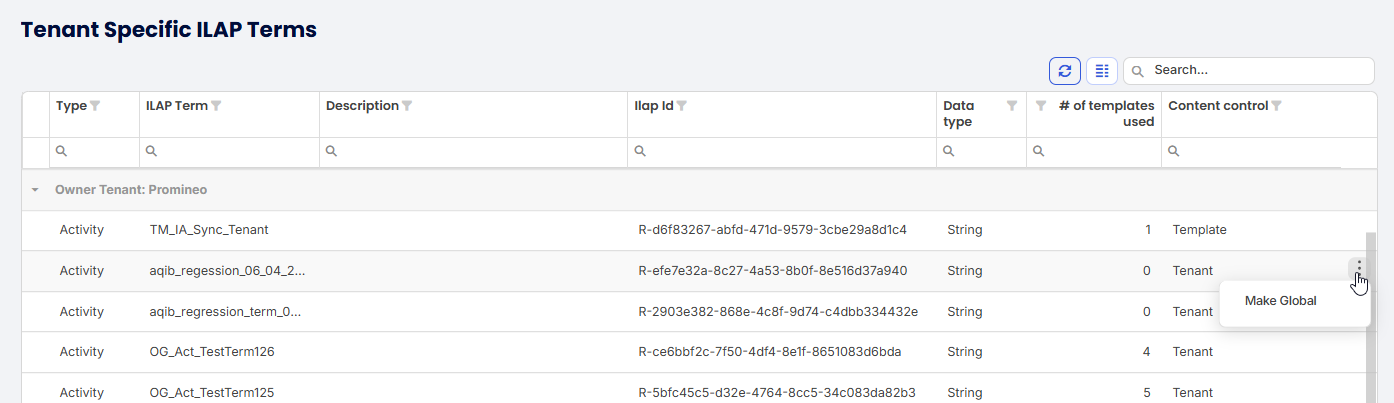 Form for viewing Tenant Specific ILAP Terms across Tenants.
Notice that the "three-dot"-menu has a choice, "Make Global", allowing a Tenant Specific Term that is considered "universally useful", to be made available for all users.
The process of elevating Tenant Specific terms to Global level is typically made using feedback from the user community.
Host System Specific
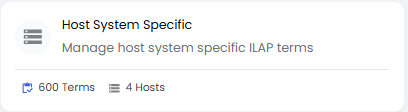 The button displays some high level summary information:
- The number of Host System Specific ILAP Terms
- How many host systems these are distributed across (Safran, P6, SAP, MSProject)
When the "Host System Specific"-button is pressed you will see them listed (grouped by host system):
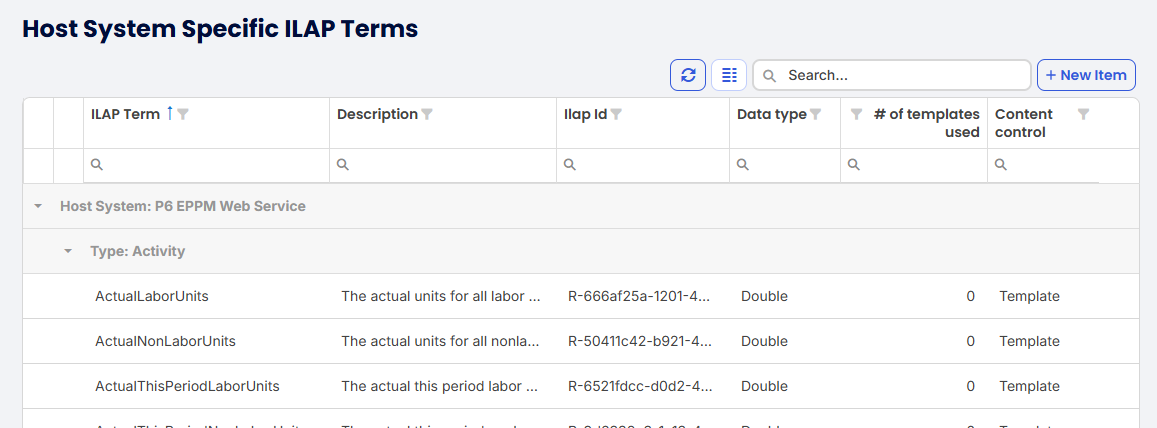
A "three-dot"-menu will show these alternatives: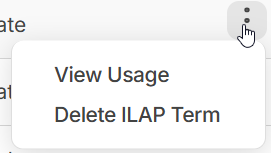
- View Usage:
A list of usage in Templates, Configs, and IEAs for the term will be shown: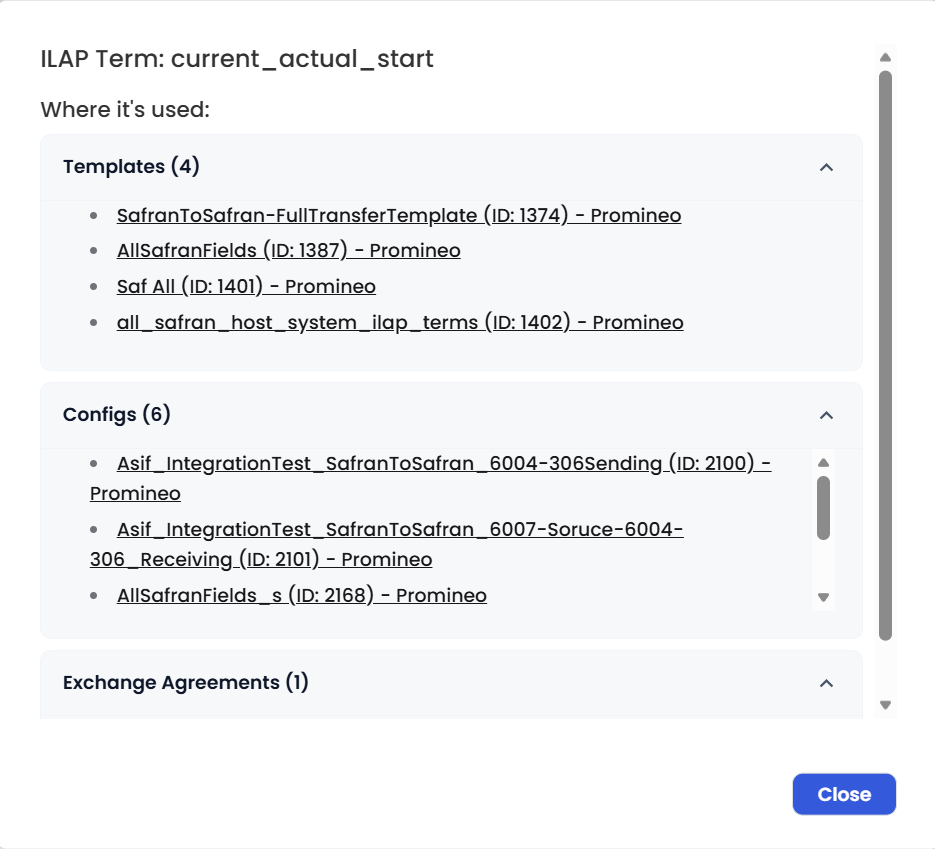
- Delete ILAP Term:
You will first get a status on the usage (see above), and if "green" you can press the "Delete"-button to remove the term: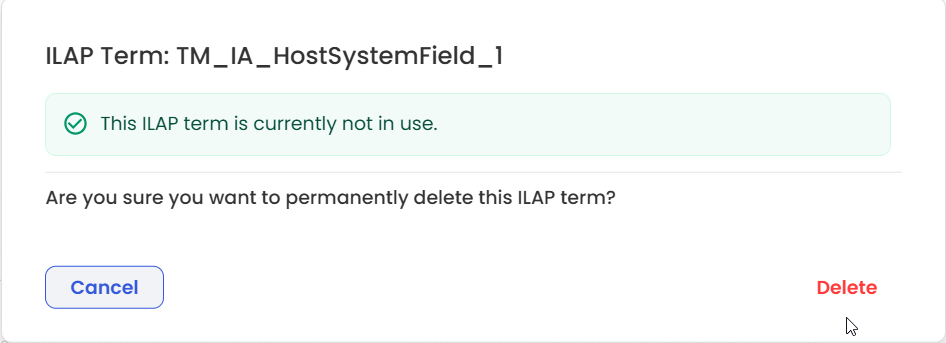
Topic: Tenant & Users

To the right of the "Tenant & Users" topic, the most recently accessed items are seen:

Tenants
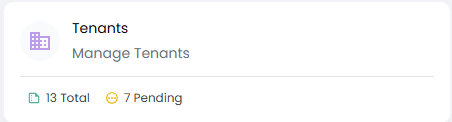
When pressing this button you will be able to see the list of existing Tenants and their status (Active / Pending request), and the number of IEAs that they have defined:
 Form listing the existing Tenants.
Each row has a "three-dot"-menu with these options:
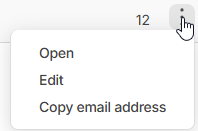
Open and Edit will both bring up this form (where Edit allows the "Can be owner" status to be changed):
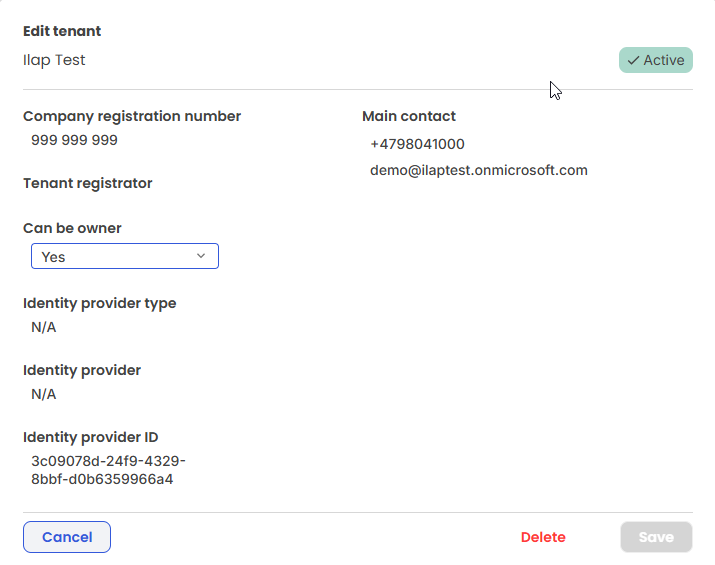
The form for viewing/editing Tenant. Note that only the "Can be owner" status is editable here.
Users
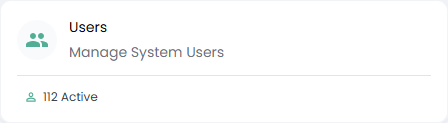
The button displays a high level summary information showing how many active Users exist for your Tenant. Note that you may have more registered users, but only 34 (in this case) are active. The list can be seen and edited when clicking the "button":
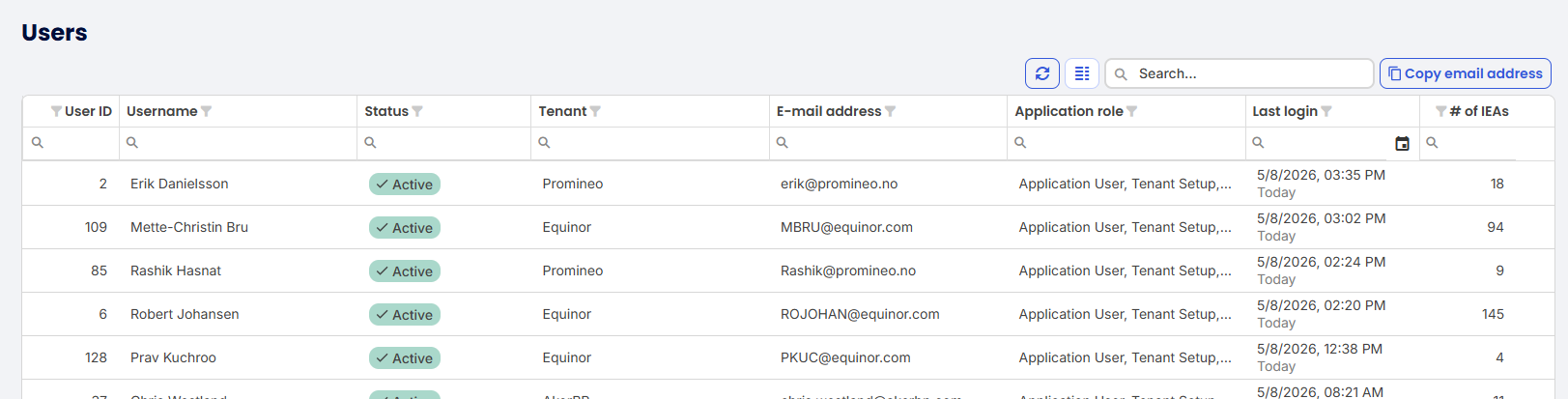
Form for viewing all users. Note that you may want to group by "Tenant" (by right clicking and choosing "Group by this column").
When pressing the "3-dot menu"-button called "Edit", you will see this form where Application Role (1) and Active Status (2) can be edited (the rest is read-only):
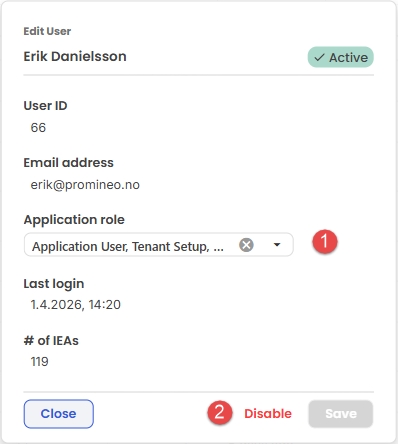
The form for editing user's Application role as well as "Active-status".
Topic: Notifications
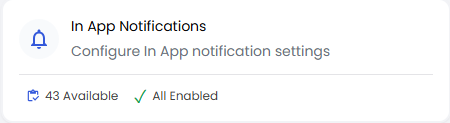
There is a separate article that describes the topic of In-app Notifications here.
Was this article helpful?
That’s Great!
Thank you for your feedback
Sorry! We couldn't be helpful
Thank you for your feedback
Feedback sent
We appreciate your effort and will try to fix the article