TABLE OF CONTENTS
- Introduction
- Where SchedEx uses SharePoint
- How SchedEx signs in to SharePoint
- Which SharePoint addresses work
- What IT must set up
- Checking it works and common problems
- Glossary
- Related articles
Introduction
SchedEx can read files from, and write files to, your organization's SharePoint Online. This article covers everything those uses have in common:
- where SchedEx uses SharePoint, and what it reads or writes there
- how SchedEx signs in to SharePoint
- which SharePoint addresses you can use
- what your IT department must set up
- how to check that it works, and what the messages mean
It is written for Tenant Admins and Tenant Setup users, and for the IT colleagues who help them. The step-by-step instructions for each screen are in the feature articles. This article links to them.
Looking for the steps for one connector? See Creating a Microsoft Project connector, Creating a Microsoft Excel connector or Creating a Primavera P6 XER file connector. To compare SharePoint with the other storage types, see Choosing where your schedule files are stored.
1. Where SchedEx uses SharePoint
SchedEx uses SharePoint in two places: the file-based connectors and Storage at Home.
| Use | What SchedEx does in SharePoint | Reads or writes | Set up by |
|---|---|---|---|
| Microsoft Project connector with the SharePoint storage type | Reads the .mpp files in one folder. |
Reads only | Tenant Setup, in the connector wizard |
| Microsoft Excel connector with the SharePoint storage type | Reads the .xlsx files in one folder. When it receives data, it writes the workbook into the same folder. |
Reads and writes | Tenant Setup, in the connector wizard |
| Primavera P6 XER File connector with the SharePoint storage type | Reads the .xer files in one folder. When it receives data, it writes the .xer file into the same folder. |
Reads and writes | Tenant Setup, in the connector wizard |
| Storage at Home with the SharePoint storage type | After each upload and each download, saves a compressed copy of the transferred data in your SharePoint. | Writes only | Tenant Admin, on Tenant Admin > Transfer > Storage at Home |
Which SchedEx program talks to SharePoint
The SchedEx cloud never connects to your SharePoint. The SchedEx program that runs the transfer does:
- the Desktop Client, on a user's PC, or
- the Autonomous Component, on your organization's server, for automatic transfers.
This is the same for connectors and for Storage at Home. It is why the sign-in works differently for each program (see section 2).
The file-based connectors
The Microsoft Project, Excel and XER File connectors can keep their files in a SharePoint folder. You choose SharePoint as the Storage Type in Step 3 of the connector wizard.
- Sending: SchedEx reads the files in the folder. With Persist, it creates one schedule for each file (Microsoft Project and XER).
- Receiving (Excel and XER only): SchedEx writes the new file into the same folder. A file with the same name is replaced.
- Microsoft Project connectors only send, so they never write to SharePoint.
The fields and the wizard steps are in each connector's article. How the SharePoint storage type compares with Web Storage (files) and Local File is in Choosing where your schedule files are stored.
Storage at Home
Storage at Home keeps your own record of every transfer. When it is switched on, SchedEx saves a compressed copy of the transferred schedule after every upload and every download your organization takes part in. You can keep this for traceability, for example if there is a dispute.
- Who sets it up: a Tenant Admin, on Tenant Admin > Transfer > Storage at Home. Under Storage Type, choose SharePoint. (The other choices are Local File Directory and None.)
- Fields: SharePoint Client ID (required), SharePoint URL (required) and SharePoint Tenant ID (optional).
- Where the files go: into a folder named
SchedExinside the address you entered, with one sub-folder for each Exchange Agreement. The sub-folder is named after the Exchange Agreement's number. Organizations that already have a folder from before SchedEx got its current name keep using that older folder, so the history stays in one place. - File names: the date and time of the transfer, for example
20261116_101500.ilap.7z. The file is a 7-Zip archive. Each transfer adds a new file, so nothing is overwritten. - It never stops a transfer. If the copy cannot be saved, the transfer still finishes. The transfer log shows a warning instead.
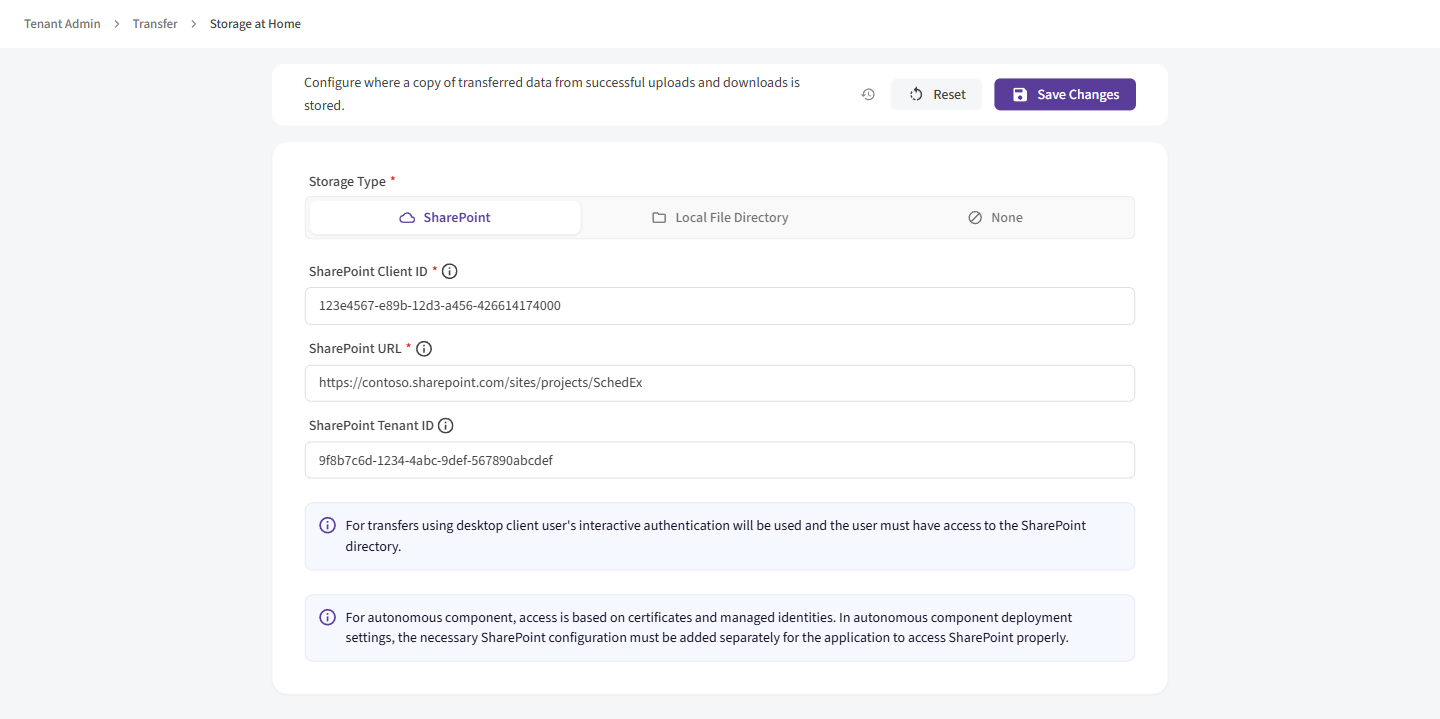 Tenant Admin > Transfer > Storage at Home, with SharePoint as the storage type.
2. How SchedEx signs in to SharePoint
SchedEx signs in to SharePoint through an app registration in your organization's Microsoft Entra ID. How it signs in depends on the program.
| Desktop Client | Autonomous Component | |
|---|---|---|
| Authentication Method in the connector | Microsoft Entra ID (Interactive) (shown as Microsoft Entra ID authentication on the connector's details page) | Microsoft Entra ID App Certificate (SharePoint) |
| Who signs in | The user at the PC, with their own Microsoft work account | The Autonomous Component itself, with a certificate. No person is involved. |
| What it can reach | Only what both the app and the user are allowed to reach | What the app is allowed to reach |
| Which app registration | The Client ID and Tenant ID in the connector, or on the Storage at Home page | The Client ID and Tenant ID in the Autonomous Component's own deployment settings |
Each method works with one program only. When a connector serves both programs, it has a sign-in profile for each. Both profiles use the same SharePoint address.
Desktop Client: the user signs in
- The first time a transfer, a Persist or a test needs SharePoint, SchedEx opens a Microsoft sign-in page in the browser.
- The user signs in with their work account. Sign in within one minute. After that, SchedEx gives up, and you need to try again.
- SchedEx now works on behalf of that user. The user must have access to the SharePoint folder themselves. If the user cannot open the folder, SchedEx cannot either.
SchedEx remembers the sign-in. It keeps the sign-in encrypted in the user's Windows profile on that PC. The user does not have to sign in again after restarting the Desktop Client. Microsoft still asks again from time to time, for example when the sign-in expires or the password changes.
More than one work account? SchedEx uses the account that last signed in for that organization. If it cannot tell which account to use, it asks the user to sign in again instead of guessing.
Autonomous Component: signing in with a certificate
The Autonomous Component runs without a person, so it cannot show a sign-in page. Instead it signs in with a certificate that your IT department installs with it (see section 4).
Important: the Autonomous Component always uses the app registration from its own deployment settings. This applies to every SharePoint connector it runs, and to Storage at Home. The Client ID and Tenant ID you enter in a connector's Autonomous Component profile, or on the Storage at Home page, are not used by the Autonomous Component. Make sure the app registration in its deployment settings has access to every SharePoint site it needs.
3. Which SharePoint addresses work
The connectors and Storage at Home accept the same addresses, and check them the same way.
How to copy the address
- Open the document library or folder in SharePoint, in your web browser.
- Copy the address from the browser's address bar.
- Paste it into the SharePoint URL field.
A copied address is often long. That is fine. SchedEx uses only the part that names the location.
Files in Microsoft Teams? In Teams, open the channel, select the Shared tab (formerly Files), then More commands (...) > Open in SharePoint. Copy the address from the browser.
Addresses that work
| You paste | Example | SchedEx uses |
|---|---|---|
| A site | https://contoso.sharepoint.com/sites/projects |
The site's default document library |
A site under /teams/ |
https://contoso.sharepoint.com/teams/projects |
The site's default document library |
| A document library | https://contoso.sharepoint.com/sites/projects/Schedules |
That library |
| A folder inside a library, at any depth | https://contoso.sharepoint.com/sites/projects/Schedules/2026 |
That folder |
| An address copied while viewing a folder | …/Forms/AllItems.aspx?id=… |
The folder you were looking at |
The folder must already exist. SchedEx does not create the folder you name. (Storage at Home
creates its own SchedEx sub-folders inside it.)
Addresses SchedEx refuses
When you save, SchedEx refuses these addresses and tells you why:
| Address | What to do instead |
|---|---|
Not starting with https:// |
Paste the complete address, starting with https://. |
A OneDrive address (-my.sharepoint.com) or a personal site |
Use a SharePoint document library or folder. OneDrive is not supported. |
A SharePoint admin center address (-admin.sharepoint.com) |
Use a document library or folder. |
Not on .sharepoint.com (for example SharePoint on your own servers) |
Only SharePoint Online is supported. |
| A sharing link (Share > Copy link) | Open the folder and copy the address from the browser address bar. |
A settings page, a list, or another .aspx page |
Open the folder and copy the address from the browser address bar. |
| A library SharePoint keeps for itself, such as Site Pages or Site Assets | Choose a document library made for files. |
An address with # in it |
Copy the address again from the address bar. Everything after # is lost. |
For Storage at Home, the address can be at most 512 characters after SchedEx has shortened it.
"Is that a file or a folder?"
SchedEx always works with a folder, never a single file. If the last part of the address
contains a dot, for example PROJ-1042.mpp, SchedEx asks Is that a file or a folder? when you
save.
- Select Use this folder to save the address of the folder that holds the file. This is the usual answer.
- Select Keep what I entered if the name really is a folder, for example a folder called
Rev.2.
If an address that ends in a file name is saved anyway, SchedEx uses the folder that holds the file. Every transfer then shows a warning that tells you to save the folder's address instead.
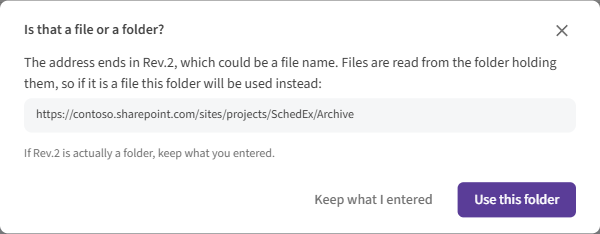 Shown when the SharePoint address seems to end in a file name.
What is not checked when you save
SchedEx checks the shape of the address when you save. It does not check that the folder exists, or that SchedEx is allowed to use it. A typo or a missing permission only shows up when you test the connector, run Persist, or run a transfer.
4. What IT must set up
Your IT department sets this up once. These are the steps in plain words. The detailed, technical instructions are in the articles linked below.
Step 1: Register an app in Microsoft Entra ID
Create an app registration for SchedEx (or reuse one). One app registration can serve both the Desktop Client and the Autonomous Component. Write down its Application (client) ID and your Directory (tenant) ID.
| For | What the app registration needs |
|---|---|
| Desktop Client | The platform Mobile and desktop applications, with the redirect URI http://localhost (typed in as a custom redirect URI). Without it, the sign-in fails. |
| Autonomous Component | A certificate. Upload the public part of the certificate (.cer) under Certificates & secrets > Certificates. See step 4. |
Step 2: Give the app permission to use SharePoint
Add permissions on Microsoft Graph (not on the "SharePoint" API), then grant admin consent.
| For | Permission type |
|---|---|
| Desktop Client | Delegated |
| Autonomous Component | Application |
If one app registration serves both programs, add both types.
Which permission to choose:
| Permission | What it allows | Our advice |
|---|---|---|
| Sites.Selected | Only the SharePoint sites that IT grants one by one (step 3). | Recommended. Gives SchedEx the least access. |
| Sites.Read.All | Reading all sites. | Only enough for connectors that only send. Not enough for Storage at Home or for receiving. |
| Sites.ReadWrite.All | Reading and writing all sites. | Works for every use, but gives broad access. |
The help text in the connector wizard mentions only Sites.Read.All and Sites.ReadWrite.All. Sites.Selected works too, and is the safer choice.
Step 3: With Sites.Selected, grant each site
With Sites.Selected, the app can reach nothing until IT grants it each site. A grant on a site covers every library and folder in it. Give the right level:
| Use | Level needed |
|---|---|
| Microsoft Project connector | Read |
| Excel or XER File connector that only sends | Read |
| Excel or XER File connector that receives | Write |
| Storage at Home | Write |
Granting write on every site is simplest if one app registration is used for everything.
Good to know:
- Grant the site, not the library or folder. For
https://contoso.sharepoint.com/sites/projects/Schedules/2026, granthttps://contoso.sharepoint.com/sites/projects. - A private or shared Teams channel has its own site, and needs its own grant.
- A new grant can take a few minutes to work.
Step 4: For the Desktop Client, give each user access
The Desktop Client works as the signed-in user. Each user who runs transfers needs access to the folder in SharePoint: Read for reading only, Edit if SchedEx writes there (Storage at Home, or an Excel or XER connector that receives). A quick test: if the user can upload a file to the folder in the browser, SchedEx can too.
Step 5: For the Autonomous Component, install the certificate
The Autonomous Component signs in with a certificate. IT does this once, when installing or updating the Autonomous Component:
- Create a certificate, for example a self-signed certificate. Export it twice:
- as a
.pfxfile with the private key, protected by a password, and - as a
.cerfile with only the public part.
- as a
- Upload the
.cerfile to the app registration (step 1). - Add the
.pfxfile to the Autonomous Component before it is deployed. The installation guide that comes with the Autonomous Component explains where to put it. - Enter the app registration's Client ID, Tenant ID and the certificate password in the Autonomous Component's deployment settings (the SharePoint section).
- Note the expiry date. When the certificate expires, the Autonomous Component can no longer reach SharePoint. Create a new one and deploy it before then.
You get the Autonomous Component and its installation guide from Tenant Admin > Installation Center > Autonomous Component.
Step 6: Give the values to SchedEx
| Where | What to enter |
|---|---|
| A connector's Desktop Client profile | The folder's address, the app's Client ID and your Tenant ID |
| A connector's Autonomous Component profile | The folder's address. The Client ID and Tenant ID fields must be filled in, but the Autonomous Component uses its own deployment settings (see section 2). |
| Storage at Home | SharePoint URL and SharePoint Client ID. SharePoint Tenant ID is optional. |
The detailed IT guides
- Configure-SharePoint-Access: the Sites.Selected permission, granting a site, and giving users access.
- SharePoint access to document libraries or internal folders: using a library or a folder instead of a whole site.
- Setting up Storage At Home.
5. Checking it works and common problems
How to check
- Connector: select Test on the connector, then Persist (Microsoft Project and XER). The schedules from the folder should appear. See Testing and Persisting a Connector.
- Storage at Home: run a transfer. The transfer log should say that the file was uploaded to storage at home, and name the place. Then look for the new file in SharePoint.
- Desktop Client users: ask the user to open the folder in the browser and upload a file by hand.
Messages and what to do
| What you see | What it means | What to do |
|---|---|---|
| You or this application do not have access to … Ask a SharePoint administrator to check both your permissions and the application's access to this site collection. … | SharePoint said no. Either the user or the app registration has no access to this site. | Ask IT to check the app's grant on the site (section 4, step 3) and, for the Desktop Client, the user's own access (step 4). A Teams private or shared channel needs its own grant. |
| Could not find a SharePoint site for '…'. Check that the address is correct and that the application has been granted access to that site collection. | The site does not exist, or the app has no grant on it. | Check the address. Ask IT to grant the site. |
| SharePoint returned no document libraries for this site. … | The app cannot see any libraries. Usually the grant is missing or very new. | Ask IT to check the grant. If it was made a few minutes ago, wait and try again. |
| Could not find the document library '…' in this SharePoint site. Libraries available here: …. | The library in the address does not exist. | Copy the address again from the browser. The message lists the libraries that do exist. |
| The configured folder '…' does not exist in this document library. … | The folder was renamed, moved or deleted. | Open the folder in SharePoint and copy its address again. |
| The configured path '…' is not a folder. Paste the address of a folder. | The address points to a file. | Save the address of the folder instead. |
| Resource not found: '…'. … | A library or folder in the path does not exist. | Check the spelling in SharePoint. Copy the address again. |
| A warning that the saved SharePoint address ends with a file name, so the folder holding it was used | SchedEx worked, but the saved address names a file. | Open the folder in SharePoint and save its address. |
| Interactive authentication timed out after 1 minute(s). Please try again and complete the browser login promptly. | The user did not finish signing in within one minute. | Try again, and sign in straight away. The sign-in page can open behind other windows. |
| Timed out waiting for another SharePoint sign-in request to finish. | Another SharePoint sign-in was still open. | Finish or close the other sign-in, then try again. |
| Authentication failed for … operation. Please re-authenticate. | The sign-in is no longer valid. | Run the transfer again and sign in when asked. |
| The SharePoint config is invalid or incomplete. … | A required SharePoint value is missing. | Check the address, Client ID and Tenant ID. |
| A Storage at Home warning that the file could not be saved | The copy for Storage at Home failed. The transfer itself still worked. | Read the rest of the message. It is usually one of the problems above. |
When the network drops
In the Desktop Client, SchedEx can wait for the network to come back during a transfer. This is the setting Retry if network connection drops under Settings. It is on by default.
- When SharePoint cannot be reached, a Connection lost window appears and SchedEx retries automatically for up to 5 minutes.
- If the connection comes back, the transfer continues. If not, the transfer stops, and you can start it again.
- Saving the Storage at Home copy is not retried. If the network drops at that moment, you get a warning, and the transfer still finishes.
Works in one program but not the other?
- Works in the Autonomous Component, fails in the Desktop Client: the user's own access to the folder is usually the problem. Or the app registration has only the Application permission, not the Delegated one.
- Works in the Desktop Client, fails in the Autonomous Component: check the app registration in the Autonomous Component's deployment settings. It needs the Application permission, a grant on the site, and a certificate that has not expired.
6. Glossary
| Term | Meaning |
|---|---|
| App registration | An entry in Microsoft Entra ID that lets a program, such as SchedEx, sign in and use SharePoint. It has a Client ID. |
| Autonomous Component | The SchedEx service that runs on your server and performs transfers automatically, without a person. |
| Certificate | A digital key. The Autonomous Component uses one to sign in to SharePoint without a password. |
| Delegated permission | The app acts as the signed-in user, and can never do more than that user. Used by the Desktop Client. |
| Application permission | The app acts as itself, without a user. Used by the Autonomous Component. |
| Desktop Client | The SchedEx program that runs on a user's PC. |
| Document library | A collection of files and folders in a SharePoint site, such as Documents. |
| Microsoft Entra ID | Microsoft's sign-in service for work accounts (formerly Azure Active Directory). |
| Site (site collection) | A SharePoint site and everything in it. Access with Sites.Selected is granted per site. |
| Sites.Selected | A Microsoft permission that gives an app access only to the sites IT chooses. |
| Storage at Home | A SchedEx feature that saves a copy of every transfer in your own SharePoint or folder. |
| Tenant ID | The identifier of your organization in Microsoft Entra ID. |
7. Related articles
- Choosing where your schedule files are stored
- Creating a Microsoft Project connector
- Creating a Microsoft Excel connector
- Creating a Primavera P6 XER file connector
- Configure-SharePoint-Access
- SharePoint access to document libraries or internal folders
- Setting up Storage At Home
- Testing and Persisting a Connector
Was this article helpful?
That’s Great!
Thank you for your feedback
Sorry! We couldn't be helpful
Thank you for your feedback
Feedback sent
We appreciate your effort and will try to fix the article