What this lets you do
As a Tenant Admin you decide what each person in your organization can do in SchedEx. This guide covers how people get access, how to give them a role, how to disable and activate them, and the few rules that apply.
Not sure this is the right article? For what each role can see and do, see User roles in SchedEx: who can see and do what. For the whole journey of a new organization, see Getting started with SchedEx: from first sign-in to your first transfer.
TABLE OF CONTENTS
- Where to find it
- How people get access
- Give someone a role
- Disable and activate people
- The rules
- Who can do this
- Related articles
1. Where to find it
In the top menu, select Tenant Admin. Under Tenant, select Users.
The Users list shows everyone in your organization, with their Status (Active or Disabled), E-mail address, Application role, Last login, and how many Exchange Agreements and transfers they have.
2. How people get access
There is no invitation step. Ask the person to sign in to SchedEx once with their normal work account. The first time they sign in, SchedEx adds them to your organization automatically, as an Active user with the Application User role. As a Tenant Admin you get a New User Registered notification when this happens.
Then give them the role they need (chapter 3).
Good to know: a SchedEx account belongs to one organization. Which one depends on the work account a person signs in with. Someone who works for two companies needs a separate account for each.
The person who requested your organization in SchedEx is its first Tenant Admin.
3. Give someone a role
- In the Users list, find the person.
- Select the ⋮ (three-dot) menu on their row, then Edit. The Edit User window opens.
- Under Application role, tick the roles they need. You can tick more than one.
- Select Save. SchedEx shows "User has been updated."
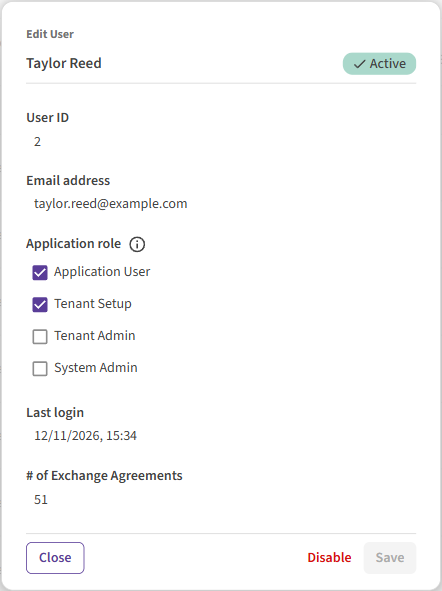 The Edit User window. Tick the roles the person needs, then select Save.
| Role | What it is for |
|---|---|
| Application User | Planners and schedulers. They act on the Exchange Agreements where they are a representative: sign, upload, download, resolve conflicts. |
| Tenant Setup | Builds connectors, templates and Configs, and creates new Exchange Agreements. Shows the Setup menu. |
| Tenant Admin | Runs the organization: users and roles, terms, tenant settings, clients, encryption keys. Shows the Tenant Admin menu. |
| System Admin | The whole platform. Promineo staff only. |
Roles are not a ladder: a Tenant Admin does not automatically have Tenant Setup. Someone who needs several areas is given several roles.
4. Disable and activate people
When someone leaves or changes jobs, open their Edit User window and select Disable. A disabled person cannot sign in. Nothing is deleted: their history and agreements stay.
To give access back, open the Edit User window again and select Activate.
5. The rules
- You can give Application User, Tenant Setup and Tenant Admin, but not System Admin. Only a System Admin can give that role.
- You cannot change your own roles. Ask another Tenant Admin. This is a good reason to have two.
- You cannot edit a System Admin user.
- Only an Active user's roles can be changed.
6. Who can do this
Managing users is Tenant Admin work, for your own organization. Promineo's System Admins can manage users in all organizations.
7. Related articles
Was this article helpful?
That’s Great!
Thank you for your feedback
Sorry! We couldn't be helpful
Thank you for your feedback
Feedback sent
We appreciate your effort and will try to fix the article