Table of contents
- Introduction
- Assign the Sites.Selected permission
- Grant the app access to specific SharePoint sites
- Give the person access in SharePoint
- Which SharePoint addresses the product accepts
- References
Introduction
This page describes how to give an application access to specific SharePoint sites only, instead of the whole sharepoint, using the Sites.Selected permission.
Assign the Sites.Selected permission
Prerequisites
- Consent. Adding Sites.Selected as an application permission on Microsoft Graph can only be consented to by Global Administrator or Privileged Role Administrator.
What to do
- Go to Entra ID → App registrations → your app → API permissions, and select Add a permission.
- Choose Microsoft Graph. The list also offers a SharePoint entry — do not use it. Both clients call Graph and nothing else.
- Choose the permission type that matches your client. Do this before looking for the permission— the portal filters the list by type, so searching first will not find it.
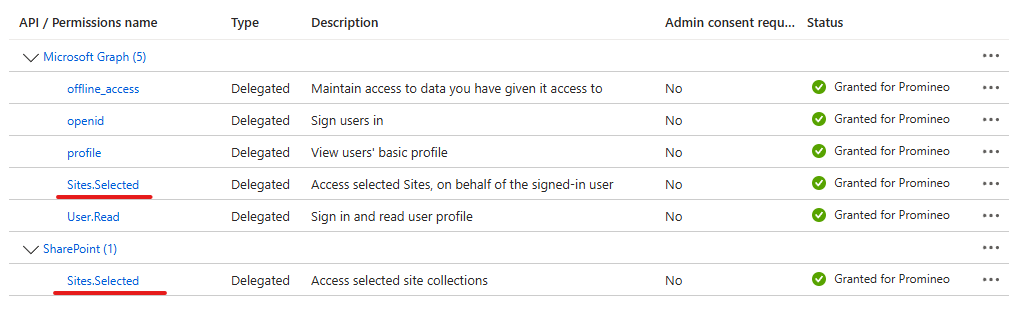
- Delegated permissions — for a desktop client
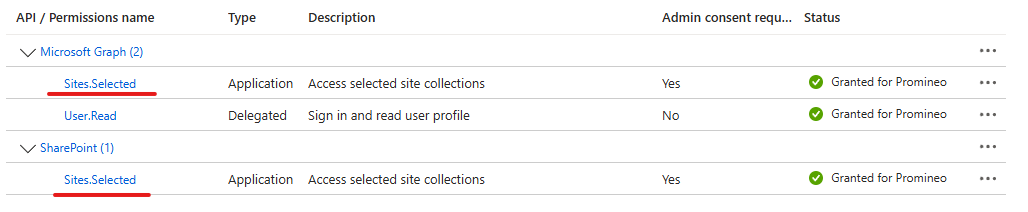
- Application permissions — for an autonomous client
- Delegated permissions — for a desktop client
- Under Select permissions, search for and tick Sites.Selected, then select Add permissions.
- If one registration serves both clients, which is the usual case, you end up with two Sites.Selected rows under Microsoft Graph — one Delegated, one Application.
- Select Grant admin consent for <your tenant>, then Yes in the confirmation dialog.
How to check it worked
Select Refresh — the Status column often does not update on its own — and check that every row you added reads Granted for <your tenant> with a green tick.
If Grant admin consent is greyed out, or consenting fails, your account does not have the authority for it. You need a Global Administrator.
The screenshots also show
openid,profile,offline_accessandUser.Read. Those come with the registration and can be left alone — only Sites.Selected has to be added by hand.
Grant the app access to specific SharePoint sites
These steps use the Microsoft Entra admin center at https://entra.microsoft.com, where the section is called Entra ID. The same pages exist in the Azure portal under Microsoft Entra ID — either works.
In the commands, everything in {curly-braces} is a placeholder you must replace with your own value. The table under Values you need covers the ones you gather up front and the ones you obtain along the way.
Prerequisites
- To setup you should have SharePoint Administrator or higher" role with Sites.FullControl.All scope.
- The URL of every SharePoint site you intend to grant, for example
https://contoso.sharepoint.com/sites/ProjectDocs.
Values you need
The first four you can gather before you start. The next three you obtain as you work through this step
| Placeholder | What it is | Where to get it | Example |
|---|---|---|---|
{client-id} | Application (client) ID of the app registration that needs SharePoint access | Azure portal → Entra ID → App registrations → your app → Overview → Application (client) ID. Not the Object ID, and not the enterprise application (service principal) object ID. | 11111111-2222-3333-4444-555555555555 |
{app-display-name} | Friendly name of that same app. Stored next to the grant so permission listings are readable. | Same Overview page → Display name | ILAP Flow Client |
{sharepoint-hostname} | Your SharePoint Online host | Everything between https:// and the next / in any site URL | contoso.sharepoint.com |
{site-name} | Name of the target site | The part of the site URL after /sites/. If your site URL uses /teams/ instead, use that in the path too. | ProjectDocs, from https://contoso.sharepoint.com/sites/ProjectDocs |
{access-token} | OAuth 2.0 bearer token for Microsoft Graph, belonging to the administrator performing this setup. Only needed if you send the requests yourself, from a tool like Postman — Graph Explorer supplies its own. | Graph Explorer → Access token tab. Usually valid 60–90 minutes. | eyJ0eXAiOiJKV1QiLCJhbGciOi... (~1500 characters) |
{site-id} | Graph's composite ID for the site — hostname,siteCollectionId,webId. It is not the site URL. | Returned by the call here | contoso.sharepoint.com,9e7f0a1b-1234-4c9d-b6f1-aaaaaaaaaaaa,4dc44a2e-5678-4e11-9f22-bbbbbbbbbbbb |
{permission-id} | ID of a grant created here, needed to change or revoke it later | The id field in the POST response | aTowaS50fG1zLnNwLmV4dHw... |
Check your permission
Check your permission using the official Graph Explorer
- Open https://developer.microsoft.com/graph/graph-explorer.
- Sign in as a Global Administrator, or another role that can grant tenant-wide admin consent. That account also has to hold SharePoint Administrator or higher.
- Click the profile avatar (top right) and choose Consent to permissions. That screen lists every available permission. Search for
Sites.FullControl.Alland consent to it, ticking Consent on behalf of your organization in the prompt. (There is also a Modify permissions tab below the address bar, but it only lists permissions needed by whatever query is currently in the address bar — soSites.FullControl.Allwill not appear there until you have pasted one of the calls from this step. It is also still in preview. The profile avatar is the reliable route.) - Choose the verb (GET / POST), paste the URL, put the JSON in the Request body tab, and click Run query.
To confirm the token carries the right permission, paste it at https://jwt.ms and look for Sites.FullControl.All in the scp claim.
Find the site ID
First, work out which site you are granting
You will usually be handed the address of the library or folder the files are going into, not the site — because that is the address that goes into SchedEx. Permission, though, is granted on the site. So trim it back first.
This step gives you {sharepoint-hostname} and {site-name}
| What you were given | {sharepoint-hostname} | {site-name} |
|---|---|---|
https://contoso.sharepoint.com/sites/ProjectDocs | contoso.sharepoint.com | ProjectDocs |
https://contoso.sharepoint.com/sites/ProjectDocs/Shared%20Documents/Archive | contoso.sharepoint.com | ProjectDocs |
https://contoso.sharepoint.com/teams/Projects/Reports/Q1 | contoso.sharepoint.com | Projects — note this one sits under /teams/, not /sites/ |
https://contoso.sharepoint.com/sites/ProjectDocs/Forms/AllItems.aspx?id=... | contoso.sharepoint.com | ProjectDocs |
https://contoso.sharepoint.com/Invoices/Q1 — no /sites/ or /teams/ part | contoso.sharepoint.com | none — this is the tenant root site |
The rule: keep the host plus /sites/<name> or /teams/<name>, and drop everything after it. If there is no /sites/ or /teams/ part at all, the site is the host on its own.
One grant on that site covers every library and folder inside it, so you do not repeat this per folder.
Granting the root site is broader than granting an ordinary site — know what you are agreeing to.
An address with no
/sites/or/teams/part means the tenant's root site collection, usually the organisation's intranet home page. A grant there covers every document library on that root site, and cannot be narrowed to one of them.
Then ask Graph for its ID
The site ID is not the site URL. Ask Graph for it by path:
GET https://graph.microsoft.com/v1.0/sites/{sharepoint-hostname}:/sites/{site-name}?$select=id,name,webUrl
Authorization: Bearer {access-token}
Worked example for https://contoso.sharepoint.com/sites/ProjectDocs:
GET https://graph.microsoft.com/v1.0/sites/contoso.sharepoint.com:/sites/ProjectDocs?$select=id,name,webUrl
$selectis part of the URL, not a variable.
Response:
{
  "id": "contoso.sharepoint.com,9e7f0a1b-1234-4c9d-b6f1-aaaaaaaaaaaa,4dc44a2e-5678-4e11-9f22-bbbbbbbbbbbb",
  "name": "ProjectDocs",
  "webUrl": "https://contoso.sharepoint.com/sites/ProjectDocs"
}
Use that whole id value, commas included, as your {site-id}.
Special cases:
- For the tenant root site, the call above does not work — there is no
/sites/<name>to put after the colon. Ask for it by name instead:GET https://graph.microsoft.com/v1.0/sites/root
This is the case whenever the address has no/sites/or/teams/part — for example a library athttps://contoso.sharepoint.com/Invoices.
Everything else is unchanged: theidit returns is your{site-id}, the role in Decide the role is stillwrite, thePOSTin Grant the permissionis identical, and one grant covers every library on the root site. - If the site URL uses
/teams/rather than/sites/, put that after the colon:GET https://graph.microsoft.com/v1.0/sites/contoso.sharepoint.com:/teams/Projects
The two/sites/in the earlier example are not the same thing, which is easy to misread. The first one is Graph's own collection and never changes. Everything after{sharepoint-hostname}:is your site's real path, copied from its URL — so a/teams/site produces the shape above, with only one/sites/in it. - For a subsite, do not grant it separately. Grants are made on the site collection and reach subsites by inheritance, and Graph refuses a subsite grant outright.
- For Microsoft Teams, see If your files live in Microsoft Teams at the end of this subsection — some channels are their own site and some are not.
If your files live in Microsoft Teams
SharePoint has no concept of a "channel". Team channels simply become a site there, and those are the ones that need a grant of their own.
| In Teams | In SharePoint | Grant |
|---|---|---|
| The team itself | one site | grant it |
| A standard channel | just a folder in that team's default document library | already covered by the team's grant — do not look for a separate site |
| A private channel | its own separate site | needs its own grant |
| A shared channel | its own separate site | needs its own grant |
Do not expect a Teams site to be under /teams/. A team's site commonly sits under /sites/, the same as any other — https://contoso.sharepoint.com/sites/Delivery. The /teams/ path only appears in tenants configured to use it. Both work here; go by the address you actually see, not by the fact that it came from Teams.
A private or shared channel's site sits beside the parent team's site rather than inside it — something like .../sites/Delivery-Finance next to .../sites/Delivery. As far as SharePoint is concerned those are two unrelated site collections that happen to have similar names, which is exactly why a grant on the parent does not reach the channel. Resolve the ID with the call above rather than building that URL yourself; Microsoft does not document the naming as a contract.
Decide the role
| Role | What the app can do |
|---|---|
read | Read files, folders and list items |
write | Read, plus create, update and delete files and folders |
manage | Write, plus manage the site's lists and settings |
owner | Full control of the site's content, as the site's owner |
fullcontrol | Everything the site's content allows, including permissions on its lists, folders and files. It does not extend to handing out access to the site itself, which needs the separate Sites.FullControl.All described here. |
Grant the lowest role that works. Storage at home writes files and creates folders, so write is what it needs — and so do the Excel, Microsoft Project and P6 XER File connectors, which write as well as read.
Microsoft's own pages are inconsistent about this list: its permissions reference gives
read/write/owner/fullcontrol, whilemanageappears in its announcement and in PnP PowerShell. It does not affect you —writeis on every version of the list.
Grant the permission
Replace placeholders with your values, then paste the raw HTTP block into Graph Explorer. Then run request.
POST https://graph.microsoft.com/v1.0/sites/{site-id}/permissions
Authorization: Bearer {access-token}
Content-Type: application/json

{
  "roles": ["write"],
  "grantedToIdentities": [
    {
      "application": {
        "id": "{client-id}",
        "displayName": "{app-display-name}"
      }
    }
  ]
}
Keep the response. It contains the grant's own id — that is {permission-id}, and you need it to change the role or revoke access later.
{
  "id": "aTowaS50fG1zLnNwLmV4dHwxMTExMTExMS0yMjIy...",
  "@deprecated.GrantedToIdentities": "GrantedToIdentities has been deprecated. Refer to GrantedToIdentitiesV2",
  "roles": ["write"],
  "grantedToIdentities": [
    { "application": { "id": "11111111-2222-3333-4444-555555555555", "displayName": "ILAP Flow Client" } }
  ],
  "grantedToIdentitiesV2": [
    { "application": { "id": "11111111-2222-3333-4444-555555555555", "displayName": "ILAP Flow Client" } }
  ]
}
The response carries the grant twice. Read grantedToIdentitiesV2 when inspecting a listing — grantedToIdentities is deprecated on the way out. The request body still uses grantedToIdentities; that has not changed.
A grant may not take effect the moment it is created. Microsoft does not document a propagation time, so wait few minutes.
Changing or removing a grant later
You can change the role if you need later:
PATCH https://graph.microsoft.com/v1.0/sites/{site-id}/permissions/{permission-id}
Authorization: Bearer {access-token}
Content-Type: application/json

{ "roles": ["read"]
}
You can also revoke access:
DELETE https://graph.microsoft.com/v1.0/sites/{site-id}/permissions/{permission-id}
Authorization: Bearer {access-token}
Give the person access in SharePoint
This is applicable for the desktop client only
The desktop client works on behalf of the person signed in, and can never do more than that person could do by hand. So the previous step only half the job — the person needs access to the folder as well.
What to do
Open the site in a browser, click the Settings gear, and choose Site permissions.
What you see next depends on the kind of site, and you do not need to know in advance — the buttons tell you.
- A team site — one with a Microsoft 365 group behind it, which is what a site from Teams has. You see an Add members button. It opens a menu of two. Choose Share site only, enter the person's name, set the level to Edit, and select Add. The other option, Add members to group, also works but hands over more than the site — the group's mailbox, calendar and Teams team come with it.
- A communication site, or any site with no Microsoft 365 group. You see Share site instead, and no menu. Enter the person's name, set the level to Edit, and select Add.
If your tenant has not picked up Microsoft's newer labels, the button reads Invite people rather than Add members. It is the same button and the menu under it is the same.
The level dropdown offers only Read, Edit and Full control. Choose Edit. Do not choose Read — it lets them open files but not add any, so transfers fail. (Contribute would also be enough, but it is not on this menu and you do not need it.)
Two cases where that is not enough
- The folder is in a Teams private or shared channel. SharePoint shows a channel site's permissions read-only, so the steps above will not work — it has to be done in Teams. Go to the channel name → More options (the
...beside it) → Manage channel → the Members tab, and add the person there.
For a private channel the person must already be in the parent team before you can add them to the channel. Being in the team is not enough on its own — you still have to add them to the channel. For a shared channel they do not need to be in the team at all. - The library has its own separate list of who may use it. Someone set that library up with its own permissions, so access given on the site never reaches it. Open the library → Settings gear → Library settings. You may then need to select More library settings. On that page, under Permissions and Management, choose Permissions for this document library, then Grant Permissions.
If Grant Permissions is not there, the library is still inheriting from the site after all — so this was not the problem. Go back and check the site permissions instead.
The second one is easy to miss. Suspect it whenever the person's site access looks right and uploads still fail.
How to check it worked
Ask the person to open the folder in a browser and upload any file to it by hand.
If they cannot, the desktop client cannot either. Fix their access before looking anywhere else.
If they can, this step is done. That does not on its own mean the transfer will work: the application still needs its own grant from this step. Both halves have to be in place.
That is also the quickest thing to check if a transfer works from the autonomous client but fails from the desktop one — the site grant is not the problem, that person's own access is.
Which SharePoint addresses the product accepts
This part is about configuring the product, not about granting permission. It is here because the two are usually done in the same sitting, and because the address you configure decides which site you had to grant above.
How to copy the address
Open the document library or folder in SharePoint in a browser, and copy the address out of the browser's address bar. That is the only method that reliably produces something the product can read.
If the files live in a Microsoft Teams channel, you have to get to the browser first. In Teams, open the channel, select the Shared tab, then More commands (the ... in the command bar) → Open in SharePoint. That opens the same library in a browser, and the address bar then holds the address you want. Note that this tab used to be called Files and much of Microsoft's own documentation still says so.
Do not use Share → Copy link. Those links carry a permission token rather than a path — there is nothing in them that says where the folder is, so they are rejected. It is the most common way to get this wrong; Why a sharing link is refused shows the two side by side.
Do not hand-type an address either. Spaces, accented characters and the like have to be encoded exactly as the browser encodes them, and a hand-typed address that looks right often is not.
A copied address is usually much longer than the folder path, because SharePoint appends the state of the page you were looking at. That is expected — the product trims it to the part that names the location and stores only that, which is why the address you see after saving is shorter than the one you pasted.
Addresses that work
| What you paste | What it means |
|---|---|
https://contoso.sharepoint.com/sites/ProjectDocs | the site — data goes to its default document library, which is the behaviour every existing setup has |
https://contoso.sharepoint.com/teams/Projects | the same, for a tenant that puts sites under /teams/ |
https://contoso.sharepoint.com | a tenant whose site collection is the host root |
.../sites/ProjectDocs/Invoices | a named document library |
.../sites/ProjectDocs/Invoices/Q1 | a folder inside a library, at any depth |
https://contoso.sharepoint.com/Invoices | a named library on the root site, where the address has no /sites/ part |
https://contoso.sharepoint.com/Invoices/Q1 | a folder inside it — the same shapes work with or without /sites/ |
.../sites/ProjectDocs/Shared Documents/Archive | the folder Archive in the site's default library — Shared Documents and Documents both name the default library and are read as that, not as a library of their own. This is the shape most existing setups already hold |
.../sites/ProjectDocs/Invoices/Forms/AllItems.aspx | the same library — the view-page tail is trimmed off |
.../Forms/AllItems.aspx?id=%2Fsites%2FProjectDocs%2FInvoices%2FQ1 | the folder named in the address bar while you were looking at it |
.../AllItems.aspx?RootFolder=%2Fsites%2F... | the same, in the older form some tenants still produce |
| a subsite address | treated like any other site path |
The folder must already exist. The product creates only its own sub-folders inside what you point at. A folder that is not there is an error naming it, rather than something silently created.
An address that names a file is accepted, not rejected — the folder holding the file is used. Where you paste one on a settings screen you are asked first and can keep what you typed, because a folder is allowed to have a file-like name. The question is raised whenever the last part of the address contains a dot, so a folder genuinely called Rev.2 is asked about too. Only SharePoint can tell the two apart, which is why you are asked rather than corrected.
Addresses that are refused, and what to do instead
| What you paste | What you are told |
|---|---|
Anything not starting https:// | Enter a complete address starting with https:// |
An address whose host does not end .sharepoint.com — SharePoint Server on-premises, or a mistyped host | That address is not on SharePoint Online. Paste an address from your own organisation's SharePoint |
| A Share → Copy link URL | Open the folder in SharePoint and copy the address from the browser address bar |
A OneDrive address (-my.sharepoint.com), or a /personal/ site | Paste a SharePoint document library or folder instead |
A SharePoint admin centre address (-admin.sharepoint.com) | Paste a document library or folder instead |
A settings page — anything containing _layouts, including Office-for-web document links | That is a settings page, not a library or folder |
A list — .../Lists/Budgets/... | Lists cannot store files; paste a document library or folder |
Any other page ending .aspx | Open the folder and copy the address from the browser address bar |
One of SharePoint's own libraries — Style Library, FormServerTemplates, SiteAssets, SitePages, PreservationHoldLibrary, Teams Wiki Data | Choose a document library created for content |
An address containing # | Everything from the first # onwards never reaches SharePoint, so the address is truncated. Copy it again from the address bar |
For Storage at Home there is also a length limit of 512 characters, applied to the trimmed address rather than the one you pasted, so an ordinary browser copy is never too long on its own. The file connectors have no length check.
Why a sharing link is refused
Compare a Share → Copy link link with the address bar for the same folder:
https://contoso.sharepoint.com/:f:/g/EQx7Kd2mVfBHrN4pLcWt9YkBa1TqZs6RmXvD3hJnPwGeUA https://contoso.sharepoint.com/Invoices/Forms/AllItems.aspx?id=%2FInvoices%2FQ1
The second spells the folder out. The first does not contain it at all — that token is a record that someone may open something, not a location, and it can be revoked or expire. So there is nothing to store, which is why sharing links are refused rather than resolved.
Open the folder in SharePoint and copy the address from the browser's address bar instead.
The one thing this page cannot check for you
Nothing at save time confirms that the site, library or folder actually exists, or that the application has been granted the site. A convincing typo saves cleanly and only shows itself when a transfer runs or the connector's test button is pressed. If the address names a different site collection from the ones you granted above — a Teams private channel is the usual way this happens — it saves without complaint and then fails at transfer time with a permission error. Grant every site collection you intend to use.
References
- Selected permissions overview — what Sites.Selected is and how it behaves: https://learn.microsoft.com/en-us/graph/permissions-selected-overview
- Create permission — grant an app access to a site: https://learn.microsoft.com/en-us/graph/api/site-post-permissions?view=graph-rest-1.0
- List applications with permission to a SharePoint site: https://learn.microsoft.com/en-us/graph/api/site-list-permissions?view=graph-rest-1.0
- Get a site by path — how to find the
{site-id}: https://learn.microsoft.com/en-us/graph/api/site-get?view=graph-rest-1.0 - OAuth 2.0 client credentials flow — how to get a token for the application: https://learn.microsoft.com/en-us/entra/identity-platform/v2-oauth2-client-creds-grant-flow
- Graph Explorer: https://developer.microsoft.com/graph/graph-explorer
- Sites.Selected permissions — background reading (third-party blog): https://blog.dan-toft.dk/2022/12/sites-selected-permissions/
Was this article helpful?
That’s Great!
Thank you for your feedback
Sorry! We couldn't be helpful
Thank you for your feedback
Feedback sent
We appreciate your effort and will try to fix the article