TABLE OF CONTENTS
- Introduction
- Topic: Recent
- Topic: Clients
- Topic: Installation Center
- Topic: SchedEx Terms
- Topic: Tenant
- Topic: Transfer
Introduction
The purpose of this article is to describe what option and features are available for the Tenant Admin role. Having this role means that the "Tenant Admin" menu is visible:

On the left part of the screen this list of topics appear, and each will be described in a separate chapter:
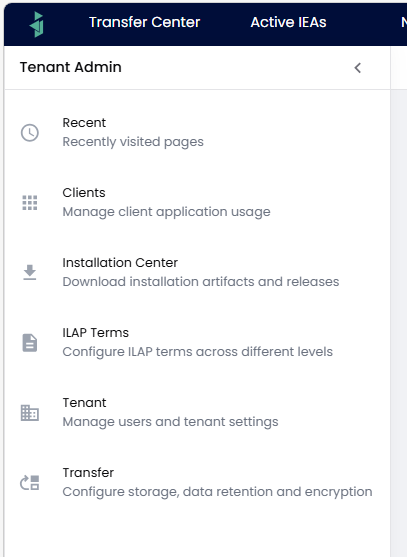
The list of main topics that a Tenant Admin has access to. By clicking on one, the corresponding section on the right on screen is highlighted.
NOTE: The "Recent" option is self explanatory and will not be covered further, as it only shows the most recent list of pressed "topics".
Topic: Clients

To the right of the "Clients" topic, there are 3 types of "clients" (deployable additions) that can be installed with SchedEx. For each of these you will see a summary of which version (if any) has been install and if it needs updating:

The 3 choices related to the "Clients" topic: "Desktop Client", "Autonomous Component", and "Schedule Analytics" (now called "Schedule Analytics")
Desktop Client
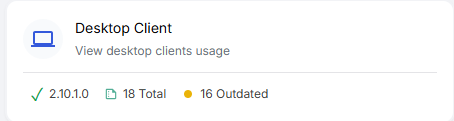
The button displays some high level summary information:
- The most recent available version
- Number of user/machine logins (where one user may have multiple entries is they have installed Desktop Client on different machines)
- The number of outdated versions running (16 out of 18 instances are outdated here)
When pressing the "Desktop Client"-button, the list of users/machines for your tenant and the versions of the Desktop Client they are using will be seen:
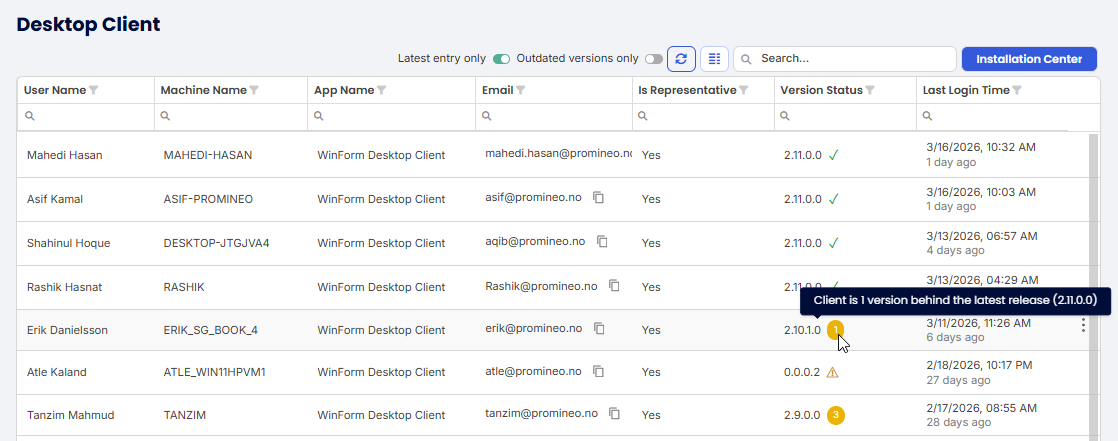
List of users and the version of Desktop Client they use, with indications of needed upgrades. Note that there is a "three-dot-menu" with a "Delete" option in case you wish to avoid showing the row.

Filtering options for "Desktop Client" described below.
Note that the filter options above allows only the latest entry of a user being seen (default), and turning this off will show multiple machines used for same user. It also allows for showing "Outdated versions only".
Pressing the "Installation Center" - button (upper right corner) will bring up the same page as when pressing topic "Installation Center" and then clicking on "Desktop Client" (see a few sections down).
Autonomous Component
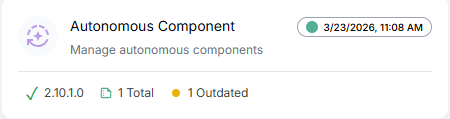
The button displays some high level summary information:
- The most recent available version
- Number of instances of installed components for tenant
- The number of outdated instances running (1 out of 1 instances are outdated here)
- The "health status" (green color) with latest verified "health timestamp"
When pressing the "Autonomous Component"-button, the list of installed version(s) is seen with indications of need for update (the orange 2 in screenshot below shown tooltip saying it is 2 versions behind latest available release):

List of instances of Autonomous Component for your Tenant.
The 3-dot-menu gives some options:
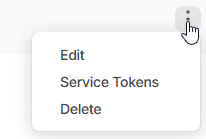
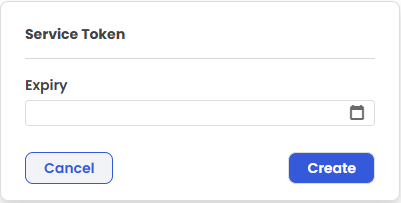
If the "Service Tokens" is pressed, you can set the expiry date for it:
Pressing the "Installation Center" - button will bring up the same page as when pressing topic "Installation Center" and then clicking on "Autonomous Component" (see a few sections down).
Schedule Analytics
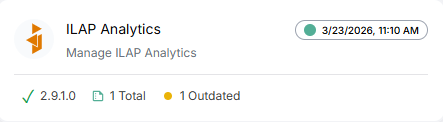
The button displays some high level summary information:
- The most recent available version
- Number of instances of installed components for tenant
- The number of outdated instances running (1 out of 1 instances are outdated here)
- The "health status" (green color) with latest verified "health timestamp"
When pressing the "Schedule Analytics"-button, the list of installed version(s) is seen with indications of need for update (the Version Status has a button showing if update is available):

List of instances of Schedule Analytics for your Tenant.
The "three-dot-menu" choices are the same as for Autonomous Component seen in last section.
Pressing the "Installation Center" - button:
This will bring up the same page as when pressing topic "Installation Center" and then clicking on "Schedule Analytics" (see a next section).
Topic: Installation Center

To the right of the "Installation Center" topic, these items are seen:
Desktop Client
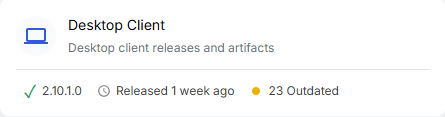
The button displays some high level summary information:
- The most recent available version
- The release date (relative today)
- The number of outdated versions running by users in the Tenant
When pressing the button you will see a list of available versions:
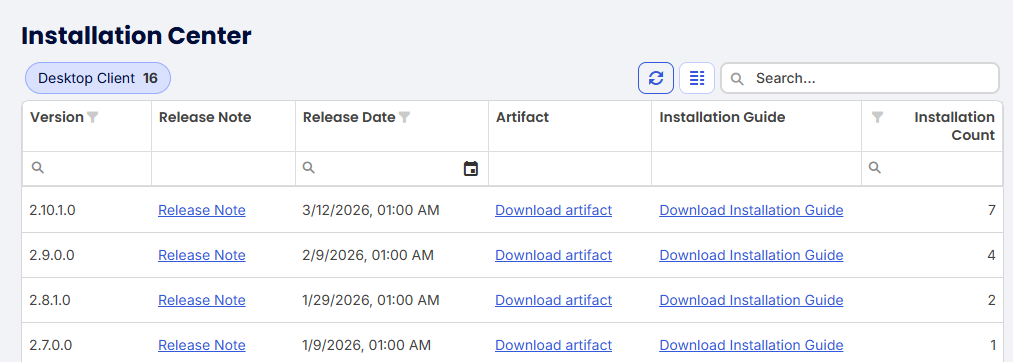 The list of available versions of the Desktop Client. Last columns shows number of installations.
When clicking on "Download artifact"-link you will be able to run the msi install file in downloads folder:

Pdf document with installation instruction details can be accessed by pressing "Download Installation Guide".
Release notes are also available for download as pdf document.
Autonomous Component
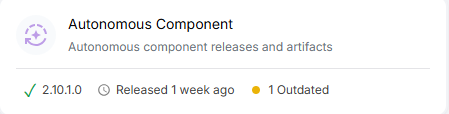
The button displays some high level summary information:
- The most recent available version
- The release date (relative today)
- The number of outdated instances running in the Tenant
When pressing the button you will see a list of available versions: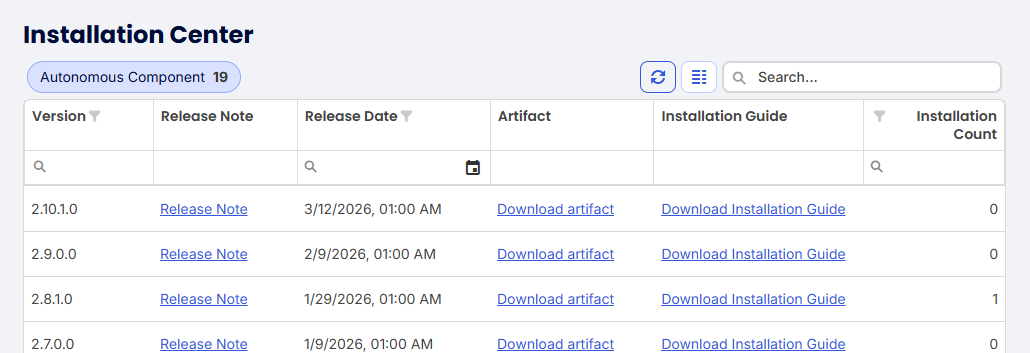
The list of available versions of the Autonomous Component. Last columns shows number of installations.
When clicking on "Download artifact"-link you will download a zip file:

Pdf document with installation instruction details can be accessed by pressing "Download Installation Guide".
Release notes are also available for download as pdf document.
Schedule Analytics
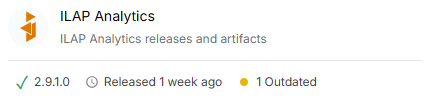
The button displays some high level summary information:
- The most recent available version
- The release date (relative today)
- The number of outdated instances running in the Tenant
When pressing the button you will see a list of available versions:
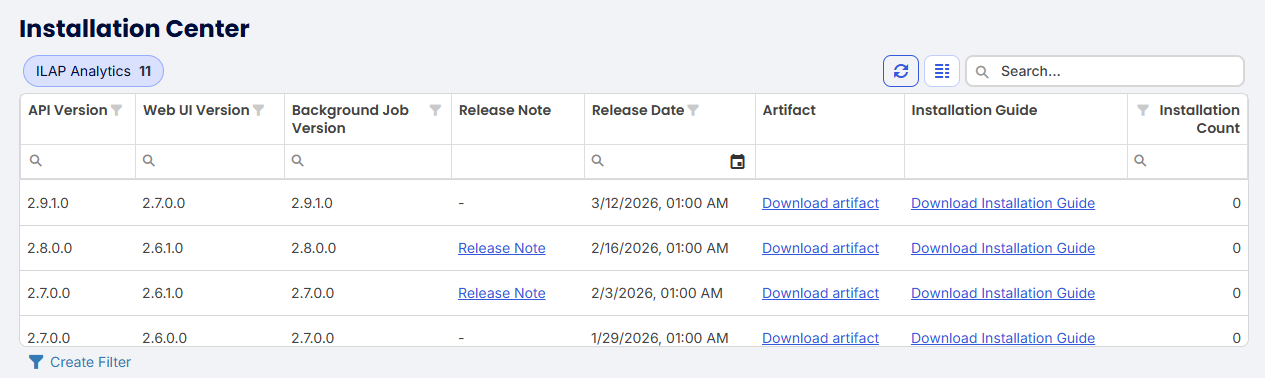
The list of available versions of the Schedule Analytics. Last columns shows number of installations.
When clicking on "Download artifact"-link you will download a zip file:

Pdf document with installation instruction details can be accessed by pressing "Download Installation Guide".
Release notes are also available for download as pdf document.
Topic: SchedEx Terms
To the right of the "SchedEx Terms" topic, the 3 sub-items are shown, and each described below:

Global
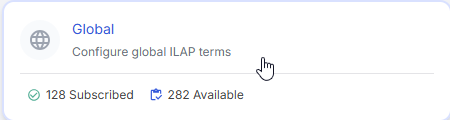
The button displays some high level summary information:
- How many Global SchedEx Terms are sees by users in the Tenant (i.e. how many are "subscribed")
- How many Global SchedEx Terms are available (for subscription).
When pressing the "Global" button (see above), then the list of subscribed SchedEx Terms are shown, where you can decide at which level Content Control is done (Template or Tenant). 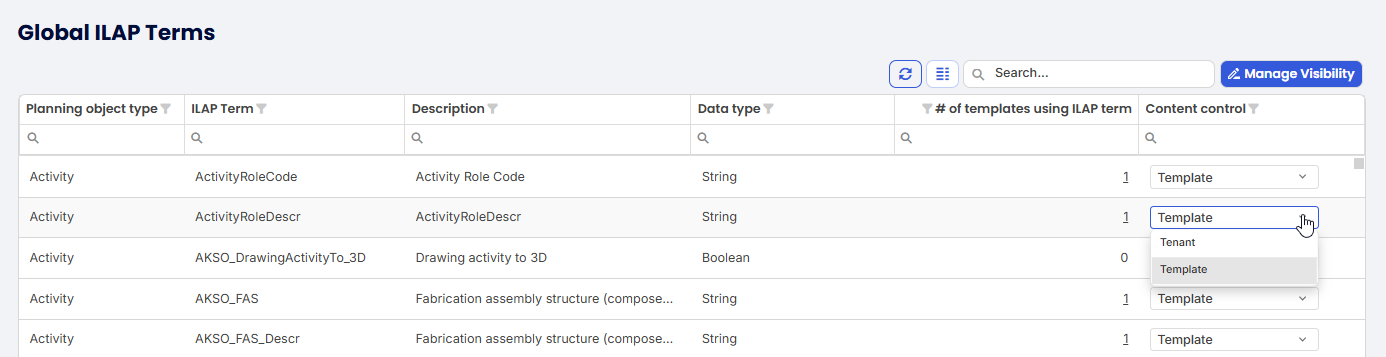
List showing the Global SchedEx Terms that your organization "subscribes to", and where you can edit the level at which Content control is done for each term.
By pressing the button "Manage Visibility" you can select which SchedEx Terms are seen by your Tenant's users:
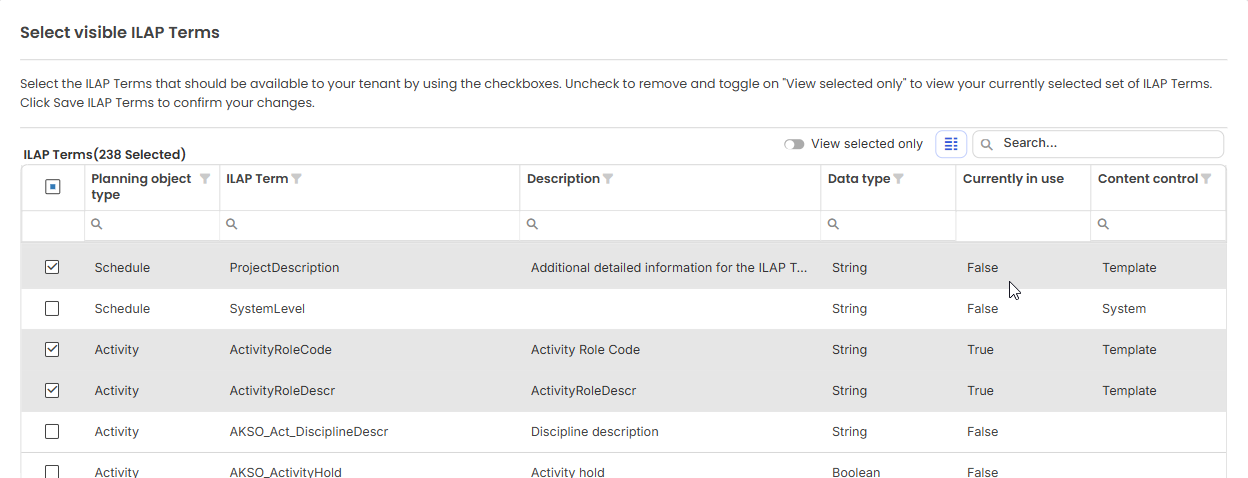 Form for maintaining which SchedEx Terms your organization "subscribes to".
Tenant Specific
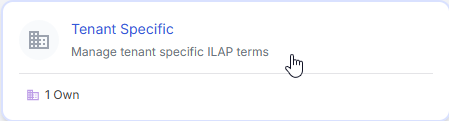
The button displays a high level summary information showing how many Tenant Specific SchedEx Terms have been created for Tenant.
When pressing the "Tenant Specific"-button above, you will be able to maintain (add/edit) your Tenant Specific SchedEx Terms:
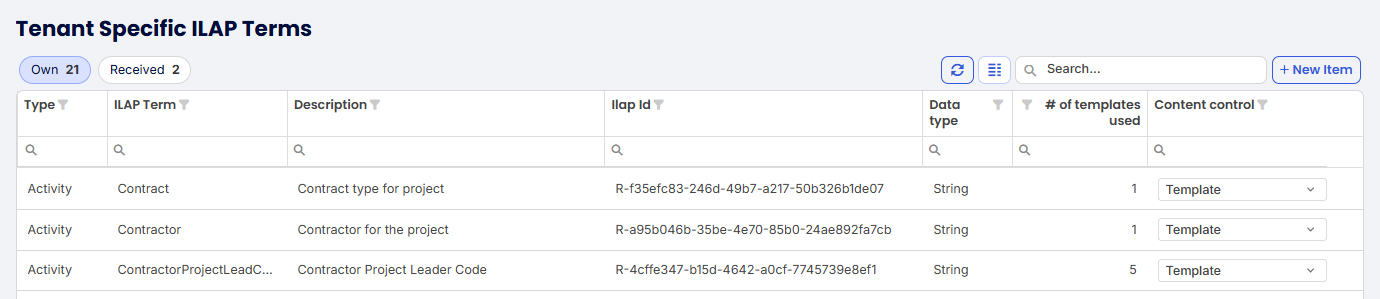 Form for maintaining your Tenant Specific SchedEx Terms.
Host System Specific
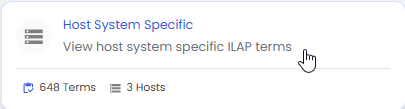 The button displays some high level summary information:
- The number of Host System Specific SchedEx Terms (HS SchedEx Terms)
- How many host systems these are distributed across (Safran, P6, SAP, later: MSProject)
When the "Host System Specific"-button is pressed you will see the list of the HS SchedEx Terms. Note that this list is read-only for Tenant Admins (only System Admins can update this):
Topic: Tenant
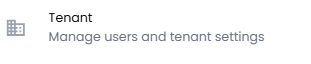
To the right of the "Tenant" topic, the most recently accessed items are seen:

General
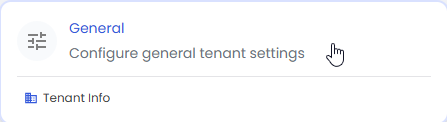
When pressing this button you will be able to change the name of your Tenant, but the rest of the information is read only, and needs to be set up by System Admin:
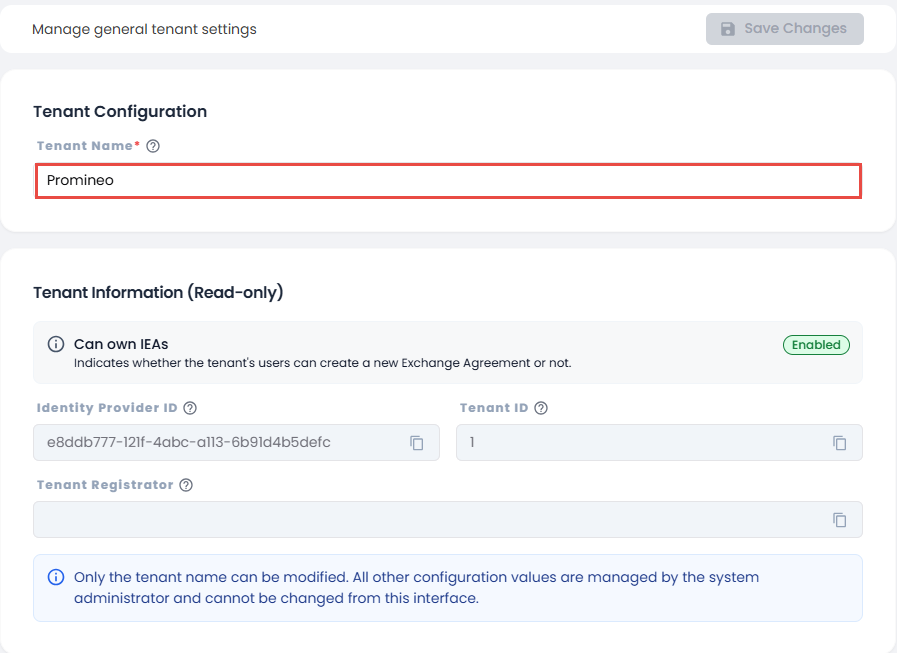
Form for maintaining your Tenant Specific SchedEx Terms.
Users
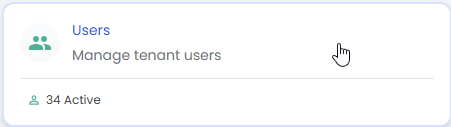
The button displays a high level summary information showing how many active Users exist for your Tenant. Note that you may have more registered users, but only 34 (in this case) are active. The list can be seen and edited when clicking the "button":
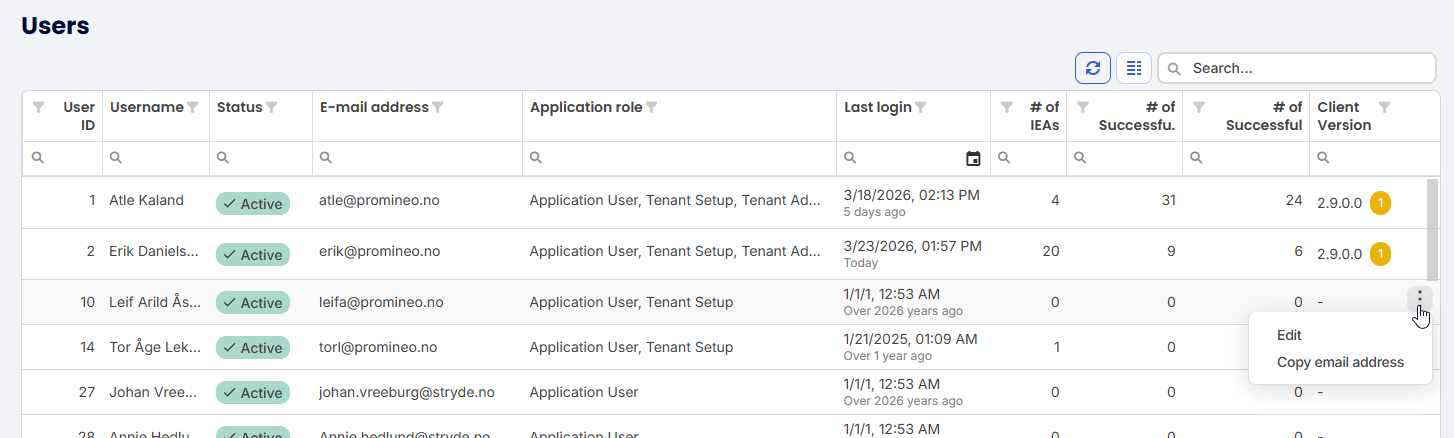
Form for editing users for Tenant, showing users with their application roles and recent logins + desktop client versions, as well as how many IEAs and successful uploads and downloads they have made.
When pressing the "3-dot menu"-button called "Edit", you will see this form where Application Role (1) and Active Status (2) can be edited (the rest is read-only):
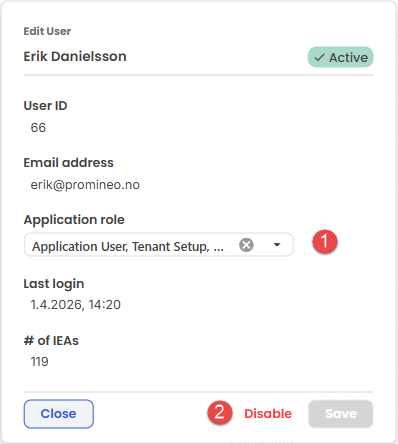
The form for editing user's Application role as well as "Active-status".
Topic: Transfer

To the right of the "Recent" topic, the most recently accessed items are seen:

Storage At-Home
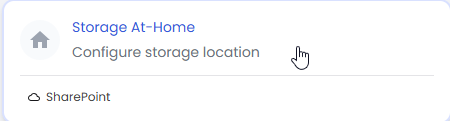
The "button" shows a preview of which type of Storage At-Home is selected. When pressing it you will see the other choices:

There are 3 options for "Storage At-Home".
Here are the 3 settings you need to define for "SharePoint" option (1):
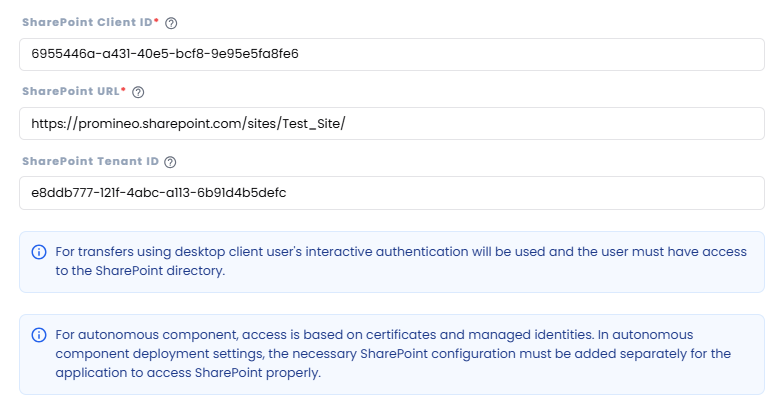
Here is the settings you need to define for "Local File Directory" option (2):
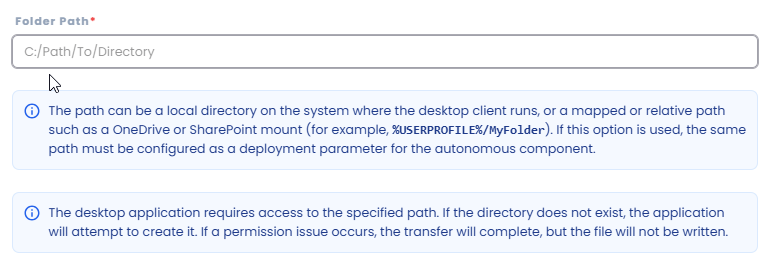
This is the message seen for "SharePoint" option (3):

Data Retention
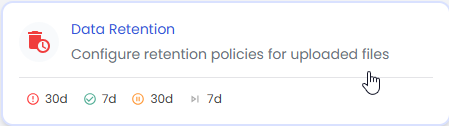
The "button" shows a preview of the Data Retention settings. When pressing it you will see the other choices. Note that the default setting is "No deletion" as seen below:
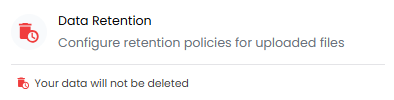
The default setting is "Your data will not be deleted".
Once you turn on the delete option (see 1 below), you will see the more available options (red digits 2 to 8).
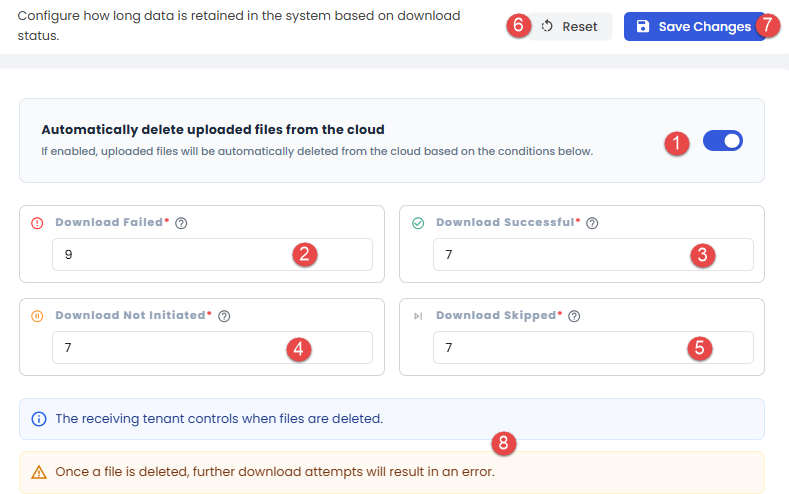
The form for editing Data Retention settings.
Quick description of the above options (which can also be seen in the UX by hovering over the "questionmark-icons"):
2. Days to retain files after a failed download
3. Days to retain files after a successful download
4. Days to retain files when download is not initiated
5. Days to retain files after a skipped download
6. Reset all values in 2,3,4,5 (above) to default settings
7. Button to save changes
8. Information to user
Encryption Key Managements
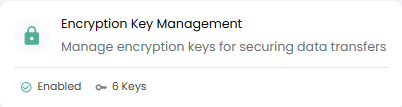
The "button" shows a preview of how many Key Pars have been generated. By pressing it you will see details behind these:
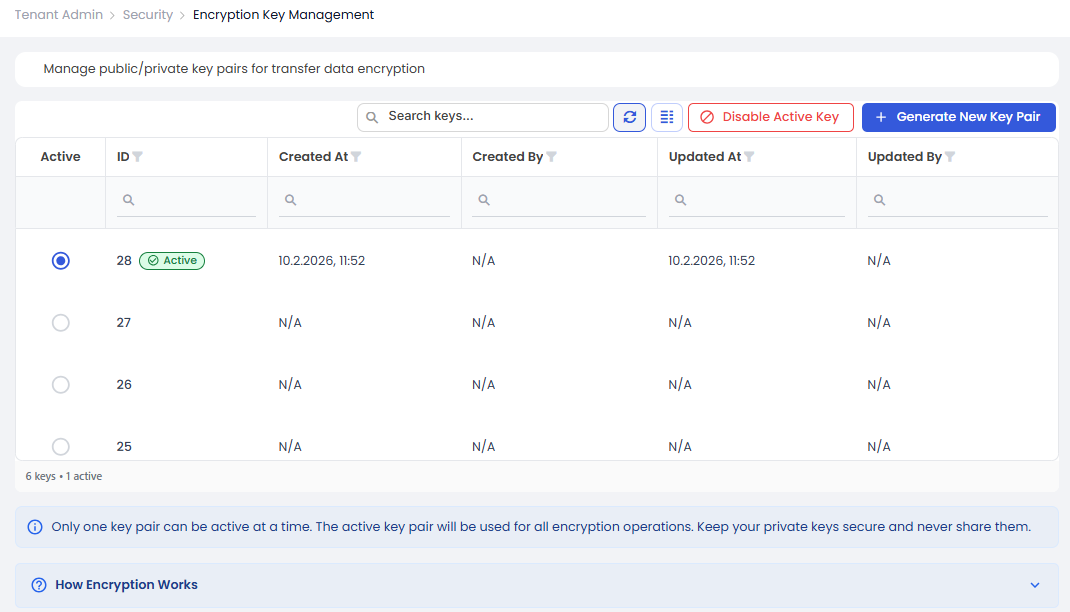
The form for maintaining Key Pairs for encryption.
By expanding "How Encryption Works" you will see this text:

Was this article helpful?
That’s Great!
Thank you for your feedback
Sorry! We couldn't be helpful
Thank you for your feedback
Feedback sent
We appreciate your effort and will try to fix the article