TABLE OF CONTENTS
- Introduction
- 1. Register Your Application in Azure Active Directory (AAD)
- 2. Assign the Sites.Selected Permission for both Microsoft Graph and SharePoint.
- 3. Grant the Application Access to Specific SharePoint Sites
- 4. Ensure User Permissions
- References
Introduction
In order to properly set up permissions to access SharePoint site by IDE, the following document is useful. It describes 4 "how-to" steps to achieve this.
1. Register Your Application in Azure Active Directory (AAD)
- Navigate to the Azure portal and register a new application or select an existing one
- Note the Application (client) ID for later use.
2. Assign the Sites.Selected Permission for both Microsoft Graph and SharePoint.
- In your application's API permissions section, add the Sites.Selected permission.
- If the application is going to be used by desktop client, then use Delegated permission
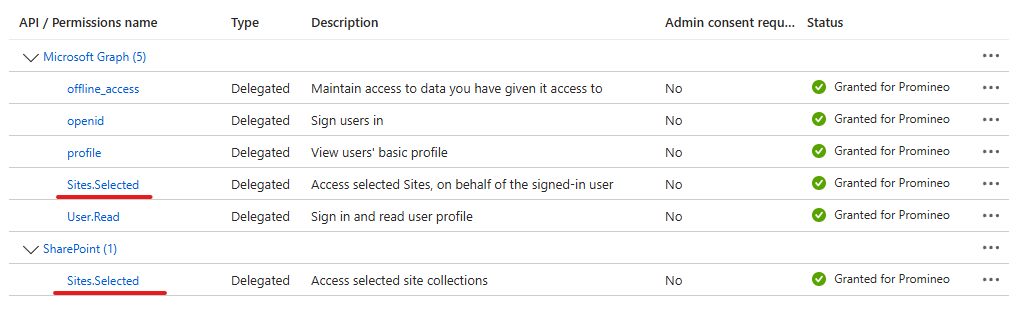
- If the application is going to be used by autonomous client, then use Application permission
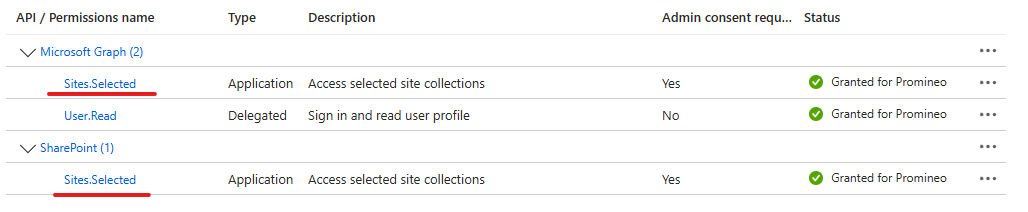
- If the application is going to be used by desktop client, then use Delegated permission
- Grant admin consent for the permission.
3. Grant the Application Access to Specific SharePoint Sites
Use the Microsoft Graph API to assign the necessary permissions to your application for each target site.
Example request to grant write access
POST https://graph.microsoft.com/v1.0/sites/{site-id}/permissions
Content-Type: application/json
{
  "roles": ["write"],
  "grantedToIdentities": [
    {
      "application": {
        "id": "your-app-id",
        "displayName": "Your App Name"
      }
    }
  ]
}
Replace {site-id} with the ID of your Sharepoint site and {your-app-id} with your application's client ID
4. Ensure User Permissions
- The signed-in user must have sufficient permission on the SharePoint site to perform the desired actions.
- The application's access is constrained by the intersection of its granted permissions and the user's permissions.
By following these steps, you can configure your Azure App Registration to have delegated permissions that allow writing files and creating folders in specific SharePoint sites, ensuring minimal and controlled access.
Notes
- If you need to check which Azure Applications have access to a specific SharePoint site, you can list all granted permissions using the Microsoft Graph API.
- GET https://graph.microsoft.com/v1.0/sites/{site-id}/permissions
Replace {site-id} with the ID of your Sharepoint site.
References
- List applications with permission to SharePoint site: https://learn.microsoft.com/en-us/graph/api/site-list-permissions?view=graph-rest-1.0
- Sites.Selected Permissions what is it, and how do I use it: https://blog.dan-toft.dk/2022/12/sites-selected-permissions/
Was this article helpful?
That’s Great!
Thank you for your feedback
Sorry! We couldn't be helpful
Thank you for your feedback
Feedback sent
We appreciate your effort and will try to fix the article