TABLE OF CONTENTS
- Introduction
- At a glance
- What to ask your Safran administrator for
- Open the connector wizard
- Step 1: General
- Step 2: Components
- Step 3: Authentication
- Step 4: Settings
- Step 5: Complete, test and persist
- Messages and what to do
- Questions and answers
- Glossary
- Related articles
Introduction
This article shows you, step by step, how to create a Safran connector. This connector lets SchedEx exchange schedules with Safran Project through Safran's API.
Who can do this: a user with the Tenant Setup role in SchedEx.
You do not need to be technical. Most values come from your Safran administrator. Section 2 lists exactly what to ask them for, what the Safran user must be allowed to do, and what must be set up in Safran before the first transfer.
Not sure this is the right article? This article is only about Safran. For the general steps that work the same for every connector, such as editing or copying a connector, see Creating, Editing and Copying a Connector. For testing and persisting in general, see Testing and Persisting a Connector.
1. At a glance
Creating the connector takes about five to ten minutes once you have the values from your Safran administrator.
- Ask your Safran administrator for the values in section 2.
- Fill in the five-step wizard in SchedEx (sections 3 to 7).
- Test and persist the connector in the SchedEx desktop client (section 8).
Checklist before you open the wizard:
- I have the Safran ILAP Gateway API address (Base URL).
- I know how SchedEx signs in to Safran: a user name and password, my Windows account, or a Microsoft Entra ID app.
- I know whether transfers run on a person's PC (Desktop Client), on a server (Autonomous Component), or both.
- I know whether our Safran ILAP Gateway API uses owner verification. If it does, I have the owner name.
- The Safran user has the rights listed in What the Safran user must be allowed to do.
- The Safran schedules are set up as described in What must be ready in Safran.
- The clock is correct on every PC and server that runs SchedEx. See Every PC and server must have the correct time.
2. What to ask your Safran administrator for
Ask your Safran administrator or IT department for the items below. Tell them that SchedEx will use the Safran Project ILAP Gateway API (version 7.2 or later), and whether it will connect from users' PCs (Desktop Client), from a server (Autonomous Component), or both.
| Ask for | Why SchedEx needs it | Where it goes |
|---|---|---|
| The Safran ILAP Gateway API address. | So SchedEx can find your Safran ILAP Gateway API. | Step 3: Base URL |
| How the API accepts sign-ins: user name and password, Windows sign-in, or Microsoft Entra ID. | Each method needs different values. | Step 3: Authentication Method |
| Only for user name and password: a Safran user name and password for SchedEx, ideally a service account whose password does not expire. | So SchedEx can sign in to Safran. | Step 3: Username, Password |
| Only for Windows sign-in: confirmation that each user's Windows account has access to the Safran ILAP Gateway API. | SchedEx signs in as the Windows user who runs the desktop client. | Nothing to enter |
| Only for Microsoft Entra ID with a person signing in: the Tenant ID, Client ID and Redirect URI of the Entra ID app that Safran uses. | Users sign in through this app in a browser window. | Step 3: Tenant ID, Client ID, Redirect URI |
| Only for Microsoft Entra ID without a person (for automatic transfers): the Tenant ID, Client ID, a Client Secret and the Scopes of an Entra ID app that may call the Safran ILAP Gateway API. | SchedEx signs in as the app, without a person. | Step 3: Tenant ID, Client ID, Client Secret, Scopes |
| The rights for the Safran user or app. Share the list below with them. | So SchedEx can read, and if needed write, your schedules. | Set up in Safran by the administrator |
| Whether the Safran ILAP Gateway API uses owner verification, and if so, the owner name to use. | With owner verification on, Safran refuses requests that do not name the schedule's owner. | Step 4: Use Owner Verification, Owner |
| Only if there is a gateway in front of Safran: any extra header names and values the gateway needs. | The gateway may reject requests without them. | Step 4: Custom Headers |
| Whether the Safran server can handle several requests at once, and how many. | Parallel requests make large transfers faster, but add load on Safran. | Step 4: Max Parallel Read Requests, Max Parallel Write Requests |
| Confirmation that the Safran ILAP Gateway API can be reached from users' PCs or the Autonomous Component's server. | SchedEx connects to Safran directly from there. | Network, set up by IT |
Which Safran versions work
SchedEx talks to Safran through the Safran Project ILAP Gateway API, Safran's interface for exchanging schedules. Your Safran administrator installs and maintains it. Ask them which version you have.
| Safran Project ILAP Gateway API version | What you get |
|---|---|
| Older than 7.2 | Not supported. |
| 7.2 or later | Everything in this article. |
| 7.3.1.02 or later | You can also use a source activity filter on an Exchange Agreement that sends from Safran, so that only some activities are sent. With an older version, a transfer that uses such a filter stops with a message. |
| 9.0 or later | SchedEx reads activities from Safran in a faster and more reliable way. You do not have to change anything: SchedEx checks the version itself and uses the better method when it is available. |
The connection test shows the API Version of your Safran server (section 8).
What the Safran user must be allowed to do
SchedEx signs in as one Safran user (or one Entra ID app). Safran shows SchedEx only what that user may see and change.
To send data from Safran (SchedEx reads):
- See the schedules (projects) you want to exchange, and their properties.
- Read activities, activity links, resources and resource assignments.
- Read calendar sets, resource sets, code sets and user fields, profile sets and enterprise fields.
To receive data into Safran (SchedEx writes), also:
- Create, change and delete activities and activity links in the receiving schedule.
- Create, change and delete resource assignments.
- Create resources in the schedule's resource set.
- Create and change calendars in the schedule's calendar set.
- Change code values in the schedule's code set, and change profiles in its profile set.
Persist reads every schedule the Safran user can see. If a schedule is missing in SchedEx, check that the user has access to it in Safran, then persist again.
What must be ready in Safran
SchedEx does not create schedules in Safran. Before the first transfer:
- The schedule must exist in Safran, and you must have persisted the connector after it was created (section 8). Only then can you select it in a Config or an Exchange Agreement.
- The schedule should have a calendar set, a resource set and a code set. SchedEx adds calendars, resources and code values to these sets. Without them, those items are skipped with a warning.
- The schedule needs a profile set if you want to transfer profiles. Otherwise profiles are skipped with a warning.
SchedEx also checks some Project Properties in Safran before every transfer:
| When | Safran setting | What it must be | If it is not |
|---|---|---|---|
| Sending from Safran | Save calculated dates to database | Checked | The transfer stops. SchedEx needs the calculated dates, such as early start and finish. |
| Sending from Safran | Auto Sum | On | Warning only. Totals rolled up from resource assignments to activities may be wrong. |
| Receiving into Safran | Allow progress to decrease | True | The transfer stops. Otherwise activities whose progress goes down would not be updated. |
| Receiving into Safran | Scope changes only through Variation Orders (VOs) | False | The transfer stops. SchedEx does not send VO information. |
| Receiving into Safran | Auto Sum | On | Warning only. Totals rolled up from resource assignments to activities may be wrong. |
Every PC and server must have the correct time
Safran checks the time on every request. Each time SchedEx contacts Safran, it sends a security key that contains the current time of the computer that runs the transfer. If that computer's clock is wrong by more than a few minutes, Safran rejects the request and the test or transfer fails with …This error likely occurred because the system time is not synchronized…
This applies to every computer that talks to Safran:
- every PC where someone runs the SchedEx Desktop Client, and
- the server where the SchedEx Autonomous Component runs.
The time zone does not matter. SchedEx converts the time to UTC. What matters is that the clock itself is right. The safest setup is to let Windows set the time automatically.
On a Windows 11 PC:
- Open Settings > Time & language > Date & time.
- Switch on Set time automatically.
- Under Additional settings, select Sync now. Below the button, Windows shows when the time was last synced.
On a Windows 10 PC: open Settings > Time & Language > Date & time, switch on Set time automatically, then select Sync now.
On a server, or if the settings are locked by your company: ask your IT department. They can check and sync the clock from a command prompt that runs as administrator:
| Command | What it does |
|---|---|
w32tm /query /status |
Shows where the computer gets its time from and when it last synced. |
w32tm /resync |
Syncs the clock now. |
w32tm /stripchart /computer:time.windows.com /samples:3 /dataonly |
Shows how far the clock is off from Microsoft's time server. |
Company PCs usually get their time from the company network (the domain controller). If the clock is still wrong after Sync now, the problem is on the network side, so contact your IT department rather than changing the clock by hand.
How SchedEx keeps these values safe: the passwords, client secrets and tokens you enter in the wizard are encrypted with AES-256 before SchedEx saves the connector. The encryption key is kept in Azure Key Vault, separate from the database. Custom header values are not encrypted. Read more in Checking your connectors.
3. Open the connector wizard
- Select Setup in the top menu.
- On the Connector List card, select New Connector.
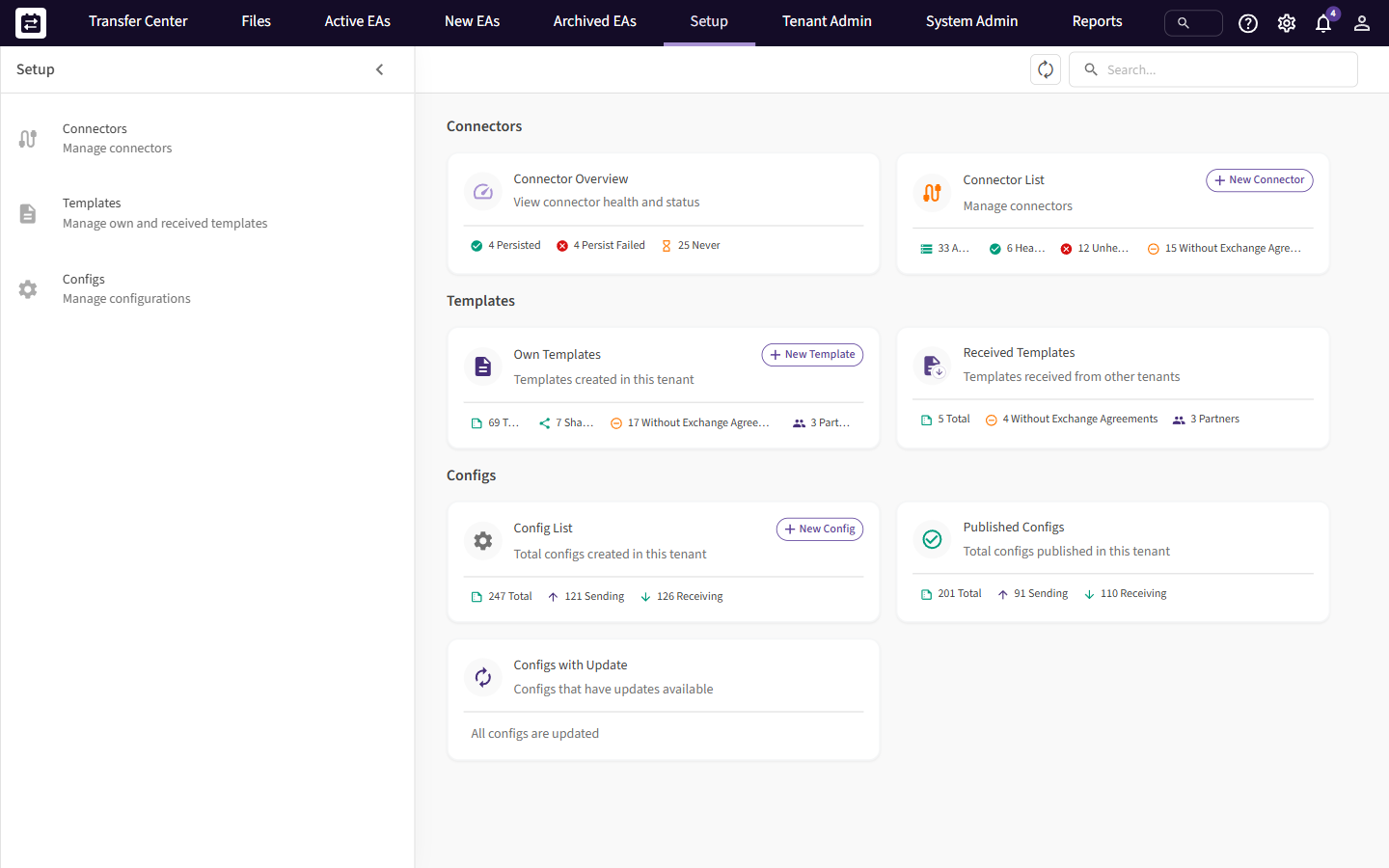 The Setup page. New Connector is on the Connector List card.
The New Connector wizard opens on the right. It has five steps: General, Components, Authentication, Settings and Complete. Every field has an ⓘ icon. Point at it to see a short help text. Next stays grey until every required field on the step is filled in.
4. Step 1: General
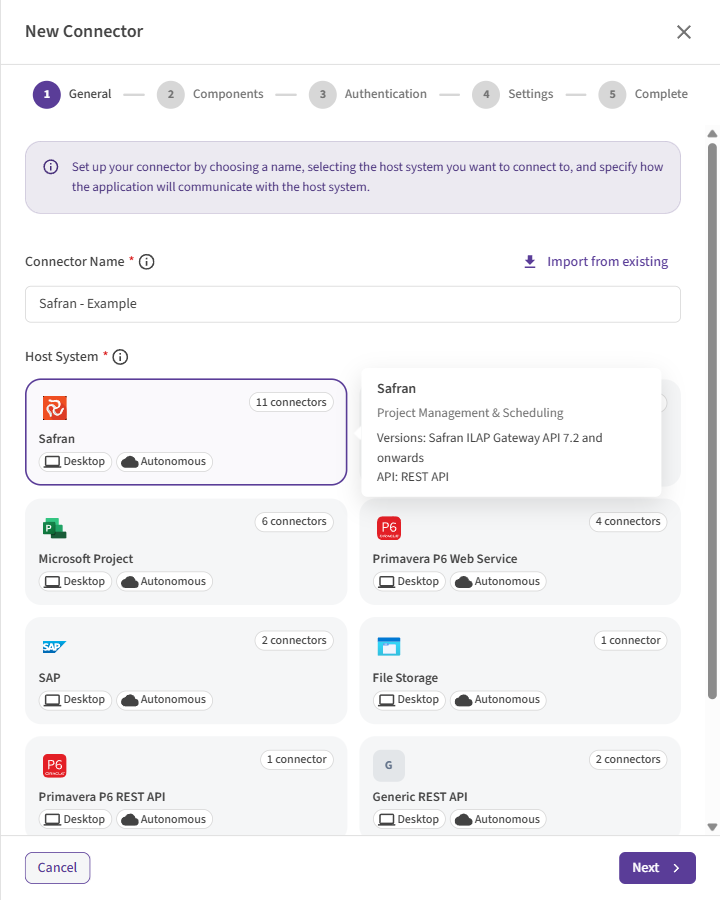 Step 1: give the connector a name and select Safran.
| Field | What to enter |
|---|---|
| Connector Name (required) | A name that tells your colleagues which Safran this is, for example Safran Production. The name is shown everywhere the connector is used, such as in Configs and Exchange Agreements. |
| Host System (required) | Select Safran. The card says which versions are supported: Safran ILAP Gateway API 7.2 and onwards. See Which Safran versions work. |
| Import from existing (optional) | Copies the settings of a connector you already have, so that you only change what is different. |
Select Next.
5. Step 2: Components
An execution component is the SchedEx program that runs the transfer and talks to Safran.
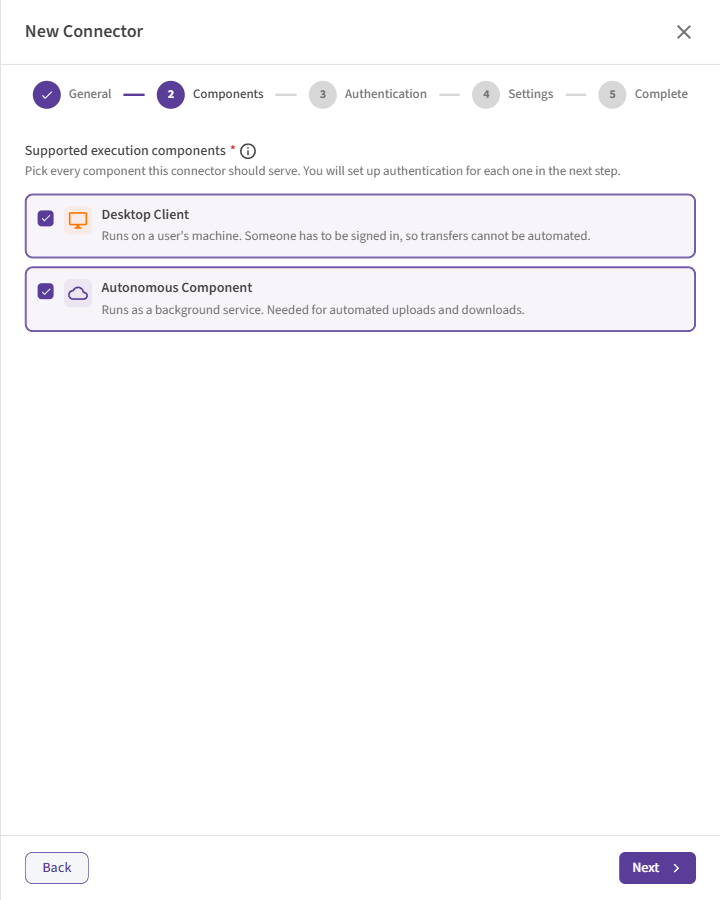 Step 2: choose which SchedEx program runs this connector.
| Option | What it means | Choose it when |
|---|---|---|
| Desktop Client | The SchedEx desktop program on a user's PC. Someone must be signed in to start a transfer. | People start transfers by hand, or you want to sign in with Windows or a Microsoft work account. |
| Autonomous Component | A SchedEx service that runs on a server, without a person. | Transfers must run automatically on a schedule. |
You can select both. The connector then gets one sign-in profile for each component, and you fill in both in the next step. They can use different sign-in methods. For example, the Desktop Client can use Windows Authentication while the Autonomous Component uses a service account.
SchedEx connects to Safran directly from where the component runs: the user's PC or the Autonomous Component's server. The Safran ILAP Gateway API must be reachable from there.
Select Next.
6. Step 3: Authentication
If you selected both components in Step 2, you see two tabs: Desktop Client and Autonomous Component. Fill in both. The line at the bottom tells you when the other profile is still incomplete, and Switch to … takes you to it.
First choose the Authentication Method: how SchedEx proves to Safran who it is. The fields below the list change to match your choice, and a short note explains the method you picked.
| Method | You enter | Desktop Client | Autonomous Component |
|---|---|---|---|
| Username and Password | Base URL, user name and password | Yes | Yes |
| Windows Authentication | Base URL only | Yes | No |
| Microsoft Entra ID (Interactive) | Base URL, Tenant ID, Client ID and Redirect URI | Yes | No |
| Microsoft Entra ID (Application) | Base URL, Tenant ID, Client ID, Client Secret and Scopes | Yes | Yes |
| No Authentication | Base URL only | Yes | Yes |
The Autonomous Component tab only lists the methods that work without a person.
Base URL (every method)
| Field | What it means | Example |
|---|---|---|
| Base URL (required) | The address of your Safran ILAP Gateway API, exactly as your Safran administrator gives it to you. Do not put a / at the end. |
https://safran.yourcompany.com |
The Base URL is the same on both tabs. You only enter it once.
Always use an address that starts with
https://. Your sign-in details travel with the requests.
Option A: Username and Password
SchedEx signs in to Safran with a fixed user name and password. This is the usual choice for the Autonomous Component.
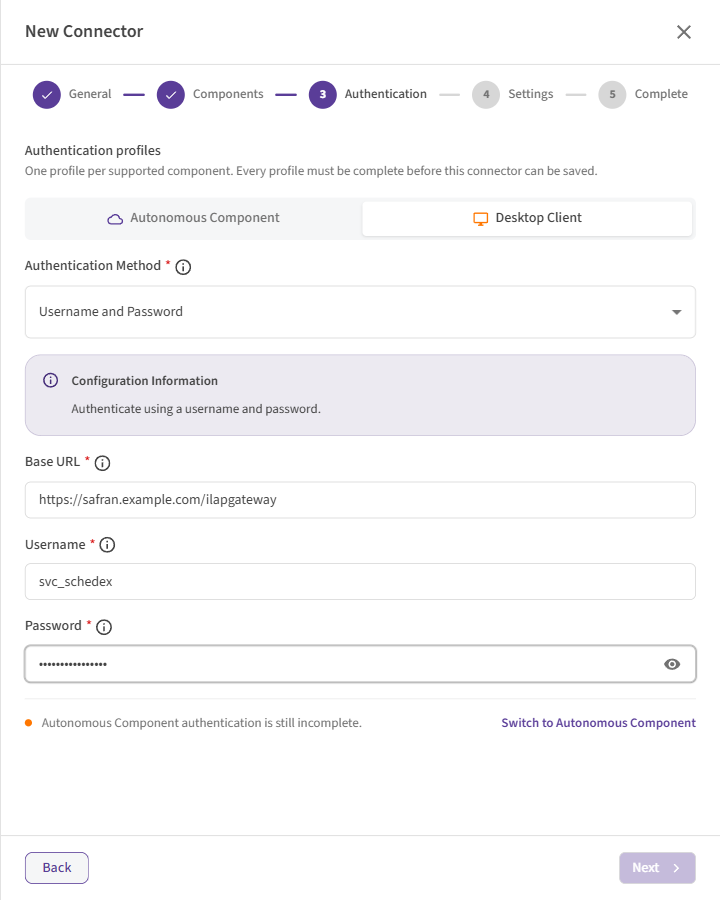 Username and Password: Base URL, Username and Password.
| Field | What it means | Example |
|---|---|---|
| Username (required) | The user that SchedEx signs in as. If your Safran ILAP Gateway API uses Windows accounts, this can be a domain account. | svc_schedex or YOURDOMAIN\svc_schedex |
| Password (required) | The password for that user. SchedEx stores it encrypted. |
Option B: Windows Authentication
SchedEx signs in as the Windows user who is signed in to the PC and runs the desktop client. You only enter the Base URL. Your Safran ILAP Gateway API must accept Windows sign-in (often called Windows Integrated Authentication).
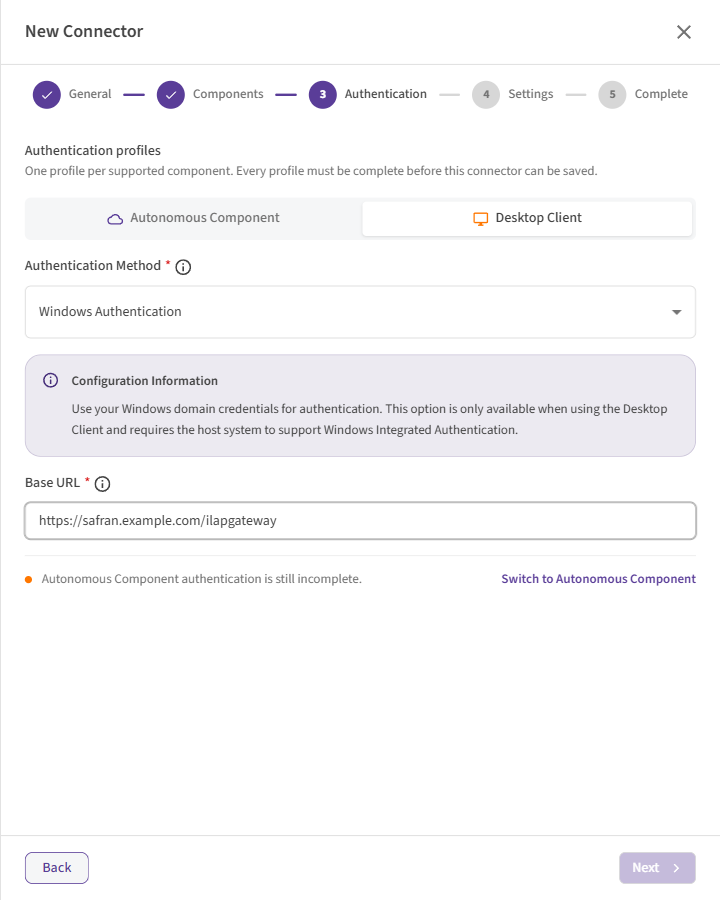 Windows Authentication: only the Base URL is needed.
Each user who runs transfers sees only the Safran schedules their own Windows account may see.
Windows Authentication works only in the Desktop Client. On the Autonomous Component tab, use Username and Password or Microsoft Entra ID (Application).
Option C: Microsoft Entra ID (Interactive)
Use this when your organization protects the Safran ILAP Gateway API with Microsoft Entra ID, and users sign in with their Microsoft work account.
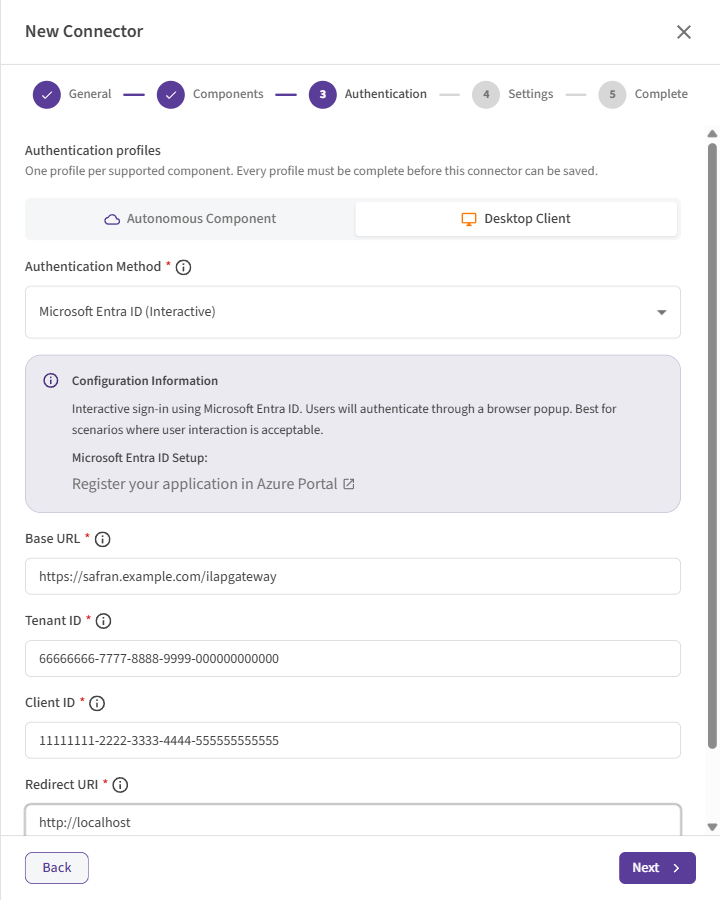 Microsoft Entra ID (Interactive): Tenant ID, Client ID and Redirect URI.
| Field | What it means | Example |
|---|---|---|
| Tenant ID (required) | The ID of your organization in Microsoft Entra ID. Found in the Azure portal under Microsoft Entra ID → Overview. | xxxxxxxx-xxxx-xxxx-xxxx-xxxxxxxxxxxx |
| Client ID (required) | The Application (client) ID of the Entra ID app that users sign in through. Found under App registrations → your app → Overview. | xxxxxxxx-xxxx-xxxx-xxxx-xxxxxxxxxxxx |
| Redirect URI (required) | The address the sign-in returns to. It must match a redirect address set up in the Entra ID app exactly. | http://localhost |
What you will notice: the first time the connector runs, a Microsoft sign-in window opens in your browser. Sign in with your work account. The desktop client then remembers the sign-in on your PC, so you are not asked every time. Signing out of the desktop client clears it, and you sign in again next time.
Microsoft Entra ID (Interactive) works only in the Desktop Client. The Autonomous Component cannot open a sign-in window. On the Autonomous Component tab, use Microsoft Entra ID (Application) or Username and Password.
Option D: Microsoft Entra ID (Application)
SchedEx signs in as an Entra ID app with a secret, without a person. This suits automatic transfers on the Autonomous Component.
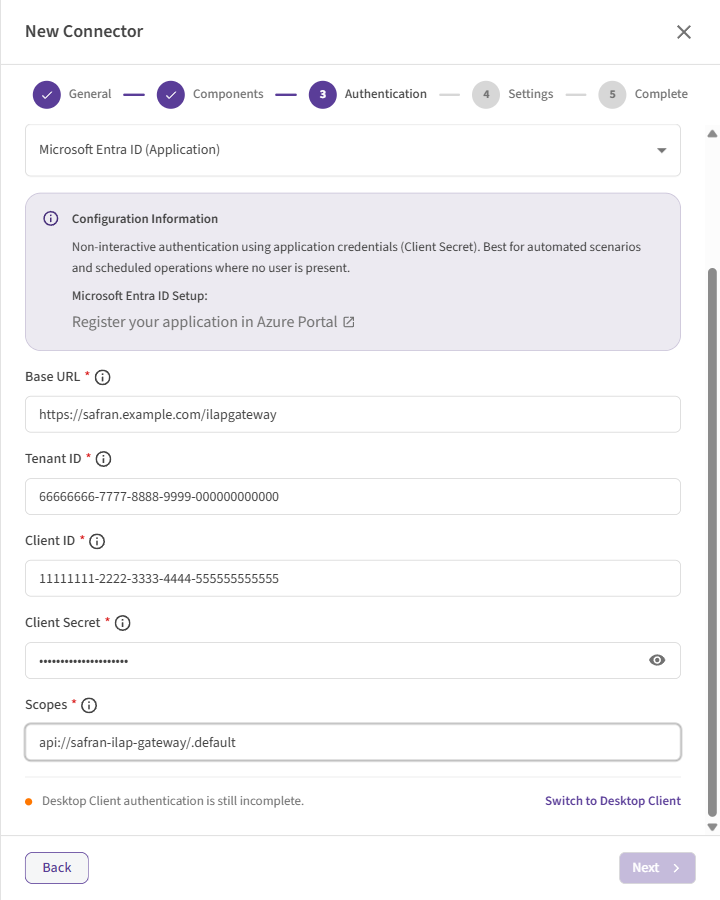 Microsoft Entra ID (Application) on the Autonomous Component tab.
| Field | What it means | Example |
|---|---|---|
| Tenant ID (required) | The ID of your organization in Microsoft Entra ID. | xxxxxxxx-xxxx-xxxx-xxxx-xxxxxxxxxxxx |
| Client ID (required) | The Application (client) ID of the Entra ID app. | xxxxxxxx-xxxx-xxxx-xxxx-xxxxxxxxxxxx |
| Client Secret (required) | A secret created for that app, under App registrations → your app → Certificates & secrets. Copy the Value, not the Secret ID. SchedEx stores it encrypted. | |
| Scopes (required) | The permission SchedEx asks for when it signs in. Usually the address of the app that protects the Safran ILAP Gateway API, followed by /.default. |
api://<safran-api-app-id>/.default |
Client secrets expire. Ask IT when this secret expires, and put a reminder in your calendar. When it expires, sign-in fails until you enter a new secret.
Option E: No Authentication
SchedEx connects without signing in. Use this only for test or development servers. It is not recommended for production.
Select Next when all required fields are filled in.
7. Step 4: Settings
All settings on this step are optional. The default values work for most Safran servers. Change them only when you have a reason to. The settings apply to both components.
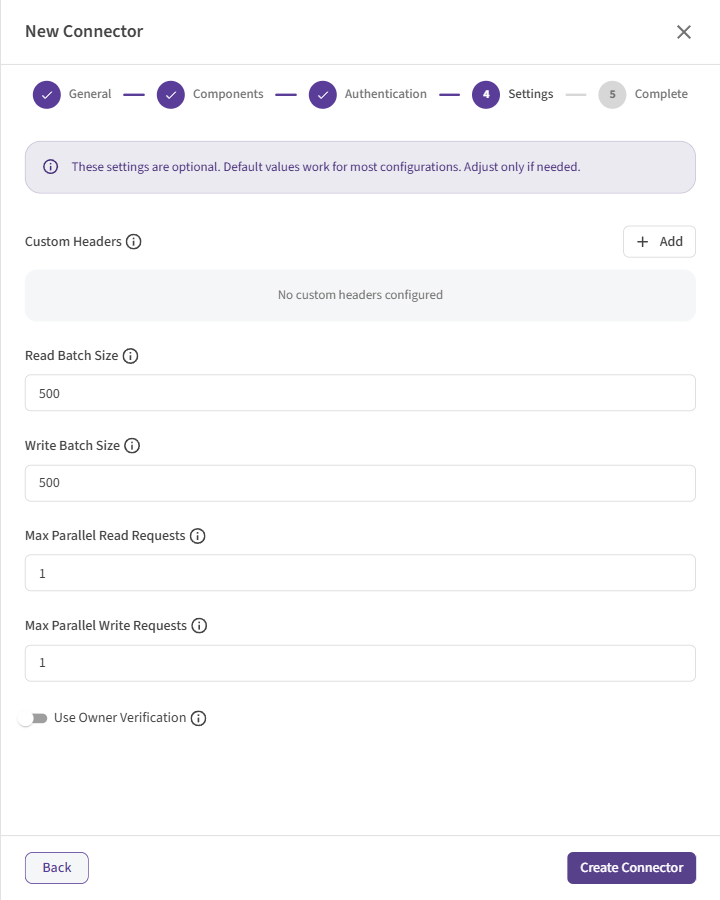 Step 4: optional settings. The defaults suit most Safran servers.
| Setting | What it means | Default |
|---|---|---|
| Custom Headers | Extra pieces of information that SchedEx sends with every request to Safran. Only needed when your IT department has put a gateway in front of Safran that asks for them. Select Add to enter a name and a value. You do not need to add Safran's own gateway key: SchedEx adds it automatically. See Setting Custom Headers for a Connector. | None |
| Read Batch Size | How many activities SchedEx reads from Safran in one go. For schedules with more than 50,000 activities, a larger value such as 10000 is recommended. Lower it if Safran times out on large reads. |
500 |
| Write Batch Size | How many activities SchedEx creates or changes in Safran in one go when it receives data. Lower it if your Safran server rejects large requests or times out. | 500 (see the note below) |
| Max Parallel Read Requests | How many read requests SchedEx sends to Safran at the same time. 1 means one after the other. Allowed: 1 to 20. |
1 |
| Max Parallel Write Requests | How many write requests (create or change) SchedEx sends to Safran at the same time. Allowed: 1 to 20. |
1 |
| Request Delay (ms) | Only shown when one of the two values above is more than 1. How long SchedEx waits before it starts each extra parallel request, in milliseconds (1000 = 1 second). Allowed: 0 to 60000. |
2000 (2 seconds) |
| Use Owner Verification | Switch this on only if your Safran ILAP Gateway API uses owner verification. SchedEx then sends the Owner name with every request. | Off |
| Owner | Only shown when Use Owner Verification is on, and then required. The user name of the schedule owner in Safran. | Empty |
Older connectors may use 1000. New connectors get a Write Batch Size of
500. A Safran connector created before this setting was filled in automatically may have no value saved. SchedEx then writes 1000 activities at a time. If large receives into Safran time out or are rejected, open the connector, select Edit, enter a Write Batch Size (for example500) and save.
Speed: parallel requests and pacing
By default SchedEx sends one request at a time to Safran. That is the safest choice. For large schedules, a transfer can be faster when SchedEx sends several requests at once.
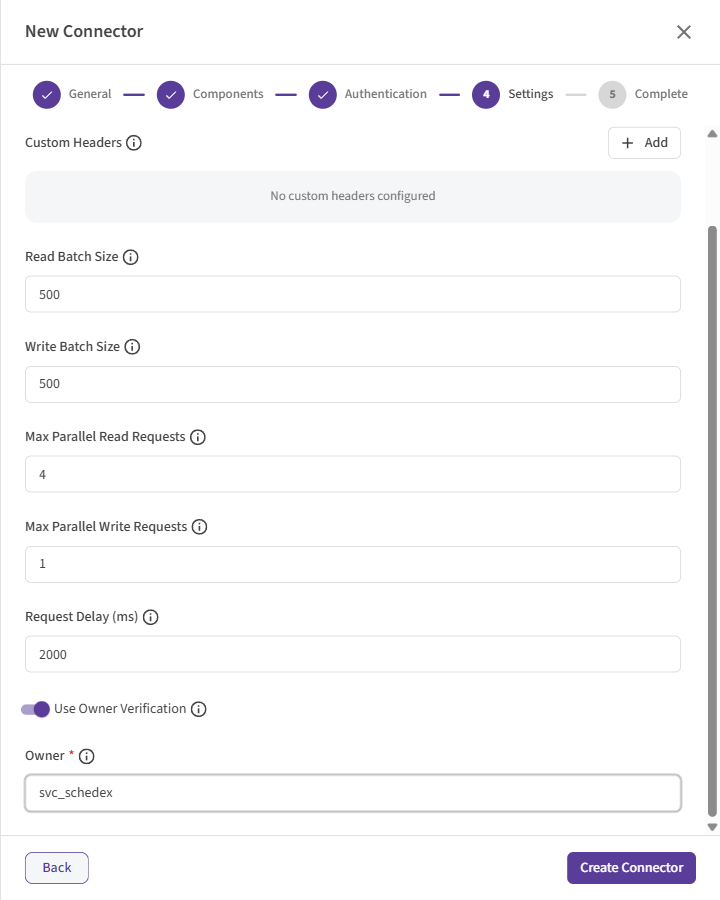 Max Parallel Read Requests raised to 4: Request Delay appears. Use Owner Verification is on.
- Raise the parallel values in small steps, for example to
2or4, and only after you have checked with your Safran administrator. Higher values put more load on the Safran server. - Request Delay spaces out the start of the extra requests, so Safran is not hit by a burst at
the start of a transfer. Safran recommends 2 seconds. When you raise a parallel value, SchedEx
fills in
2000if the delay was empty or0. - The delay only applies while SchedEx is ramping up. As soon as a request finishes, the next one starts straight away. Against a fast Safran server, you rarely notice the delay.
- The delay is not a speed limit. If Safran answers that it is too busy, SchedEx waits and tries again on its own.
Owner verification
Some Safran servers are set up so that the API only gives schedule details to the owner of the schedule. When Use Owner Verification is on, SchedEx adds the Owner name to every request. Safran checks that name against the real owner of the schedule. If it does not match, Safran refuses the request with 401 Unauthorized.
Leave it off unless your Safran administrator tells you that owner verification is in use.
Select Create Connector to save.
Each connector needs its own address. Two connectors for the same component cannot use the same Base URL. SchedEx uses the connector to keep track of transferred activities over time, so it stops you from saving a duplicate.
8. Step 5: Complete, test and persist
The last step confirms that the connector is saved. Select View Connector to open it, or Close.
The connector cannot exchange data yet. Two things are left. Both run from the SchedEx desktop client on a PC that can reach Safran:
- Test the connector. In the desktop client, open Connectors and select Test on the
connector's row. SchedEx signs in to Safran, reads the list of schedules and asks Safran for its
version.
- Connection Test Successful means the address, the sign-in and the network all work. The window also shows details about your Safran ILAP Gateway API, such as the API Version and Database Version.
- Test Failed: followed by a message means something is wrong. See section 9.
- With Microsoft Entra ID (Interactive), a Microsoft sign-in window may open during the test.
- Persist the connector. Select Persist on the same row. SchedEx reads the list of schedules from Safran, and how code sets, user fields and enterprise fields are set up, so that you can select them in Configs. When it finishes you see Host System data stored successfully!
Persist reads every schedule the Safran user can see. On a large Safran database this can take a while. Persist again after a new schedule is created in Safran, so that it appears in SchedEx.
If transfers run on the Autonomous Component
A test in the desktop client runs from your PC. It proves that your PC can reach Safran, not that the server where the Autonomous Component runs can. To check the server:
- Persist from the server. In the SchedEx web app, open Setup > Connectors, open the connector and select Persist Within 3 Minutes. The Autonomous Component picks up the request and reads from Safran itself.
- Ask a Tenant Admin to check the dashboard. In Clients > Autonomous Component > Dashboard, the Connectors panel shows each connector's health and its latest persist. The connector should be Healthy and its persist Completed. If it is Unhealthy, point at the error icon to see why. See Reading the Autonomous Component Dashboard.
Check the connector later
In the web app, Setup > Connectors shows every connector's Status and Last Health Check. A connector that has not been checked for more than 7 days is marked as such: run Test again to refresh it. Test and persist again whenever the Safran address, password, secret or schedules change.
More about testing and persisting: Testing and Persisting a Connector.
9. Messages and what to do
While you fill in the wizard
| Message | What it means | What to do |
|---|---|---|
| URL/Path is required | The Base URL is empty. | Enter the address from your Safran administrator. |
| Please enter a valid URL starting with http:// or https:// | The address is not a complete web address. | Enter the full address, starting with https://. |
| Username is required or Password is required | Username and Password: a field is empty. | Fill in both. |
| Tenant ID is required, Client ID is required, Redirect URI is required, Client Secret is required or Scopes is required | Microsoft Entra ID: a field is empty. | Fill in every field for the method you chose. |
| Owner is required when owner verification is enabled | Use Owner Verification is on, but Owner is empty. | Enter the owner name, or switch owner verification off. |
| Cannot exceed 20 | A parallel request value is too high. | Enter a value from 1 to 20. |
| Cannot exceed 60,000 or Cannot be negative | Request Delay (ms) is out of range. | Enter a value from 0 to 60000. |
| A connector with this URL or path already exists. Please update the URL or path and try saving again. | Another connector for the same component already uses this Base URL. | Use the existing connector, or check the address. |
| Next stays grey | A required field is empty or not valid, or the other component's profile is incomplete. | Look for fields marked in red, and check the line at the bottom of the Authentication step. |
When you test, persist or transfer
| Message | What it means | What to do |
|---|---|---|
| Test Failed: with a sign-in error or Unauthorized | Safran does not accept the sign-in. With owner verification on, the Owner may also be wrong. | Check the user name and password, the Windows account or the Entra ID values with your Safran administrator. Check the Owner name. |
| Test Failed: with Safran API Error: (Forbidden) | Safran accepted the sign-in, but the user or app may not do this. | Ask your Safran administrator to grant the rights in section 2. |
| Test Failed: with a message that the server cannot be reached or found | The PC or server cannot reach Safran. | Check the Base URL (no / at the end). Check that the PC is on the company network or VPN, if Safran is only reachable there. |
| …This error likely occurred because the system time is not synchronized. Please update your device's date and time settings, then try again. | SchedEx sends Safran a key that includes the current time. Safran rejects it when the PC's or server's clock is wrong. | Set the clock of the PC or server to the correct time. See Every PC and server must have the correct time. Then try again. If the clock is right, check that no custom header is called x-api-key: it replaces Safran's own key. |
| Unable to read Safran ILAP Gateway API response. This may be caused by using an unsupported API version… | Safran answered in a way SchedEx does not understand. | Check that your Safran Project ILAP Gateway API is version 7.2 or later. See Which Safran versions work. Contact support if it keeps happening. |
| The Safran project with ID '…' could not be found or read… | The schedule does not exist, or the user cannot see it. | Make sure the schedule exists in Safran and the user has access to it. Persist again. |
| You need to check the "Save calculated dates to database" field in Safran's Project Properties… | Sending from Safran. The setting is off, so the transfer stopped. | Check the setting in Safran, then run the transfer again. |
| The destination Safran schedule does not allow decreased progress… | Receiving into Safran. The transfer stopped. | Set Allow progress to decrease to True in Safran. |
| The destination Safran schedule does not allow scope changes other than using VOs (Variation Orders)… | Receiving into Safran. The transfer stopped. | Set the VO-only scope setting to False in Safran. |
| …does not have "Auto Sum" set, so aggregated values from Resource Assignment level to Activity level may not be correct. | Warning only. The transfer continues. | Switch on Auto Sum in Safran if you need correct rolled-up totals. |
| The schedule with network id … has no defined profile set… | Warning only. Profiles were not transferred. | Assign a profile set to the schedule in Safran. |
| A source activity filter needs Safran API version … or later… | The Exchange Agreement uses a source filter that your Safran version does not support. | Remove the source filter from the Exchange Agreement, or upgrade the Safran server. |
| This connector is no longer available. Refresh the connector list and try again. | The connector was deactivated, or it has no Desktop Client profile. | Refresh the list. To test from the desktop client, make sure Desktop Client is selected in Step 2. |
| This connector test is already running or waiting to start. | A test of this connector is already in progress. | Wait for it to finish. |
10. Questions and answers
The Safran password or client secret changed. What do I do? Edit the connector in SchedEx, enter the new password or secret on the Authentication step (on each tab that uses it) and save. Then run the test again. Nothing needs to change on users' PCs.
Can the Desktop Client and the Autonomous Component use different sign-ins? Yes. Each gets its own tab in Step 3. The Base URL and the settings in Step 4 are shared.
Which method should I use for automatic transfers? On the Autonomous Component tab, use Username and Password or Microsoft Entra ID (Application). Windows Authentication and Microsoft Entra ID (Interactive) need a person and are not offered there.
I signed in with Microsoft Entra ID (Interactive) as the wrong user. How do I switch? Sign out of the SchedEx desktop client and sign in again. The next test asks you to sign in to Microsoft again.
Should I raise the parallel request values?
Only for large schedules where transfers are slow, and only after your Safran administrator agrees.
Start with 2 and keep Request Delay at 2000.
A new schedule in Safran does not show up in SchedEx. Why? Persist the connector again. Also check that the Safran user has access to the schedule.
Can I change the connector later? Yes. Open the connector and edit it. Run the test again after you change the address, the sign-in or the owner settings.
11. Glossary
| Term | Meaning |
|---|---|
| Schedule | A Safran project. You select schedules in Configs and Exchange Agreements. |
| Execution component | The SchedEx program that runs the transfer: the Desktop Client or the Autonomous Component. |
| Base URL | The web address of your Safran ILAP Gateway API. |
| Test | A quick check that SchedEx can sign in to Safran and read from it. |
| Persist | SchedEx reads the list of schedules and fields from Safran and stores it, so you can select them in Configs. |
| Calendar set, resource set, code set, profile set | Lists in Safran that a schedule uses for its calendars, resources, codes and user fields, and profiles. SchedEx adds to these sets when it receives data. |
| Owner verification | A Safran ILAP Gateway API setting where only the schedule's owner may read its details. |
| Parallel requests | Several requests sent to Safran at the same time, to make large transfers faster. |
| Microsoft Entra ID | Microsoft's sign-in service for work accounts and apps (formerly Azure Active Directory). |
12. Related articles
Was this article helpful?
That’s Great!
Thank you for your feedback
Sorry! We couldn't be helpful
Thank you for your feedback
Feedback sent
We appreciate your effort and will try to fix the article