Writing out of Safran: group several schedules into one exchange
What this lets you do
Normally one Exchange Agreement sends one schedule. When you plan in Safran, your work is often split across many separate Safran projects — one per area, discipline or contractor — that together make up a single programme. Sending each one through its own Exchange Agreement is slow to set up and slow to keep in order.
A virtual schedule solves this. It is a single schedule in SchedEx that stands in for several real Safran projects at once. You describe the projects you want with a filter on an enterprise field (for example "all projects where Project Group is Grp1"), and SchedEx bundles every matching project into one package and sends it through one Exchange Agreement.
This guide covers the send-out direction — getting data out of Safran as one grouped transfer. Writing the data back into Safran on a return leg is covered in the companion guide, Round-trip write-back for grouped Safran schedules.
Tip: A virtual schedule is a grouping rule, not a copy of your data. Nothing is duplicated in Safran. SchedEx simply reads the matching projects at transfer time and merges them into one payload.
Contents
- Before you start
- Key terms
- The virtual schedule screen
- Create a virtual schedule
- Check the matched schedules
- View, edit or delete a virtual schedule
- Use a virtual schedule in a Config and an Exchange Agreement
- How a grouped transfer works
- What works and what does not
- Constraints and limitations
- Avoiding common errors
- When things look empty or blocked
- Related guides
Before you start
You can create and manage a virtual schedule when all of these are true:
| Condition | Why |
|---|---|
| The connector is a Safran connector | Virtual schedules are a Safran-only feature. The New Virtual Schedule button only appears on Safran connectors. |
| You are a System Admin, Tenant Admin, or a Setup Admin for the connector's tenant | Creating and editing schedules on a connector is a setup task. |
| The connector has been persisted at least once | Persisting reads the list of Safran projects, their code sets and their enterprise-field values. Without it there is nothing for the filter to match. |
| Every side that runs the transfer uses an up-to-date client | Grouped transfers require SchedEx desktop client or Autonomous Client version 2.15.0.0 or later. An older client refuses a grouped transfer rather than sending a partial result. |
Note: The projects you group do not have to share identical code sets, calendars, resources or profiles. SchedEx reconciles them by name into one package — see Different code sets, calendars, resources and profiles.
Key terms
- Schedule — a named project schedule inside a connector. For Safran this is one Safran project.
- Virtual schedule — a schedule that represents several Safran projects, chosen by a filter. Shown everywhere with a blue Virtual chip.
- Network / project — one of the real Safran projects that a virtual schedule groups together.
- Enterprise field — a project-level field in Safran (for example Project Group, Area, Contract). The filter compares these to decide which projects belong to the group.
- Code set — the set of coding fields a schedule uses. Projects in a group may use different code sets; their fields are merged by name (the schedule picked in step 2 is only a reference).
- Config and Exchange Agreement — see the Glossary. A virtual schedule is selected inside a Config, and the Config is used by an Exchange Agreement, exactly like a normal schedule.
The virtual schedule screen
Open the Safran connector, then open the Persisted Data tab and its Schedules sub-tab. Virtual schedules live in the same list as normal schedules.
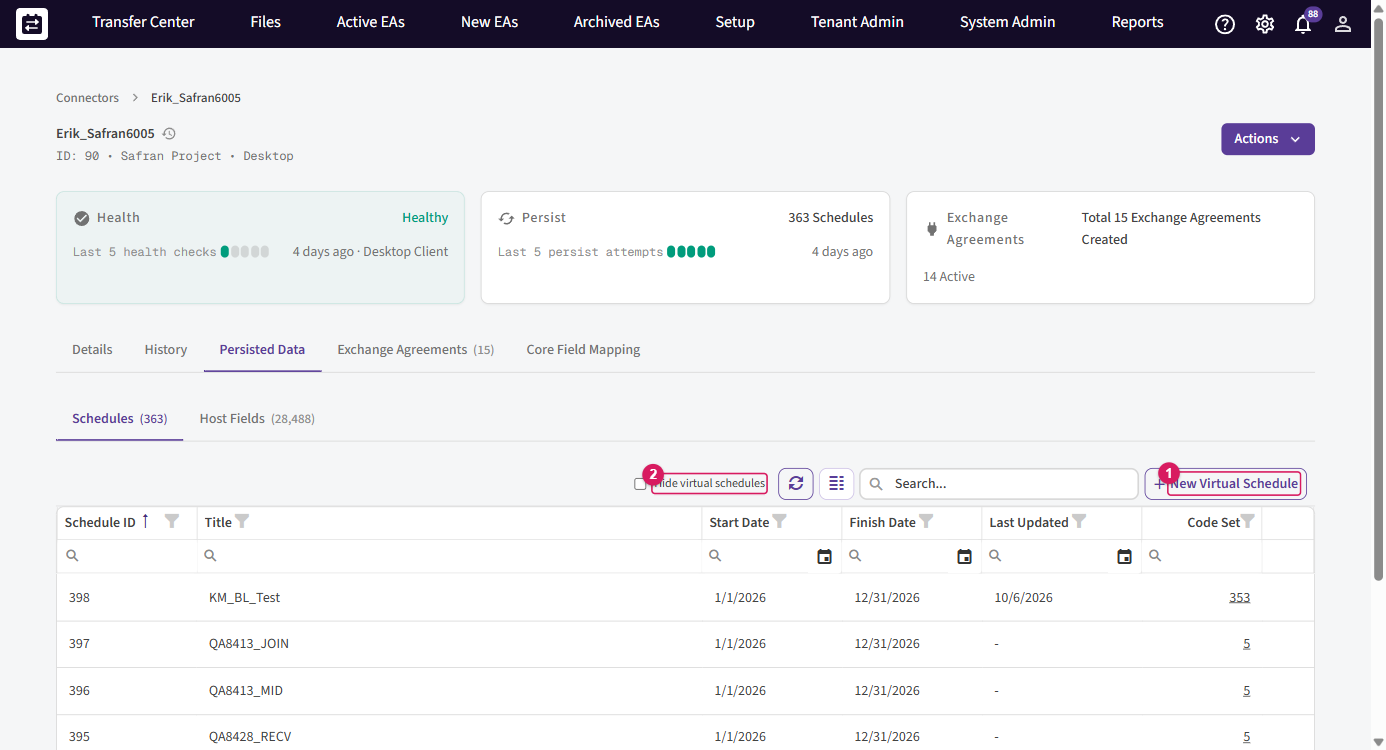
- New Virtual Schedule — starts the three-step wizard. The button is only on Safran connectors, and its tooltip reminds you: "A virtual schedule helps to transfer multiple schedules together by grouping them with an enterprise field."
- Hide virtual schedules — a filter switch. Turn it on to show only your real Safran projects and hide the grouped ones.
How to recognise a virtual schedule
A virtual schedule looks like a normal schedule but is marked in three ways, so you always know you are grouping rather than sending a single project:
- A blue Virtual chip next to its name — shown everywhere a schedule is listed: the connector's schedules list, the Schedule tab of a Config, and the Schedule identifier on an Exchange Agreement.
- A Schedule ID that starts with
Virtual_(for exampleVirtual_21081) - whereas a real Safran project has a plain numeric ID. - No start or finish date of its own, because it stands for several projects rather than one.
Create a virtual schedule
Select New Virtual Schedule to open the wizard. It has three steps: Name → Host Fields → Filter Enterprise Fields.
Step 1 — Name
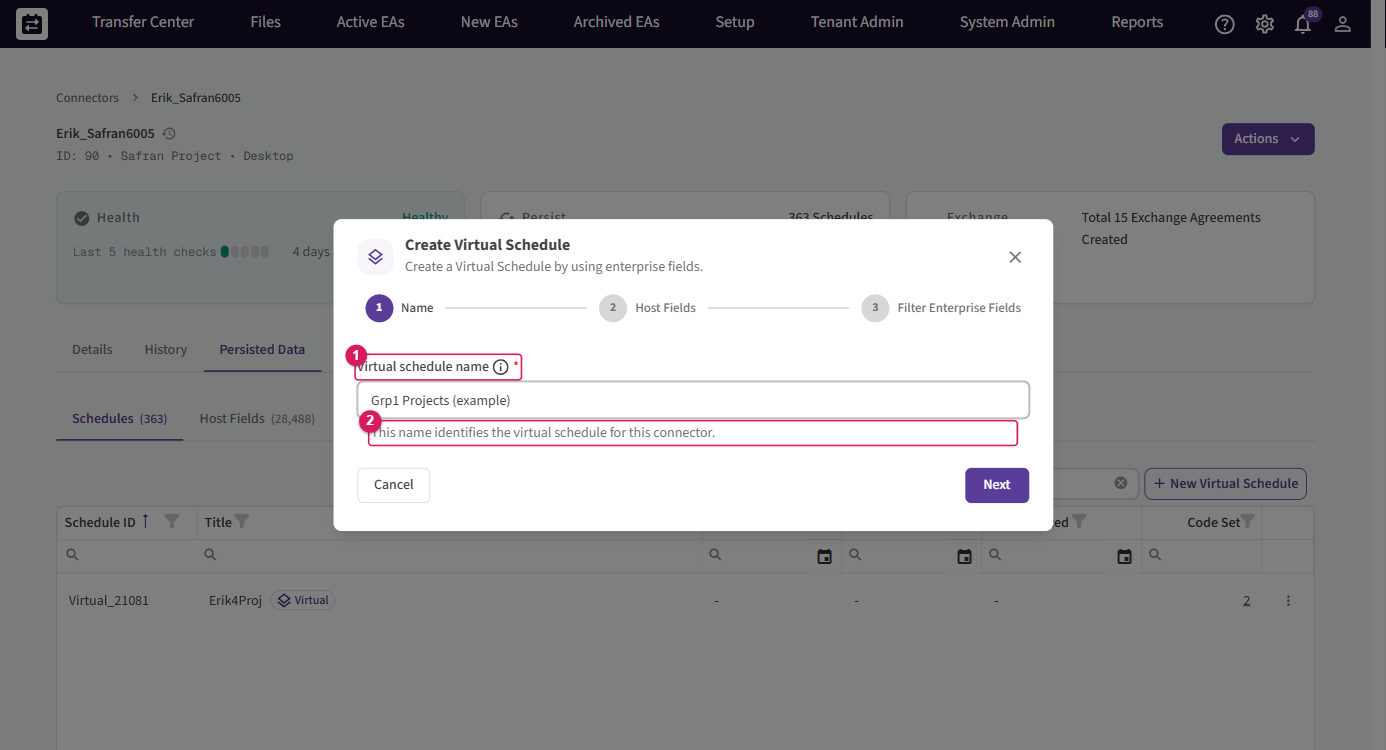
Enter a Virtual schedule name. This is how the grouped schedule is identified for this connector, so choose something a colleague will recognise — for example the programme or project group it represents. The name must be filled in before Next becomes available, and it must be unique on the connector.
Step 2 — Host Fields
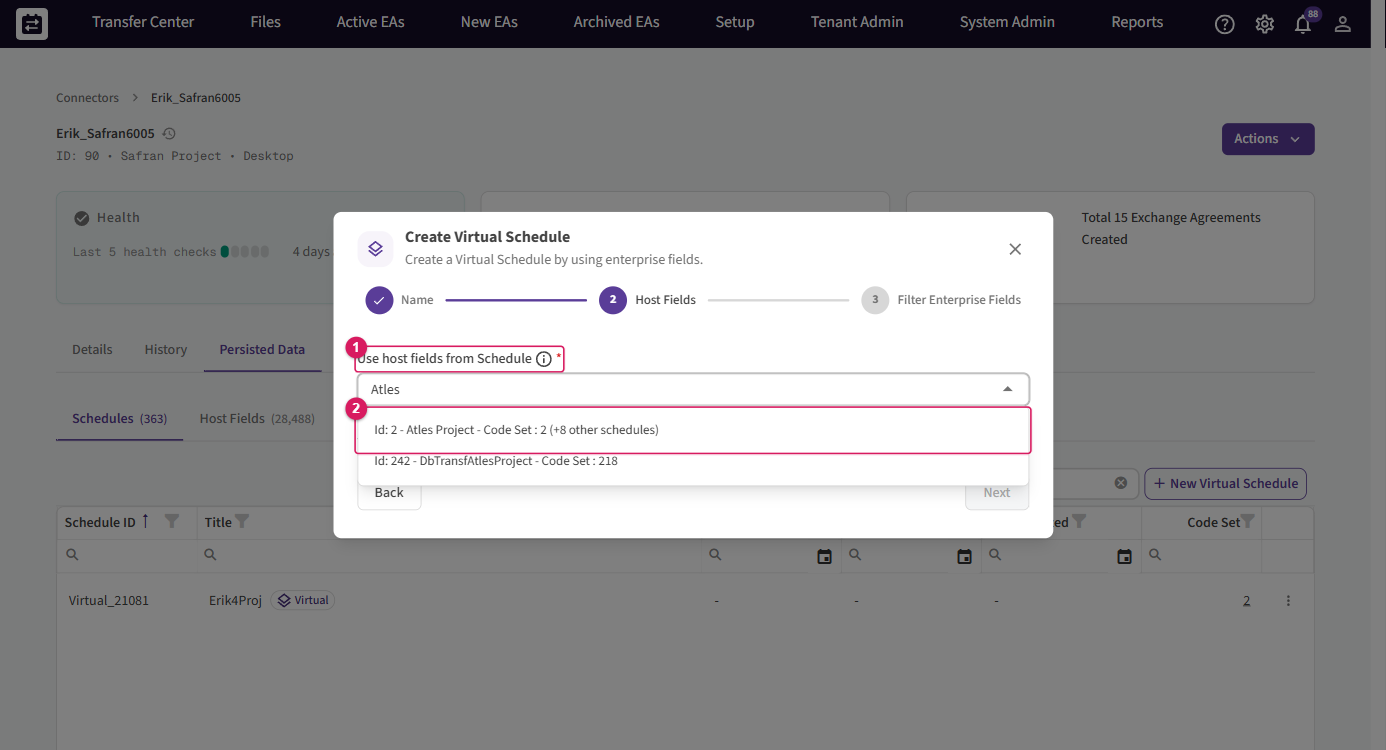
- Use host fields from Schedule — pick one real Safran project to act as the base. Its host fields (its code set) become the base for the group. Each entry shows its code set and how many other schedules share it, for example "Id: 2 — Atles Project — Code Set : 2 (+8 other schedules)".
- The helper text makes the key point: "The host fields of the selected schedule are the base. Schedules with different host fields are also grouped when they match the filter." You do not have to pick a project that already contains every field — SchedEx merges fields of the same name across all matching projects (see How a grouped transfer works).
Note: Grouping now works even when the matching projects use different code sets — the fields are merged by name whichever base you pick, so this choice has little practical impact on the result. Because of that, this step is planned to be removed in an upcoming release: you will no longer pick a base schedule, and a group will freely span projects with different code sets. For now, simply select any one of the matching schedules and continue.
Step 3 — Filter Enterprise Fields
This is where you describe which projects to group.
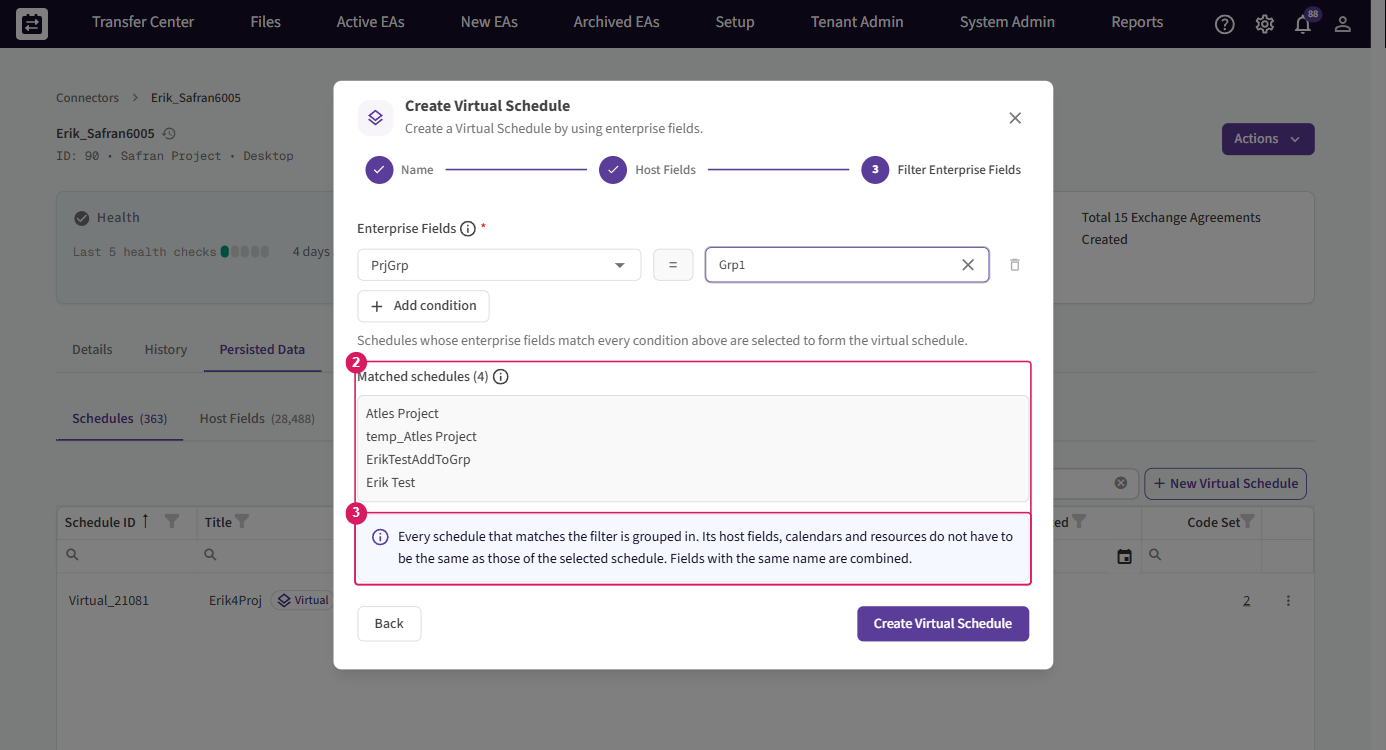
- Choose an enterprise field, keep the operator = (equals), and choose a value. In the example above the condition is Project Group (PrjGrp) equals Grp1.
- Matched schedules updates live as you build the filter. It lists every persisted Safran project that currently matches — here four projects (Atles Project, temp_Atles Project, ErikTestAddToGrp, Erik Test).
- The note confirms how merging works: "Every schedule that matches the filter is grouped in. Its host fields, calendars and resources do not have to be the same as those of the selected schedule. Fields with the same name are combined."
To narrow the group further, select Add condition. Extra conditions are combined with AND, so a project must match every condition to be included.
Select Create Virtual Schedule to save. The new schedule appears in the list with a Virtual chip.
Tip: The filter is matched against the enterprise-field values that were read the last time the connector was persisted. If you add a new Safran project, or change a project's enterprise field, persist the connector again so the group picks it up.
Tip: Choose the filter value from the list rather than typing it. Matching is exact and case-sensitive and compares the project's stored reference code, so picking from the list guarantees the right value. A typed value that differs by case or spelling simply matches nothing.
Check the matched schedules
Open a virtual schedule's row menu and choose View Details to see exactly what the group resolves to.
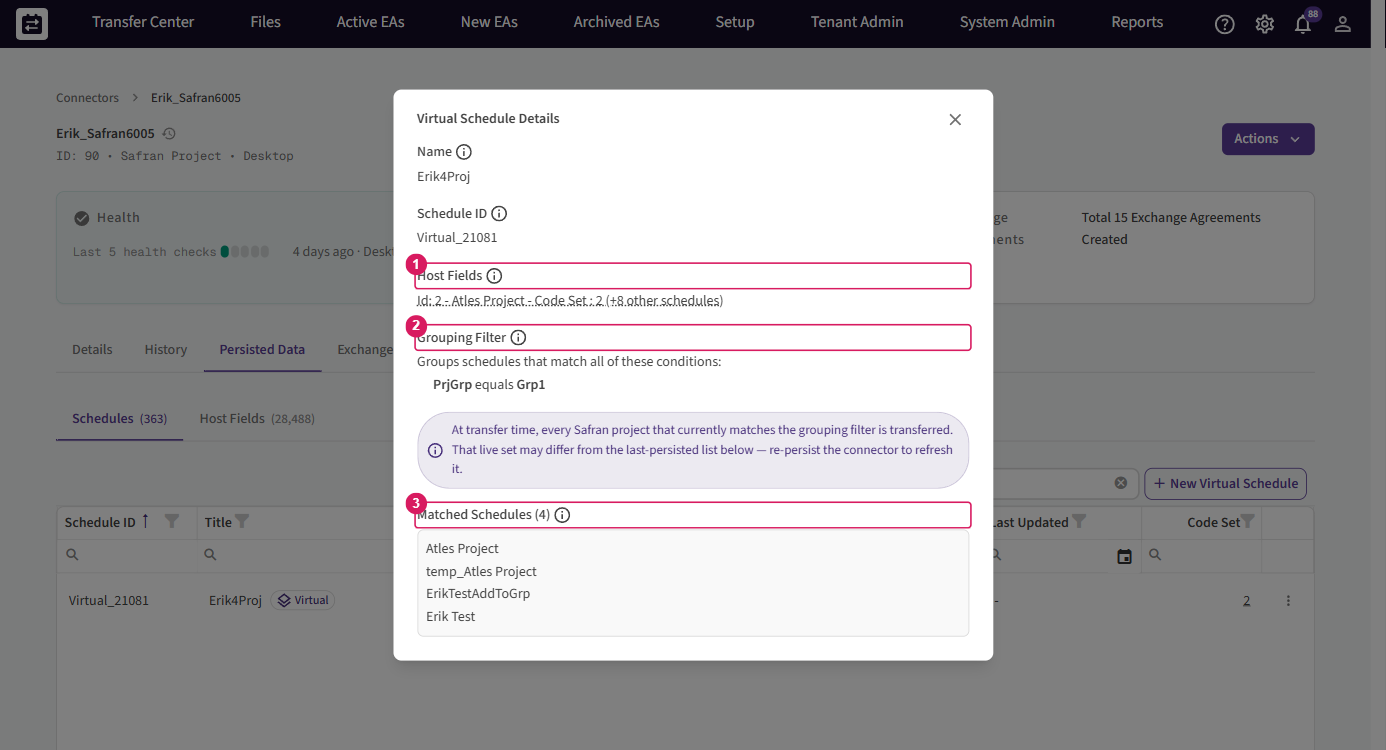
- Host Fields — the base schedule and code set, with a count of the other schedules combined into it (for example "Atles Project — Code Set : 2 (+8 other schedules)").
- Grouping Filter — the conditions in plain language ("Groups schedules that match all of these conditions: PrjGrp equals Grp1").
- Matched Schedules — the projects that currently match.
Important: The note in this dialog is the one rule to remember — "At transfer time, every Safran project that currently matches the grouping filter is transferred. That live set may differ from the last-persisted list below — re-persist the connector to refresh it." The number you see here is the last-persisted preview; the transfer itself always uses the live set of matching projects at the moment it runs.
View, edit or delete a virtual schedule
Each virtual schedule row has a menu (the ⋮ button at the end of the row).
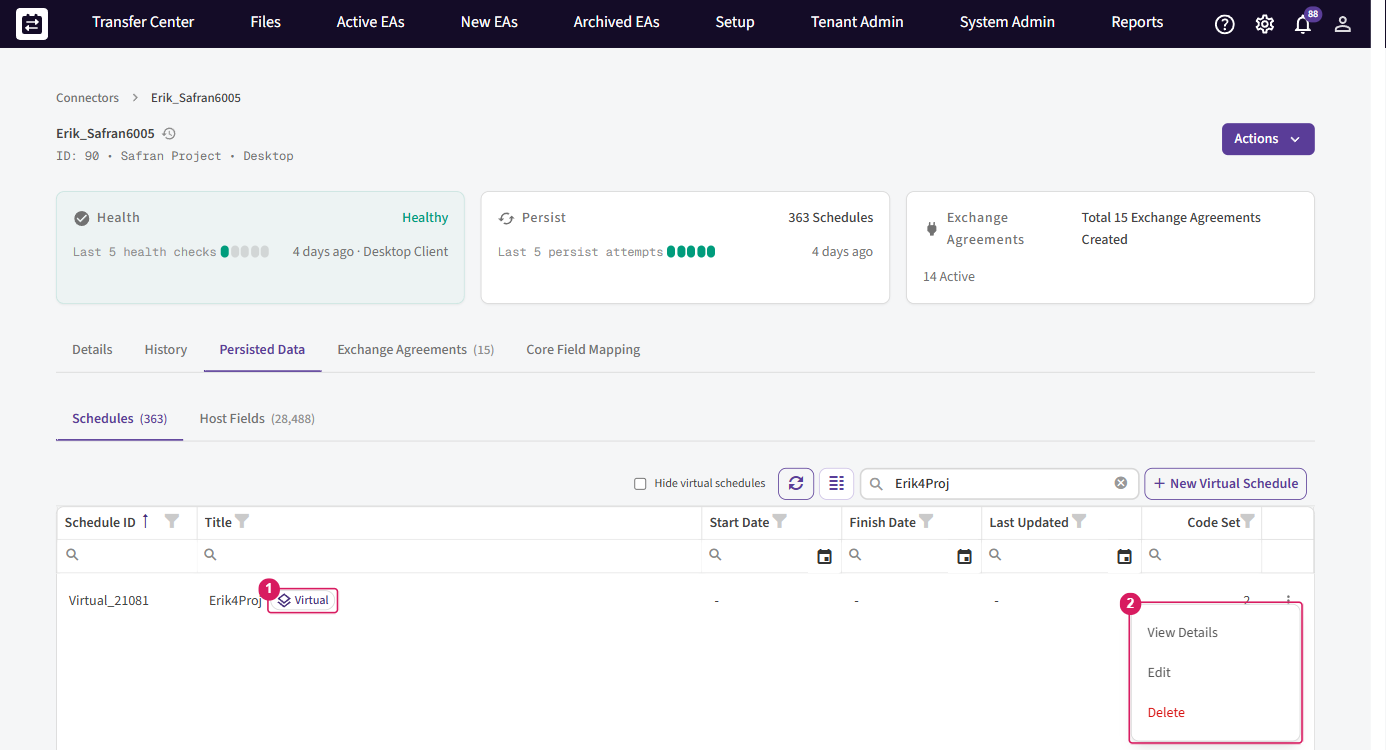
- View Details — opens the read-only details dialog shown above.
- Edit — reopens the wizard so you can rename the schedule, change the base host-fields schedule, or adjust the grouping filter.
- Delete — removes the virtual schedule.
Warning: Deleting or re-filtering a virtual schedule changes what every Config and Exchange Agreement built on it will send. Before you change the filter, check which agreements use the schedule — a project you remove from the group stops being transferred, and a project you add starts being transferred on the next run.
Note: You cannot delete a virtual schedule while it is still in use. If it is linked to an Exchange Agreement, SchedEx blocks the delete with "We couldn't delete this schedule because it's linked to N exchange agreement(s). Please detach it from all of them first." The same applies if it is used in a Config: "…it's used in one or more connector configs. Please remove it from all configs first." Detach it from every agreement and Config first, then delete. (Deletion is the only one of these actions that is permanent.)
Use a virtual schedule in a Config and an Exchange Agreement
A virtual schedule is selected the same way as a normal schedule — you do not configure anything special on the agreement itself.
- Create or open a sending Config on the Safran connector. Where you choose the schedule, pick the virtual schedule — it carries the same blue Virtual chip so you can tell it apart from a single project. The Config's mapping is built against the combined fields of all the grouped projects (see Mapping fields from different code sets in the Config).
- Create an Exchange Agreement that uses this Config as the sender (owner) side, and set up the receiver side as usual for the partner's host system.
- On the agreement's Exchange Agreement info tab, the sender's Schedule identifier shows the virtual schedule (for example "Id: Virtual_21081 — Erik4Proj") with a Virtual chip. That is your confirmation the agreement will send the whole group.
- Run the transfer as normal — On demand or on a schedule. One run sends every matching Safran project in a single package.
Tip: Because all the projects travel in one Exchange Agreement, you also monitor them as one: a single row in the Transfer Center, one transfer history, one status.
Mapping fields from different code sets in the Config
In the Config's Direct Mapping tab, each row maps a Destination Field to a Source Field (alias) — the source column shows the Safran coding field together with its alias.
For a virtual schedule, the Source Field (alias) list is the merged set of coding fields across all the grouped projects, not just the base project's. This matters when the projects use different code sets:
- Same field, different projects. A coding field with the same name in several projects appears once in the list. You map it a single time, and the mapping applies to that field in every project — even if each project labels it with a slightly different alias, since SchedEx combines same-named fields.
- A field only one project has. A coding field that exists in only one of the grouped projects still appears in the list, so you can map it. Projects that do not have that field simply have no value for it.
- What you map against. You always map against the field (by name/alias), never against a specific project. There is one mapping per field for the whole group.
So you build the mapping once, against the combined field list, and it covers every project the virtual schedule groups.
Note: If a field you map has different aliases (names) in the grouped projects' code sets, SchedEx warns you before saving — the Config shows "Fields have different aliases … Check that each field means the same in every project. Do you want to save?", and creating the Exchange Agreement shows the equivalent "Structures have different aliases …". This is a prompt to confirm the fields really mean the same thing in every project, not an error — if they do, save to continue.
How a grouped transfer works
You do not have to manage any of this, but it helps to know what SchedEx does when a grouped transfer runs:
- Live project set. SchedEx asks Safran which projects currently match the filter, and reads each of them. That set — not the last-persisted preview — is what gets sent.
- One base, everything merged by name. The first matching project is the base. Coding fields, calendars, resources and profiles from the other projects are combined into it by name, so anything an activity relies on is present in the package. See Different code sets, calendars, resources and profiles for how each kind is handled.
- Codes kept unique with a project prefix. Two projects in the same group can legitimately use the same activity code (both might have an activity
112). If they went into one package unchanged they would collide. To prevent that, SchedEx adds the source project's id to the front of each activity code, for example500_112—500is the project (network) id and112is the original code. Activities from different projects therefore become distinct, uniquely named items in the combined package, and the receiving system sees them as separate activities. The prefix is added after any mapping formula you set on the code, and only to the project-specific objects (activities and their links); shared objects such as calendars and resources are not prefixed. On a round-trip back into Safran the prefix is stripped so the activity keeps its real source code — see the round-trip guide. - Deletions tracked per project. If a project drops an activity, SchedEx records the deletion against that project so the receiver removes the right item — not the whole group.
- All-or-nothing read. If any one of the matching projects cannot be read, the whole grouped transfer fails rather than sending a partial package. Fix the failing project and run again.
Different code sets, calendars, resources and profiles
The projects in a group do not have to use the same code set, calendar set, resource set or profile set. SchedEx reconciles them by name into one package, so nothing an activity depends on is lost. A set difference is never an error — it is simply noted in the transfer log.
| In the group | What SchedEx does |
|---|---|
| Coding fields / code sets | Fields from all the grouped code sets are combined, matched by name, and every field's values are unioned — so an activity in any project can use a value from any project, and nothing loses its coding at the destination. If the same field is labelled differently (a different alias) across code sets, SchedEx keeps the values together and warns you when you save the Config or create the agreement (see Mapping fields from different code sets in the Config). |
| Calendars | A calendar with the same name and the same definition is included once. If two projects have a calendar with the same name but a different definition, SchedEx keeps them apart by prefixing the calendar-set id to the name — for example 5_Monday and 7_Monday — so neither project's working time is lost. |
| Resources | A resource with the same name is sent as one resource. If the same name exists in more than one resource set, the resource-set id is prefixed to its display name (for example 10_Crane, 20_Crane) so the two stay distinct. Resource assignments travel with their activity. |
| Profiles | Profiles are matched and merged by name across the projects; their assignments are preserved. |
Because everything is reconciled by name, two projects that each define a calendar, resource or coding value of the same name and definition contribute one combined entry. Where the definitions genuinely differ, SchedEx disambiguates with a set-id prefix rather than silently overwriting one — which is why the wizard tells you the projects' "host fields, calendars and resources do not have to be the same".
Tip: Avoid editing a shared code set while a grouped transfer is running. If a coding field is changed between two projects being read in the same run, a rarely-used nested coding value can be left out of that run (SchedEx logs it; nothing is corrupted). Re-run the transfer once the change has settled.
What works and what does not
Works
- Grouping many Safran projects into one schedule, one Config and one Exchange Agreement.
- Projects that use different values for the same coding fields — the values are merged, so no activity loses its coding at the destination.
- Projects that use different code sets, calendar sets or resource sets — they are reconciled by name, with a set-id prefix applied only where two same-named items genuinely differ.
- Projects that are added, changed or removed in Safran between runs — the live set is re-evaluated every transfer (re-persist to refresh the preview).
- Sending the group to any supported receiving host system (Safran, P6, Analytics, and so on).
Does not work
- Grouping projects by project group membership directly. Grouping is by enterprise-field query only today; grouping by project group is planned for a future release.
- Mixing host systems in one virtual schedule — it groups Safran projects only.
- Using a virtual schedule outside of SchedEx's normal transfer flow.
Constraints and limitations
| Area | Constraint |
|---|---|
| Host system | Safran only. The feature and the New Virtual Schedule button are available on Safran connectors. |
| Client version | Running a grouped transfer needs desktop client / Autonomous Client 2.15.0.0 or later. Older clients refuse the transfer. |
| Grouping method | Enterprise-field queries only. Multiple conditions are combined with AND. Grouping by using Safran's own "project group" concept is a planned future feature. |
| Code sets | Grouped projects may use different code sets; fields are merged by name. The base-schedule choice (step 2) has little practical impact and is planned to be removed in an upcoming release. |
| Live vs preview | The Matched Schedules list is the last-persisted preview. The transfer uses the live matching set — re-persist to refresh the preview. |
| Name | A virtual schedule name must be unique on its connector. |
Avoiding common errors
| If you see… | It means… | Do this instead |
|---|---|---|
| No New Virtual Schedule button | The connector is not Safran, or you lack setup rights | Virtual schedules are Safran-only. Open a Safran connector with a setup role. |
| "Select a Code Set from a persisted schedule. Persist the connector first if no schedules exist." | The connector has never been persisted, so there is no code set to build on | Persist the connector once, then create the virtual schedule. |
| "A schedule with this name already exists on the connector. Choose a different name." | The name is already used on this connector (names are checked without case) | Enter a unique name. |
| "A grouping filter is required for a virtual schedule." | Step 3 has no complete condition | Add at least one complete condition (field, equals, value). |
| Matched schedules is empty, or "No source projects matched the virtual schedule's grouping filter, so there is nothing to transfer." | No persisted project matches the filter | Pick the value from the list (matching is case-sensitive); re-persist the connector to refresh the values, then check again. |
| A project you expected is missing from the group | It was added or re-classified in Safran after the last persist | Re-persist the connector, then re-open the details to confirm it now matches. |
| "Failed to fetch source project … The Virtual Schedule transfer is aborted with no partial transfer, so no destination data is changed." | One matching project could not be read | Open the transfer error, fix the failing Safran project, then run again. The transfer is all-or-nothing on purpose. |
| "Virtual schedule transfer stopped: schedules … contain objects that share a single identity across them …" | Two projects in the group are copies of each other and share objects that were already transferred | Narrow the grouping filter so the group includes only one of those projects, or use an activity filter so each duplicated activity is in only one project. Then run again. |
| "Uploading a virtual schedule requires client version 2.15.0.0 or later. Please update your client." | The desktop / Autonomous client is below 2.15.0.0 | Update the client to 2.15.0.0 or later and re-run. |
When things look empty or blocked
- The schedules list has no Virtual rows. None have been created yet, or Hide virtual schedules is switched on. Turn the switch off, or create one with New Virtual Schedule.
- The wizard will not let you continue. Each step has a required field: a name on step 1, a base schedule on step 2, and at least one complete condition on step 3. Create Virtual Schedule stays disabled until the filter has at least one complete condition.
- You cannot see the button at all. You do not have a setup role on the connector's tenant. Ask a Tenant Admin to create the virtual schedule, or to grant you the role.
Related guides
- Round-trip write-back for grouped Safran schedules — the return leg that writes each activity back into its original Safran project.
- Glossary — shared SchedEx terms (Tenant, IEA, Config, Data Transfer).
Was this article helpful?
That’s Great!
Thank you for your feedback
Sorry! We couldn't be helpful
Thank you for your feedback
Feedback sent
We appreciate your effort and will try to fix the article