TABLE OF CONTENTS
- Introduction
- Production version deployment from Windows Store
- UAT (User Acceptance Test) version deployment from Windows Store
- Access to deploying previous versions (Tenant Admin only)
Introduction
Before describing how to install the Desktop Client, you should first get a chance to know more about what this software is and how to use it: How to use the Desktop Client.
Your organization will most likely have its own way of deploying the ILAP Desktop Client using Microsoft Intune, and in such case this article is not relevant - you are already set!
However, If this is not the case, you can deploy them from MS Store for each of the environments:
Production version deployment from Windows Store
Open MS Store and press the "download button" to deploy from there.
UAT (User Acceptance Test) version deployment from Windows Store
Open MS Store and press the "download button" to deploy from there.
Access to deploying previous versions (Tenant Admin only)
If you have the role as Tenant Admin, you will be able to access previous versions (.msi files) of the software from the menu: Follow the red numbers in sequence 1->2->3 and you will see list of all previous versions - more info here.
Note that there are 2 other related components (see 4 and 5 below) that your IT department can deploy (Autonomous Component and ILAP Analytics):
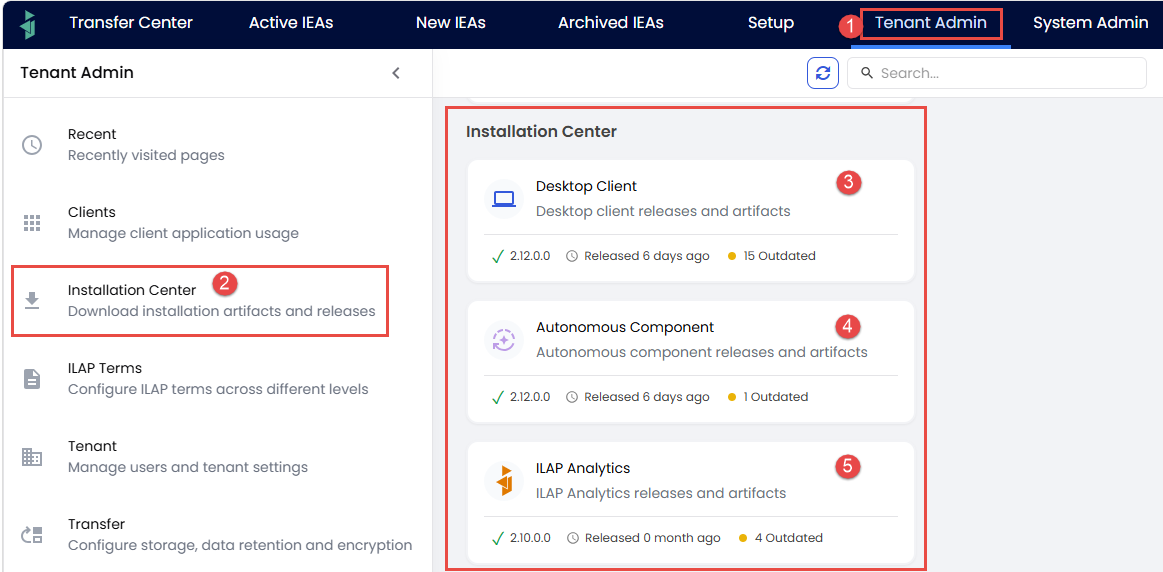
Screenshot showing how to install previous versions of the Desktop Client (msi).
Was this article helpful?
That’s Great!
Thank you for your feedback
Sorry! We couldn't be helpful
Thank you for your feedback
Feedback sent
We appreciate your effort and will try to fix the article