TABLE OF CONTENTS
- Introduction
- The words used here
- Who connects to your planning system
- Persist: the project list SchedEx keeps
- Upload: only the chosen schedule is read
- Choosing which activities are sent
- Choosing which fields are sent
- What else travels with the file
- How the transfer file is protected
- What SchedEx stores in the cloud, and for how long
- Web storage: the whole file is stored
- By planning system
- What you control: a checklist
- Questions people ask
- Who can do this
- Related articles
1. Introduction
When an organization is asked to join SchedEx, a common first worry is: "If we connect our planning system, will SchedEx, or our partner, get all our projects?" The answer is no. This article explains, step by step, what SchedEx reads from your planning system, what it sends to your partner, what it stores in the cloud and for how long, and what you control at each step. It ends with a section per planning system.
It is for anyone who must decide whether their organization can use SchedEx: project and planning managers, IT and security reviewers, and Tenant Admins. You do not need to know SchedEx to read it. New words are explained where they first appear and in the Glossary.
The short answer:
- SchedEx's cloud never connects to your planning system. A SchedEx program that runs in your own network does, with an account that you choose.
- To let you pick a project, SchedEx keeps a list of the projects that account can see (ID, name, dates) and of the field names. It never keeps their activities.
- A transfer sends one schedule: the one named in the agreement you signed with your partner. Within it, you decide which activities are sent (filters) and which extra fields are sent (mapping). Only the standard schedule fields, called Core Fields, go without mapping.
- The data is encrypted in your network for the receiving partner only, before it leaves. SchedEx stores only that encrypted file, and deletes it after the receiver's retention period (7 days for new organizations).
- One exception: when you hand SchedEx a whole file through web storage, the whole file is stored, encrypted, until your file retention deletes it.
2. The words used here
| Word | What it means |
|---|---|
| Planning system (host system) | The tool where your schedule lives: Primavera P6, Safran, SAP, Microsoft Project, Excel, ILAP Analytics, your own system behind a REST API, or files. |
| Connector | The connection details SchedEx uses to reach one planning system, including the account it signs in with. It belongs to your organization only. |
| Exchange Agreement (EA) | The agreement between you and one partner: which schedule is sent, how often, and who is responsible on each side. Both sides sign it before anything is sent. |
| Config | The rules for one side of an agreement: which fields are sent or received and how they are translated (mapping). |
| Core Fields | The standard schedule fields that every transfer carries: IDs, names, dates, durations, hours, progress, links, calendars and resource assignments. |
| SchedEx Terms | Extra fields that the two partners agree on, for example a discipline or an area code. Your Config decides which of your own fields fills each Term. |
| Upload / download | Upload: the sender's side reads its schedule and sends it. Download: the receiver's side writes it into its own planning system. |
3. Who connects to your planning system
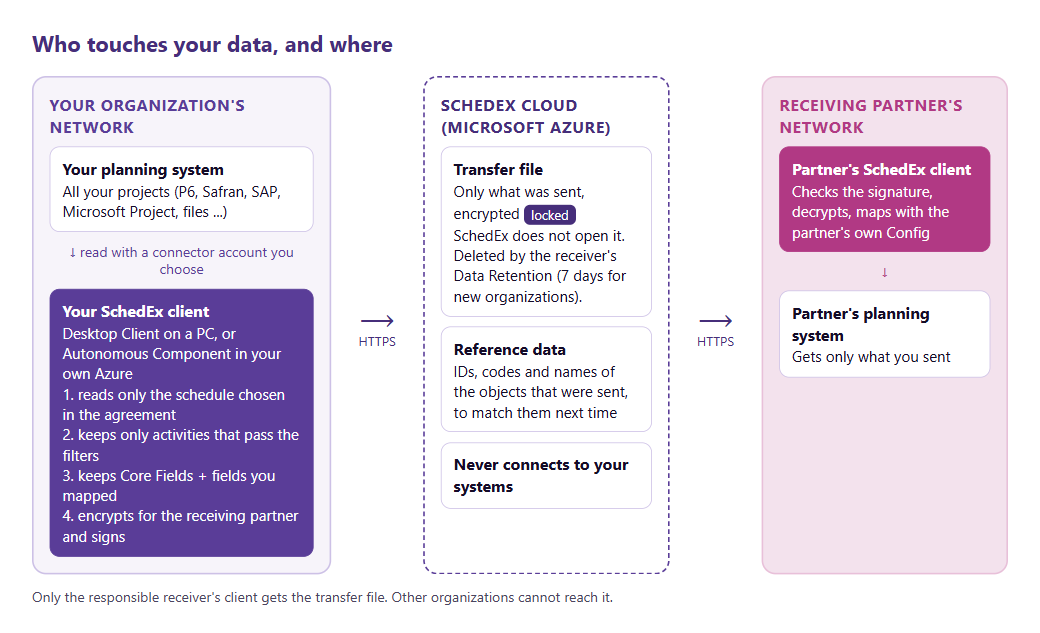
Only your own SchedEx client talks to your planning system. The cloud only holds the encrypted result.
Two SchedEx programs can read and write your planning system. Both run where you decide:
- The Desktop Client, a Windows program on a planner's PC.
- The Autonomous Component, which your IT department deploys in your own Microsoft Azure subscription, for transfers that run without a person.
They sign in to your planning system with the account set on the connector. That account sets the outer limit: SchedEx can never read a project the account cannot open. Use an account that can open only the projects you plan to exchange.
The SchedEx cloud (on Microsoft Azure) never connects to P6, Safran, SAP or your folders. It runs the website, keeps the agreements, and passes the encrypted transfer file from sender to receiver.
4. Persist: the project list SchedEx keeps
To choose a schedule when you set up an agreement, SchedEx must know which schedules exist. A person in your organization therefore runs Persist on the connector. (Connectors that the Autonomous Component uses are also persisted once a day.) Persist only reads; it never writes to your planning system.
| Persist stores | Persist never reads or stores |
|---|---|
|
|
The list belongs to your connector, so only your organization sees it. Your partner does not see your connectors or the list. If a project should not even appear in the list, remove it from what the connector account can see. Details per system: Testing and persisting a connector.
5. Upload: only the chosen schedule is read
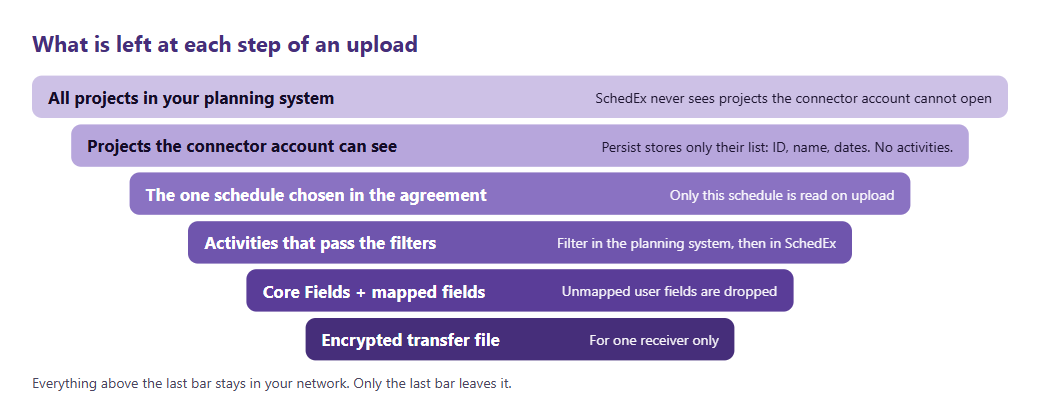
Each step leaves less data. Only the last step leaves your network.
Each agreement names one sending schedule, chosen from the persisted list and signed by both sides. When a transfer runs, your client reads only that schedule (or, for a Safran virtual schedule, the Safran projects it groups: those that match the enterprise-field filter you set on it). It does not read your other projects. The schedule cannot be changed on an existing agreement. To send another project, a new agreement is needed, and both sides sign it.
The rest of the work also happens in your client, in your network, in this order:
- Filter: keep only the activities you want to send.
- Map: keep the Core Fields, and add only the fields your Config maps to SchedEx Terms.
- Check: run your validation rules, which can stop the transfer.
- Encrypt and sign: lock the result for the receiving organization.
- Upload: send the encrypted file to SchedEx over HTTPS.
6. Choosing which activities are sent
The sending side sets an activity filter on the agreement. There are two levels:
| Level | Where it runs | Effect |
|---|---|---|
| Source filter (in the planning system) | Your planning system applies it while SchedEx reads. | Activities that do not match are never read at all. Offered for Primavera P6 (Web Service and REST API), Safran, and SAP (the order filter). |
| Model filter (in SchedEx) | Your client applies it to the activities it has read, before anything is sent. | A formula, for example "not canceled and discipline is E". Offered for every planning system. Activities that fail it are not sent. |
An activity is sent only if it passes both. The resource assignments of an activity that is left out are left out with it. The upload log tells you how many activities were included and excluded, and shows the filter that was applied. How to set it up: Defining an upload filter for an Exchange Agreement.
Good to know: to tell "left out by the filter" apart from "deleted in your schedule", your client also sends SchedEx the internal IDs (and, for activities, the activity codes) of all activities, links and resource assignments in the chosen schedule. It does not send names, dates or other content. SchedEx uses this list only to compare it with what was sent before; it does not store it. This list goes only to SchedEx, not into the transfer file, so your partner never receives or sees it. Only real deletions are passed on to the receiver.
7. Choosing which fields are sent
- Core Fields are always sent. Your client fills them from the standard fields of your planning system: IDs and names, activity type, planned, early, late and actual dates, durations, work hours, progress, float, constraints, calendars, links and resource assignments. What exactly fills each one depends on the planning system (see By planning system). You can replace the default with your own formula in the Config, for example to send a fixed calendar instead of yours.
- Everything else is sent only if your Config maps it. User fields, UDFs, activity codes, outline codes, custom columns: none of them is sent unless a mapping in your Config puts it into a SchedEx Term. Your client may read more fields than it needs, but it drops every value that is not a Core Field or a mapped Term before the file is built. So it is your Config, not your partner's, that decides what leaves.
- The receiver decides what it writes. The receiving side has its own Config and settings. It can ignore what you send, but it can never ask for a field you did not map.
Your partner does not see this description. No SchedEx page shows it to the receiving organization. It is read only by the SchedEx support tools when someone investigates a transfer. One caveat: it travels inside the encrypted file, so the receiver's client decrypts it along with the schedule. If the receiver has switched on HTTP traffic logging in its client, the decrypted data, including this description, is written to that client's local log folder.
Only a Tenant Setup user of your organization can change your Configs, and every change is kept in the change history.
8. What else travels with the file
Inside the encrypted file, your client also adds a short technical description of the transfer, for troubleshooting:
- the agreement and transfer, and the time of the upload
- which user and organization sent it, and with which program and version
- the sending planning system, its version, the project name and schedule ID
- the address of the sending connector (for example your P6 server's URL); never its password or secret
- the activity filter that was applied
- for a Safran virtual schedule: the names and project-level field values of the projects it groups
9. How the transfer file is protected
- Encrypted before it leaves your network. Your client gives each file its own random key (AES, 256-bit) and locks that key with the receiving organization's public key (RSA, 2048-bit). Only the receiving organization's private key can open it.
- Signed by your organization. The receiver's client checks the signature first. If the file was changed, nothing is written.
- Handed out to one receiver only. SchedEx gives the file only to the responsible person or Autonomous Component of the receiving side of that agreement. Every request is checked against the caller's organization, so no other organization can reach it.
- Not opened in the cloud. SchedEx stores the file exactly as uploaded. No page, including the System Admin pages, opens it.
To be complete: SchedEx creates the key pairs and keeps the private keys in its own Azure Key Vault. It releases them only to your organization's signed-in clients, for transfers you are responsible for. This protects against anyone who gets access to the storage. It is not the strictest kind of end-to-end encryption, in which only your own devices ever hold the key. Encryption also needs an active key in both organizations; otherwise the file is sent unencrypted and both logs show a warning.
10. What SchedEx stores in the cloud, and for how long
What SchedEx keeps of a transfer is what was sent, in SchedEx's own standard exchange format (one model for every planning system). It never keeps a copy of your whole project.
| What | Content | How long |
|---|---|---|
| Transfer file | Only what was sent: the filtered activities with their Core Fields and mapped Terms. Encrypted. | Deleted by the receiving organization's Data Retention setting: 7 days for new organizations. The receiver's Tenant Admin can change the days or switch deletion off. |
| Reference data | For each object that was sent: its ID, code and name, so the next transfer updates the same object at the receiver | As long as the agreement needs it |
| Transfer history and log | Status, times, counts, who ran it, and the log messages (which can name activities) | As long as the agreement exists |
| The persisted list | Schedule IDs, names and dates, and field names (see Persist) | Until the next persist, or until you delete the connector |
Not stored anywhere in SchedEx: your other projects, activities left out by the filter, and fields you did not map. Your own logs and the optional Storage at Home copy are kept in your own systems, not in SchedEx's cloud.
Note: the files you send are kept as long as your partner's Data Retention says. If your policy needs a short cloud lifetime, agree on it with your partner.
11. Web storage: the whole file is stored
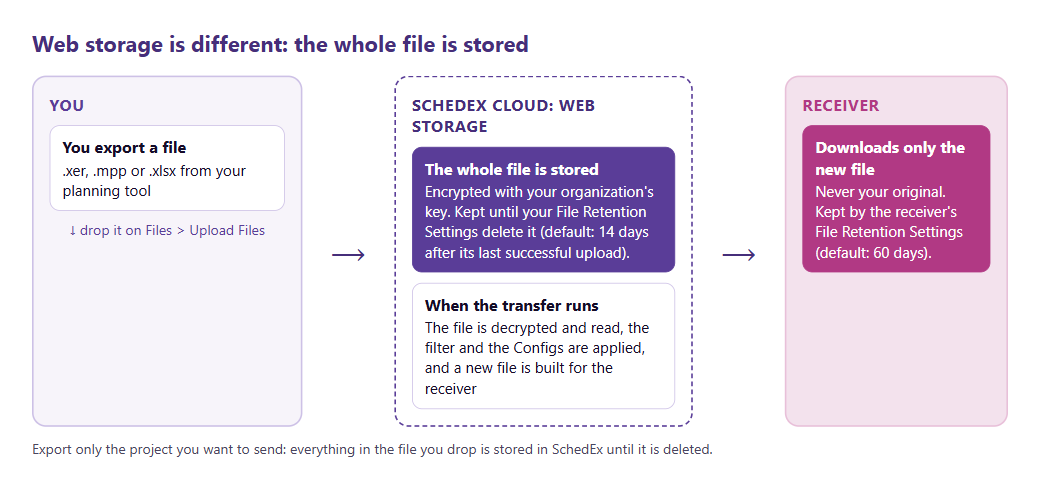
With web storage, SchedEx keeps your whole file until your file retention deletes it.
Some connectors do not talk to a planning system. You export a file (.xer from P6, .mpp from Microsoft Project, or a SchedEx Excel workbook) and drop it on Files > Upload Files. This is called web storage, and here the rules above change:
- The whole file is stored in SchedEx's cloud, not only what is sent. If the file holds more than you want to share, SchedEx still stores all of it.
- It is encrypted with your organization's key. When the transfer runs, it is decrypted and read, the filter and Configs are applied, and a new file is built for the receiver. So, unlike a transfer file, a web-storage file is opened by SchedEx while it is used.
- The receiver gets only the new file built for them, never your original.
- Your File Retention Settings delete it, by default 14 days after its last successful upload. A received file is deleted by the receiver's settings, by default 60 days after a successful transfer and only once someone has downloaded it. A Tenant Admin can change both.
What to do: export only the project you want to send. See File-based drop point transfers (web storage) and Managing stored files and file retention.
Files that your client reads from your own folder or SharePoint (not web storage) are not stored by SchedEx: for those, the normal rules above apply.
12. By planning system
The table sums up, per sending planning system, what goes without mapping, what needs mapping, and where you can filter. The linked article for each system lists every Core Field and where its value comes from.
| Sending system | Sent as Core Fields (no mapping needed) | Sent only if your Config maps it | Filter in the planning system | Filter in SchedEx |
|---|---|---|---|---|
| Primavera P6 (Web Service, REST API) | Project ID, name, start, finish, data date. Activities: ID, name, type, constraint, early, late and actual dates, durations, labor units, percent complete, float, calendar. Relationships, resource assignments, the calendars used, and the WBS. | Activity UDFs, activity codes, project codes and UDFs, and any other P6 field | Yes: activity fields with =, not =, <, >, <=, >=, like. Not codes or UDFs. | Yes (can use codes and UDFs) |
| Primavera P6 XER file | The same as P6, read from the file | The same as P6 | No: the file is read as a whole | Yes |
| Safran | Project, activities, relationships, resource assignments, calendars. Which dates and quantities depends on the Export Scope setting. | Activity user fields (uf_…) and enterprise fields (euf_…) | Yes: "equals" only, each field once. Needs Safran API 7.3.1.02 or later. | Yes |
| SAP | The operations of the selected maintenance orders become activities, with their dates and work. One resource for the hours. No calendars, links or structures. | Other order and operation fields | Yes: the order filter (SAP's own syntax) decides which orders are read | Yes: the operations filter |
| Microsoft Project | Project, tasks, links, work-resource assignments, the calendars used, the WBS. Summary tasks only if switched on. | Custom fields (extended attributes) and outline codes | No | Yes |
| ILAP Analytics | Report schedule, activities, links, resources, resource assignments, calendars, profiles, structures | The other fields of the report schedule type | No | Yes |
| Microsoft Excel | The Core Field columns you chose in the Excel Template: activities, resources, links, resource assignments. No calendars. | The columns you added for SchedEx Terms | No | Yes |
| Generic REST API | Schedule, activities, links, resources, resource assignments and calendars returned by your API | The custom fields your API offers | No (your API decides what it returns) | Yes |
| File Storage (.ilap files) | Almost everything in the file, which already uses the SchedEx model | The other properties in the file | No | Yes |
Core Field details per system: Primavera P6 · Safran · SAP · Microsoft Project · ILAP Analytics · Microsoft Excel · Generic REST API · File Storage.
13. What you control: a checklist
| You want to | Do this | Who |
|---|---|---|
| Make sure SchedEx cannot see a project at all | Don't give the connector account access to it | Your planning system administrator |
| Send one project and nothing else | Name that schedule in the agreement; both sides sign it | Tenant Setup and the agreement's representatives |
| Send only some activities | Set the agreement's activity filter (source and/or model) | The sending side's representatives |
| Send only some extra fields | Map only those fields in your Config; leave the rest unmapped | Tenant Setup |
| Make sure no one else can read the file | Keep an active encryption key, and ask your partner to do the same | Tenant Admin (both sides) |
| Keep data in the cloud for a short time only | Agree on the receiver's Data Retention; set your own File Retention Settings for web storage | Tenant Admin (both sides) |
| Stop all sending at once | Pause the agreement | The agreement's representatives |
14. Questions people ask
Can our partner see our other projects or the list of our projects? No. Your partner sees only the agreements you share with them. The persisted list belongs to your connector.
Can our partner change what we send? No. Only your side's representatives can change the activity filter, and only your Tenant Setup users can change your Config. Your partner cannot change the schedule either: that would need a new agreement, signed by both sides.
Can SchedEx staff read our schedules? Not in the application: transfer files are stored encrypted and no page opens them. For troubleshooting, support uses logs that you choose to send. Web-storage files are the exception described above.
Are our user fields sent if nobody maps them? No. They are dropped before the file is built.
We use the same P6 database for many partners. Does each partner get everything? No. Each agreement sends its own schedule, filtered and mapped by its own Config, encrypted for that one partner.
What do our own PCs keep? The Desktop Client writes logs on the PC. By default these include the HTTP traffic logs, which hold schedule data. Switch them off in Settings > Logging unless you are troubleshooting.
15. Who can do this
Everyone can read this article. A Tenant Setup user creates connectors, runs Persist, and builds Configs. The agreement's representatives (Application Users) set the activity filter and sign the agreement. A Tenant Admin manages encryption keys, Data Retention and File Retention Settings.
16. Related articles
Was this article helpful?
That’s Great!
Thank you for your feedback
Sorry! We couldn't be helpful
Thank you for your feedback
Feedback sent
We appreciate your effort and will try to fix the article