TABLE OF CONTENTS
- Introduction
- Where to find maintenance windows
- The two modes: transfers only or full system
- Planning a new maintenance window
- Starting maintenance right away
- Telling users: notices and reminders
- Changing, canceling or ending a window
- What users see
- What happens to transfers
- Window states
- Rules and limits
- Related guides
Introduction
Before an upgrade or other work on the platform, a System Admin can plan a maintenance window: a period when SchedEx does not start any transfers. You can also choose to keep every user out of SchedEx for the whole window.
This guide shows you how to:
- plan a maintenance window, or start one right away,
- choose whether the window blocks only transfers or the full system,
- tell users about it, with automatic reminders,
- change, cancel or end a window early,
- understand what users and transfers experience during and after the window.
Who can do this: only System Admins can plan and change maintenance windows. Other users only see the banner, the maintenance page and the notices.
Where to find maintenance windows
Open the System Admin dashboard. In the Deployment Center section, select the Maintenance card ("Plan platform maintenance windows").
The Maintenance page lists the windows. The newest windows come first: a window in progress, then planned windows (next start first), then windows that have ended.
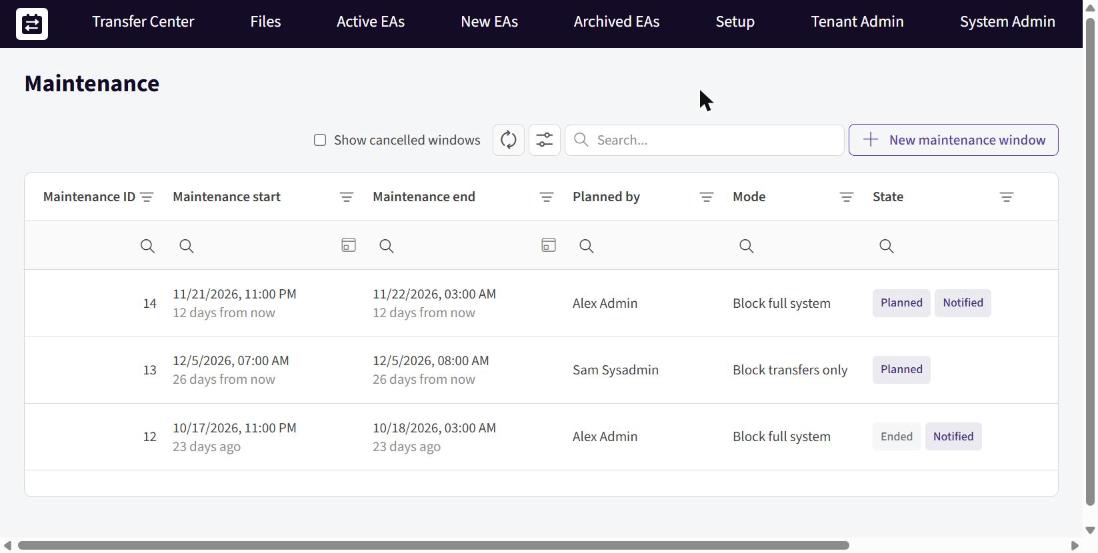
The Maintenance page: planned, running and ended windows, with their mode and state.
| Column | What it shows |
|---|---|
| Maintenance ID | The window's number. |
| Maintenance start / Maintenance end | When the window starts and ends, shown in your local time, with how far away it is (for example "12 days from now"). |
| Planned by | The System Admin who created the window. |
| Mode | Block full system or Block transfers only. |
| State | Planned, In progress, Ended or Canceled. A Notified chip shows when users have been notified (hover it to see when). |
Two more columns, Show banner (hours before start) and Reason (the most recent reason given for the window), are hidden at first. You can show them from the grid's column chooser. Canceled windows are hidden until you turn on Show canceled windows in the toolbar.
Click a row to open the window. Each row's 3-dot menu offers the actions that fit its state: Notify users, Edit, Cancel maintenance, End maintenance now and Change History.
The two modes: transfers only or full system
Every window has a mode. Choose it with the Block transfers only switch in the window form.
| Mode | Switch | During the window |
|---|---|---|
| Block full system (the default) | Off | SchedEx is unavailable for all users, including System Admins. Everyone sees only the maintenance page. No transfers can start. |
| Block transfers only | On | Users can keep working in SchedEx, but no transfers can start. |
Use Block transfers only when the work only affects transfer processing. Use Block full system for upgrades where nobody should be using the application.
Planning a new maintenance window
On the Maintenance page, select New maintenance window. The form opens with the start set to now and the end 24 hours later, so always set both times yourself. If you keep the start at now, the maintenance starts as soon as you create it (see Starting maintenance right away).
Fill in the form:
Field What to enter Start (In UTC) When the window starts. Enter the time in UTC, not your local time. End (In UTC) When the window ends, also in UTC. It must be after the start. Show banner (hours before start) How many hours before the start the warning banner appears for users. The default is 48 hours. While the start is less than an hour away, the field is set to 0. Use a whole number from 0 to 168. With 0, the banner shows 1 hour before the start. Block transfers only Off for Block full system, on for Block transfers only (see the modes above). Reason Required. A short note on why, for example "Upgrade to release 2.18". Up to 500 characters. Check the summary box. It shows the Start and End converted to your local time, with the time zone, so you can check that the UTC times are right.
Select Create. SchedEx confirms "Maintenance window has been created."
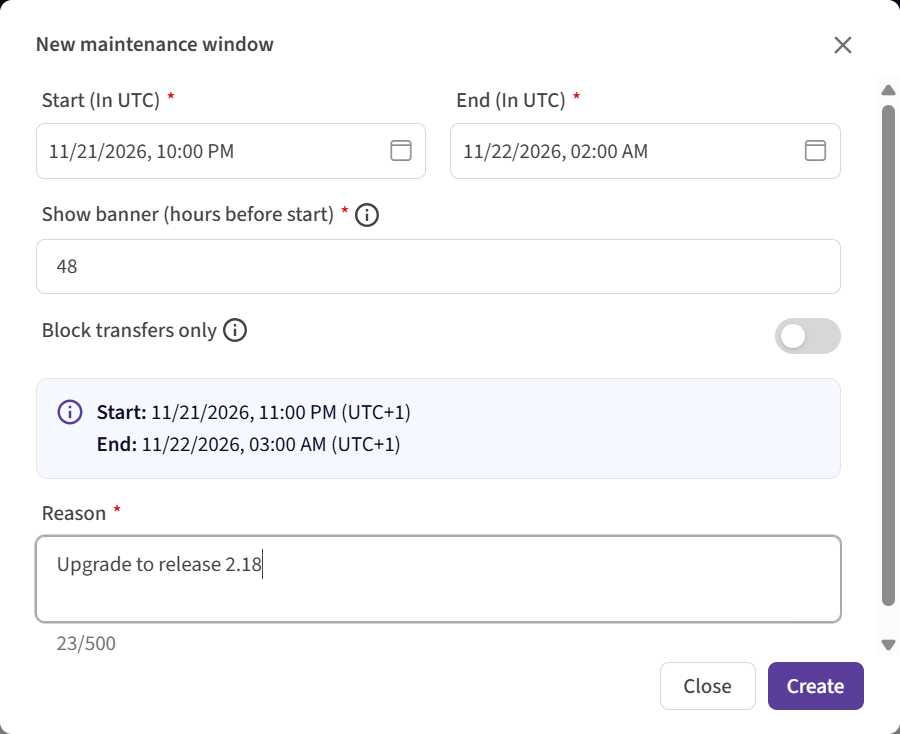
The New maintenance window form. Times are entered in UTC; the summary box shows them in your local time.
The new window has the state Planned. Creating a window does not notify anyone. Users see the banner when the warning lead is reached. To send notices and reminders, use Notify users (see Telling users).
Tip: If you don't know exactly how long the work will take, give the end time some room. You can always end a window early, but if you extend it, users see a later expected end.
Starting maintenance right away
To start maintenance immediately, set the Start to the current time. The summary box then shows Transfers stop: now.
When you select Create or Save, SchedEx asks you to confirm in a Start maintenance now dialog:
- Block transfers only: transfers can't start until the end time. Users can keep using SchedEx. Pages that are open show the banner within 5 minutes.
- Block full system: SchedEx becomes unavailable for all users, including you and other System Admins, until the end time. Pages that are open switch to the maintenance page within 1 minute.
If you switch a window that is already In progress from Block transfers only to Block full system, SchedEx asks you to confirm Lock out all users now before it saves.
Note: During a full-system window, System Admins also see the maintenance page. It has an Update maintenance button, so you can still edit the window or end it early from there.
Telling users: notices and reminders
SchedEx sends no notices until you ask it to. To notify users, open the window and select Notify users, or pick Notify users from the row's 3-dot menu, then confirm.
- Every active user gets an in-app notice. Tenant Admins and Exchange Agreement representatives also get an e-mail.
- Once you have notified users about a planned window, they also get:
- a reminder 24 hours and 1 hour before the start,
- a notice if you cancel the window,
- a notice when the maintenance ends.
- If you notify users after the window has started, the notice says the maintenance has started. Users still get a notice when it ends.
After notifying, the window shows a Notified chip. You can use Notify users again on a planned or running window.
The notices tell users what to expect: when the maintenance starts and ends, what is blocked, and what happens to their transfers afterward.
Changing, canceling or ending a window
Editing a window
Open a Planned or In progress window (click the row, or Edit in the 3-dot menu), make your changes, and select Save. Each save needs a Reason. It replaces the window's earlier reason, so the Reason column always shows the most recent one. The earlier reasons stay in the window's Change History.
- While the window is Planned, you can change the start, the end, the warning lead and the mode.
- Once it is In progress, the start and the warning lead are locked ("This window has started. The start and the warning lead cannot be changed."). You can still move the end, for example to extend the maintenance, and change the mode.
Windows that have Ended or been Canceled open read-only, with the most recent reason shown as Last reason.
Canceling a planned window
Select Cancel maintenance in the row's 3-dot menu. Only a Planned window can be canceled. The Reason (optional) field can be left empty. If you fill it in, it replaces the window's reason. Transfers then run as normal. If users were notified, they get a cancellation notice.
Ending a running window early
Select End maintenance now, either in the row's 3-dot menu or in the open window. A Reason is required, and it replaces the window's reason. The maintenance ends at once:
- With Block full system, users can use SchedEx again within 1 minute.
- Autonomous Component transfers that didn't run because of the maintenance are retried automatically, normally within 10 minutes (see After the window: catching up).
- If users were notified, they get a notice that the maintenance has ended.
Change History
Every create, edit, cancel, early end and notification is recorded. Select Change History in the row's 3-dot menu to see who did what and when. Each changed field is listed with its old and new value, for example Start, End, Reason, Canceled at, Ended at and Users notified at. The mode is listed as Full lockout: True for Block full system, False for Block transfers only.
What users see
The warning banner
When the warning lead is reached, every signed-in user sees a banner at the top of SchedEx and in the Desktop Client:
- Block full system: "System maintenance: SchedEx is scheduled to be unavailable from … to …."
- Block transfers only: "System maintenance from … to …. Transfers cannot start during this period."
While the window is running, the banner says that system maintenance is in progress and when it is expected to end.
Users can close the banner. A Close maintenance warning dialog first repeats the maintenance times and what happens to transfers afterward. The banner comes back if the maintenance times change.
The maintenance page (Block full system)
During a full-system window, users see a page saying "SchedEx is unavailable due to system maintenance", showing when the maintenance Started, the Expected end, and about how long is left (for example "In about 1 hour 25 minutes").
- The page checks the status every minute. Users can also select Check now, or Sign out.
- If you extend the window, the page shows that the expected end has changed.
- When the maintenance ends, the page shows "SchedEx is available again" with a Continue to SchedEx button.
The Desktop Client shows the same information on its own maintenance screen, with Check now and Sign out.
Buttons that start a transfer (Block transfers only)
While a transfers-only window is running, users can keep working, but every button that would start a transfer is disabled, with the tooltip "Not available during system maintenance (until …)". This applies to:
- Upload now, Upload again and Download again in the Transfer Center (including its dashboard) and in an Exchange Agreement's event log and unattempted events,
- Save & Upload Again and Save & Download Again in the conflict viewers.
If a transfer start is still attempted, SchedEx refuses it: "Transfers cannot start during system maintenance until …. Try again after the maintenance ends." The Desktop Client shows a similar message.
Approve and Download now stay available. The download is then held and runs after the maintenance ends (see Planned downloads).
What happens to transfers
During the window, SchedEx doesn't start any transfer, in either mode. What happens next depends on where the transfer runs:
| Where the transfer runs | What happens |
|---|---|
| Autonomous Component | Transfers that didn't start, or that failed because of the maintenance, are retried automatically after the maintenance ends, normally within 10 minutes. No action is needed. |
| Desktop Client | A transfer that didn't start, or failed because of the maintenance, must be started again manually after the maintenance ends. |
A transfer held by the maintenance is not marked Overdue while the window runs, so no overdue reminders are sent for it.
After the window: catching up
Normally, the Autonomous Component runs only the newest transfer of an Exchange Agreement and skips older ones that are still pending. After a maintenance window, it catches up instead:
- It runs every scheduled transfer that the window held, oldest first, one at a time per Exchange Agreement.
- It only skips a held transfer when a later transfer of the same agreement has already succeeded.
- Each transfer gets one automatic run after the maintenance. If it fails on that run, it stays failed like any other failed transfer, and the usual failure notice is sent.
Planned downloads
On the receiving side of an Exchange Agreement, automatic Autonomous Component downloads can wait for a planned daily download time. If the planned time falls inside a maintenance window, the download is held. It runs right after the maintenance ends, not at the planned time on the next day.
If someone selects Download now or Approve on a download during the window, the download is held in the same way and runs after the maintenance ends.
What the transfer shows
- In Transfer Center, a transfer that failed because of the maintenance shows the cause Platform in maintenance. A transfer that is waiting to run again shows its status followed by (platform was in maintenance).
- The transfer's event log explains what happened: "Transfers could not run during system maintenance from … to …", followed by "The transfer runs again after the maintenance." (Autonomous Component) or "Start the transfer again after the maintenance." (Desktop Client).
- When a held transfer finally starts, its log begins with "This transfer was held for system maintenance. It starts now."
Note: "Upload window started" notices for Desktop Client senders are not sent while a window runs. After the window, they are sent only for transfers that were due in the last hour of it.
Window states
| State | Meaning | Actions available |
|---|---|---|
| Planned | The start time is still ahead. | Edit, Notify users, Cancel maintenance, Change History |
| In progress | The window is running. Transfers can't start. | Edit (end time and mode), Notify users, End maintenance now, Change History |
| Ended | The end time has passed, or someone ended the window early. | Change History (read-only) |
| Canceled | The window was canceled before it started. | Change History (read-only) |
A window moves from Planned to In progress at its start time and to Ended at its end time, without anyone doing anything.
Rules and limits
| Rule | Message you see if it is broken |
|---|---|
| The start can't be in the past. | "The start cannot be in the past." |
| The end can't be in the past. | "The end cannot be in the past." |
| The end must be after the start. | "The end must be after the start." |
| The start and end must be within 3 months from now. | "The start and the end must be within 3 months from now." |
| Windows can't overlap. | "This window overlaps the window … - …." |
| The warning lead must be a whole number from 0 to 168 hours. | "The warning lead must be from 0 to 168 hours." |
| The warning lead can't be longer than the time left until the start. | "The warning lead cannot be more than the hours until the start (…)." |
| A reason is required when you create or edit a window, and when you end one early. Up to 500 characters. | "Enter a reason for the maintenance." |
| Only a planned window can be canceled. Only a running window can be ended early. | The action isn't offered for windows in other states. If the state has just changed: "This window has started. Use End maintenance now instead." or "Transfers have not stopped for this window yet. Cancel it instead." |
Related guides
Was this article helpful?
That’s Great!
Thank you for your feedback
Sorry! We couldn't be helpful
Thank you for your feedback
Feedback sent
We appreciate your effort and will try to fix the article