Round-trip write-back for grouped Safran schedules using enterprise fields
What this lets you do
A round-trip sends your Safran data out to another system, lets it be updated there, and then writes the changes back into your own Safran projects — automatically, into the exact project each activity came from.
This builds on a virtual schedule — the grouped schedule that bundles several Safran projects into one, described in Writing out of Safran. On the way out, that group is sent as one package. On the return leg, this feature takes the data that comes back and routes each activity into the exact source project it originally came from.
Warning: A round-trip writes to your live Safran projects. Unlike a one-way transfer to a partner, it changes your own schedules. Read Conflicts, removals and safety before you activate one, and keep Only Include Specified Mappings on unless you specifically want core fields overwritten.
Contents
- What this applies to
- Before you start
- The grouped schedule you write back to
- Set up the write-back agreement
- Only Include Specified Mappings
- How write-back behaves
- What is and is not written back
- Conflicts, removals and safety
- Constraints and limitations
- Messages in the transfer log
- Avoiding common errors
- Related guides
What this applies to
| It applies to | Detail |
|---|---|
| Write-back target | A Safran virtual grouped schedule on the return leg. |
| Source and target | The same grouped schedule for both the send-out and the write-back. |
| Intermediary system | The first-leg destination — Safran, P6, Analytics, or any supported scheduling system. |
| Grouping method | Enterprise-field queries only. Grouping by project group is planned for a future release. |
Before you start
A write-back agreement can only be saved when all of these are true. If one is missing, SchedEx blocks the save and the message tells you which rule failed.
| Condition | Why |
|---|---|
| The receiving connector is Safran | Write-back targets a Safran virtual grouped schedule. |
| The receiving schedule is a virtual grouped schedule | Routing each activity back to its origin project needs the group's grouping rule. |
| Frequency is Predecessor, with a predecessor selected | The return leg runs after the send-out leg completes. |
| The predecessor sends from Safran | The data coming back must originate from the same grouped Safran source. |
| The receiving connector matches the predecessor's sending connector | The write-back must go back to the same Safran connector the data left from. |
The first-leg source and the write-back target must be the same schedule on the same connector.
Note: Beyond these save rules, running the write-back needs an up-to-date client. Writing into a virtual schedule (the per-network import) requires desktop client / Autonomous Client 2.17.0.0 or later — sending the group out needs only 2.15.0.0. An older receiving client is refused with "Downloading into a virtual schedule requires client version 2.17.0.0 or later."
The grouped schedule you write back to
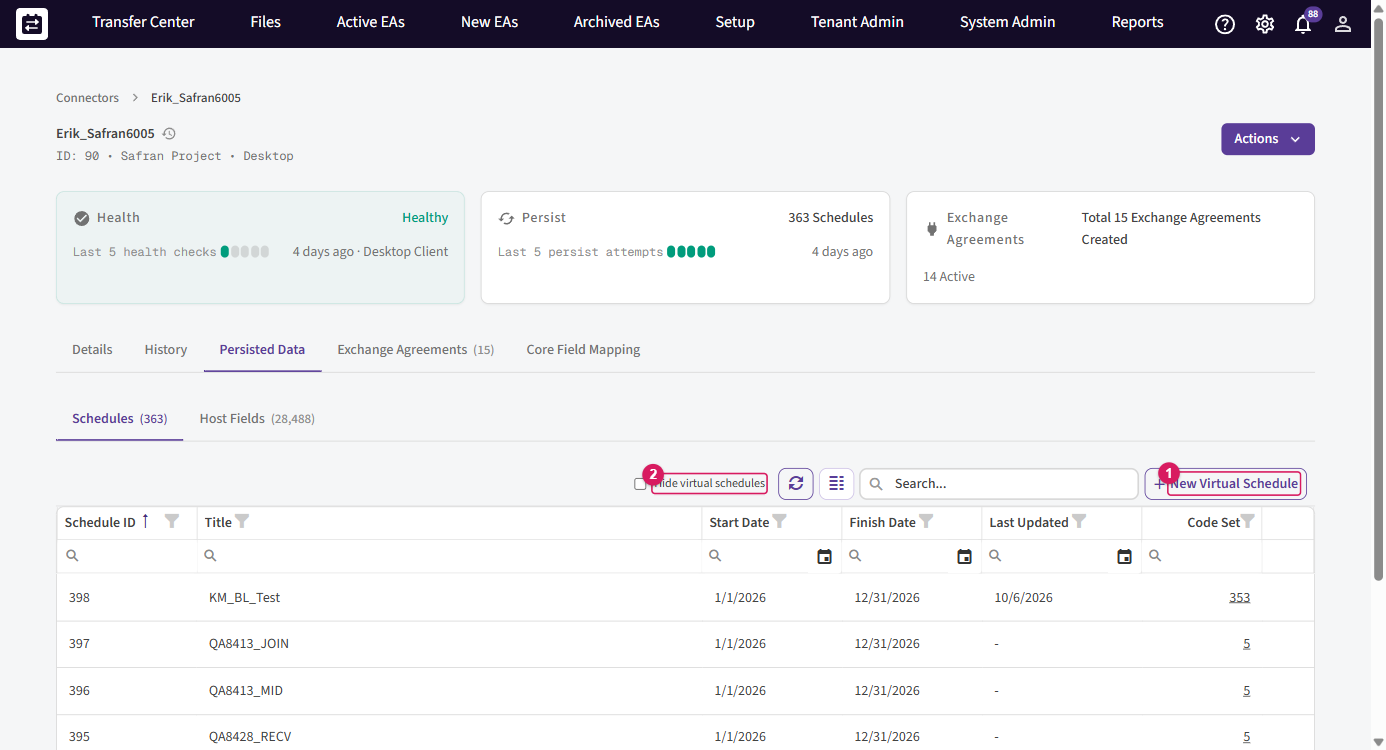
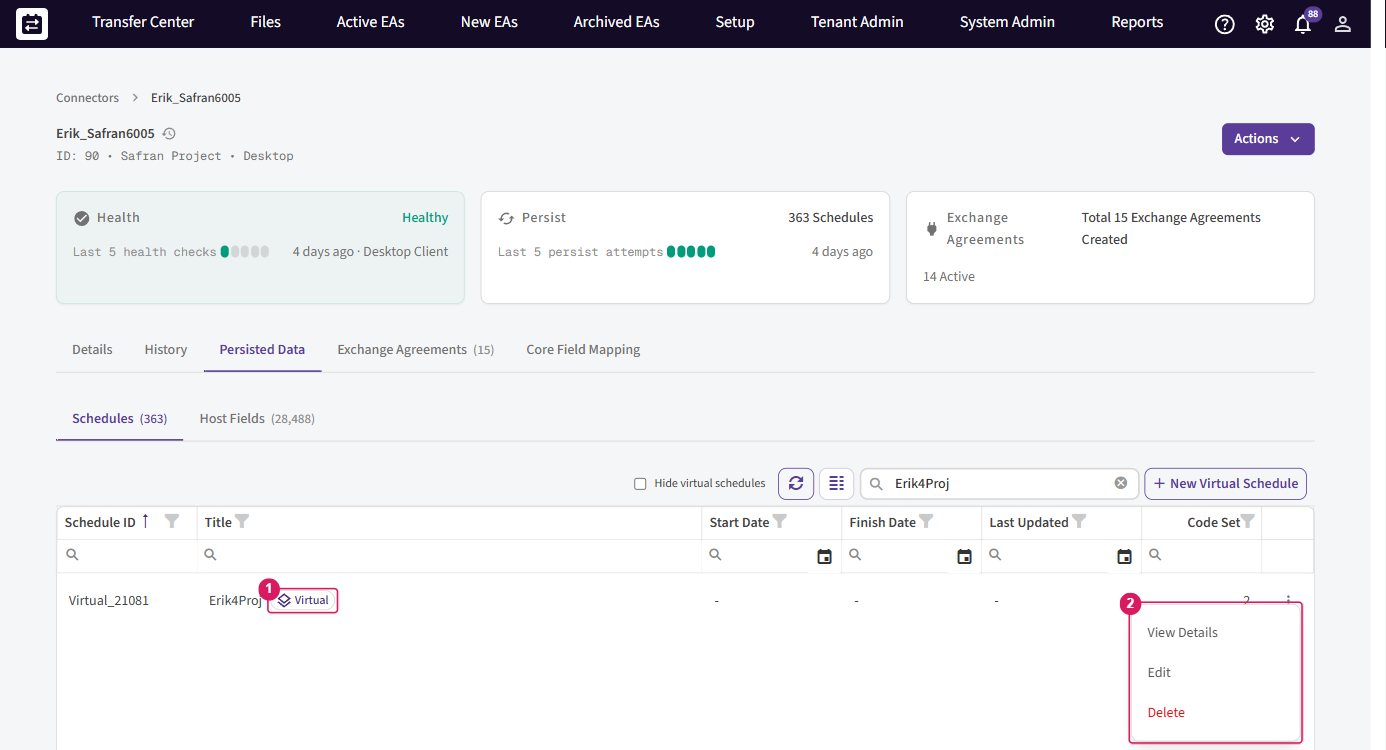
The write-back target is the same virtual schedule you send out — created and managed on the Safran connector's Persisted Data → Schedules tab. You can recognise it by its blue Virtual chip and a Schedule ID that starts with Virtual_ (for example Virtual_21081); it has no start or finish date of its own. The same chip appears on the Config's Schedule tab and on the agreement's Schedule identifier, so you can confirm the receiving side really is the grouped
schedule.
Open its View Details to confirm the group: the base host fields, the grouping filter, and the projects it currently matches.
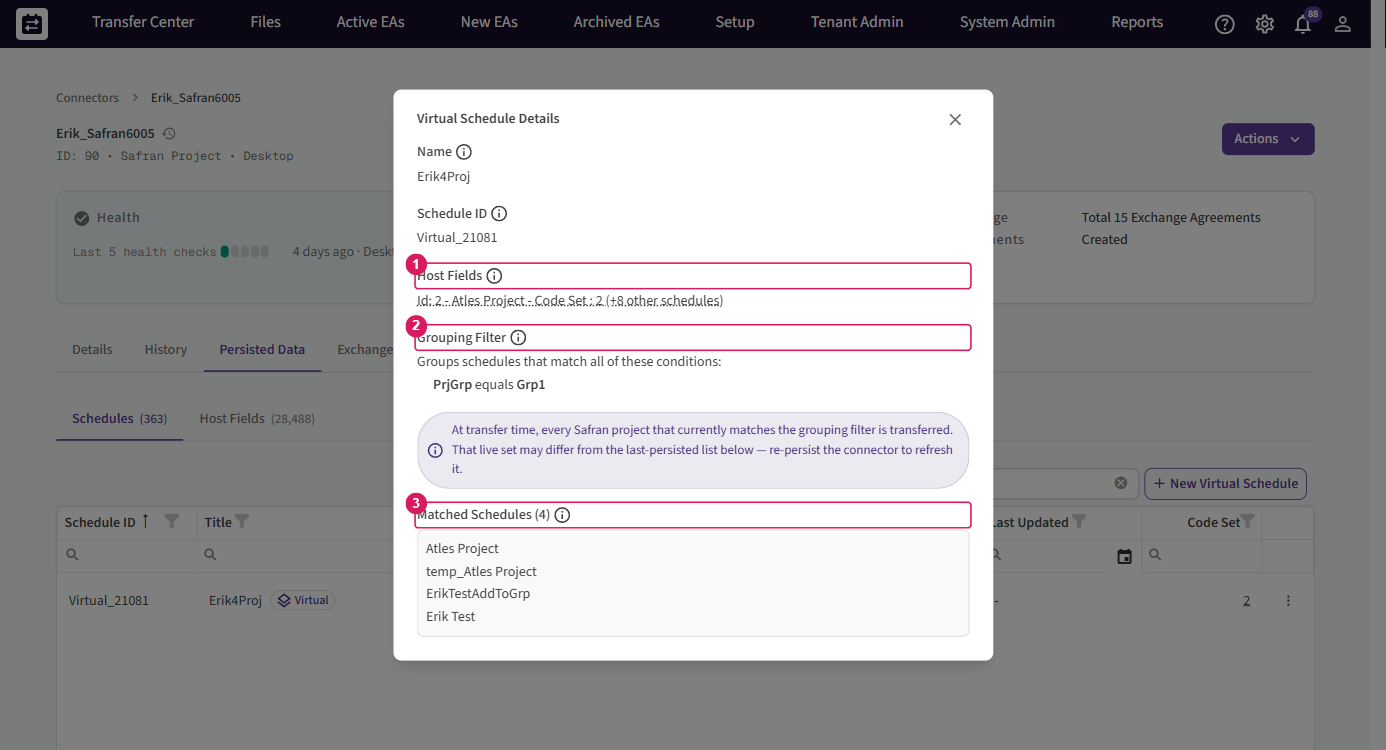
SchedEx uses this same grouping rule on the return leg to decide which project each returning activity belongs to. If you need to create or adjust the group first, see Writing out of Safran.
Set up the write-back agreement
Configure these on the follow-up (write-back) Exchange Agreement — the one that runs after the send-out agreement:
- Receiving target = the grouped schedule. On the receiving side, select the Safran virtual grouped schedule. (Previously a grouped schedule could only be chosen for sending; it can now be a receiving target too.)
- Frequency = Predecessor. Set the agreement's frequency to Predecessor, then select the send-out agreement as the predecessor. This chains the write-back to run straight after the data goes out and comes back.
- Keep Only Include Specified Mappings on. It is on by default for a round-trip. See Only Include Specified Mappings before turning it off.
- Set your conflict option. Choose how the agreement resolves conflicts before activating — it applies to every project in the group (see Conflicts, removals and safety).
Tip: If Save is blocked, the message names the rule that failed — most often the receiving connector is not the same Safran connector the predecessor sends from, or the frequency is not set to Predecessor.
Only Include Specified Mappings
This setting controls how much of each activity the write-back is allowed to change in your live Safran projects. SchedEx turns it on automatically for a Safran virtual receiver with a predecessor — you can accept that default (recommended) or turn it off.
| Setting | Behaviour |
|---|---|
| On (default) | Only the fields you explicitly mapped are written back. This is the safest choice for editing a live source. |
| Off | Core fields (dates, codes, built-ins) are written in addition to your mappings. SchedEx asks you to confirm the moment you switch it off. |
Codes. With the setting on, an activity's code changes only if you mapped the code. With it off, code changes flow back to the source. Whenever a code is written back, the grouping prefix added on the way out — for example 500_112 — is stripped back to the real source code, 112.
Warning: Turning this off lets the write-back overwrite core fields in your live Safran projects. The confirmation prompt appears immediately when you switch it off, not at save. Leave it on unless you specifically intend to push core fields back. This enforcement applies while the frequency is Predecessor; changing the frequency removes it.
How write-back behaves
On each run, SchedEx:
- Reads the current Safran projects live and matches them against the group's filter.
- Routes each returning activity back to its originating project, matched through SchedEx's reference data rather than by code.
- Restores the original code by removing the grouping prefix.
- Skips any project that no longer matches the filter (or no longer exists), and notes it in the transfer log.
- Resolves conflicts per project, using the single agreement-level conflict option.
Because the match is on reference data, an activity returns to the correct project even if two projects happen to share the same code.
What is and is not written back
| Object | Behaviour |
|---|---|
| Activities | Routed to their originating project; the grouping prefix is stripped from the code. |
| Resource assignments | Travel with their activity; new assignments on existing activities are included. |
| Resources, calendars, profiles | Existing entries are updated; these are shared and are not created anew. |
| Structures / code sets | Each project's existing structures are updated within that project. |
| Links / successors | Links within a project are written (new ones included). Links between two different source projects are skipped. |
Not written back:
- New objects created at the intermediary. New activities — and new resources, calendars, structures or profiles created on the first-leg destination — have no source origin, so they are not created in Safran.
- Cross-project links. A dependency created between activities from two different source projects cannot live in a single project, so it is skipped with a warning.
- Re-classified or deleted projects. A project whose grouping value changed, or that was deleted in Safran, drops out of the group and is skipped.
- Project-group grouping — only enterprise-field grouping is supported.
How each code set, calendar, resource and profile is handled
On the way out, same-named code sets, calendars, resources and profiles from the grouped projects are combined into one package (see Different code sets, calendars, resources and profiles in the send-out guide). On the way back, SchedEx updates the matching existing item in each project and leaves brand-new shared objects out — a new shared object has no source project to return to:
| In the returning data | On write-back |
|---|---|
| Coding fields / code sets (structures) | Each project's existing structures are updated within that project. Code fields or values that were created only at the intermediary are not added to Safran. |
| Calendars | Existing calendars are updated. Calendars are shared across projects and are not created new by a write-back. |
| Resources | Existing resources are updated. Resources are shared and are not created new. |
| Profiles | Existing profiles are updated; they are not created new. |
So a round-trip keeps your shared libraries — calendars, resources, profiles and code sets — in step by updating them, but it never introduces a brand-new shared object into Safran from the intermediary. If you need a new calendar or resource in the source, add it in Safran directly.
Note: A group may contain projects that use different code sets. On write-back, each project's own structures are updated within that project, so mixed code sets are handled correctly per project. (On the send-out side, the base-schedule choice used when creating the virtual schedule has little impact and is planned to be removed in an upcoming release — see the send-out guide.)
Conflicts, removals and safety
Write-back follows SchedEx's normal Safran download rules, applied per project:
- Before anything is written, SchedEx checks every member project. If a shared object (a calendar, resource, profile or structure) points to different Safran objects in different projects, the write-back cannot tell which to update, so the whole transfer stops with "These shared objects point to different Safran objects in the projects of the virtual schedule, so the transfer cannot tell which one to update: … No data was transferred." Make that shared object the same across the projects (or narrow the group), then run again. This is an all-or-nothing, pre-write check — separate from the per-project conflict handling below.
- Objects with independent changes in the source are resolved using the single agreement-level conflict option, applied uniformly to every project in the group.
- Removals follow normal download behaviour.
- An unresolved conflict stops that project's write-back only — the other projects in the group still complete.
Warning: A round-trip writes to your live source. Unlike a one-way transfer to a partner, it changes your own Safran projects. Keep Only Include Specified Mappings on unless you specifically want core fields overwritten, and confirm your conflict option before activating.
Constraints and limitations
| Area | Constraint |
|---|---|
| Write-back target | A Safran virtual grouped schedule only. |
| Grouping | Enterprise-field queries only (project-group grouping is planned). |
| Schedule / connector | The first-leg source and the write-back target must be the same schedule and connector. |
| Predecessor | Required. A write-back cannot be standalone or clock-scheduled; it runs after its predecessor. |
| Cross-project links | Dependencies between activities in different source projects are skipped with a warning. |
| No qualifying projects | If no projects match the filter, nothing is written and the log says so. |
Messages in the transfer log
Always check the transfer log after a write-back run. Common messages:
| Message | Meaning |
|---|---|
| "The virtual schedule does not match any project, so there is nowhere to write the data. No data was transferred. Check the grouping filter of the virtual schedule, or re-persist the connector to refresh the available values." | No project currently matches the filter — nothing is written. |
| "Project {id} sends this data and is also part of the receiving virtual schedule. No data was transferred. Remove it from the grouping filter of the virtual schedule, or send the data from another schedule." | The project that sent the data is also a member of the receiving group, which would write it onto itself. |
| "These activities exist in more than one project of the virtual schedule, so the transfer cannot tell which project to update: … No data was transferred. This can happen when projects are copies of each other." | An activity is ambiguous across projects — usually because two projects are copies. |
| "{count} activities belong to projects that are no longer part of the virtual schedule. They and their resource assignments were not transferred: … The other projects were transferred as usual. Add the projects to the grouping filter again if you still want to update them." | Some activities came from projects that dropped out of the group; they are skipped and the rest still write. |
| "{count} links connect activities in different projects. A Safran link must stay inside one project, so these links were not transferred: …" | Cross-project dependencies cannot live in one Safran project and are skipped. |
| "These shared objects point to different Safran objects in the projects of the virtual schedule, so the transfer cannot tell which one to update: … No data was transferred." | A shared calendar, resource, profile or structure resolves to different Safran objects across the member projects — the whole transfer stops. |
Avoiding common errors
| If you see… | It means… | Do this instead |
|---|---|---|
| Save is blocked on the agreement | One setup rule is unmet | Read the message: receiving connector must be Safran, frequency must be Predecessor with a predecessor selected, and the receiving connector must match the predecessor's sending connector. |
| "Downloading into a virtual schedule requires client version 2.17.0.0 or later. Please update your client." | The receiving client is below 2.17.0.0 | Update the desktop / Autonomous client to 2.17.0.0 or later and re-run. |
| A project was not written back | It no longer matches the filter, or was deleted | Check the log; re-persist the connector and confirm the project still matches the group. |
| "Project … sends this data and is also part of the receiving virtual schedule …" | The project that sent the data is also in the receiving group | Remove that project from the grouping filter, or send the data from a different schedule. |
| "These shared objects point to different Safran objects in the projects of the virtual schedule … No data was transferred." | A shared calendar/resource/profile/structure resolves to different Safran objects across projects | Make the shared object the same across the projects, or narrow the group, then run again. |
| A dependency went missing at the source | It linked two different source projects | Cross-project links are skipped by design ("A Safran link must stay inside one project"); keep such dependencies inside one project if they must survive the round-trip. |
| Core fields changed unexpectedly in Safran | Only Include Specified Mappings is off | Turn it back on so only mapped fields are written; confirm the prompt. |
| Nothing was written at all | No projects matched the grouping query this run | Check the filter and re-persist; the log says "The virtual schedule does not match any project …" when none qualify. |
| "Virtual schedule transfer stopped: schedules … contain objects that share a single identity across them …" | Two projects in the group are copies of each other and share objects already transferred | Narrow the grouping filter to include only one of those projects, or use an activity filter so each duplicated activity is in only one project, then run again. |
Related guides
- Writing out of Safran: group several schedules into one exchange — create and manage the virtual grouped schedule, and send it out.
- Glossary — shared SchedEx terms (Tenant, IEA, Config, Data Transfer).
Was this article helpful?
That’s Great!
Thank you for your feedback
Sorry! We couldn't be helpful
Thank you for your feedback
Feedback sent
We appreciate your effort and will try to fix the article