TABLE OF CONTENTS
- Introduction
- At a glance
- What to ask your SAP administrator for
- Open the connector wizard
- Step 1: General
- Step 2: Components
- Step 3: Authentication: Option A · Option B · Option C · Option D · Option E
- Step 4: Settings
- Step 5: Complete, test and persist
- Messages and what to do
- Questions and answers
- Glossary
- Related articles
Introduction
This article shows you, step by step, how to create a SAP connector. The SAP connector is the connection SchedEx uses to read work orders and operations from SAP and to write them back to SAP. SchedEx talks to SAP through an SAP Gateway (OData) service. You create the connector once, test it, and then use it in your SAP Configs and Exchange Agreements.
Who can do this: a user with the Tenant Setup role in SchedEx.
You do not need to be technical. Most values come from your SAP or Basis administrator, and for the Microsoft sign-in methods also from your IT department. Section 2 lists exactly what to ask them for.
Looking for the general steps? The common create, edit and copy flow for every connector is in Creating, Editing and Copying a Connector. This article covers what is specific to SAP. How SAP data is read and written is explained in SAP Download: How OrderHeader, OrderId and Activity Number Work and SAP status function calls.
1. At a glance
Creating the connector takes about ten minutes once you have the values from your administrators.
- Ask your SAP administrator (and, for the Microsoft sign-in methods, your IT department) for the values in section 2.
- Fill in the five-step wizard in SchedEx (sections 3 to 7).
- Test and persist the connector (section 8).
Checklist before you open the wizard:
- I have the address of the SAP Gateway service that SchedEx uses (Base URL).
- I know how SchedEx signs in to SAP: a SAP user name and password, my Windows account, or a Microsoft Entra ID sign-in (section 6).
- I know whether transfers run on a person's PC (Desktop Client), on a server (Autonomous Component), or both.
- Only for the Entra ID methods: I have the Entra ID values from IT and at least one custom header (name and value) to add in Step 4.
2. What to ask your SAP administrator for
Ask your SAP or Basis administrator for the items below. Tell them that SchedEx reads and writes maintenance work orders and operations through an SAP Gateway OData service, and whether it will connect from users' PCs (Desktop Client), from a server (Autonomous Component), or both. Rows marked Only if apply to one sign-in method.
| Ask for | Why SchedEx needs it | Where it goes |
|---|---|---|
The address of the SAP Gateway service that SchedEx uses. It usually looks like https://sap.example.com/sap/opu/odata/<namespace>/<service>. |
So SchedEx can find SAP. SchedEx adds the rest of each request (for example OrderHeaderSet) to this address. |
Step 3: Base URL |
| Which sign-in method your SAP Gateway accepts (see the table in section 6). | Each method needs different values. | Step 3: Authentication Method |
| Confirmation that the SAP Gateway can be reached from users' PCs or the Autonomous Component's server. | SchedEx connects to SAP directly from there. | Network, set up by IT |
| The SAP permissions to read, create and change work orders and operations, and to set their statuses. | So SchedEx can both read and write. | Set up in SAP by the administrator |
| Only if Username and Password: a SAP user name and password for SchedEx, ideally a service user whose password does not expire. | SchedEx signs in to SAP with them. | Step 3: Username, Password |
| Only if Windows or WindowsWithoutCSRFToken: confirmation that SAP accepts Windows sign-in for each user who runs transfers, and whether the gateway issues CSRF tokens. | SchedEx signs in as the Windows user of the PC. The CSRF answer decides which of the two Windows methods to choose. | Step 3: Authentication Method |
| Only if Entra ID User Delegated SAML via SAP Gateway: the SAP Authority (SAP token address), the SAP Client ID, the SAP API Area and SAP API Version, the SAP Grant Type, the SAP APIM Subscription value, and the Key Vault address and secret name that hold the SAP client secret. Ask IT for the Tenant ID, Authority, Client ID, Client Secret and Scopes of the Entra ID app. | SchedEx exchanges your Microsoft sign-in for a SAP token. | Step 3 (see Option D) |
| Only if Entra ID User Delegated via Azure APIM: the gateway address of SAP in Azure API Management, and from IT the Authority, Client ID, Client Secret and Scopes of the Entra ID app. | SchedEx reaches SAP through your Azure API Management gateway. | Step 3 (see Option E) |
| Only if one of the Entra ID methods: the custom header (name and value) your gateway expects on every request, for example an API Management subscription key. | The wizard requires at least one active custom header for these methods. | Step 4: Custom Headers |
How SchedEx keeps these values safe: the passwords, client secrets and tokens you enter in the wizard are encrypted with AES-256 before SchedEx saves the connector. The encryption key is kept in Azure Key Vault, separate from the database. The SAP APIM Subscription value and custom header values are not encrypted. Read more in Checking your connectors.
3. Open the connector wizard
- Select Setup in the top menu.
- On the Connector List card, select New Connector.
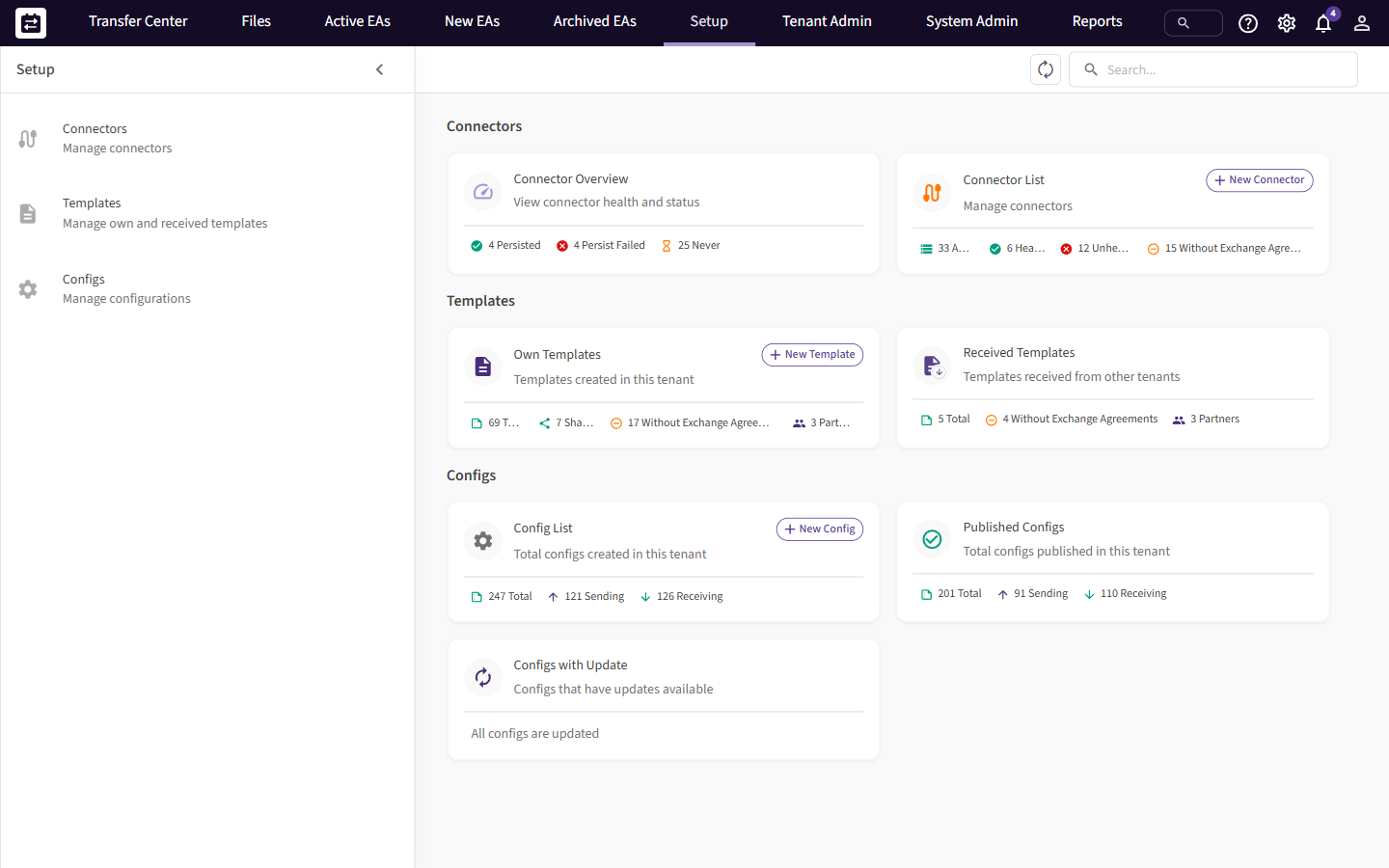 The Setup page. New Connector is on the Connector List card.
The New Connector wizard opens on the right. It has five steps: General, Components, Authentication, Settings and Complete. Every field has an ⓘ icon. Point at it to see a short help text. Next stays grey until every required field on the step is filled in.
4. Step 1: General
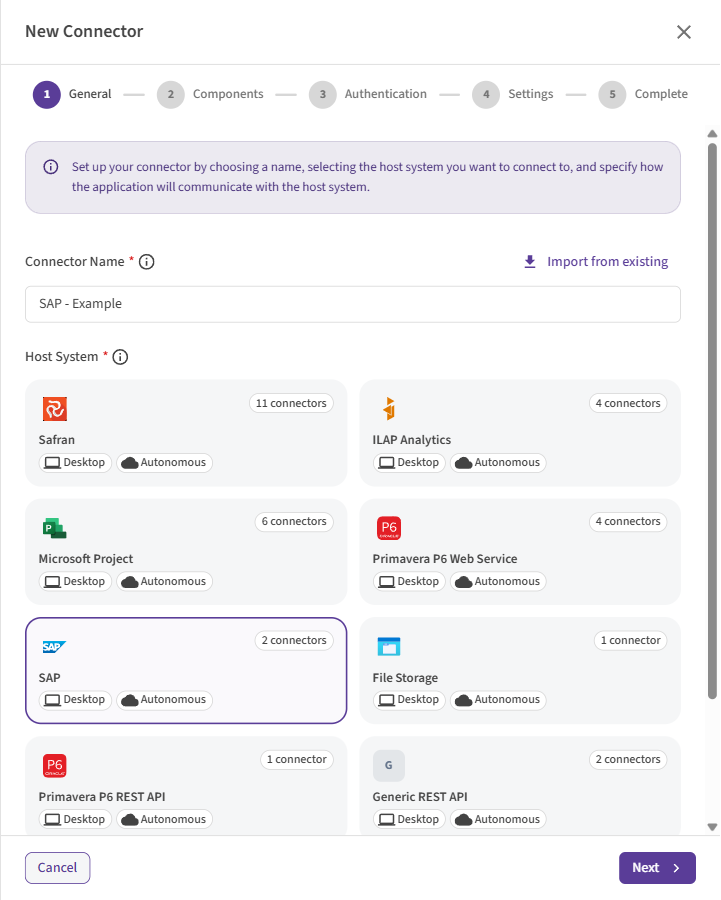 Step 1: give the connector a name and select SAP.
| Field | What to enter |
|---|---|
| Connector Name (required) | A name that tells your colleagues which SAP system this is, for example SAP Production. At most 128 characters. The name is shown everywhere the connector is used, such as in Configs and Exchange Agreements. |
| Host System (required) | Select the SAP card (Connect to SAP). |
| Import from existing (optional) | Copies the settings of a connector you already have, so that you only change what is different. |
SAP connectors can both send data from SAP and receive data into SAP.
Select Next.
5. Step 2: Components
An execution component is the SchedEx program that runs the transfer and talks to SAP.
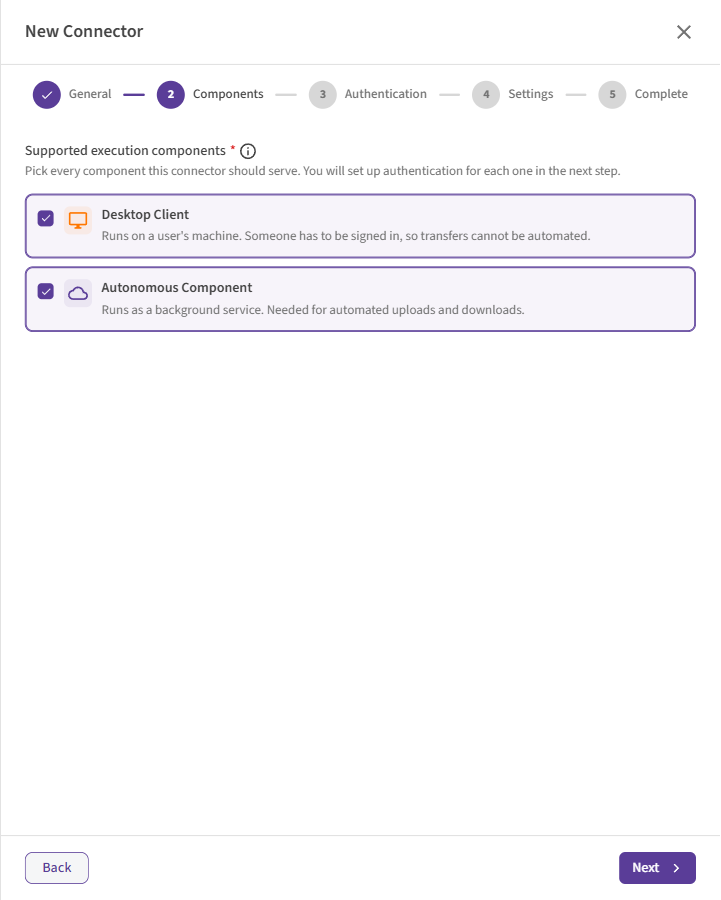 Step 2: choose which SchedEx program runs this connector.
| Option | What it means | Choose it when |
|---|---|---|
| Desktop Client | The SchedEx desktop program on a user's PC. Someone must be signed in to start a transfer. | People start transfers by hand, or you want to sign in with Windows or with a personal Microsoft sign-in. |
| Autonomous Component | A SchedEx service that runs on a server, without a person. | Transfers must run automatically on a schedule. |
You can select both. The connector then gets one sign-in profile for each component, and you fill in both in the next step. They can use different sign-in methods. For example, the Desktop Client can use Windows while the Autonomous Component uses a SAP service user.
SchedEx connects to SAP directly from where the component runs: the user's PC or the Autonomous Component's server. The SAP Gateway must be reachable from there.
Select Next.
6. Step 3: Authentication
If you selected both components in Step 2, you see two tabs: Desktop Client and Autonomous Component. Fill in both. The line at the bottom tells you when the other profile is still incomplete, and Switch to … takes you to it.
First choose the Authentication Method: how SchedEx proves to SAP who it is. A short description of the method appears below the list, and the fields below it change to match your choice. On the Autonomous Component tab, only the methods that work without a person are listed.
| Method | You enter | Desktop Client | Autonomous Component |
|---|---|---|---|
| Username and Password | Base URL, SAP user name and password | Yes | Yes |
| Windows | Base URL only | Yes | No |
| WindowsWithoutCSRFToken | Base URL only | Yes | No |
| Entra ID User Delegated SAML via SAP Gateway | Base URL, Entra ID app values and SAP token values | Yes | No |
| Entra ID User Delegated via Azure APIM | Base URL and Entra ID app values, plus a custom header in Step 4 | Yes | Yes |
Not sure which one? Ask your SAP administrator which sign-in the SAP Gateway accepts. If transfers must run on the Autonomous Component, choose Username and Password or Entra ID User Delegated via Azure APIM on that tab.
Every method needs the Base URL:
| Field | What it means | Example |
|---|---|---|
| Base URL (required) | The address of the SAP Gateway service SchedEx uses. It must start with https:// (or http://). Enter the service address itself, as your SAP administrator gives it. |
https://sap.example.com/sap/opu/odata/<namespace>/<service> |
Option A: Username and Password
SchedEx signs in to SAP with a SAP user name and password. This works in both components.
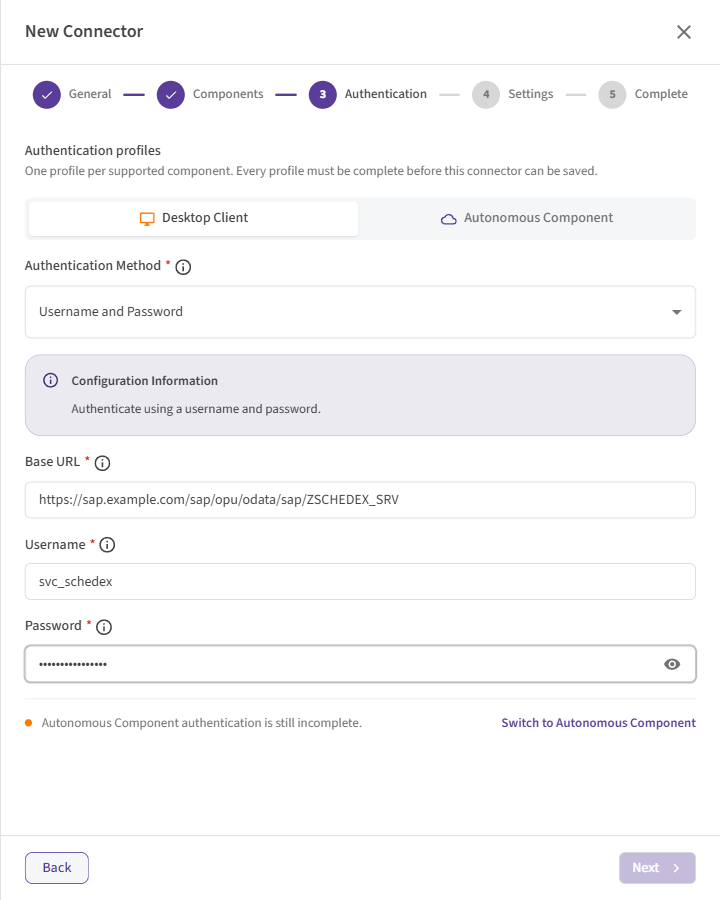 Username and Password: Base URL, Username and Password.
| Field | What it means | Example |
|---|---|---|
| Base URL (required) | See above. | https://sap.example.com/sap/opu/odata/<namespace>/<service> |
| Username (required) | The SAP user that SchedEx signs in as. | svc_schedex |
| Password (required) | The password for that SAP user. SchedEx stores it encrypted. |
Always use an address that starts with
https://. The password travels with every request.
Done with this method? Skip the other options and go to Step 4: Settings.
Option B: Windows
SchedEx signs in to SAP as the Windows user who runs the Desktop Client. You only enter the Base URL. Each person who runs transfers must be allowed into SAP with their own Windows account.
Before SchedEx writes to SAP, it asks the gateway for a security token (a CSRF token) and sends it with the change. This is the usual set-up for SAP Gateway.
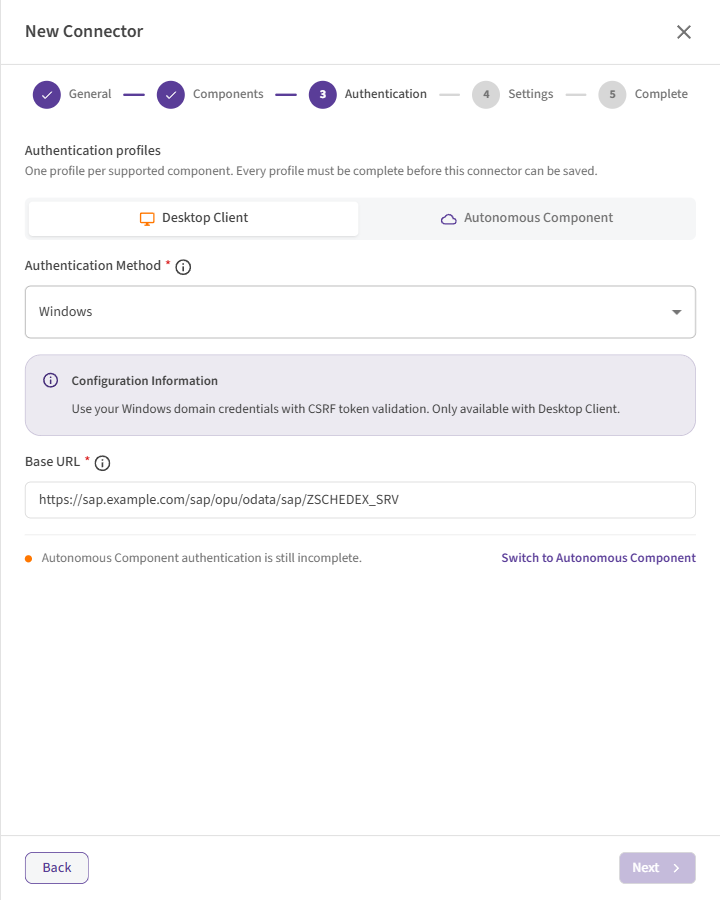 Windows: only the Base URL is needed.
Windows works only in the Desktop Client. It needs a signed-in Windows user. For automatic transfers, use another method on the Autonomous Component tab.
Done with this method? Skip the other options and go to Step 4: Settings.
Option C: WindowsWithoutCSRFToken
The same as Windows, but SchedEx does not ask for a CSRF token before it writes. Use it only when your SAP administrator tells you that CSRF protection is switched off on the gateway. You only enter the Base URL.
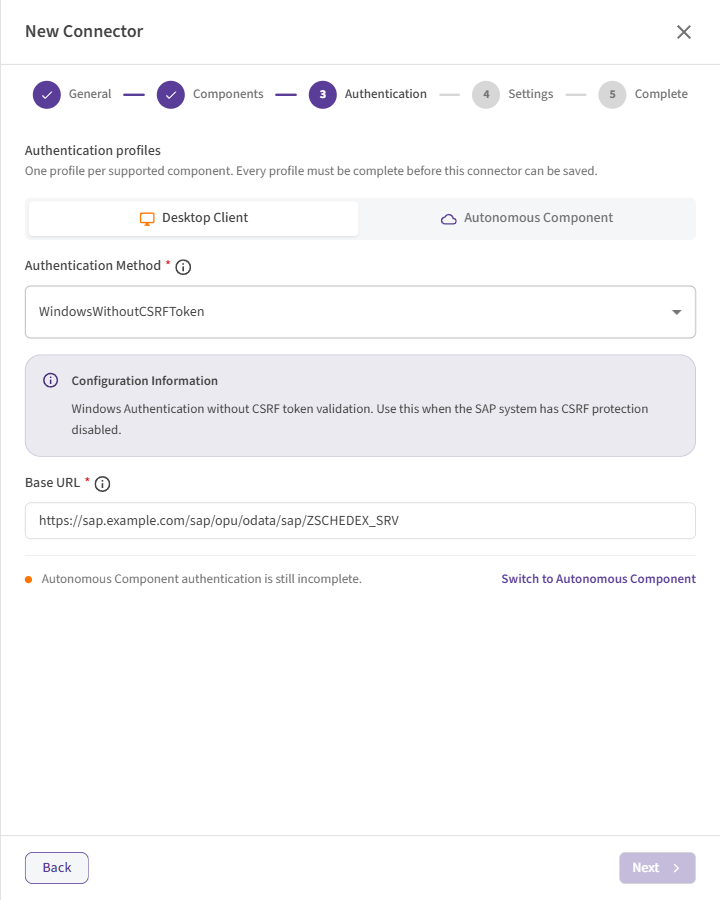 WindowsWithoutCSRFToken: only the Base URL is needed.
Desktop Client only, like Windows.
Done with this method? Skip the other options and go to Step 4: Settings.
Option D: Entra ID User Delegated SAML via SAP Gateway
You sign in with your company Microsoft account (Microsoft Entra ID). SchedEx then turns that sign-in into a SAP token in four steps:
- It gets a Microsoft sign-in token for you.
- It exchanges that token for a SAML assertion (a signed statement of who you are) for SAP.
- It reads the SAP client secret from an Azure Key Vault, as you.
- It uses these to get a SAP token from the SAP token address (SAP Authority), and uses that token for every SAP request.
Most of these values come from IT and your SAP administrator. Copy them exactly.
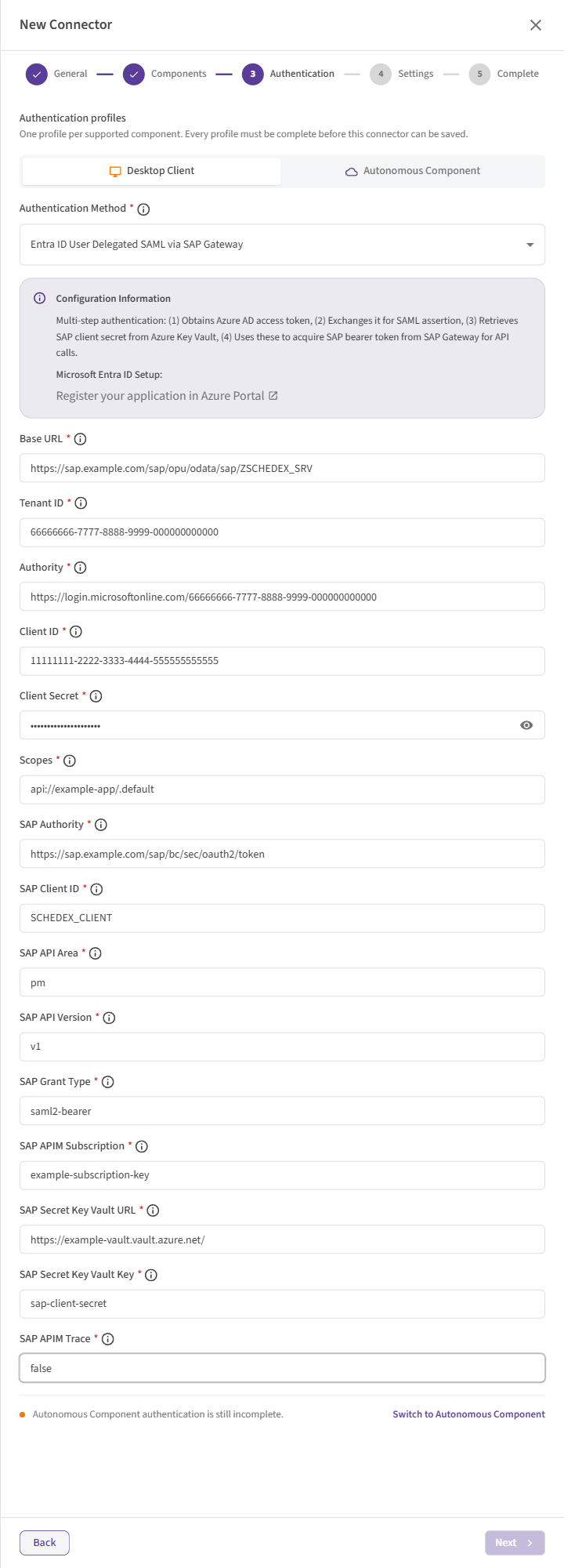 Entra ID User Delegated SAML via SAP Gateway: the Entra ID app fields followed by the SAP fields.
Microsoft Entra ID app (from IT):
| Field | What it means | Example |
|---|---|---|
| Base URL (required) | See above. | https://sap.example.com/sap/opu/odata/<namespace>/<service> |
| Tenant ID (required) | The ID of your organization in Microsoft Entra ID. Azure portal → Microsoft Entra ID → Overview. | xxxxxxxx-xxxx-xxxx-xxxx-xxxxxxxxxxxx |
| Authority (required) | The Microsoft sign-in address for your organization. | https://login.microsoftonline.com/xxxxxxxx-xxxx-xxxx-xxxx-xxxxxxxxxxxx |
| Client ID (required) | The Application (client) ID of the Entra ID app that users sign in through. Azure portal → App registrations → your app → Overview. | xxxxxxxx-xxxx-xxxx-xxxx-xxxxxxxxxxxx |
| Client Secret (required) | A secret of that Entra ID app. SchedEx uses it to exchange your sign-in for the SAML assertion. Copy the Value, not the Secret ID. SchedEx stores it encrypted. | |
| Scopes (required) | The permissions SchedEx asks for when you sign in. Include the resource scope IT gives you, not only standard values such as openid. Without it, SchedEx cannot renew your sign-in in the background and asks you to sign in again. |
api://xxxxxxxx-xxxx-xxxx-xxxx-xxxxxxxxxxxx/.default |
SAP token values (from your SAP administrator):
| Field | What it means | Example |
|---|---|---|
| SAP Authority (required) | The address SchedEx asks for the SAP token. SchedEx also uses this value to name SAP when it asks Microsoft for the SAML assertion, so it must match how SAP is registered in Entra ID. | https://sap-token.example.com/oauth2/token |
| SAP Client ID (required) | The OAuth client in SAP that SchedEx uses to get the SAP token. | schedex-client |
| SAP API Area (required) | The API area of the SAP service. SchedEx joins it with the version, as <area>_<version>, to name what it asks access to. |
API_PROJECT_EXAMPLE |
| SAP API Version (required) | The version of that API. | v1 |
| SAP Grant Type (required) | The OAuth grant type the SAP token address expects. For a SAML assertion this is usually urn:ietf:params:oauth:grant-type:saml2-bearer. Use the value your SAP administrator gives you. |
urn:ietf:params:oauth:grant-type:saml2-bearer |
| SAP APIM Subscription (required) | The subscription key of the SAP API Management. The wizard requires a value. | |
| SAP Secret Key Vault URL (required) | The address of the Azure Key Vault that holds the SAP client secret. | https://example-vault.vault.azure.net |
| SAP Secret Key Vault Key (required) | The name of the secret in that Key Vault that holds the password of the SAP Client ID. | sap-client-secret |
| SAP APIM Trace (required) | Turns on API Management tracing for fault-finding. Enter false. Enter true only when support asks for it, because tracing may expose sensitive data. |
false |
What IT must prepare:
- The Entra ID app must allow desktop sign-in back to
http://localhost(SchedEx signs in throughhttp://localhost:<port>/oauth2/callback). - Each user who runs transfers must be allowed to read secrets in the Key Vault. SchedEx reads the SAP client secret with the user's own sign-in.
What you will notice: the first time a transfer, test or persist needs SAP, a Microsoft sign-in window opens. Sign in with your work account. SchedEx then renews the sign-in in the background. If the renewal fails during a transfer, the transfer log shows a message that a sign-in window has opened, and that it may be behind other windows.
Also add a custom header in Step 4. The wizard does not let you save this method without at least one active custom header.
Desktop Client only. This method needs a person to sign in.
Done with this method? Skip the other options and go to Step 4: Settings.
Option E: Entra ID User Delegated via Azure APIM
SchedEx reaches SAP through your organization's Azure API Management (APIM) gateway. It signs in to Microsoft Entra ID as the Entra ID app with its client secret, and sends the token it gets with every request. No person needs to sign in, so this method also works on the Autonomous Component. SchedEx does not ask for a CSRF token in this method.
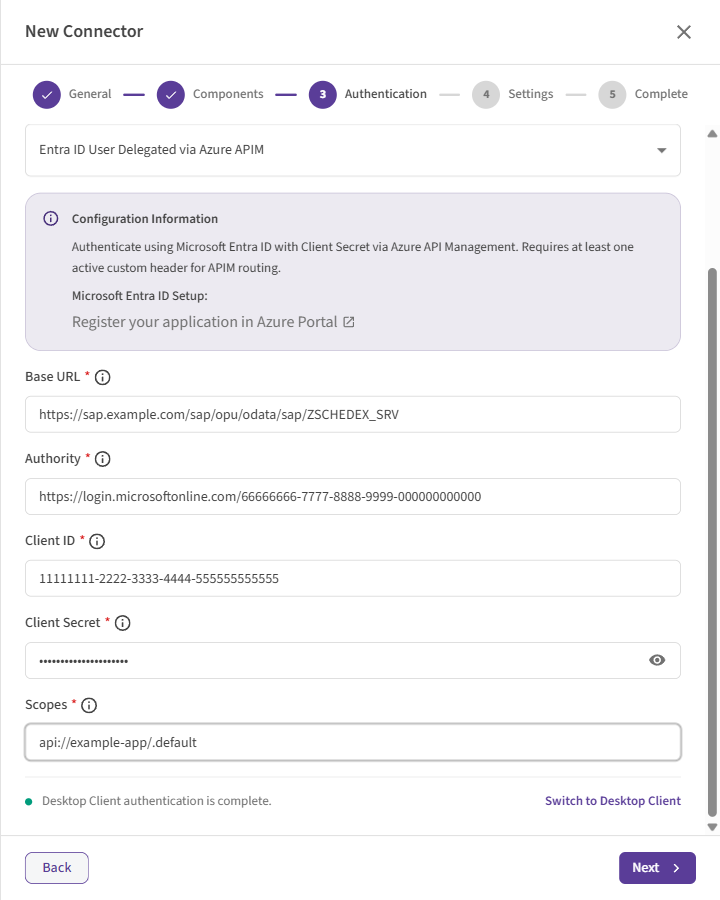 Entra ID User Delegated via Azure APIM: Base URL, Authority, Client ID, Client Secret and Scopes.
| Field | What it means | Example |
|---|---|---|
| Base URL (required) | The address of the SAP service on your API Management gateway. | https://apim.example.com/sap/<service> |
| Authority (required) | The Microsoft sign-in address for your organization. | https://login.microsoftonline.com/xxxxxxxx-xxxx-xxxx-xxxx-xxxxxxxxxxxx |
| Client ID (required) | The Application (client) ID of the Entra ID app that SchedEx signs in as. | xxxxxxxx-xxxx-xxxx-xxxx-xxxxxxxxxxxx |
| Client Secret (required) | A secret of that Entra ID app. Copy the Value, not the Secret ID. SchedEx stores it encrypted. | |
| Scopes (required) | What SchedEx asks access to. For an app that signs in as itself, this usually ends in /.default. |
api://xxxxxxxx-xxxx-xxxx-xxxx-xxxxxxxxxxxx/.default |
You must add at least one active custom header in Step 4. The gateway needs it to route the requests. A common example is the API Management subscription key header. Ask IT for the exact header name and value.
Select Next when all required fields are filled in.
7. Step 4: Settings
The settings are optional for most methods, and the default values work for most SAP systems. For the two Entra ID methods, one custom header is required.
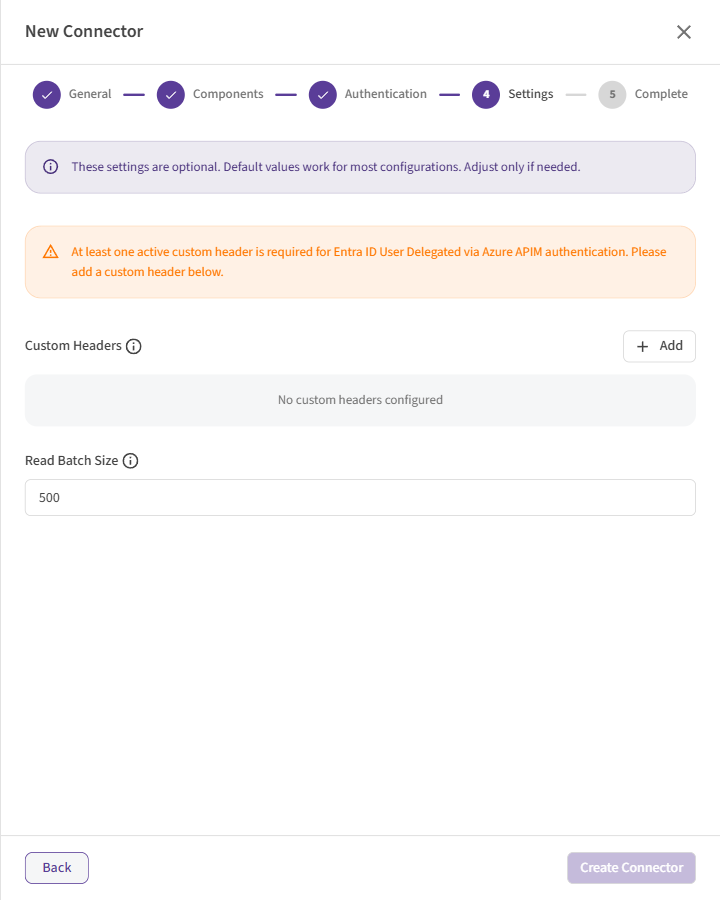 Step 4: Custom Headers and Read Batch Size.
| Setting | What it means | Default |
|---|---|---|
| Custom Headers | Extra pieces of information (a Header Key and a Header Value) that SchedEx sends with every request to SAP. Select Add to enter one. Each header can be Enabled or Disabled. Required for both Entra ID methods: add at least one enabled header with a key and a value. Optional for the other methods. See Setting Custom Headers for a Connector. | None |
| Read Batch Size | How many SAP work orders SchedEx reads in one request. It also limits how many orders SchedEx asks for by number in one request. Lower it if SAP times out on large reads. Raise it to read large order lists in fewer requests. The value must be a whole number of at least 1. | 500 |
If you choose an Entra ID method and no custom header is added yet, a yellow note says: At least one active custom header is required for Entra ID User Delegated via Azure APIM authentication. Please add a custom header below. The note names the APIM method, but it applies to both Entra ID methods.
SAP connectors have no Write Batch Size setting. SchedEx writes to SAP one work order at a time.
Select Create Connector to save.
Each connector needs its own address. Two SAP connectors in your organization that run on the same component cannot use the same Base URL. SchedEx stops you from saving a duplicate.
8. Step 5: Complete, test and persist
The last step confirms that the connector is saved. Select View Connector to open it, or Close.
The connector cannot exchange data yet. Two things are left. Both run from the SchedEx desktop client on a PC that can reach SAP:
- Test the connector. In the desktop client, open Connectors and select Test on the
connector's row. SchedEx signs in to SAP and reads the SAP service version.
- Sap version: followed by a version number means the address, the sign-in and the network all work.
- Test Failed: followed by a message means something is wrong. See section 9.
- With Entra ID User Delegated SAML via SAP Gateway, a Microsoft sign-in window may open during the test.
- Persist the connector. Select Persist on the same row. SchedEx tests the connector again and then stores the SAP schedule (SAP WorkOrder) and the list of SAP fields, so that you can select them in Configs. When it finishes you see Host System data stored successfully!
The test only reads from SAP. It does not prove that SchedEx may write. Rights to change work orders, and the CSRF token that writing needs, are first used in a transfer that sends data into SAP.
If transfers run on the Autonomous Component
A test in the desktop client runs from your PC. It proves that your PC can reach SAP, not that the server where the Autonomous Component runs can. To check the server:
- Persist from the server. In the SchedEx web app, open Setup > Connectors, open the connector and select Persist Within 3 Minutes. The Autonomous Component picks up the request, tests the connector and stores the SAP data itself.
- Ask a Tenant Admin to check the dashboard. In Clients > Autonomous Component > Dashboard, the Connectors panel shows each connector's health and its latest persist. The connector should be Healthy and its persist Completed. If it is Unhealthy, point at the error icon to see why. See Reading the Autonomous Component Dashboard.
Check the connector later
In the web app, Setup > Connectors shows every connector's Status and Last Health Check. A connector that has not been checked for more than 7 days is marked as such: run Test again to refresh it. Test again whenever the SAP address, password, secrets or headers change.
More about testing and persisting: Testing and Persisting a Connector.
9. Messages and what to do
While you fill in the wizard
| Message | What it means | What to do |
|---|---|---|
| URL/Path is required | The Base URL is empty. | Enter the address from your SAP administrator. |
| Please enter a valid URL starting with http:// or https:// | The Base URL is not a web address. | Check that it starts with https://. |
| Username is required / Password is required | Username and Password method: a field is empty. | Fill in both. |
| Tenant ID is required, Authority is required, Client ID is required, Client Secret is required, Scopes is required | Entra ID methods: an Entra ID app field is empty. | Ask IT for the missing value. |
| SAP Authority is required, SAP Client ID is required, SAP API Area is required, SAP API Version is required, SAP Grant Type is required, SAP APIM Subscription is required, SAP Secret Key Vault URL is required, SAP Secret Key Vault Key is required, SAP APIM Trace is required | SAML via SAP Gateway method: a SAP field is empty. | Ask your SAP administrator for the missing value. For SAP APIM Trace, enter false. |
| At least one active custom header is required for Entra ID User Delegated via Azure APIM authentication… | An Entra ID method is selected and no enabled custom header is added. | Add a custom header with a key and a value in Step 4. |
| A connector with this URL or path already exists. Please update the URL or path and try saving again. | Another SAP connector already uses this Base URL. | Use the existing connector, or check the address. |
| Next stays grey | A required field is empty or not valid, or the other component's profile is incomplete. | Look for fields marked in red, and check the line at the bottom of the Authentication step. |
When you test, persist or transfer
| Message | What it means | What to do |
|---|---|---|
| Test Failed: SAP Service Error: HTTP 401: … | SAP does not accept the sign-in. | Check the user name and password, or the Entra ID values, with your administrators. |
| Test Failed: SAP Service Error: HTTP 403: … | SAP knows the user, but the user may not use this service. | Ask your SAP administrator to check the user's permissions. |
| Test Failed: SAP Service Error: HTTP 404: … | The Base URL does not point to the SchedEx SAP Gateway service. | Check the Base URL with your SAP administrator. |
| Test Failed: with a message that the server cannot be reached or found | The PC or server cannot reach SAP. | Check the Base URL. Check that the PC is on the company network or VPN, if SAP is only reachable there. |
| The system tried 10 times to retrieve a CSRF token, but the SAP server repeatedly redirected the request… | SchedEx is sent to a login page instead of the service. | Check the Base URL and the sign-in values. |
| The system tried 20 times to complete the authentication process, but the server kept redirecting to additional login steps… | SAP asks for a sign-in flow that this method does not support. | Ask your SAP administrator which method to use. |
| Unable to get anti forgery token… or CSRF token fetch failed: … | Writing to SAP failed because SAP did not give a CSRF token. | If CSRF protection is off on the gateway, use WindowsWithoutCSRFToken. Otherwise ask your SAP administrator. |
| Failed to sign in to Microsoft Entra ID and obtain an access token | SAML via SAP Gateway: the Microsoft sign-in did not work. | Run the test again and complete the sign-in. Check Authority, Client ID and Scopes with IT. |
| Failed to obtain access token. Please verify your connector configuration and sign in with the correct account… | SAML via SAP Gateway: Microsoft would not give the SAML assertion. | Sign in with the right work account. Ask IT to check Client Secret and SAP Authority. |
| Failed to retrieve SAP Token from … | SAML via SAP Gateway: one of the later steps failed: the Key Vault secret or the SAP token. | Check SAP Secret Key Vault URL and Key, and that you may read secrets in that vault. Then check SAP Client ID, SAP API Area, SAP API Version and SAP Grant Type with your SAP administrator. |
| SAP is not answering the connection attempt | The SAP token address is up, but SAP behind it does not answer. | Try again later, or ask your SAP administrator. |
| Failed to obtain Azure AD access token for SAP connection… | Azure APIM method: SchedEx got no token from Microsoft. | Check Authority, Client ID, Client Secret and Scopes with IT. |
| Your sign-in has expired. A sign-in window has opened (it may be behind other windows) - please sign in to continue the transfer. | SAML via SAP Gateway: your Microsoft sign-in must be renewed. | Find the sign-in window and sign in. |
| Automatic sign-in renewal failed due to a technical problem… | The background renewal failed for a technical reason. | Sign in in the window that opened. If it keeps happening, check that Scopes includes the resource scope, then contact support. |
10. Questions and answers
The SAP password or a secret changed. What do I do? Edit the connector in SchedEx, enter the new value on the Authentication step (on each tab that uses it) and save. If the secret lives in the Key Vault (SAP client secret), IT only updates the Key Vault. Then run the test again.
Can the Desktop Client and the Autonomous Component use different sign-ins? Yes. Each gets its own tab in Step 3.
Why can't I choose Windows on the Autonomous Component tab? Windows, WindowsWithoutCSRFToken and SAML via SAP Gateway need a signed-in person. On the Autonomous Component tab, use Username and Password or Entra ID User Delegated via Azure APIM.
Windows or WindowsWithoutCSRFToken? Use Windows unless your SAP administrator says that CSRF protection is switched off on the gateway.
Why does persist finish so quickly? For SAP, persist stores one schedule (SAP WorkOrder) and the fixed list of SAP fields. Which work orders take part is set in the Config, not in the connector.
Can I change the connector later? Yes. Open the connector and edit it. Run the test again after you change the address, the sign-in or the headers.
11. Glossary
| Term | Meaning |
|---|---|
| SAP Gateway | The part of SAP that offers SAP data as web services. SchedEx talks to SAP only through it. |
| OData | The web service standard SAP Gateway uses. |
| CSRF token | A security token that SAP Gateway can require before it accepts a change. SchedEx asks for it before writing, unless you choose WindowsWithoutCSRFToken or the Azure APIM method. |
| Microsoft Entra ID | Microsoft's sign-in service for company accounts (formerly Azure Active Directory). |
| SAML assertion | A signed statement of who you are, which Microsoft gives to SAP in the SAML via SAP Gateway method. |
| Azure API Management (APIM) | A gateway from Microsoft that some organizations put in front of SAP. |
| Azure Key Vault | A secure Azure store for passwords and secrets. |
| Scope | What SchedEx asks permission to use when it signs in to Entra ID. |
| Execution component | The SchedEx program that runs transfers: the Desktop Client or the Autonomous Component. |
| Persist | Storing the connector's schedules and fields in SchedEx, so they can be selected in Configs. |
12. Related articles
- Creating, Editing and Copying a Connector
- Testing and Persisting a Connector
- Setting Custom Headers for a Connector
- Reading the Autonomous Component Dashboard
- SAP Download: How OrderHeader, OrderId and Activity Number Work
- SAP status function calls: setting order and operation statuses on receive
- How Core Fields are populated on Download to SAP
- How Core Fields are populated on Upload from SAP
- Example of SAP Gateway API traffic when updating SAP
- Best Practices for setting up transfers between Safran and SAP
Was this article helpful?
That’s Great!
Thank you for your feedback
Sorry! We couldn't be helpful
Thank you for your feedback
Feedback sent
We appreciate your effort and will try to fix the article