What this lets you do
The Installation Center is the page in SchedEx where a Tenant Admin downloads the installer (.msi) for the SchedEx desktop client, together with its installation guide and release note. This article shows how to download it, install it on a PC, hand it to your IT department, and keep it up to date.
- Who it is for: Tenant Admins, and the IT people they work with.
- Who can do it: only users with the Tenant Admin role in SchedEx. Other users do not see the Installation Center. See User roles in SchedEx: who can see and do what.
Not sure this is the right article?
- Most users do not need the
.msi. The easiest way is the Microsoft Store, which also updates the program automatically: see Installing the SchedEx desktop client.- Your organization uses Microsoft Intune: see Deploying the SchedEx desktop client with Microsoft Intune.
TABLE OF CONTENTS
- When to use the Installation Center
- Open the Installation Center
- What the Installation Center shows
- Download the desktop client installer
- Install the .msi on one PC
- Hand the .msi to your IT department
- Updates: the .msi does not update itself
- Who can do what
- Questions and answers
- Related articles
1. When to use the Installation Center
Use the .msi from the Installation Center when:
- your organization does not allow the Microsoft Store, and does not use Microsoft Intune to deploy Store apps;
- your IT department deploys software with a tool that needs an installer file, such as Microsoft Configuration Manager;
- you must control exactly which version people run, or you need an older released version;
- you want the installation guide or the release note for a version.
Remember: a desktop client installed from the
.msidoes not update automatically. If you can, use the Microsoft Store, or Intune with the Store app. Both keep the program up to date. See Installing the SchedEx desktop client for a comparison.
2. Open the Installation Center
- Sign in to SchedEx as a Tenant Admin.
- In the top bar, select Tenant Admin.
- In the menu on the left, select Installation Center ("Download installation artifacts and releases").
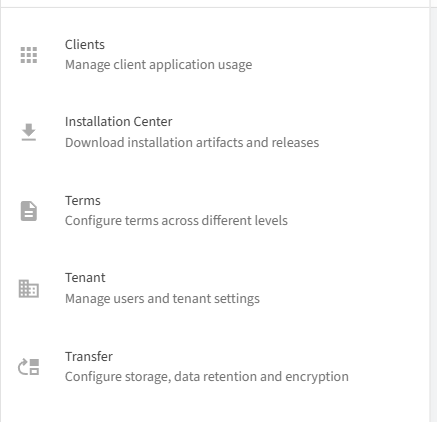 The Tenant Admin menu. Select Installation Center.
- In the Installation Center section, find the Desktop Client card. It shows the latest version, how long ago it was released, and how many outdated versions are in use in your organization.
- Select the Desktop Client card. The list of desktop client versions opens.
Shortcut: in Tenant Admin > Clients > Desktop Client, the Installation Center button (top right) opens the same list.
3. What the Installation Center shows
The page lists every released version of the desktop client, with the newest version at the top.
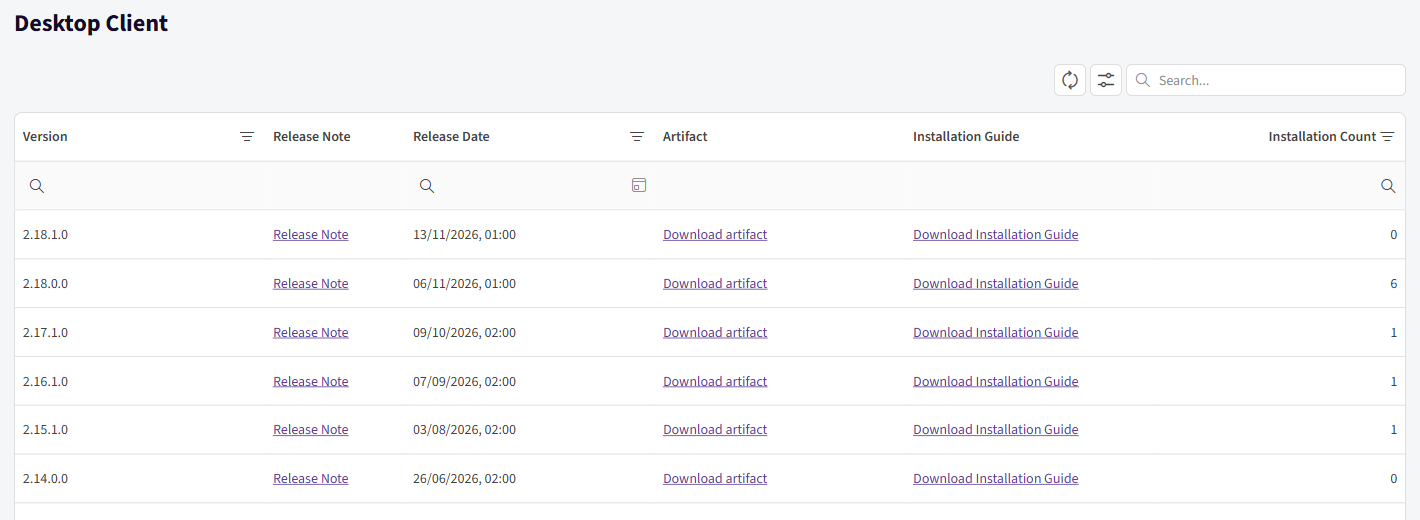 The Desktop Client page of the Installation Center.
| Column | What it shows |
|---|---|
| Version | The version number of the desktop client. |
| Release Note | A link to the release note for that version. A dash (-) means there is no release note for it. |
| Release Date | When the version was released. |
| Artifact | The Download artifact link. It downloads the installer (.msi). |
| Installation Guide | The Download Installation Guide link. It downloads the installation guide for that version. |
| Installation Count | How many times desktop clients of that version have been seen at sign-in in your organization. Use it as an indication of how widely a version is used, not as an exact count of PCs. |
Above the list are a refresh button, a column chooser (to show or hide columns), and a Search box.
Good to know:
- Only versions that SchedEx has released appear here. Versions that have been withdrawn are not shown.
- Older released versions stay in the list, so you can download a previous version if you need it.
4. Download the desktop client installer
- On the Desktop Client page, find the version you need. For a new installation, this is normally the top row (the newest version).
- In the Artifact column, select Download artifact. Your browser saves the installer, a file named like
Client_<version>_x64.msi, to your Downloads folder. - Optionally, select Download Installation Guide to save the installation guide, and select the Release Note link to read what changed.
 Download the installer with Download artifact, and the guide with Download Installation Guide.
Keep the
.msiin a safe place your IT department can reach, for example the share they use for software packages. Do not email it to many people; give them the Microsoft Store link instead when you can.
5. Install the .msi on one PC
What the installer does
- It installs the desktop client in a folder under C:\Program Files (x86).
- It adds a SchedEx shortcut to the desktop. It does not add a Start menu entry.
- It starts SchedEx when the installation finishes.
- If an older version is installed, it replaces it. You do not need to uninstall first.
- It refuses to install over a newer version. You then see the message "A later version of … is already installed".
What you need
- Administrator rights on the PC. Windows asks for them during installation.
- 64-bit (x64) Windows 10 or Windows 11.
- The Microsoft .NET 10 Desktop Runtime (x64). The
.msidoes not include it. Get it from Download .NET 10.0. See Installing the SchedEx desktop client.
Steps
- Double-click the downloaded
.msifile. - On the welcome page, select Next.
- Select Install. When Windows asks whether to allow the app to make changes, select Yes (or sign in with an administrator account).
- Select Finish. SchedEx starts.
- Sign in with your work account. For a tour of the program, see How to use the Desktop client.
To remove it later, open Settings > Apps > Installed apps, find SchedEx, select the three dots, and select Uninstall.
6. Hand the .msi to your IT department
If your IT department installs software for you, give them the .msi (and the installation guide). They can deploy it in several ways. Tell them that the .msi:
- is a standard Windows Installer package that installs silently with
msiexec /i "Client_<version>_x64.msi" /qn; - needs administrator rights (it installs under Program Files);
- needs the .NET 10 Desktop Runtime (x64) on the PC;
- upgrades an older SchedEx
.msiinstallation in place; - does not update itself, so each new version must be deployed again.
IT tip: the installer puts its shortcut on the desktop of the account that installs it. When you deploy in system context, add
ALLUSERS=1to the install command (msiexec /i "Client_<version>_x64.msi" ALLUSERS=1 /qn) so the program is installed for all users of the PC. Test on one PC first and check that users see the SchedEx shortcut.
Using Microsoft Intune? Your IT department finds the steps for the .msi, and the recommended Store app alternative that updates automatically, in Deploying the SchedEx desktop client with Microsoft Intune.
Microsoft Configuration Manager or another tool: create an application with the deployment type Windows Installer (*.msi file) (see Create applications), or use the silent install command above and the MSI product code to detect the installation.
7. Updates: the .msi does not update itself
| Installed with | Updates |
|---|---|
| Microsoft Store | Automatic |
| Intune, Microsoft Store app (new) | Automatic |
.msi by hand |
Not automatic. Someone must install each new version. |
.msi deployed by IT (Intune, Configuration Manager or another tool) |
Not automatic. IT must deploy each new version. |
The desktop client does not check for new versions itself and shows no "update available" message.
How to know a new version is out
- Installation Center: the newest version is at the top of the Desktop Client list. The Desktop Client card shows the latest version and when it was released.
- Outdated versions in your organization: the cards show how many outdated versions are in use. Tenant Admin > Clients > Desktop Client lists each user and machine with a Version Status, so you see who still runs an old version.
- Release notes: read the Release Note link for each new version.
Routine for each new version
- Download the new
.msifrom the Installation Center (chapter 4). - Install or deploy it:
- By hand: run the new
.msion each PC. It replaces the older version. - Microsoft Intune: see Deploy each new version in Deploying the SchedEx desktop client with Microsoft Intune.
- Configuration Manager or another tool: update the content or create a new application or package, as your tool requires.
- By hand: run the new
- Check Tenant Admin > Clients > Desktop Client after a few days to see that people have moved to the new version.
8. Who can do what
| Task | Who can do it |
|---|---|
| Open the Installation Center and download released installers, guides, and release notes | Tenant Admin (for their own organization) |
| See installed desktop client versions and outdated versions (Tenant Admin > Clients) | Tenant Admin |
Install the .msi on a PC |
A person with administrator rights on that PC |
Deploy the .msi to many PCs |
Your IT department, with its software-distribution tool |
| Publish new versions or withdraw versions | SchedEx (System Admin), in the Deployment Center. Not done from the Installation Center. |
9. Questions and answers
I do not see Installation Center in the menu. Only Tenant Admins see it. Ask a Tenant Admin in your organization to download the file, or install from the Microsoft Store instead.
What file do I get?
A Windows Installer file (.msi) for 64-bit Windows, named like Client_<version>_x64.msi. The installation guide is a separate download.
Do I need to uninstall the old version before installing a new one?
No. The new .msi replaces the older version.
Can I install an older version? Yes, if it is listed. Download it from the Installation Center. If a newer version is installed, uninstall it first, because the installer does not install over a newer version.
SchedEx does not start after installing, and Windows shows a message about .NET. Install the .NET 10 Desktop Runtime (x64). See Installing the SchedEx desktop client.
We installed the .msi earlier. Can we switch to the Store version?
Yes. Uninstall the .msi version, then install SchedEx Desktop from the Microsoft Store, or deploy it with Intune. From then on, updates are automatic.
What does Installation Count mean? It shows how often desktop clients of that version have been seen at sign-in in your organization. It helps you see which versions are still in use. It is not an exact number of PCs.
10. Related articles
Was this article helpful?
That’s Great!
Thank you for your feedback
Sorry! We couldn't be helpful
Thank you for your feedback
Feedback sent
We appreciate your effort and will try to fix the article