What this lets you do
The SchedEx desktop client is the Windows program you use to run uploads and downloads by hand. You need it when an Exchange Agreement (EA) uses a connector whose executing component is Desktop. To learn what the desktop client does once it is installed, see How to use the Desktop client.
This article explains every way to get the desktop client onto a Windows PC. It also helps your organization choose the right way, and it explains how each way keeps the program up to date.
- Who it is for: anyone who needs the desktop client, and the IT person who helps them.
- Who can do it: in most organizations, you can install it yourself from the Microsoft Store. If your organization blocks the Microsoft Store, or manages PCs centrally, your IT department installs it for you.
Not sure this is the right article?
- You are an IT administrator and want to push the app to many PCs: see Deploying the SchedEx desktop client with Microsoft Intune.
- You are a Tenant Admin and need the installer file (
.msi), an older version, or the installation guide: see Downloading the desktop client installer from the Installation Center.- You already have the desktop client and want to use it: see How to use the Desktop client.
TABLE OF CONTENTS
- Before you start
- Which way should my organization use? — comparison table · decision flow
- Install from the Microsoft Store — direct link · search in the Store · open the Store page from a link
- Install the .NET 10 Desktop Runtime
- Start SchedEx and sign in
- How the desktop client stays up to date
- When your organization installs it for you
- Questions and answers
- Related articles
1. Before you start
System requirements
| Requirement | What you need |
|---|---|
| Operating system | Windows 10 or later (Windows 11 recommended). 64-bit (x64) Windows only. |
| .NET | Microsoft .NET 10 Desktop Runtime (x64). The desktop client is built on .NET 10 and does not include the runtime. See chapter 4. |
| Memory | 16 GB is recommended if you work with schedules of more than 10,000 activities. |
| Network | Access to the internet and to SchedEx. For the Store way, also access to the Microsoft Store. |
| Account | A SchedEx user account in your organization (your work account). |
We recommend Windows 11. Microsoft ended support for most Windows 10 editions on October 14, 2025 (Windows 10 reaching end of support). Microsoft now supports .NET 10 on Windows 10 only for the Enterprise and LTSC editions (Install .NET on Windows).
To check your Windows version, press Windows key + R, type winver, and press Enter. To check that Windows is 64-bit, open Settings > System > About and look at System type. See Find information about your Windows device.
What rights you need
| What you do | Rights you need |
|---|---|
| Install from the Microsoft Store | Normally none. A standard Windows user can install Store apps. It does not work if your organization has turned off the Microsoft Store. |
| Install the .NET 10 Desktop Runtime | Administrator rights on the PC (the runtime is installed for the whole PC). If you are not an administrator, ask your IT department. |
Install the .msi installer by hand |
Administrator rights on the PC. |
| Deploy with Microsoft Intune | An Intune role that can add and assign apps. See Deploying the SchedEx desktop client with Microsoft Intune. |
Download the .msi from the Installation Center |
The Tenant Admin role in SchedEx. See Downloading the desktop client installer from the Installation Center. |
2. Which way should my organization use?
There are four ways to get the desktop client. They differ in who does the work, which rights are needed, and, most important, whether the program updates itself.
Compare the four ways
| Microsoft Store (each user) | Intune with Microsoft Store app (new) | Intune or another tool with the .msi |
Manual .msi |
|
|---|---|---|---|---|
| Who does it | Each user, on their own PC | An IT administrator, once, for many PCs | An IT administrator, once per version | Someone with admin rights, PC by PC |
| Rights needed | None for the app (admin rights only for the .NET runtime) | Intune role that can add and assign apps; PCs enrolled in Intune | Tenant Admin in SchedEx to download the file; rights in Intune or your distribution tool | Tenant Admin to download the file; local administrator to install |
| Works when the Store is blocked for users? | No | Yes. Blocking the Store app does not stop Intune from installing Store apps. | Yes | Yes |
| Automatic updates? | Yes, through the Microsoft Store | Yes, Intune and the Store keep it up to date | No. IT must deploy each new version | No. Someone must install each new version |
| Best for | Individuals and small teams | Organizations that manage PCs with Intune (recommended) | Organizations that do not use Intune with the Store, or must control every version | One-off installs, test PCs, or PCs without Store access and without central management |
Our recommendation
- Managed organization: use Intune with Microsoft Store app (new). Users get updates automatically, even if they cannot open the Microsoft Store themselves.
- Individual user: install from the Microsoft Store.
Decision flow
- Can people in your organization use the Microsoft Store?
- Yes: each user installs from the Microsoft Store (chapter 3). Updates are automatic. If you also manage PCs with Intune, you can still deploy it centrally (next step) so users do not have to do anything.
- No: go to step 2.
- Does your organization manage PCs with Microsoft Intune?
- Yes: deploy SchedEx Desktop as a Microsoft Store app (new). See Deploying the SchedEx desktop client with Microsoft Intune. Updates are automatic.
- No: go to step 3.
- Do you use another software distribution tool (for example Microsoft Configuration Manager)?
- Yes: a Tenant Admin downloads the
.msifrom the Installation Center and IT deploys it with that tool. Plan to repeat this for every new version. See Downloading the desktop client installer from the Installation Center. - No: a person with administrator rights installs the
.msiby hand on each PC, and repeats it for each new version.
- Yes: a Tenant Admin downloads the
Whichever way you choose, every PC also needs the .NET 10 Desktop Runtime (chapter 4).
3. Install from the Microsoft Store
The desktop client is in the Microsoft Store as SchedEx Desktop, published by Promineo AS. It is free. Its Store ID is 9P636SWQ0C8F.
Use one of these three ways to open the Store page. They all lead to the same app.
Option A: Use the direct link
- Open this link in your browser: https://apps.microsoft.com/detail/9P636SWQ0C8F.
- Check that the page shows SchedEx Desktop and the publisher Promineo AS.
- Select View in Store to open the page in the Microsoft Store app, then select Get (or Install). You can also select Download. Your browser then saves a small installer. Run it, and it installs the app through the Microsoft Store.
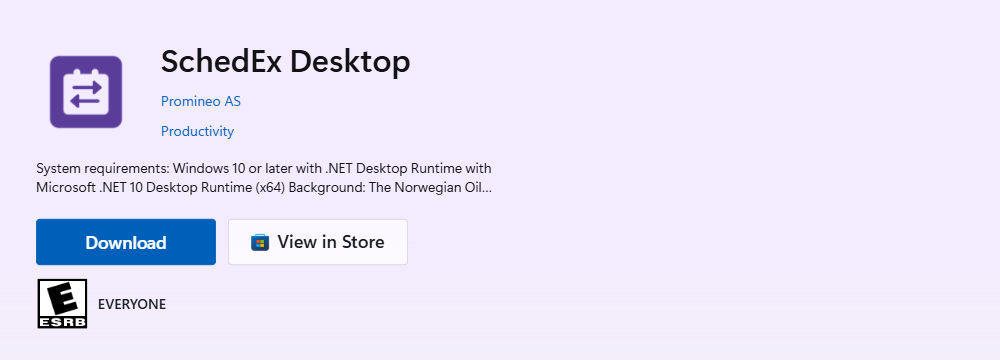 The SchedEx Desktop page on the Microsoft Store website.
Done? Go to chapter 4.
Option B: Search in the Microsoft Store app
- Select Start, type Microsoft Store, and open the Microsoft Store app.
- In the search box at the top, type SchedEx Desktop and press Enter.
- In the results, select SchedEx Desktop. Check that the publisher is Promineo AS.
- Select Get (or Install). Wait until the button changes to Open.
Done? Go to chapter 4.
Option C: Open the Store page straight from a link
This link opens the SchedEx Desktop page directly in the Microsoft Store app, without a browser page in between. It is handy in an email or on an intranet page:
ms-windows-store://pdp/?productid=9P636SWQ0C8F
Paste it into your browser's address bar (or into Windows key + R) and press Enter. Allow Windows to open the Microsoft Store if it asks. Then select Get (or Install).
Done? Go to chapter 4.
Test (UAT) version
Some organizations also test new SchedEx versions in the SchedEx test environment (UAT). The test environment has its own desktop client in the Microsoft Store: https://apps.microsoft.com/detail/9PFHDP53RM3D. Install it only if you have been asked to test. For everyday work, use SchedEx Desktop (9P636SWQ0C8F).
If the Microsoft Store does not open, or says the app is blocked: your organization has probably turned off the Microsoft Store. Ask your IT department to install SchedEx for you. Point them to Deploying the SchedEx desktop client with Microsoft Intune.
For more help with the Store itself, see Get trusted apps and games from Microsoft Store.
4. Install the .NET 10 Desktop Runtime
The desktop client needs the Microsoft .NET 10 Desktop Runtime (x64). Neither the Store app nor the .msi installs it for you. Many PCs already have it. If it is missing, Windows shows a message about .NET when you start SchedEx, and the program does not open.
Check whether it is installed
- Open Settings > Apps > Installed apps (Windows 11) or Settings > Apps > Apps & features (Windows 10).
- Search for Desktop Runtime.
- Look for Microsoft Windows Desktop Runtime - 10.0.x (x64). Any 10.0 version works.
Install it
You need administrator rights for this step. If you do not have them, ask your IT department.
- Go to the Microsoft download page: Download .NET 10.0.
- Find .NET Desktop Runtime 10.0.x and select the x64 installer for Windows.
- Run the downloaded file and follow the steps.
Microsoft describes all options in Install .NET on Windows. After that, Microsoft Update can keep the runtime patched (turn on Receive updates for other Microsoft products in Settings > Windows Update > Advanced options).
5. Start SchedEx and sign in
- Select Start and open SchedEx Desktop (a Store or Intune install), or use the SchedEx shortcut on your desktop (an
.msiinstall). - Sign in with your work account, the same account you use for SchedEx on the web.
- The version number is shown in the program. Note it if you contact support.
For a tour of the program, see How to use the Desktop client.
6. How the desktop client stays up to date
How you get updates depends on how the desktop client was installed. The desktop client does not check for new versions itself, and it does not show an "update available" message.
| Installed with | How updates arrive | What you need to do |
|---|---|---|
| Microsoft Store | Automatically, through the Microsoft Store | Keep App updates turned on: in the Microsoft Store app, select Profile (your account photo) > Store Settings and check that App updates is On. To update right away, select Library > Get updates. See Turn on automatic app updates and Get updates for apps and games in Microsoft Store. |
| Intune, Microsoft Store app (new) | Automatically. Intune keeps Store apps up to date. | Nothing for users. IT must not turn on the Store policy Turn off Automatic Download and Install of updates. See Deploying the SchedEx desktop client with Microsoft Intune. |
.msi (by hand, Intune line-of-business or Win32 app, or another tool) |
Not automatically | A Tenant Admin downloads each new version from the Installation Center, and IT installs or redeploys it. See Downloading the desktop client installer from the Installation Center. |
Tip for Tenant Admins: in SchedEx, Tenant Admin > Clients > Desktop Client shows which version each user runs, and marks outdated versions. Use it to see who still needs an update.
7. When your organization installs it for you
If your IT department manages your PC, you may not need to do anything:
- Installed automatically (Required): SchedEx Desktop appears in your Start menu by itself. Open it and sign in (chapter 5).
- Offered in Company Portal (Available): open the Company Portal app, or the Company Portal website https://portal.manage.microsoft.com. Find SchedEx Desktop under Apps (or search for it) and select Install. Microsoft explains this in Install work apps from Intune Company Portal app for Windows.
- Installed with another tool: your IT department tells you how. Some organizations use Software Center (Configuration Manager) or a similar self-service catalog.
If you cannot find SchedEx Desktop, contact your IT department. In Company Portal, Help & support shows your helpdesk contact details.
8. Questions and answers
Is the desktop client free? Yes. SchedEx Desktop is free in the Microsoft Store. You need a SchedEx user account to sign in.
Do I need administrator rights?
Not for the Store app itself. You need them for the .NET 10 Desktop Runtime if it is not already installed, and for the .msi installer.
SchedEx does not start, and Windows shows a message about .NET. What do I do? The .NET 10 Desktop Runtime is missing. Install it as described in chapter 4, or ask your IT department.
The Microsoft Store is blocked on my PC. Can I still get SchedEx?
Yes, but your IT department must install it. With Intune, they can deploy the Store app even when the Store is blocked for users, and it still updates automatically. Without Intune, they can install the .msi, which a Tenant Admin downloads from the Installation Center.
Can I have both the Store version and the .msi version installed?
Avoid it. They are installed separately and can end up on different versions. Choose one way per PC. If you switch to the Store version, uninstall the .msi version first in Settings > Apps > Installed apps.
Does the desktop client work on ARM-based PCs or on 32-bit Windows? The desktop client is built for 64-bit (x64) Windows. Intune's Microsoft Store app (new) also does not support apps with an ARM64 installer.
Why does the Store say the app can use all system resources? SchedEx Desktop is a classic Windows desktop program packaged for the Store. Such programs run like any other installed program. This lets SchedEx connect to SchedEx and to your scheduling systems, and read and write the files you choose.
How do I know which version I have? The version is shown in the desktop client, including on the sign-in window.
Can I install an older version?
The Microsoft Store always gives you the latest version. A Tenant Admin can download older released versions from the Installation Center, but the .msi will not install over a newer version. Uninstall the newer version first.
How do I uninstall it?
Open Settings > Apps > Installed apps, find SchedEx Desktop (or SchedEx for an .msi install), select the three dots, and select Uninstall. See Uninstall or remove apps and programs in Windows.
9. Related articles
Was this article helpful?
That’s Great!
Thank you for your feedback
Sorry! We couldn't be helpful
Thank you for your feedback
Feedback sent
We appreciate your effort and will try to fix the article